Expert Electronics DUC/DDC SDR Series Manuel utilisateur

Quick Start
DUC/DDC HF/6M/VHF
SDR transceiver
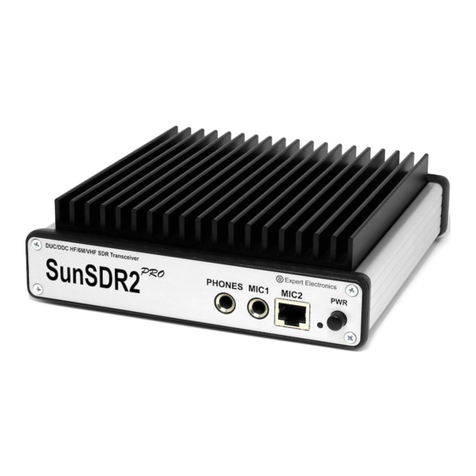
SunSDR2
EXPERT
ELECTRONICS
DUC/DDC SDR Series
19 Febrary 2013
Expert Electronics LLC. www.sunsdr.com
Version 1
- Direct Digital conversion
- High Dynamic Range
- Wide band bandscope
- HF/6M/VHF
- Output power 20W (HF)
- Output power 10W
- LAN interface
- Embedded WLAN router
- Remote control
- Small size
Key Features:
(6M, VHF)
up to 80MHz

1
Expert Electronics DUC/DDC SDR Transceivers Series
Contents
Introduction ...............................................................................................................2
1. Connection ............................................................................................................3
2. Transceiver Ethernet-connection setting ..............................................................4
3. IP address setting in Windows Vista/7 .................................................................6
4. IP address setting in Windows XP........................................................................8
5. Transceiver IP address change ..........................................................................10
6. WLAN unit IP address change............................................................................11
7. SunSDR2 WLAN – unit setting in AP Client mode.............................................12
8. Software interface description ............................................................................13
Conclusion ..............................................................................................................17

2
Expert Electronics DUC/DDC SDR Transceivers Series
Introduction
Please, spend 5 minutes on reading this document and
you will be able to start quickly to work with SunSDR2
transceiver and broadcast in a new way today. This
document gives answers to the majority of first
questions, appearing at a new user who starts working
with a transceiver of a new type.
You have bought the most up-to-date radio amateur
equipment which can be imagined for today. This
transceiver is a compound software defined radio,
allowing to provide high quality of signal processing both
in receiving and transmitting mode by modern digital
methods. PC use in transceiver allows to provide
qualitative service not only in receiving/transmitting, but
also to use the HAM LOGs and DIGI software without
wires.
Effective and quick mastering of SundSDR2 computer
transceiver is possible on condition that user has basic
skills in using PC. It’s considered that computer terms
used in this manual on quick start are familiar to the user
and won’t cause any difficulties in searching one or
another tab in Windows 7 or Windows XP. For
visualization and simplicity, screenshots of dialogue
windows will be given here, necessary functions and
fields for editing will be outlined with coloured contour.
SunSDR2 transceiver is a software defined radio. It
means that you will need PC or laptop for work with
transceiver. PC controls transceiver, RX/TX modes,
band switching and data rate processing, coming from
and to transceiver. These rates by PC at the input and
output gives audio signal and receive microphone signal
and by transceiver they give HF-signal, transmitting into
the air.
The main feature of this transceiver and its basic
distinction from all the other recent output transceivers is
the use of absolutely new principle of radio signal
processing.
There is no frequency converting units in its classical
variant. The signal is converted almost from the
antenna, all the further signal processing is in the
software. The same process is observed while
transmitting. Forming of necessary signal modulation
type is made by digital method right at the required
frequency. From all the classical nodes there is only
preselector, power amplifier and low frequency filter for
PA in the scheme.

3
Expert Electronics DUC/DDC SDR Transceivers Series
1. Connection
For starting SunSDR2 transceiver work the following
components are required:
·Transceiver power supply unit;
·PC;
·CW key (if it’s required);
·Microphone or telephone headset;
·Computer net LAN – cable;
·Antenna, tuned into radio amateur frequencies.
Let’s have a look at each component.
Power Supply unit must have power not less than 75
W, provide constant voltage of 15 V at the output with 5
Amperes load current. Under 15 V supply voltage
transceiver gives full output power of 20 W.
PC or laptop can be of any modern configuration,
produced during last 2-3 years. Recommended
configuration:
·2 or 4 cores CPU Intel Core i3 or Core i5
·2, 4 or 8 Gb RAM
·40 Gb of available space in hard disk for transceiver
and accompanying software.
·17 – 24” of monitor screen.
·Video card with OpenGL 1.5 or more updated
support.
Transceiver software will work with less powerful PC
with Core2Duo and Dual Core, but it will cause
increased load level and it’s not always good. The more
powerful the PC the less resource the software will
occupy and the easier and more colourful “waterfall” and
panadapter will be painted.
OS must Windows XP 32/64bit or Windows 7 32/64bit.
Information about OpenGL support by video card can be
got at the sellers when buying the PC.
Microphone or Telephone headset can be either of the
simplest and cheapest as, for example, by Genius, or
developed specially for radio amateurs by Heil Sounds.
On the transceiver front panel there is a usual 6,3 mm
slot for electret microphone connecting. And also there
is a jack, compatible with Yaesu PTT-switches of MH-31
type. This jack allows to connect PTT-switches of such
popular transceiver as Yaesu FT-817/857/897 to
transceiver.
Receiving/transmitting modes control is produced by
pushing the PTT-footswitch (e.g. ЕЕ-РС-01), connected
to “PTT” jack on the back panel of the transceiver.
Computer net LAN – cable performs transceiver
connection to PC by ETHERNET-connection. PC
connection is also possible “by air”, via wireless net. The
easiest and quickest transceiver connection to PC is by
LAN-cable, supplied with the transceiver.
Antenna, tuned into radio amateur frequencies must
have impedance close to 50 Ohm at those bands where
work is planned.

4
Expert Electronics DUC/DDC SDR Transceivers Series
2. Transceiver Ethernet-connection
setting
There are several ways of transceiver connecting to PC.
Let’s have a look at each in detail.
Connection by wire net connection is possible in 2
variants – direct connection to PC by wire Ethernet(LAN)
interface and by already working local net via router.
Direct connection to PC by wire Ethernet(LAN) interface.
1) Connect your transceiver to PC by LAN-cable,
supplied with transceiver.
2) Switch on the transceiver.
3) Set IP address in Windows XP or Windows Vista/7 as
it will be showed in section 3 and section 4.
4) Launch ExpertSDR2 software and push «Start».
If you have already local net with IP address not
192.168.16.ххх and you need to change IP address in
SunSDR2.
1) Connect your transceiver to PC by LAN-cable,
supplied with transceiver.
2) Switch on the transceiver.
3) Set static IP address in Windows XP or Windows
Vista/7 as it will be showed in section 3 and section 4
4) Launch ExpertSDR2 software and push «Start».
5) Change IP address in SunSDR2 as it is showed in
section 5.
6) Connect transceiver by LAN-cable to local net..
Now at any PC in local net ExpertSDR2 software can be
launched.
Transceiver connection by wireless interface.
In wireless variant of connection there are also two ways
of connection – direct connection to PC in a “point-point”
mode and connection to WLAN access point, making
wireless connection out of one or several computers.
Direct connection to PC via built-into transceiver WLAN-
unit(without access point) as it is showed in Figure 2.1.
Standard 802.11n support with 150 Mbps data rate by
wireless PC card is compulsory for connection. Data
stream sampling rate recommended frequency from the
transceiver is 39062,5 Hz in this case. This rate is set up
in ExpertSDR2 software settings at Options->SDR tab.
Figure 2.1 – Direct wireless connection to PC
1) Switch on the transceiver.
2) Push «L/W» (LAN/WLAN) at the back panel of the
transceiver
3) Wait till yellow led WLAN is lit on the front panel of
the transceiver.
4) Connect to SunSDR2 wireless net. Make sure that
connection rate on wireless net is 150 Mbps or more.
5) Launch ExpertSDR2 software and push «Start».
Connection to PC or to the net by access point as it is
showed in figure 2.2.
Figure 2.2 – Connection to PC by access point (router)
This scheme is used if you need to work with several
devices by wireless connection or you have already
wireless net, set according to your requirements. In this

5
Expert Electronics DUC/DDC SDR Transceivers Series
case you will need to change SunSDR2 transceiver IP
address.
In this scheme computer is a WLAN access point (or Wi-
Fi router) in Access Point (AP) mode, SunSDR2 WLAN-
unit in AP Client mode.
If you have already WLAN net with IP address not
192.168.1.ххх and you need to change IP address in
SunSDR2.
1) Switch on the transceiver.
2) Connect SunSDR2 by LAN-cable.
3) Change IP address in the device as it is showed in
section 5.
4) Push «L/W» (LAN/WLAN) at the back panel of the
transceiver.
5) Wait till yellow led WLAN is lit on the front panel of
the transceiver.
6) Put SunSDR2 Wi-Fi unit into AP Client mode.
7) Launch ExpertSDR2 software and push «Start».

6
Expert Electronics DUC/DDC SDR Transceivers Series
3. IP address setting in Windows Vista/7
1) Push Start in the left lower corner in Windows and
choose Control panel. There will be a menu, shown
in figure3.1. In section Network and Internet choose
Tasks and networks status scan.
Figure 3.1 – PC parameters settings window
2) In the appeared window (view figure 3.2) choose
Adapter parameters change.
Figure 3.2 – Viewing network data and connections
settings window
3) Choose network connection with SunSDR2
connected to it as it is showed in Figure 3.3., then
push the right button of the mouse on the icon and
choose Properties in the drop down window.
Figure 3.3 – Properties of connection by local net
4) In the new window put cursor on Internet protocol
version 4 and push Properties (view Figure 3.4.).
Figure 3.4 – Network settings properties window

7
Expert Electronics DUC/DDC SDR Transceivers Series
5) Set IP-address 192.168.16.50 and subnet mask
255.255.255.0 as it is showed in Figure 3.5. These
parameters are spread to the network card of PC.
Instead number 50 of IP-address you can set any
number, except 255 and 200. Transceiver IP-address
is 192.168.16.200 by default. After setting push OK.
Here IP-address setting is over.
Figure 3.5 – IP-address setting window

8
Expert Electronics DUC/DDC SDR Transceivers Series
4. IP address setting in Windows XP
1) Push Start in the left lower corner in Windows and
choose Control panel. Then Network and Internet
connection. (view Figure 4.1.).
Figure 4.1 - Windows XP control panel
2) Choose Network connection (view Figure 4.2)
Figure 4.2 – Network connection choice
3) Choose network connection with SunSDR2
connected to it, push the right button of the mouse on
the icon and choose Properties in the drop down
menu (view Figure 4.3).
Figure 4.3 – Network connections
4) In the new window put cursor on Internet protocol
version 4 and push Properties (view Figure 4.4.).
Figure 4.4 – Connection by local net properties window

9
Expert Electronics DUC/DDC SDR Transceivers Series
5) Set IP-address 192.168.16.50 and subnet mask
255.255.255.0 as it is showed in Figure 3.5. These
parameters are spread to the network card of PC.
Instead number 50 of IP-address you can set any
number, except 255 and 200. Transceiver IP-
address is 192.168.16.200 by default. After setting
push OK. Here IP-address setting is over.
Figure 4.5 – IP-address setting window
Ce manuel convient aux modèles suivants
1
Table des matières
Autres manuels Expert Electronics Émetteur-récepteur

Expert Electronics
Expert Electronics SunSDR2 QRP Manuel utilisateur

Expert Electronics
Expert Electronics SunSDR2 DX Manuel utilisateur

Expert Electronics
Expert Electronics SunSDR2 DX Manuel utilisateur

Expert Electronics
Expert Electronics SunSDR2 Pro Manuel utilisateur

Expert Electronics
Expert Electronics SunSDR2 Pro Manuel utilisateur

Expert Electronics
Expert Electronics MB1 Manuel utilisateur

Expert Electronics
Expert Electronics MB1 Manuel utilisateur

Expert Electronics
Expert Electronics SunSDR2 DX Manuel utilisateur

Expert Electronics
Expert Electronics SunSDR2 Pro Manuel utilisateur


