Video Mode Setting
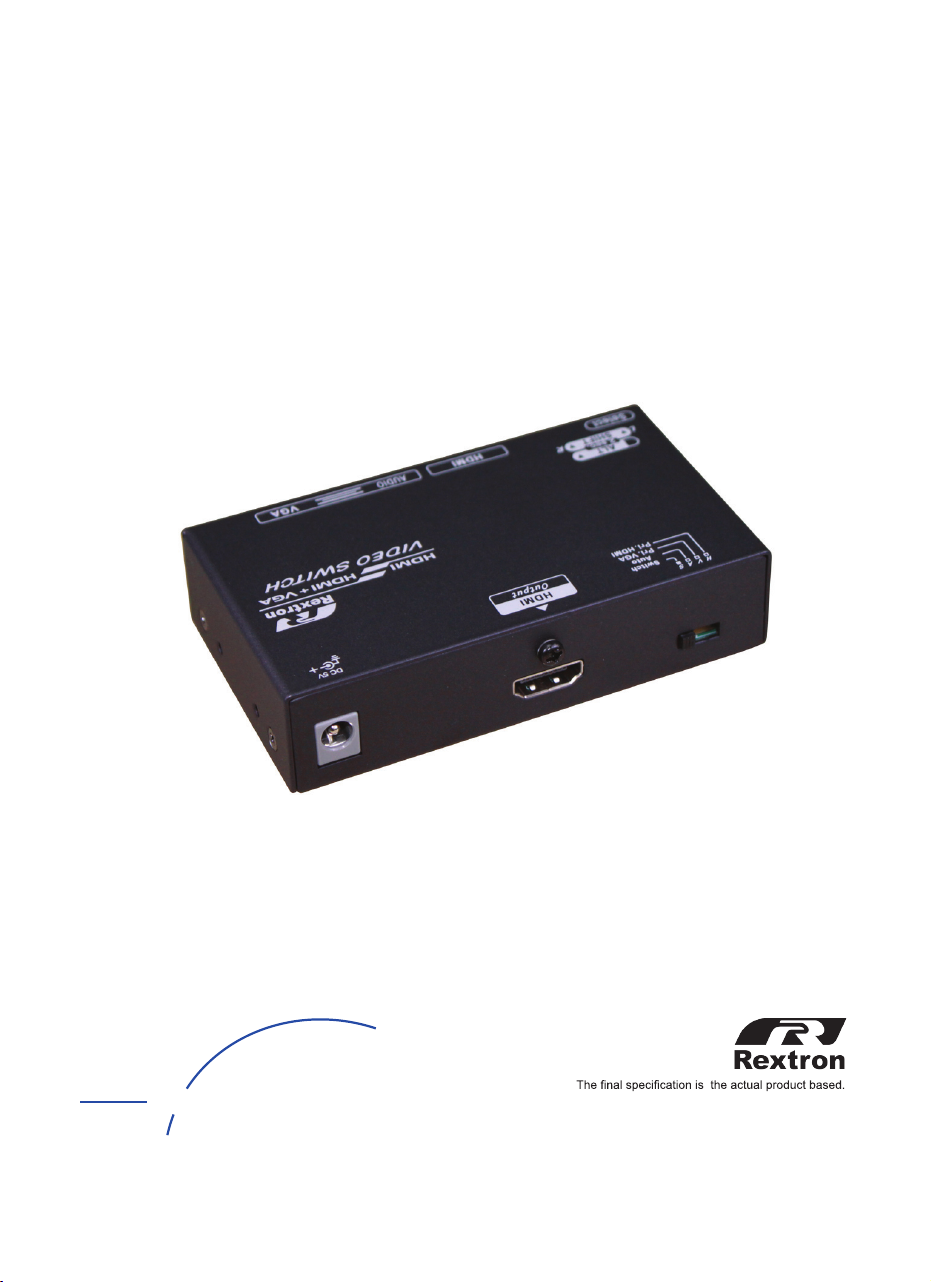
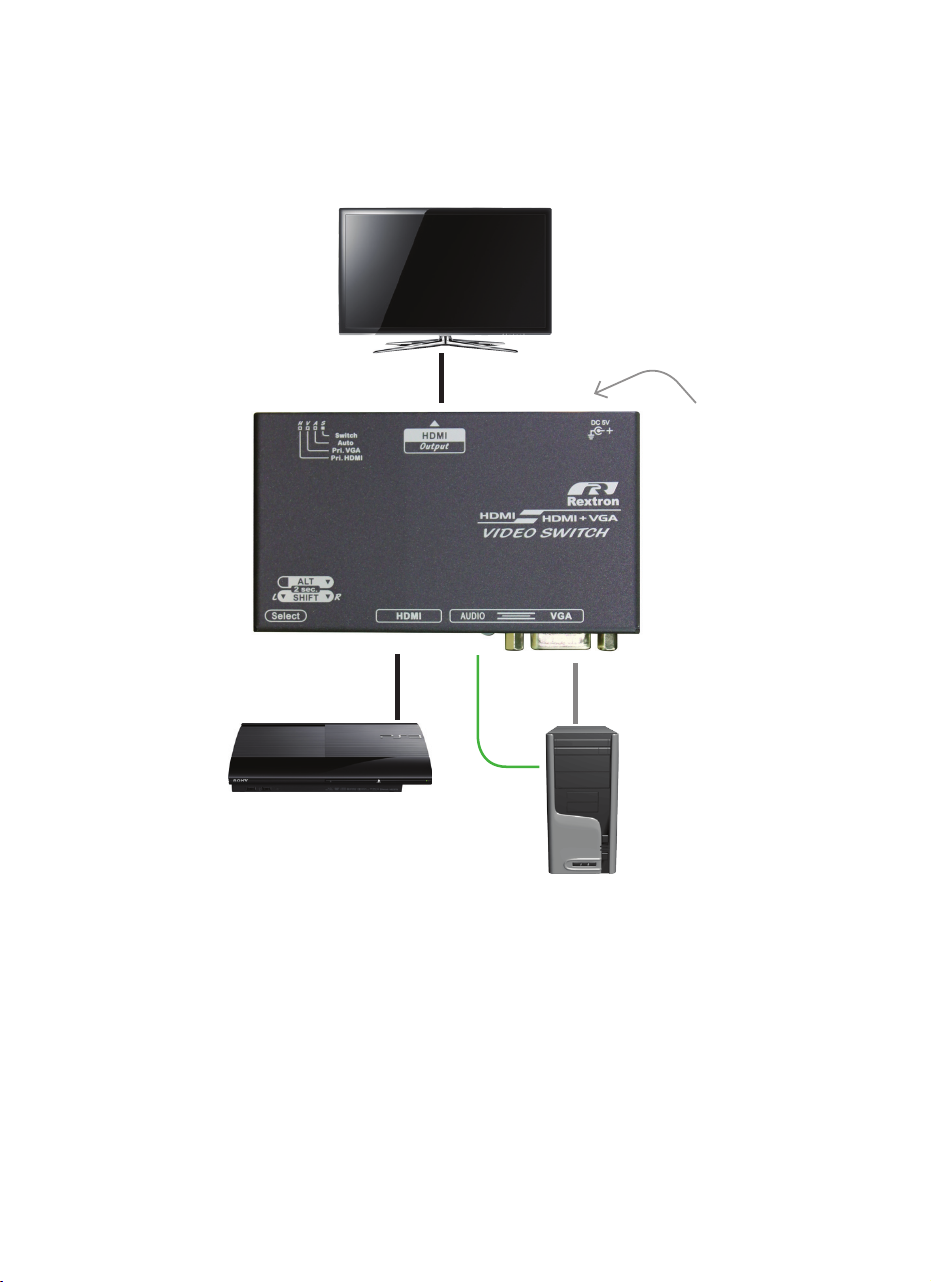
This switch allows user to select the input source from HDMI or VGA + audio. By
switching the slide switch according to the printing from left to right HDMI Priority,
VGA Priority, Auto and Switch, users can choose the source which is the main
output.
● Switch: Manually press the button "Select" to switch VGA or HDMI
●Auto: Automatically select the last source.
● VGA Priority: Give priority to VGA source
● HDMI Priority: Give priority to HDMI source
NOTE:
Press Select button (B1 / B2) to select VGA or HDMI source to display in any
mode
NOTICE:
detcetedsiytivitcaonfiedomtfihsmorfepacseyllacitamotualliwmetsysehT.1
within 20 seconds.
2. Max. horizontal image displacement is 50 steps.
3. The system will automatically retain user's last setting.
Screen Shift Mode
Screen Shift Mode can move image to right or left side on the monitor
(horizonal position) for comfotable viewing.
Step 1. Press both Shiftbuttons (B1&B2) simultaneously over 2 sec. and
release the button RIGHTAFTER the VGA input LED (L1) turns to
Pale Blue.
Step 2. Press left button (B1) or right button (B2) to adjust image's position.
Resolution Alteration Mode
Under some particular video resolution, VGA input LED (L1) will turn to
emit Blue and flash Orange twice when catching multiple similar video
timing. User can use Resolution Alteration Mode to select proper video
resolution.
Step 1. Press ALT button (B2) over 2 sec.
Step 2.
NOTE:
1. Press ALT Button (B2) over 2 sec. again to select next available
resolution or switch back to the previous resolution.
2. The system will automatically retain user's last setting.