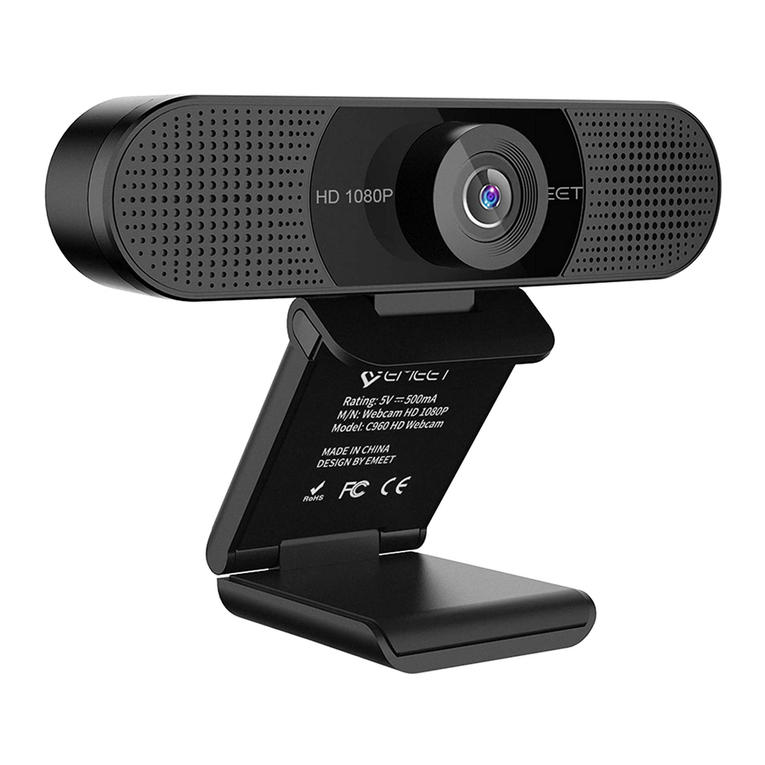
EMEET C980 PRO Manuel utilisateur

USB WEBCAM
HD WEBCAM EMEET C980
HD WEBCAM EMEET C980 PRO
User Manual/使用说明书
English/日本語/简体中文/Deutsch/Italia/España/Francés
1
0
8
0
P
W
E
B
C
A
M
E
M
E
E
T
I
N
C
.
H
D
L
E
N
S


English.................................................................................................................................... 1
For Mac OS X Users..................................................................................................... 3
For Windows Users....................................................................................................... 8
简体中文................................................................................................................................11
Mac OS X用户.................................................................................................................. 12
Windows用户................................................................................................................... 16
日本語...................................................................................................................................... 19
Mac OS Xユーザー...................................................................................................... 20
Windowsユーザー........................................................................................................ 24
Deutsch............................................................................................................................... 28
Mac OS X-Benutzer.................................................................................................... 30
Windows-Benutzer..................................................................................................... 35
Italia.......................................................................................................................................... 39
Utenti Mac OS X........................................................................................................... 41
Utente Windows............................................................................................................ 46
España................................................................................................................................. 50
Usuarios de Mac OS X............................................................................................. 52
Usuario de Windows................................................................................................. 57
Francés................................................................................................................................ 61
Usuarios de Mac OS X............................................................................................. 63
Usuario de Windows.................................................................................................. 68
Contents
www.emeet.ai
V1.4

..........................................................................................................................................................
HD Webcam eMeet C980/HD Webcam eMeet C980 Pro
CONGRATULATIONS
..........................................................................................................................................................
1.0 WEBCAM OVERVIEW
Thank you for purchasing your new eMeet 1080P Webcam. Use
this guide to setup and begin using your HD Webcam eMeet
C980/HD Webcam eMeet C980 Pro 1080P.
This user guide will provide you with all of the information you
need to get the most from your system.
If you have any problems setting up or using your HD Webcam
eMeet C980/HD Webcam eMeet C980 Pro 1080P, please contact
Alternatively , solutions to common problems can be found in the
FAQ selection at the end of this manual.
Microphone
Lens
Lights
Universal Clip
Tripod-Ready Base
English [ 1 ]
1
0
8
0
P
W
E
B
C
A
M
E
M
E
E
T
I
N
C
.
H
D
L
E
N
S

1.1 Hardware Overview
Model
Sensor
Lens
Video resolution/
frame rate
Focusing range
Audio
Power supply
HD Webcam eMeet C980
1920×1080P CMOS
4 layers
1920 × 1080, 30 fps
5 cm to 5 m
4 omnidirectional
microphone arrays;
automatic
noise suppression
USB power supply
HD Webcam eMeet C980 Pro
1920×1080P CMOS
4 layers
1920 × 1080, 30 fps
5 cm to 5 m
4 omnidirectional
microphone arrays;
automatic noise
suppression, automatic
echo cancellation;
2 loudspeakers, 1 W x 2
USB power supply
1.2 Minimum System Requirements
Please be sure that you meet all of the system requirements below
to avoid diculties during installation.
Note:
Do not use a USB HUB for power supply to prevent failure in using
the Webcam.
CPU :
1.5GHz Processor or
above
Memory :
512MB RAM or above
Operation System :
Windows XP, Vista
and 7/8/8.1/10 ;
Requires Mac 10.4 or
later
Connection :
USB 1.1 Port or above
Resolution :
640×480 or higher
recommended
Video/Sound Card :
16 bit or higher
English [ 2 ]

..........................................................................................................................................................
2.0 SETTING UP YOUR WEBCAM
..........................................................................................................................................................
3.0 SETTING UP YOUR WEBCAM
3.1 For Mac OS X Users
2.1 Place your webcam 2.2 Connect your webcam
2.3 Fixed focus lens:
Fixed focus keeps things in focus up to five meters away. No
need to adjust the lens focus manually.
The HD Webcam eMeet C980/HD Webcam eMeet C980 Pro will
be automatically installed when you connect it to a Mac; no
additional software is required. You will need to open camera
software such as Quick Time, Photo Booth, Skype or Face Time to
start streaming the video. Quick Time and Photo Booth are
preinstalled on all Macs as standard.
To check if the webcam is detected or not, you may click the Apple
Menu (in the top left corner of your screen) and then click About
this Mac. Click on System Report from the pop-up window that
appears. The System Information window for your Mac will
appear. Navigate to the USB Section and check to see if the
webcam is listed as a connected device (Show as “HD Webcam
eMeet C980/HD Webcam eMeet C980 Pro”, like the photo below).
English [ 3 ]

HD Webcam eMeet C980:
HD Webcam eMeet C980 Pro:
English [ 4 ]
USB Device Tree
ATA
Apple pay
Audio
Bluetooth
Camera
Card Reader
Controller
Diagnostics
Disc Burning
Ethernet Cards
Fibre Channel
FireWire
Graphics/Displays
Hardware RAID
Memory
NVMExpress
PCI
Parallel SCSI
Power
Printers
SAS
SATA/SATA Exoress
SPI
Storage
Thunerbolt
USB
Hardware
USB 3.0 Bus
HD Webcam eMeet C980
USB 2.0 Hub
Network
Software
USB Device Tree
ATA
Apple pay
Audio
Bluetooth
Camera
Card Reader
Controller
Diagnostics
Disc Burning
Ethernet Cards
Fibre Channel
FireWire
Graphics/Displays
Hardware RAID
Memory
NVMExpress
PCI
Parallel SCSI
Power
Printers
SAS
SATA/SATA Exoress
SPI
Storage
Thunerbolt
USB
Hardware
USB 3.0 Bus
HD Webcam eMeet C980 Pro
USB 2.0 Hub
Network
Software

HD Webcam eMeet C980:
HD Webcam eMeet C980:
HD Webcam eMeet C980 Pro:
3.1.1 Photo Booth
Your system should automatically detect the Webcam in the Photo
Booth if it has no internal camera of its own. In rare cases where it
does not, please try disconnecting the camera and reconnecting it
once Photo Booth is already running, or you may try to restart your
Mac.
If your Mac has a built-in camera already , you may open Photo
Booth , chick the Camera on the top left of your screen , and
choose the “HD Webcam eMeet C980/HD Webcam eMeet C980
Pro ” to use this webcam (like the photo below ).
3.1.2 Face Time
So long as the Mac being used meets Apple’s guidelines for
running Face Time (having either OS X v10.5 installed or, on a
small number of models, a built-in iSight camera on OS X v10.4),
simply follow the installation instructions for Macs. Your system
should automatically detect the Webcam in the Face Time.
If your Mac has a built-in camera already, you may open Face
Time, chick Video on the top left of your screen, and choose the
“HD Webcam eMeet C980/HD Webcam eMeet C980 Pro” to use
this webcam (like the photo below ).
English [ 5 ]
Photo Booth File Edit View Camera Window Help
FaceTime HD Camera
HD Webcam eMeet C980
Enable Screen Flash
Photo Booth File Edit View Camera Window Help
FaceTime HD Camera
HD Webcam eMeet C980 Pro
Enable Screen Flash

HD Webcam eMeet C980 Pro:
3.1.3 Skype
Before running the Skype, make sure that any other applications
that are using the webcam are fully closed. Failure to do so will
mean that Skype may not recognize the webcam. It is highly
recommended to update your Skype to latest version.
Once you have installed Skype and started it up, select
Preferences... from the Skype menu in the top left corner of your
screen (like the photo below):
English [ 6 ]
Skype File Edit View Window Tools Help
About Skype
Preferences...
Audio & Video Settings...
Check For Updates
Services
Hide Skype
Hide Others
Show All
Quit Skype
FaceTime File Edit Video Window Help
Mute
Always on Top
Use Landscape
Enter Full Screen
Camera
HD Webcam eMeet C980
FaceTime HD Camera
Microphone
Use System Setting
Internal Microphone
HD Webcam eMeet C980
If you`d like to use the webcam`s
microphone,please make sure
the HD Webcam eMeet C980
(UnderMicropho-nesection)is
selected. otherwise you may use
the Internal Microph-one.
FaceTime File Edit Video Window Help
Mute
Always on Top
Use Landscape
Enter Full Screen
Camera
HD Webcam eMeet C980 Pro
FaceTime HD Camera
Microphone
Use System Setting
Internal Microphone
HD Webcam eMeet C980 Pro
If you`d like to use the webcam`s
microphone,please make sure
the HD Webcam eMeet C980 Pro
(UnderMicropho-nesection)is
selected. otherwise you may use
the Internal Microph-one.

HD Webcam eMeet C980:
HD Webcam eMeet C980 Pro:
In the Audio/ Video tab , Select“HD Webcam eMeet C980/HD
Webcam eMeet C980 Pro” in the Microphone dropdown menu ,
select “HD Webcam eMeet C980/HD Webcam eMeet C980 Pro” in
the Camera dropdown menu .
We recommend the users uncheck the box below the Microphone
dropdown menu marked Automatically adjust microphone setting.
This option, when checked, can sometimes cause sound
interruptions during voice calls. Initially it is best to set the volume
slider a little less than halfway along the bar. You can adjust this
later to suit your preferences.
Remember to save your changes before closing the window.
Note:
Do not use a USB HUB for power supply to prevent failure in using the Webcam.
English [ 7 ]
Settings
Account & Profile
General
Appearance
Audio & Video
Calling
Messaging
Notifications
Contacts
Help & Feedback
VIDEO
Camera HD Webcam eMeet C980
AUDIO
Microphone HD Webcam eMeet C980
Speakers Default device
0 1 2 3 4 5 6 7 8 9 10
Settings
Account & Profile
General
Appearance
Audio & Video
Calling
Messaging
Notifications
Contacts
Help & Feedback
VIDEO
Camera HD Webcam eMeet C980 Pro
AUDIO
Microphone HD Webcam eMeet C980 Pro
Speakers HD Webcam eMeet C980 Pro
0 1 2 3 4 5 6 7 8 9 10
Autres manuels pour C980 PRO
1
Ce manuel convient aux modèles suivants
1
Table des matières
Autres manuels EMEET Webcam