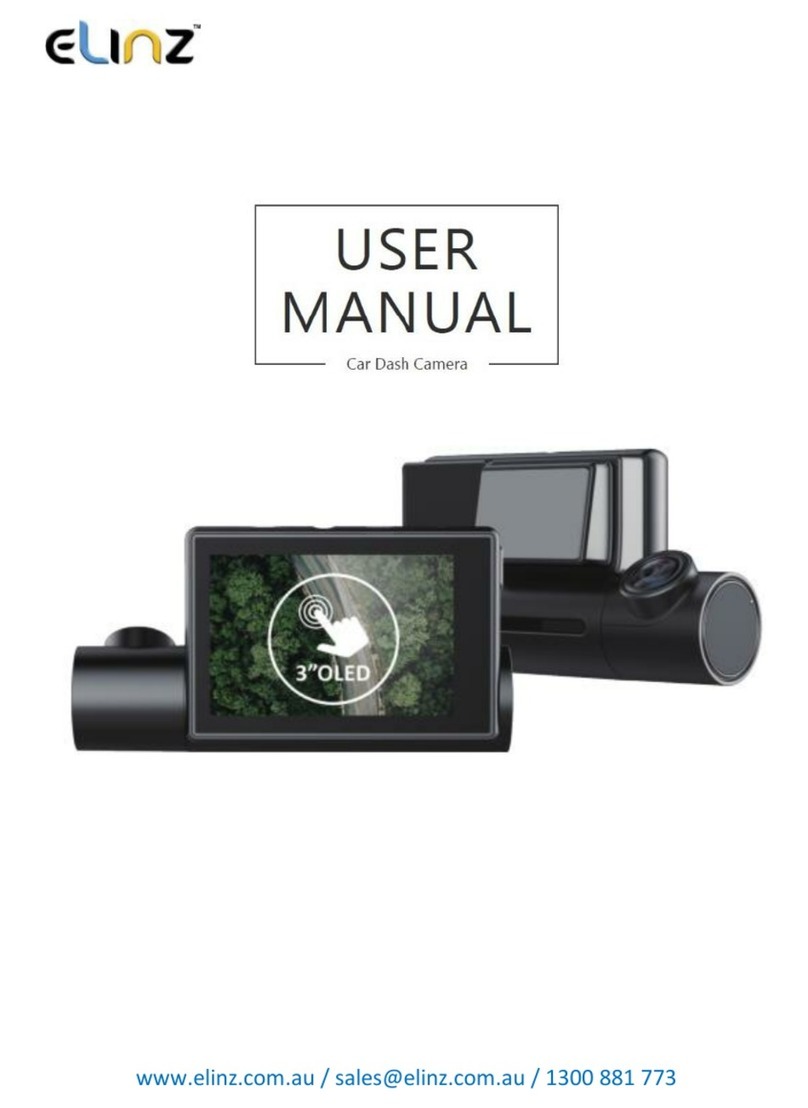
Elinz DC2KWIFI Manuel utilisateur

www.elinz.com.au / sales@elinz.com.au / 1300 881 773
This product uses a high-performance Hisilicon HI3556V200 chipset that
supports high definition videos, dynamic images seamlessly. Support real full
HD video 2K resolution for the front camera that can shoot 2560 pixels
horizontally and 1440 pixels vertically at 30 frames per seconds and 1080p
rear camera. Capture more details with 170° Ultra wide-angle front camera
capturing the license plates, road signs more clearly and monitors all
directions reducing the blind spots.
View dashboard camera recordings and manage car dash camera settings on
your iOS and Android devices with built-in WIFI. By using the RoadCam App,
you can download your recorded full HD quality videos directly to your
smartphone and share these on social media easily with friends and family. This
new Elinz dash camera is equipped with a built-in supercapacitor, which is much
more durable and safer than normal battery
Please read this manual carefully before using. We hope that our products can
meet your needs and provide a long-term service to you.
DC2KWIFI
USER MANUAL

www.elinz.com.au / sales@elinz.com.au / 1300 881 773
Disclaimer:
1. Please read the set-up and usage instructions carefully before operation.
2. You should not set/install this dash camera at a place that would obstruct or
reduce a driver’s view. Make sure your usage complies with pertinent vehicle
codes of your state, province, territory or country.
3. You should post the required notices of recordation to occupants inside the
vehicle, if voices or other information/signal pertaining to in-vehicle activities
will be recorded.
4. You should not change the dash cam’s setting or mode of operation when the
vehicle is in motion.
5. You should not leave the dash cam in a visible spot when no one is inside the
vehicle, to avoid attracting break-ins to steal the unit or other property.
6. You should avoid extended exposure of the dash cam to direct sunlight or
extreme temperatures (either high or low temperature) which tend to degrade
or damage the unit and its normal functionality.
7. You should examine, check and verify the dash cam at least every 6 months,
including the memory card, to ensure the video reception and recording are
working properly. For each use, you should verify that the dash cam unit, the
visible lights and the audible sounds are working normally. If there are signs of
non-operation or malfunction, you should immediately seek to replace the
product and check to see if the product is covered under any applicable
warranty.
8. The dash cam unit may have additional functionality, such as transmission
and recordation of audible or other identification information. If you have
privacy concerns about these functions, make sure you follow the instruction to
disable these functions.
9. You should use the dash cam unit in the way it is intended. You should not
use the dash cam unit in a way that would be illegal or that tends to physically
damage the unit, or tend to cause danger to the safe operation of the vehicle
or the occupants.
10.THIS DEVICE SHOULD NOT BE ADJUSTED BY THE DRIVER WHILE DRIVING.

www.elinz.com.au / sales@elinz.com.au / 1300 881 773
Product management:
• Do not expose the product to direct sunlight or intense light. The lens or
internal circuitry may fail otherwise
• Do not apply excessive force when pressing the buttons. Doing so may
damage the buttons
• Do not use chemical cleaners or solvents to clean the product. Doing so may
damage plastic components of the product. Clean the product using a clean,
soft, and dry fabric.
• Do not disassemble the product or subject the product to impact. Doing so
may damage the product. Unauthorized disassembly of the product voids the
product warranty
• Handle with care. If you drop, mishandle, or expose the product to external
shocks, it may cause damage and/or result in the malfunction of the product.
• Do not attempt to insert foreign objects into the device
• Avoid excessive humidity and do not allow any water to enter the product.
Electronic components inside the product may fail if exposed to humidity or
water.
• Use the product at a temperature between 14°F and 140°F (-10°C to 60°C)
and store the product at a temperature between -4°F and 158°F (-20°C to
70°C). The product may not function as designed and some permanent physical
damages may result if it is operated or stored out of the specified temperature
ranges. Such damages are not covered by the warranty
• This device is intended to be used inside the vehicle only. Install this device
in a location where it has unobstructed view of the road but does not interfere
with the driver's view. Please check your local and regional law before mounting
to windshield.

www.elinz.com.au / sales@elinz.com.au / 1300 881 773
Product Overview
1. Rear Camera interface
6. Front Lens
11. Mode Key
2. Car Charger interface
7. Speaker
12. Up Key
3. Bracket Hole
8. Microphone
13. OK/Power Key
4. Reset
9. Card Slot
14. Down Key
5. LED Light
10. 4.0 Inch Screen
15. Menu Key

www.elinz.com.au / sales@elinz.com.au / 1300 881 773
Installation Diagram
I
nstallation of wiring diagram suggested below.
Installation Guide
1. Turn off your vehicle engine.
2. Insert the TF card into the recorder slot.
[Note] Please use the high-speed TF card (Class10 above), capacity of not
less than 8G. TF card can support up to 32GB.
3. The recorder is fixed to the front windshield of the car.
4. The car charger into the car cigarette lighter.
5. Extension cable charging the recorder's USB connector and car charger
is connected.
[Note] Reduces charging extension cord wiring can be laid along the edge
of the windshield.
6. The rear camera is installed in the rear of the vehicle. Pay attention to
the direction of installation. Wiring can be laid along the vehicle roof. After

www.elinz.com.au / sales@elinz.com.au / 1300 881 773
the installation is complete you will plug into the recorder rear camera
interface.
7. Adjust the lens position to ensure that the lens levels with the ground.
8. Start the engine and check if the machine has been installed correctly.
[Note] When the machine is properly installed, the system indicator lights
will work; the machine starts to enter the recording state and the
recording indicator light flashes. Remember to check if the display screen
is normal. If not, please contact us.
WiFi Connection Instructions
The Roadcam App lets you control your camera remotely using a smartphone
or tablet. Features include full camera control, live preview, photo playback and
sharing of select content and more.
Steps to install APP on smart phone
A. Android system mobile phone
1. Open the "Google Play Store" search "Roadcam"
Or scan the QR Code to download and install.
B. IOS system Apple phone
1. Open the "Apple App Store" search "Roadcam"
Or scan the QR Code to download and install.

www.elinz.com.au / sales@elinz.com.au / 1300 881 773
1. Enter the system setting to choose the WIFI, turn it on, the WIFI name and
WIFI password will show on the camera screen.
2. In your smartphone’s WiFi settings, connect to the camera WIFI name, Enter
the Password.
3. Open the Roadcam on your smartphone.
4. The app will automatically start recording once the WiFi is connected
successfully.
5. Press the red ‘Video Recorder button’ on the APP to stop recording, the APP
will automatically switch to Playback mode, you can playback the video from
‘Loop mode’ or ‘Emergency’.
1) Short press the video to edit the video,
2) Long press the video to download it to your cell phone or delete it.
6. Press the ‘Record’ on the APP to stop recording, then short press the
‘Camera’ to switch to photo mode.
Short press the ‘Picture’ to playback the photos, long press the photo to
download it to your cell phone or delete it.
7. On the APP settings, you also can change the camera setting.
8. Short press the ‘OK’ key on the camera to disconnect the WiFi and then
press the ‘UP’ or ‘Down’ key to ‘Refresh’ or turn off the WiFi.

www.elinz.com.au / sales@elinz.com.au / 1300 881 773
Icons and Functions
Video Resolution
Select the video resolution on your camera. Resolution is the height of the
video in pixels. Higher resolution video settings require more memory card
space than lower resolution settings. 2K+1080P, 1080P+2K
Default Setting: 2K+1080P
Loop Record
Select duration of recording length for the individual video files, the camera
will fill the SD Card and then loop back to the beginning, overwriting the
saved files (unless protected)
Default Setting: 1 Minutes
Time Lapse
off/1S/2S/3S; It is a shooting technology that can compress and shorten the
longer of video recording. To a certain extent, it can monitor and protect
the car all day and save the recorder memory storage.
Note: only can be used while use ACC cable.
G-sensor
Turn Off or adjust the sensitivity (Low/Middle/High) of the G-Sensor to
defect forces which will automatically protect the current recording in event
of a collision. Default Setting: Off

www.elinz.com.au / sales@elinz.com.au / 1300 881 773
Parking Guard
Off/Low/Middle/High. When you open the parking guard in the off state, if
the car has a slight vibration, the recorder will automatically start recording
Default Setting: Off
Video Encode
H.264/H.265; choose the video encode, relating with the recorded files size,
H.265 save TF card storage RAM.
Default setting: H.264
Frequency
You can set 50Hz/60Hz. This function works if has flashing or ripple on the
video screen light, it will eliminate it.
Default setting: 60Hz
License
The camera has an option to program your car's license plate number into
it, and have that display as an 'overlay' on the recorded video.

www.elinz.com.au / sales@elinz.com.au / 1300 881 773
Screen Saver
Turn on the screen saver function, shut down the screen after a period of
inactivity, with options of Off/1 Minute/3 Minutes. Press any button to re-
activate the display.
Default Setting: Off
Boot sound
Turn on/off the Boot sound, Screen opening voice on/off
Mirror Image
Turn on to mirror the image of rear camera so that the image on the screen
matches that of your rear-view mirror when reversing.
Default Setting: Off
Key Voice
Turn on/off the Key Voice, key button operation voice on/off
Default Setting: On
Fill Light
Turn ON/OFF/AUTO fill light, LED light will on/off/auto
Default Setting: Off
Table des matières
Autres manuels Elinz Caméra embarquée