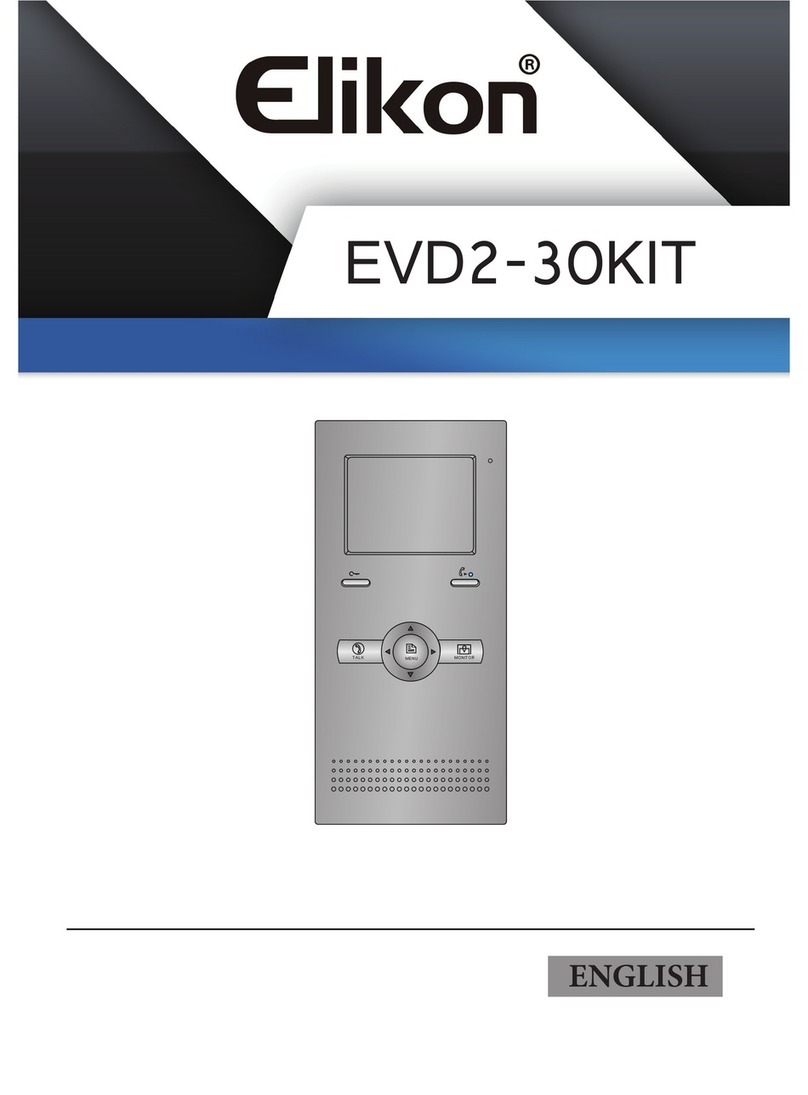
Elikon EVD2-40IN Manuel utilisateur

• Please read this manual carefully before using the product you purchase,and keep it well for future
use.
• Please note that images and sketch maps in this manual may be different from the actual product.
1
2
3
4
ikon
2 WIRE INTERCOM SYSTEM
USER MANUAL
EVD2-401N

PRECAUTIONS
•Slots or openings in the back of the monitor, are provided for ventilation and to ensure reli-
able operation of the video monitor or equipment and to protect it from overheating. These
openings must not be blocked or covered. The monitor should never be placed near or over
a radiator or heat register and should not be placed in a built-in installation such as a book-
case unless proper ventilation is provided.
•All parts should be protected from violence vibration. And not allow be impacting, knocking
and dropping.
•For clean the LCD screen, using hands or wet cloth is forbidden.
•Please do the cleanness with soft cotton cloth, please do not use the organic or chemical
detergent. If necessary, please use pure water or dilute soap water to clean the dust.
•Imagedistortionmayoccurifthevideodoorphoneismountedtooclosetomagneticelde.g.
Microwaves, TV, computer etc.
•Please keep away the video door monitor from wet, high temperature, dust, and caustic and
oxidation gas in order to avoid any unpredictable damage.
•Do not open the device in any condition, call the administrator for help if there is any prob-
lem.

CONTENTS
Front panel ............................................................................................................................. 4
Mounting................................................................................................................................. 5
Screen .................................................................................................................................... 6
Answering a call ..................................................................................................................... 7
Adjusting screen&volume....................................................................................................... 9
Door release.......................................................................................................................... 10
Calling other monitors............................................................................................................ 10
Monitoring.............................................................................................................................. 11
Openning staircase light........................................................................................................ 12
Transferring call..................................................................................................................... 12
Monitor settings ..................................................................................................................... 13
Ring setting............................................................................................................................ 14
Changing the display language ............................................................................................. 14
Restoring to default setting.................................................................................................... 15
Entering installer setup.......................................................................................................... 15
Screen calibration.................................................................................................................. 19
Specication .......................................................................................................................... 19

-4-
Front panel
Key functions
[1]
[7]
[9]
[2]
[3]
[4]
[5]
[6]
[8]
[10]
NO. Item Description
[1] Digital LCD touch screen •See the next page for details
•Display the visitors' image
[2] Power indicator Light up when the monitor power-on
[3] Message indicator Light up when the monitor has missed call
[4] Unlock button Press to release the door
[5] Talk/Mon button •Press to communicate hands free with visitor
•Press to view the outdoor condition in standby mode
[6] MENU button Press to display the menu
[7] Microphone Transmit audio from one station to other stations
[8] Mounting hook Use to hang up the monitor
[9] Speaker Send out sounds of ring tones,audios and alarms
[10] Connection port Bus terminal
1
2
3
4
SW+
SW-
RING
GND
NC
1 2 3 4 5 6
ON
DIPS
L1
L2

-5-
The installation height is suggested to 145~160cm.
1. Use screws to fasten the mounting bracket to the wall with mounting box.
2. Connect the 2 wire cables to the unit.
3. Mount the unit to the mounting bracket, make sure the unit is absolutely attached to the
mounting bracket.
Mounting
Terminal description
Mounting screw
x 2(included)
The unit
Mounting bracket
2 wire cable
SW+
SW-
RING
GND
NC
1 2 3 4 5 6
ON
DIPS
L1
L2
SW+
SW-
RING
GND
NC
12 3 4 5 6
ON
DIPS
L1
L2
L1,L2: Bus line terminal.
SW+,SW-: Extra door bell call but-
ton connection port.
Ring,GND: Extra buzzer connection
port.
NC: Undened.
DIP switches: Total 6 bits can be
congured.
•Bit1~Bit5: User Code setting.
•Bit6: Set to ON if the monitor is at
the end of the line or works with
DBC4A. Otherwise, set to OFF.
145~160 cm

-6-
LOGO
Touch it to view Device
infos.The logo can be
customized.
Screen
The Main menu is your starting point for using all the applications on your monitor. You can cus-
tomize your Main menu to display your logo.
Touch anywhere of the screen on monitor in standby mode, the Main menu will appear as follow:
CLOSE
Touch it to turn off the screen
and make the monitor in standby
mode.
SETTINGS
Touch it to enter
setup page.
DIVERT
Touch it to setup the divert
number if activate the Divert
function.
Displays which door station
is calling.
Displays talking time.
LIGHT
Touch it to light up the
staircase light via RLC.
INNER CALL
Touch it to activate inner call.
MONITOR
Touch it to view
outdoor condition.
NAMELIST
Touch it to select the user
you want.
CALL GUARD UNIT
Touch it to call Guard Unit
Monitor.
Main Menu
While talking with a door station
00:10 DS-1

-7-
Answering a call
1
2
3
4
•When there is a call from a video door station.The call tone sounds, an image will be dis-
played on the screen.
•Touch icon on screen or press TALK/MON button on the panel, begin communicat-
ing hands free with the visitor for 90 seconds.
•While communicating with the visitor, unlock the door, capture images/videos and adjust
screen&volume are available. More details, please refer to the following descriptions.
Note: If nobody answers the phone, the screen will be turned off automatically after 40 seconds.
It’s available to adjust image scale while being called. Total 2 image modes can be selected.
Follow the steps:
Adjusting image scale while being called/talking
00:10 DS-1 00:10 DS-1
Normal
00:10 DS-1

-8-
•Touch icon on screen or press the TALK/MON button on the panel to complete the
communication.
To complete communication
Note: Communication also ends automatically after 90 seconds.
1.Receiving a call while talking with a door station
2.Receiving a call while talking with other monitors
•Other door stations calling is forbidden
•Conclude current talking to answer the new call-in
•The talking will stop immediately, call tone sounds in normal.
•The video image from the door station is displayed on the screen, talking,unlock,capture
images/videos, adjust screen&volume are available.
Compare the difference of these 2 image modes:

-9-
Adjusting the speaker volume
Adjusting images
Adjusting screen&volume
Total 4 scene modes can be selected in sequence:Normal, Brightly, Soft and User.Whichever
mode you choose, there will be a corresponding value for contrast,brightness and color.
Youshould knowthatthe contrast,brightnessandcolor canbemodiedfreely, butthisaction
should be at the User scene mode.
Volume can be adjusted at any time.
Adjusting range: 0 - 9.
Adjust the contrast of the screen,the range is 0~9. Touch -or +to change the level.
Adjust the brightness of the screen ,the range is 0~9. Touch -or +to change the level.
Adjust the color of the screen,the range is 0~9. Touch -or +to change the level.
Touch -or +to reach desired level.
00:10 DS-1 00:10 DS-1
Normal
00:10 DS-1
5
5
5
5
Note: The adjustments have no effect on the recorded images.
While receiving a call from door station, or monitoring /communicating with the visitor,you can
adjust the screen and speaker volume. Follow the steps:

-10-
Calling monitors in the same room
Door release
Calling other monitors
It is available to release the door during a call-in, communication,or while monitoring a door
station.
It is available to call between monitors in the same room or in the same system,or call the
Guard Monitor.Follow the steps to activate the functions:
Touch [Inner Call] icon on one of monitor, all other monitors in the same room will ring at the
same time,whichever monitor answers the call, conversation is started, other monitors will stop
ringing at once.(Calling ends automatically after 30 seconds if nobody answers the call)
00:10 DS-1
1
Touch either or icon on the screen
or press UNLOCK button on panel to
release door. The door lock is released for
the set door release time.
(if two locks are connected to door station,
touch icon to release the second lock.)
00:10 DS-1
* Use " " or " " to adjust the microphone volume.
* Touch icon to end the calling.
Table des matières
Autres manuels Elikon Système d'interphone