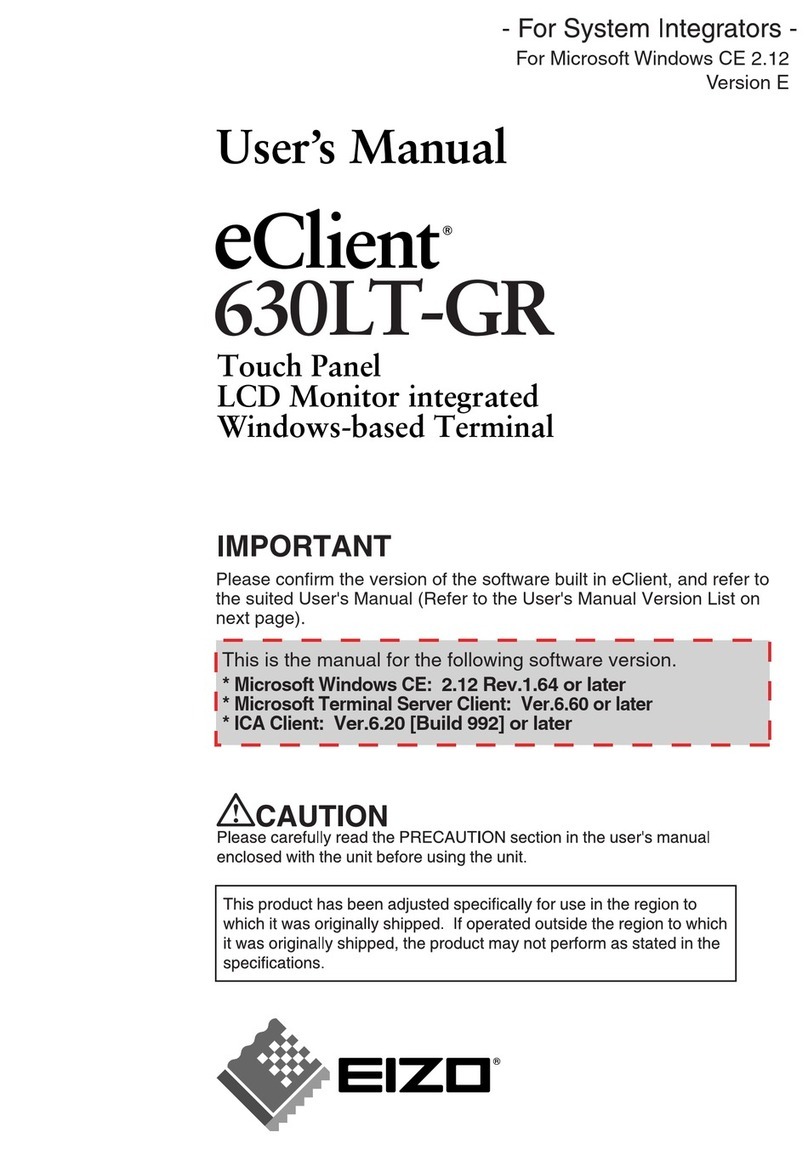
Eizo eClient 531L Manuel utilisateur

For Microsoft Windows CE 2.12
Version C
Please confirm the version of the software built in eClient, and refer to
the suited User's Manual (Refer to the User's Manual Version List on
next page).
This is the manual for the following software version.
*
Microsoft Windows CE:
2.12 Rev.3.53 or later
*
Microsoft Terminal Server Client: Ver.5.60 or later
*
ICA Client:
Ver.6.30 [Build 1078] or later
LCD Monitor integrated
Windows-based Terminal
Touch Panel
LCD Monitor integrated
Windows-based Terminal

User’s Manual Version List
A handling description changes with versions of the software built in eClient. Please
refer to below.
NOTE
• The version of software built in eClient can be checked with a [System]-[ICA] tab of
[Terminal Properties].
OS: Microsoft Windows CE 2.12
Software
Manual Terminal Server
ICA Client
Software
C
(This Manual) 2.12 Rev.3.53 or later Version 5.60 or later Version 6.30
[Build1078] or later
B 2.12 Rev.3.51 or later Version 5.60 or later Version 6.20
[Build992] or later
A 2.12 Rev.3.50 or later Version 5.51 or later Version 6.20
[Build992] or later
Microsoft Windows CE Windows
Microsoft

English
SAFETY SYMBOLS
This manual uses the safety symbols below. They denote critical information. Please read them
carefully.
WARNING
Failure to abide b
y
the information in a WARNING ma
y
result in serious in
j
ur
y
and
can be life threatening.
CAUTION
Failure to abide by the information in a CAUTION may result in moderate injury
and/or property or product damage.
Indicates a prohibited action.
Indicates to ground for safety.
Copyright© 2002-2003 EIZO NANAO CORPORATION All rights reserved. No part of this
manual may be reproduced, stored in a retrieval system, or transmitted, in any form or by any
means, electronic, mechanical, or otherwise, without the prior written permission of Eizo Nanao
Corporation.
Eizo Nanao Corporation is under no obligation to hold any submitted material or information
confidential unless
p
rior arran
g
ements are made
p
ursuant to Eizo Nanao Cor
p
oration's recei
p
t of
said information. Although every effort has been made to ensure that this manual provides up-
to-date information, please note that EIZO monitor specifications are subject to change without
notice.
ENERGY STAR is a U.S. registered mark.
Apple and Macintosh are registered trademarks of Apple Computer, Inc.
VGA is a registered trademark of International Business Machines Corporation.
DPMS is a trademark and VESA is a registered trademark of Video Electronics Standards
Association.
Windows is a registered trademark of Microsoft Corporation.
ScreenManager and PowerManager are trademarks of Eizo Nanao Corporation.
FlexScan and EIZO are registered trademarks of Eizo Nanao Corporation.
As an ENERGY STAR®Partner, Eizo Nanao Corporation has determined that this
product meets the ENERGY STAR guidelines for energy efficiency.
3

English
TABLE OF CONTENTS
1. INTRODUCTION ..................................................................................... 5
1-1. General Description ......................................................................................5
1-2. Features ........................................................................................................6
1-3. Package Contents..........................................................................................6
1-4. Controls & Connectors ................................................................................7
1-5. Overview ......................................................................................................9
2. CONNECTING THE eClient.................................................................. 10
2-1. Setting up the eClient..................................................................................10
2-2. Connecting the eClient................................................................................11
3. SETTING UP THE eClient .................................................................... 13
3-1. WBT Setup Wizard .....................................................................................13
3-2. Dial-Up Connection (531L/531LT-GR only)...............................................27
4. ADDING & CHANGING A CONNETION NAME................................... 34
4-1. Adding a Connection Name........................................................................34
4-2. Deleting a Connection ................................................................................52
4-3. Editing a Connection ..................................................................................53
4-4. Setting an Autostart Connection.................................................................55
5. LOGON & LOGOFF.............................................................................. 56
5-1. Logon to a WTS .........................................................................................56
5-2. Logoff from the WTS..................................................................................59
6. USING THE TERMINAL PROPERTIES ................................................ 61
6-1. General Information & Reset to Default ....................................................61
6-2. Input Devices Settings .................................................................................63
6-3. Colors & Power Save Settings.....................................................................68
6-4. Network Settings ........................................................................................70
6-5. Printer Settings............................................................................................73
6-6. Dial-Up (PPP) Connection Settings (531L/531LT-GR only) ........................76
6-7. ICA Settings................................................................................................77
6-8. Product Information, Security, & Updating Software .................................80
7. PRACTICAL SETUP ............................................................................. 87
8. TROUBLESHOOTING........................................................................... 92
9. CLEANING............................................................................................ 94
10. SPECIFICATIONS............................................................................... 96
11. REFERENCE..................................................................................... 100
11-1. Attaching an Arm Stand .........................................................................100
INDEX ..................................................................................................... 102
TABLE OF CONTENTS
4

English
1. INTRODUCTION
5
1. INTRODUCTION
Thank you very much for purchasing the EIZO eClient 530L/531L/531LT-GR.
1-1. General Description
The eClient is a terminal which displays applications on a Windows Terminal Server
(WTS) or a web site and conveys input by a keyboard or a mouse to the WTS. To
operate the eClient, please connect it to a WTS with Microsoft Window NT Terminal
Server Edition or Windows 2000 Server / Advanced Server / Datacenter Server.
Output data of
applications
Input data from
keyboard/mouse
(stylus)
Windows Terminal Server
(
WTS
)
eClient
· Operation of applications
· Stora
g
e of data
· Display data
· Operation by keyboard/mouse
(stylus)

English
61. INTRODUCTION
1-2. Features
• Lower TCO*
*TCO (Total Cost of Ownership)
Expense for managing and administrating computer systems.
• Saves Space and Power Consumption
• Less Heat, Less Noise
• 531L/531LT-GR
*Serial Port for Modem/PDA (*Hayes AT Compatible Modem Supported)
*Portrait resolution supported
[In use of the Citrix ICA Client (ICA)]
• 531LT-GR
*A Touch Panel and a Stylus Provided
1-3. Package Contents
Please contact your local dealer for assistance if any of the listed items are missing or
damaged. Please make sure that all the listed items are in the package.
•eClient 530L/531L/531LT-GR
•Mouse
•Power Cord
•Screw (M4 x 12 mm) x 4
•User’s Manual
•Stickers of the Brightness Control Guide
•Stylus (531LT-GR only)
NOTE
• We recommend that you retain the original packing materials in case of future need.
• A keyboard is not included. It must be purchased separately.
• Key combinations on the keyboard can adjust brightness (see page 69). Key
combinations for an adjustment are presented on the stickers. Please apply them
for your convenience.
Please use the enclosed mouse. Eizo Nanao Corporation will no be held responsible for
accident or damage caused by the use of a mouse manufactured by other companies.

English
1. INTRODUCTION
7
1-4. Controls & Connectors
Front
(1) (2)
(1) Power Switch
(2) Power Indicator
Power Indicator Unit
Green Operation
Screen saver mode
Yellow Power save mode
NOTE
• When turning off/on the unit, leave the unit off for a few seconds before turning
it on again.

English
81. INTRODUCTION
Rear
(10)
(3)(4) (5) (6) (7)
(9)
(11)
(8)
(3) Mouse Connector
(4) Keyboard Connector
(5) Ethernet Connector (10 Base-T)
(6) Parallel Connector
(7) Power Connector
(8) Serial Connector (RS-232C) (531L/531LT-GR)
(9) Security Lock*1
(10) Holes for Mounting an Arm Stand*2
(11) Stand
*1This allows for connection of a security cable. This lock supports Kensington's
MicroSaver security system. For further information, please consult:
Kensington Technology Group
2855 Campus Drive, San Mateo, CA
94403 USA
1-800-650-4242, x3348
Intl: 650-572-2700
Fax: 650-572-9675
http://www.kensington.com
*2Please see “11. REFERENCE” on page 100 for details.

English
1. INTRODUCTION
9
1-5. Overview
Directions for the eClient’s Setup
2. CONNECTING THE p.10
3. SETTING UP THE eClient
3-1. WBT Setup Wizard p.13
3-2. Dial-Up Connection p.27
4. ADDING & CHANGING A CONNETION NAME
4-1. Adding a Connection Name p.34
4-2. Deleting a Connection p.52
4-3. Editing a Connection p.53
4-4. Setting an Autostart Connection p.55
Directions for the eClient’s Operation.
5. LOGON & LOGOFF
5-1. Logon to a WTS p.56
5-2. Logoff from the WTS p.59
Directions for Changing Terminal Properties’ Settings.
6. USING THE TERMINAL PROPERTIES
6-1. General Information & Reset to Default p.61
6-2. Input Devices Settings p.63
6-3. Colors & Power Save Settings p.68
6-4. Network Settings p.70
6-5. Printer Settings p.73
6-6. Dial-Up (PPP) Connection Settings p.76
6-7. ICA Settings p.77
6-8. Product Information, Security, & Updating Software p.80
Directions for Using a DHCP Server, a Practical Setup
7. PRACTICAL SETUP p.87

English
10 2. CONNECTING THE eClient
2. CONNECTING THE eClient
This chapter shows how to connect the eClient to a WTS.
2-1. Setting up the eClient
Please observe the following cautions when connecting the eClient.
WARNING
Place the eClient on a strong, stable surface.
A unit placed on an inadequate surface may fall, resulting in injury
or equipment damage. If the unit falls, disconnect the power
immediately and have the unit checked by a qualified service
engineer before using it again. Using a unit after it has been
dropped may result in fire or electric shock.
Set the unit in an appropriate location.
* Do not install in a dusty or humid environment.
* Do not place in a location where steam can have direct contact
with the screen.
* Do not place near heat generating devices or a humidifier.
Autres manuels pour eClient 531L
1
Ce manuel convient aux modèles suivants
3
Table des matières
Autres manuels Eizo Écran tactile
Manuels Écran tactile populaires d'autres marques

IBASE Technology
IBASE Technology ASTUT-152-RE1S Manuel utilisateur

YASKAWA
YASKAWA TP 610C Manuel utilisateur

B&R
B&R Power Panel C Series Manuel utilisateur

Beijer Electronics
Beijer Electronics X2 control Manuel utilisateur

AXIOMTEK
AXIOMTEK GOT321W-521 Manuel utilisateur

TRIDONIC.ATCO
TRIDONIC.ATCO x-touchBOX Manuel utilisateur