
Eaton TRIPP LITE Series Manuel utilisateur

1
PRODUCT
REGISTRATION
Register your product
today for a chance to
win an ISOBAR®surge
protector in our monthly
drawing!
Tripplite.Eaton.com/
warranty
Owner’s Manual
Español 13
Français 23
Deutsch 33
Italiano 43
Model:
AWC-001
USB 2.0 Desktop/Laptop
1080p Webcam with
Internal Microphone
Purchased
product may
differ from
image.

2
Package Contents
• AWC-001 USB 2.0 Webcam
• User Documentation
• Captures High-Definition (HD) 1080p video at 30
frames per second and 2 megapixel images for
livestreaming or conference calls.
• 70° wide-angle lens reduces dead angles and
advanced H.264 video compression ensures
high-quality transmission.
• Rotatable clip makes it easy to mount onto
laptops or monitor screens and tripod threads
allow the webcam to mount onto a tripod for
extra stability.
• Built-in noise reduction microphone captures
audio within 20 ft. to ensure clear
communication and sound quality.
• Compatible with Windows®and Mac®operating
systems and Skype, Zoom and YouTube
software.
• Plug-and-play—no software or drivers to install.
Product Features

3
• USB 2.0 port or later
• Windows 7, 8, 10 or later
• Mac 10.10 or later
• Android™ 5.0 or later
• Chrome OS
System Requirements
4
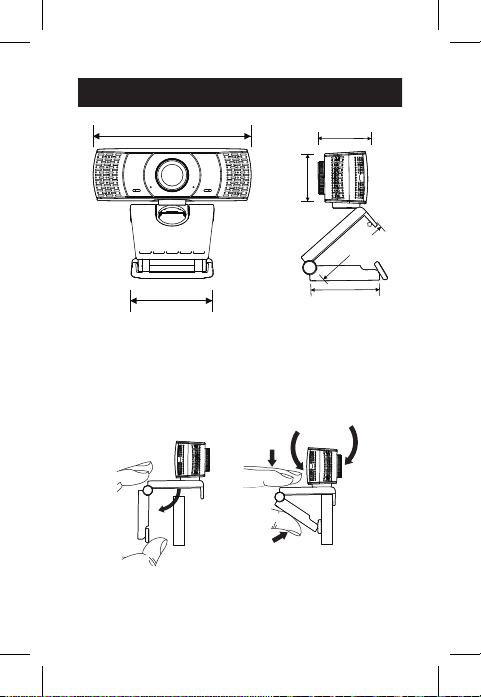
1Open the clip base.
2Mount the webcam to the monitor or laptop.
Note: Make sure the foot on the clip base is flush
with the back of your monitor.
3Rotate the webcam to the desired angle.
1 in.
(25.5 mm)
USB
2 in. (49 mm)
1.7 in. (41.7 mm)
1.2 in.
(31.0 mm)
3.7 in. (94.3 mm)
1.9 in.
(48 mm)
1 in.
(25.5 mm)
USB
2 in. (49 mm)
1.7 in. (41.7 mm)
1.2 in.
(31.0 mm)
3.7 in. (94.3 mm)
1.9 in.
(48 mm)
Note: Tripod threads on the bottom of the clip base allow the
webcam to be mounted onto a tripod.
Mounting Instructions
1
1
2
2
3
3

5
Plug the webcam into a USB-A interface on your
PC, laptop or TV STB. The webcam will install
automatically in about 60 seconds.
To take advantage of livestreaming or video calls,
both you and the recipient must install video-
calling applications (such as Skype or Zoom) and
webcam hardware.
1 in.
(25.5 mm)
USB
2 in. (49 mm)
1.7 in. (41.7 mm)
1.2 in.
(31.0 mm)
3.7 in. (94.3 mm)
1.9 in.
(48 mm)
Connection/Installation
Video Calling

6
Q: How do I know if my camera is recognized by
the operating system?
A: Connect the webcam to any USB 2.0/3.0 port.
Once the webcam is connected, it may take a
moment before it is recognized by the
computer. To check if the webcam is
recognized by your computer’s operating
system, check the following:
Control Panel>System and Security>System>
Device Manager
Q: How do I know if my video calling application is
using my webcam?
A: All video applications include an option setting
to review the audio and video device. When
using the video application, review the
following:
The audio selection to ensure the webcam
microphone is selected.
• If not, change the selection to the AWC-001
webcam.
The video selection to ensure the webcam is
selected.
• If not, change the selection to the AWC-001
webcam.
Frequently Asked Questions

7
Q: How do I determine if the webcam is properly
installed on my computer?
A: For Windows operating systems: Go to:
Computer Management>Device
Manager>Cameras.
A: For Mac operating systems: Click on the
Finder icon in the Dock. From the Finder
window sidebar, click on Applications and
open the Photo Booth app. Click on the
Camera dropdown from the Photo Booth
toolbar. “USB 2.0 Camera” should be listed as
the default webcam.
Q: Why is my webcam not working with Skype or
Facebook?
A: Software like Skype and Facebook often use
the integrated webcam by default. To use the
AWC-001 webcam, go to the software’s video
settings and select the AWC-001 webcam as
the video source. For example, with Skype, go
to: Settings>Audio & Video to select the video
source.
Frequently Asked Questions
8
Pixel Size 2.8 μm x 2.8 μm
Operating & Storage
Temperature
14°F to 140°F
(-10°C to 60°C)
Image Resolution
2 megapixels
Pixel Range
320 x 240, 640 x 480,
1280 x 720, x 1920 x 1080
Frame Rate
30 fps
Lens Size 0.3 in. (7.6 mm)
Interface USB 2.0 (backwards
compatible with USB 1.1)
Data Format YUY2/MJPEG
Viewing Angle 70°
DC Voltage 5V
Current 200mA
Cable Length 4.9 ft. (1.5 m)
USB Specication USB 2.0 (backward
compatible with USB 1.1)
Specifications

9
1-Year Limited Warranty
We warrant our products to be free from defects in
materials and workmanship for a period of one (1) year
from the date of initial purchase. Our obligation under this
warranty is limited to repairing or replacing (at its sole
option) any such defective products. Visit Tripplite.Eaton.
com/support/product-returns before sending any
equipment back for repair. This warranty does not apply to
equipment which has been damaged by accident,
negligence or misapplication or has been altered or
modified in any way.
EXCEPT AS PROVIDED HEREIN, WE MAKE NO WARRANTIES,
EXPRESS OR IMPLIED, INCLUDING WARRANTIES OF
MERCHANTABILITY AND FITNESS FOR A PARTICULAR
PURPOSE. Some states do not permit limitation or exclusion
of implied warranties; therefore, the aforesaid limitation(s)
or exclusion(s) may not apply to the purchaser.
EXCEPT AS PROVIDED ABOVE, IN NO EVENT WILL WE BE
LIABLE FOR DIRECT, INDIRECT, SPECIAL, INCIDENTAL OR
CONSEQUENTIAL DAMAGES ARISING OUT OF THE USE OF
THIS PRODUCT, EVEN IF ADVISED OF THE POSSIBILITY OF
SUCH DAMAGE. Specifically, we are not liable for any costs,
such as lost profits or revenue, loss of equipment, loss of
use of equipment, loss of software, loss of data, costs of
substitutes, claims by third parties, or otherwise.
Warranty and Product Registration

10
Product Registration
Visit Tripplite.Eaton.com/warranty today to register your
new product. You'll be automatically entered into a drawing
for a chance to win a FREE Eaton Tripp Lite series product!*
* No purchase necessary. Void where prohibited. Some
restrictions apply. See website for details.
Warranty and Product Registration
Autres manuels pour TRIPP LITE Series
23
Ce manuel convient aux modèles suivants
1
Table des matières
Langues :


