
Dual DM720 Mode d'emploi


2
DM720 PREPARATION
Safety Information
Please read all instructions carefully before attempting to install or operate.
Due to its technical nature, it is highly recommended that your DUAL DM720 is installed by a professional installer
or an authorized dealer. This product is only for use in vehicles with 12VDC negative ground only.
To prevent damage or injury:
• Make sure to ground the unit securely to the vehicle chassis ground.
• Do not remove the top or bottom covers of the unit.
•Do not install the unit in a spot exposed to direct sunlight or excessive heat or the possibility of water splashing.
•Do not subject the unit to excessive shock.
• When replacing a fuse, only use a new one with the prescribed rating. Using a fuse with the wrong rating may
cause the unit to malfunction.
• To prevent short circuits when replacing a fuse, disconnect the wiring harness first.
• Use only the provided hardware and wire harness.
• You cannot view video while the vehicle is moving. Find a safe place to park and engage the parking brake.
• If you experience problems during installation, consult your nearest DUAL dealer.
•If the unit malfunctions, reset the unit as described on page 10 first.
•Toclean the monitor, wipe only with a dry silicone cloth or soft cloth. Do not use a stiff cloth, or volatile solvents
such as paint thinner and alcohol. They can scratch the surface of the panel and/or remove the printing.
• When the temperature of the unit falls (as in winter), the liquid crystal inside the screen will become darker than
usual. Normal brightness will return after using the monitor for a while.
• When extending the ignition, battery or ground cables, make sure to use automotive-grade cables or other
cables with an area of 0.75mm (AWG 18) or more to prevent voltage drops.
•Do not touch the liquid crystal fluid if the LCD is damaged or broken. The liquid crystal fluid may be hazardous
to your health or fatal. If the liquid crystal fluid from the LCD contacts your body or clothing, wash it off with soap
immediately.
FCC Compliance
This device complies with Part 15 of the FCC Rules. Operation is subject to the following two conditions:
(1) this device may not cause harmful interference, and
(2) this device must accept any interference received, including interference that may cause undesired operation.
Warning: Changes or modifications to this unit not expressly approved by the party responsible for compliance
could void the user’s authority to operate the equipment.
Note: This equipment has been tested and found to comply with the limits for a Class B digital device, pursuant to
Part 15 of the FCC Rules. These limits are designed to provide reasonable protection against harmful interference
in a residential installation. This equipment generates, uses and can radiate radio frequency energy and, if not
installed and used in accordance with the instructions, may cause harmful interference to radio communications.
However, there is no guarantee that interference will not occur in a particular installation. If this equipment does
cause harmful interference to radio or television reception, which can be determined by turning the equipment off
and on, the user is encouraged to try to correct the interference by one or more of the following measures:
• Reorient or relocate the receiving antenna.
• Increase the separation between the equipment and receiver.
• Connect the equipment into an outlet on a circuit different from that to which the receiver is connected.
• Consult the dealer or an experienced radio/TV technician for help.

3
Before You Start
• Disconnect negative battery terminal. Consult a qualified technician for instructions.
• Avoid installing the unit where it would be subject to high temperatures, such as from direct sunlight, or where it
would be subject to dust, dirt or excessive vibration.
Getting Started
DM720 INSTALLATION
Preparation
TYPICAL FRONT-LOAD DIN MOUNTING METHOD
Metal brackets (not included)
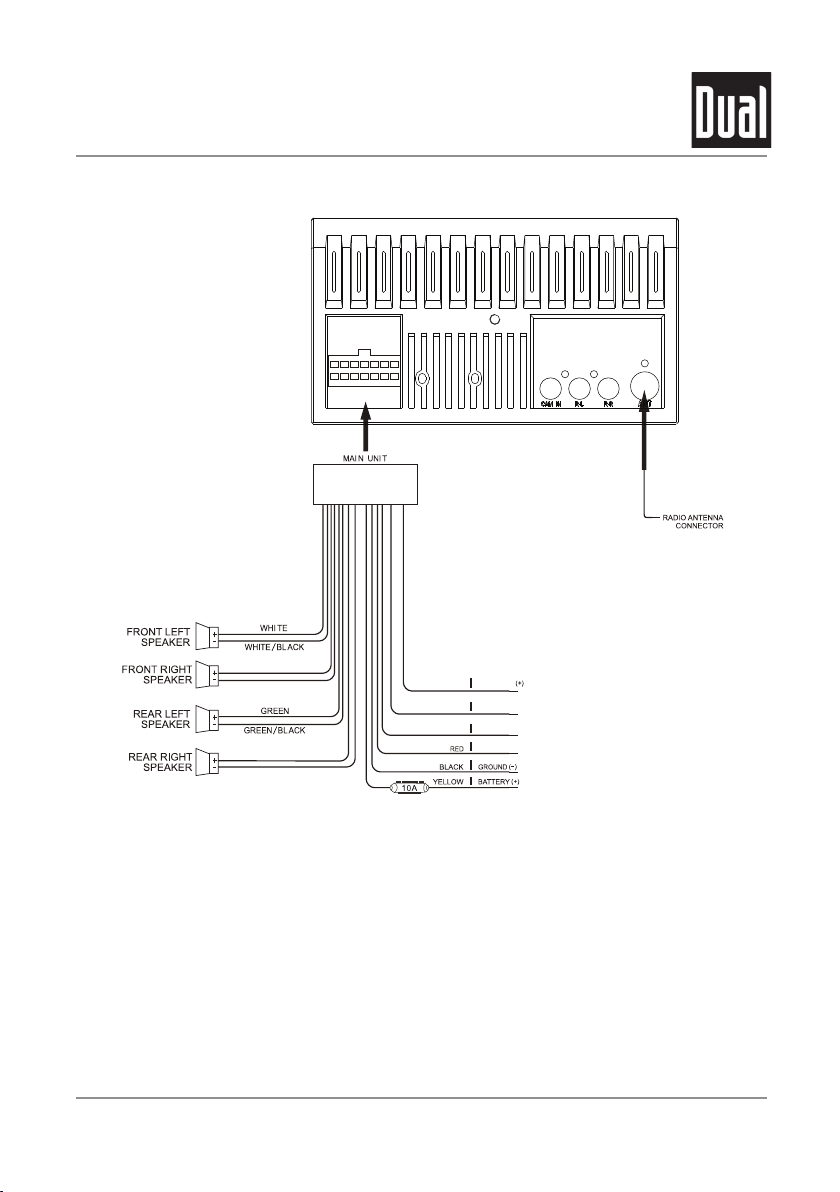
• Connect wiring harness as shown on page 6. Consult a qualified technician if you are unsure.
•Certain vehicles may require an installation kit and/or wiring harness adapter (sold separately).
• Reconnect negative battery terminal, and test for correct operation.
• Snap trim ring into place (if required).
4
Wiring Diagram - Inputs/Outputs
DM720 INSTALLATION
Note:
When replacing a fuse, make sure to use the correct type and amperage. Using an incorrect fuse could cause
damage. The unit uses (1) 10 amp ATC mini style fuse located on the power connector.
Wiring Notes:
Rear camera input
A rear view camera (not included) can be used with the Camera input.
REVERSE
GRAY
GRAY/BLACK
ACC 12V (+)
TFT DIMMER (+)
VIOLET
VIOLET/BLACK
AMP/ANT(+)BLUE
ORANGE
GREEN/WHITE

5
Control Locations
DM720 OPERATION
Voice Activation Button
Tune/Track Up
Power/Volume/Mute
Tune/Track Down
1
2
3
4
microSD Card Slot
Reset
Auxiliary Input
USB Port
5
6
7
8
1
2
3
4
5
7
8
6
6
DM720 OPERATION
Power On/Off
Volume
Mute
Mode
Auxiliary Input
USB Input
microSD Card
Main Menu
Reset
Momentarily press to turn the unit on. Press and hold to turn the
unit off.
Rotate the volume knob to increase or decrease the volume level.
Momentarily press MUTE to silence the audio. Momentarily press MUTE
again to return to the previously selected volume. Rotating the volume
knob while the volume is muted will also cancel the mute function.
Press MODE to step through all available input modes: Radio, microSD,
USB, Bluetooth Phone, Bluetooth Music, Auxiliary Input, Rear Camera
and Settings. Modes of operation are indicated on the display and/
or the monitor. Optional USB device and microSC card must be
connected/inserted to appear in the mode selection string.
Connect external audio/video devices to the 3.5mm auxiliary input on
the front panel.
Insert a USB device to play MP3 or FLAC audio files.
Insert a microSD card into the microSD card slot to play MP3 or FLAC
audio files.
Press the house icon in the top left corner to access the Main Menu
screen.
To resolve abnormal operation or if the unit is inoperable, use the
tip of a pen to press the RESET button. The unit will reset the main
processor to the default settings.
General Operation

7
DM720 OPERATION
General Operation
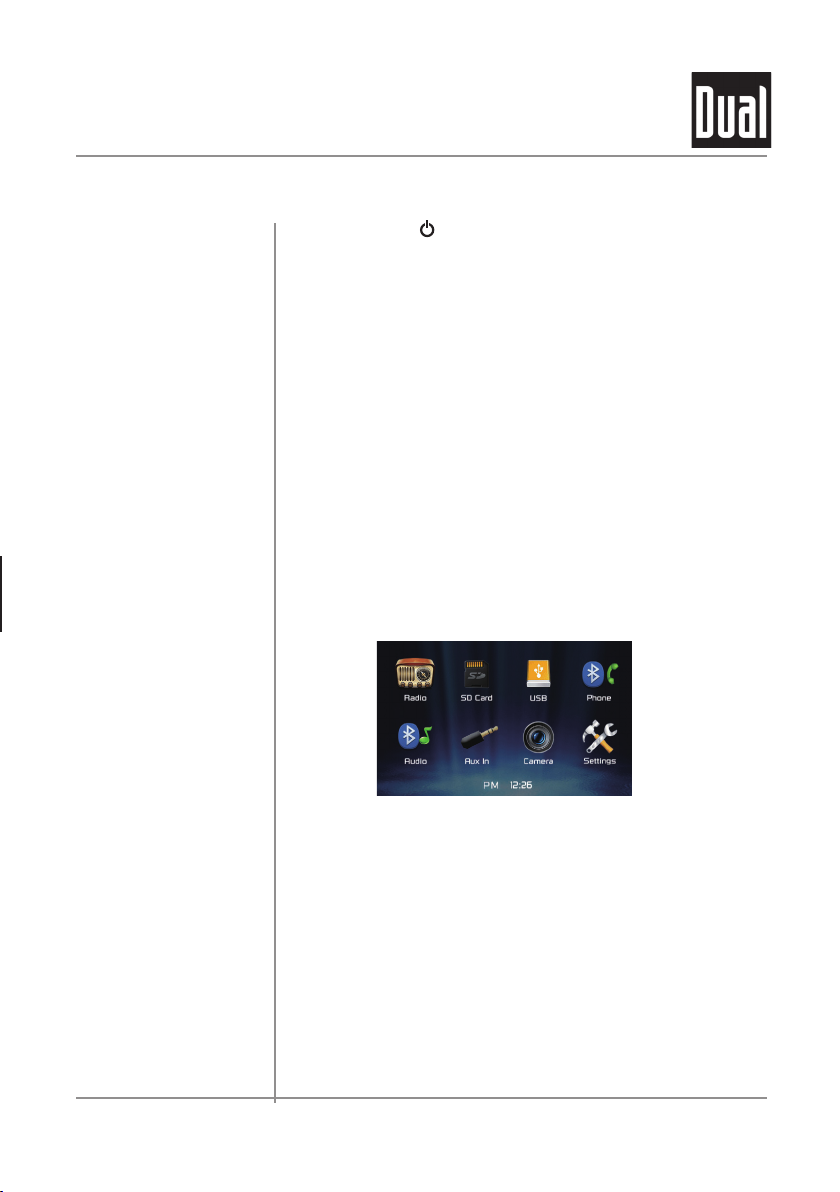
From the Main Menu screen, select Settings to access the Setup menu and
select from three categories represented by the icons on the left side of the
screen: Settings, Audio and Bluetooth.
Settings:
• Time Setting - Access and adjust date and time settings.
• Beep - Turn the audible beep on or off.
• Camera - Turn the rear camera input on or off.
• Loudness - Press to turn Loudness feature on or off.
• Radio Area - Adjust the following radio options: USA, Asia, Europe or
South America.
• Calibration - Follow the prompts to calibrate the touch screen.
• Version - View current version numbers for the unit.
• Restore default - Press to restore unit to factory settings.
Audio:
• Sound Effect - Adjust EQ, Treble/Bass or Balance/Fader settings.
Bluetooth:
• Auto Connect - Turn Auto Connect feature on or off.
• Auto Answer - Turn Auto Answer feature on or off.
The touch screen controls on the bottom of each screen allow direct access
to important features during any mode of operation.
Press to dim the display.
Press to utilize Voice Activation feature.
Press to adjust audio options such as EQ, Treble/Bass or Balance/Fader.
Press to directly access Navigation app.
Press to access the settings menu.
Setup Menu
Touch Screen
Controls
Dimmer 1
Voice Activation 2
Audio 3
Navigation 4
Settings 5
1 3 52 4

8
DM720 OPERATION
Select the Radio icon from the Main Menu screen.
Press to return to Main Menu screen.
Displays current mode of operation.
Press and hold << to seek a lower frequency. Press << momentarily
to tune the unit down one step at a time.
Press between 2 AM and 3 FM bands.
Press to toggle between Local and Distance tuning.
Press and hold >> to seek a higher frequency. Press >> momentarily
to tune the unit up one step at a time.
Press to toggle between Stereo and Mono tuning.
Press and hold to set the current station in that preset spot. Press
momentarily to recall the desired preset and begin playback.
Press to scan presets and listen to the first 10 seconds of each. Press
again to stop scanning and listen to the station. Press and hold to
automatically find and store the strongest stations as presets.
Radio Operation
Main Menu 1
Current Mode Indicator 2
Tune Frequency Down 3
Band 4
Local / Distance 5
Tune Frequency Up 6
Stereo 7
Preset Stations 8
AS/PS 9
AM/FM Tuner Operation
1
3
2
6
4
5
7
8
9

9
DM720 OPERATION
USB/microSD Card Operation
USB/microSC Operation
Main Menu 1
Current Mode Indicator 2
Repeat 3
Random 4
Previous File / Track 5
Play / Pause 6
Next File / Track 7
Folder Down 8
Folder Up 9
Direct Search 10
To play audio files from a USB device or microSD card, insert device
and playback will begin automatically. To return to USB or microSD card
playback from another mode of operation, select the corresponding icon
from the Main Menu.
• USB Playback - Insert a USB device into the USB slot on the side of
the unit.
• microSD Card Playback - Insert microSD card into the microSD
slot on the top of the unit. When inserting a microSD card, the label
should face up.
Press to return to Main Menu screen.
Displays current mode of operation.
Press to select a repeat option: Repeat 1, Repeat Folder or Repeat Off.
Press to enable or disable random playback.
Press to go back to the previous file or track.
Press to pause or resume playback.
Press to advance to the next file or track.
Press to advance to the next folder.
Press to go back to the previous folder.
Press to directly enter file number to begin playback of that file.
12
3
4
5 6 7 8 9 10

10
DM720 OPERATION
Media Compatibility - USB/microSD Card
File Type MP3
File System FAT FAT 12 X
FAT 16/FAT 32
9
File
Extension
.mp3/.MP3/.Mp3/.mP3
9
.rmp/.m4a X
MPEG
Format
MPEG 1
9
MPEG 2
9
MPEG 2.5
9
Sampling
Frequency
MPEG 1 32/44.1/48kHz
MPEG 2 12/16/22.05/24kHz
MPEG 2.5 8/11.025/12kHz
Bitrate
MPEG 1 32 ~ 320kbps
MPEG 2 8 ~ 160kbps
MPEG 2.5 8 ~ 160kbps
Other
Information
Directory Depth Unlimited
File Name Length 32 bytes
Total File Number 2000 files
Total Folder Number 200 folders
File Number via Folder 2000 files
MP3 ID3 TAG
ver.1.x
9
ver.2.x
9
Title, Artist, Album
9
Notes:
• Due to ongoing technological advancement, some USB flash drives and/or microSD cards may be incompatible with
this unit.
Table des matières
Autres manuels Dual Récepteur

Dual
Dual XDVD179BT Mode d'emploi

Dual
Dual XGPS170D Manuel utilisateur

Dual
Dual XDVD8181 Manuel utilisateur

Dual
Dual XDM16BT Manuel utilisateur

Dual
Dual xdvd136bt Manuel utilisateur

Dual
Dual DC426BT Mode d'emploi

Dual
Dual AXV830 Mode d'emploi

Dual
Dual DSA1116BT Mode d'emploi

Dual
Dual XDVD251BT Mode d'emploi

Dual
Dual XVM279BT Mode d'emploi

Dual
Dual XRM59BT Manuel utilisateur

Dual
Dual XDM17BT Mode d'emploi

Dual
Dual CR 1780 Manuel utilisateur

Dual
Dual DXRM58BT Mode d'emploi

Dual
Dual XDM6800 Mode d'emploi

Dual
Dual XDM17BT Manuel utilisateur

Dual
Dual XRM59BT Mode d'emploi

Dual
Dual VX2529 Mode d'emploi

Dual
Dual MXD339BT Mode d'emploi

Dual
Dual iPlug XDMR7710 Mode d'emploi


