Dtrovision PureLink PM-16X Mode d'emploi

PM Operation / Troubleshooting
Guide
PureLinkTM
22-10 State Rt 208
Fair Lawn, NJ 07410 USA
Tel: +1.201.488.3232
Fax: +1.201.621.6118
E-mail: sales@purelinkav.com
www.purelinkav.com
For order support, please contact your local dealer.
For technical support, please contact us at support@purelinkav.com

PureLink by Dtrovision
2
TABLE OF CONTENTS
Chapter 1. How to operate the touch panel screen
1.1 System Information -------------------------------------------------------------- 3
1.2 Create -------------------------------------------------------------- 4
1.3 System configuration -------------------------------------------------------------- 5
1. Serial communication -------------------------------------------------------------- 5
2. LAN communication -------------------------------------------------------------- 6
3. Router ID & Factory Reset -------------------------------------------------------------- 7
1.4 Preset -------------------------------------------------------------- 9
1.5 I/O Config -------------------------------------------------------------- 10
1. Input configuration -------------------------------------------------------------- 10
2. Output configuration ------------------------------------------------------------- 11
3. Test pattern ------------------------------------------------------------- 12
4. Monitor Out ------------------------------------------------------------- 13
Chapter 2. EDID Setting
2.1 EDID --------------------------------------------------------------- 15
Chapter 3. Basic Troubleshoot (PM Matrix)
3.1 Symptoms ----------------------------------------------------------------- 23
3.2 Resolutions ----------------------------------------------------------------- 24
Chapter 4. Basic Troubleshoot (PM Matrix control)
4.1Symptoms ----------------------------------------------------------------- 25
4.2Resolutions ----------------------------------------------------------------- 30
Chapter 5. Basic Troubleshoot (PM Matrix extender)
5.1Symptoms ----------------------------------------------------------------- 31
5.2Resolutions ----------------------------------------------------------------- 32
Chapter 6. Basic Troubleshoot (PM Input / Output cards)

PureLink by Dtrovision
3
Chapter 1. How to operate the touch panel screen
1. System info
Summary:
On the system info menu, you can get information of the current system configuration
Here is the following information you will see on the system info menu.
1. Maximum capacity of I/O port
2. RS-232 baud rate
3. Status of security lock <touch panel>
4. Status of cooling fan
5. LAN IP address
6. Status of redundant power
7. Channel information < video & audio channel>
FAQ:
Q: What is the input (or output) option on this screen and what can you do with it?
A: It will help you with analyzing the input signal and allows you to obtain detail information of incoming
Signal (or outgoing signal)

PureLink by Dtrovision
4
Q: What is the audio button and what does it do?
A: It displays the status of PM’s audio channel and output volume.
Q: What is the system lock? Does it mean you can lock the system?
A : Yes, it allows you to lock the front screen so even if someone mistakenly touch it or try to change the
setting, this mode will prevent it from happening.

PureLink by Dtrovision
5
2. Create
Summary:
You can either create new Video & Audio I/O channel or modify current Video & Audio I/O channel.
Here are the following information you will see on the create menu.
1. I/O channel
2. Video mode
3. Audio mode
4. Video & audio mode
5. Set all
6. Clear all
7. One to one
8. Enter
9. Cancel
*Simple way to create I/O channel*
Select desired input # -> select desired output # - >Press enter to confirm
FAQ:
Q: What does the video mode do?
A: You are only able to modify video I/O channel when video mode is selected.
Q: What does the audio mode do?
A: You are only able to modify audio I/O channel when audio mode is selected.

PureLink by Dtrovision
6
Q: What will happen when video & audio mode is selected?
A: It allows you to modify both video & audio channel simultaneously.
Q: When do you set all, clr all and one to one buttons?
A: Set all - It allows you to select all output channel at once
Clr all - It allows you to remove all of selected output channel.
One to one - It allows you to create one to one connection between input and output channel.
3. System config
3.1. Serial communication
Summary:
System config menu will allow you to change the following settings.
1. RS-232
2. LAN
3. Product ID
4. Factory reset
Factory default value of serial (RS-232).
-LAN and Product ID are as follows-
RS-232 :
Baud rate -19200
Data bits - 8
Stop bits - 1
Parity - disable
Flow control - none
LAN:
IP address:
192.168.000.002
Gateway address:
192.169.000.001
Subnet mask:
255.255.255.000

PureLink by Dtrovision
7
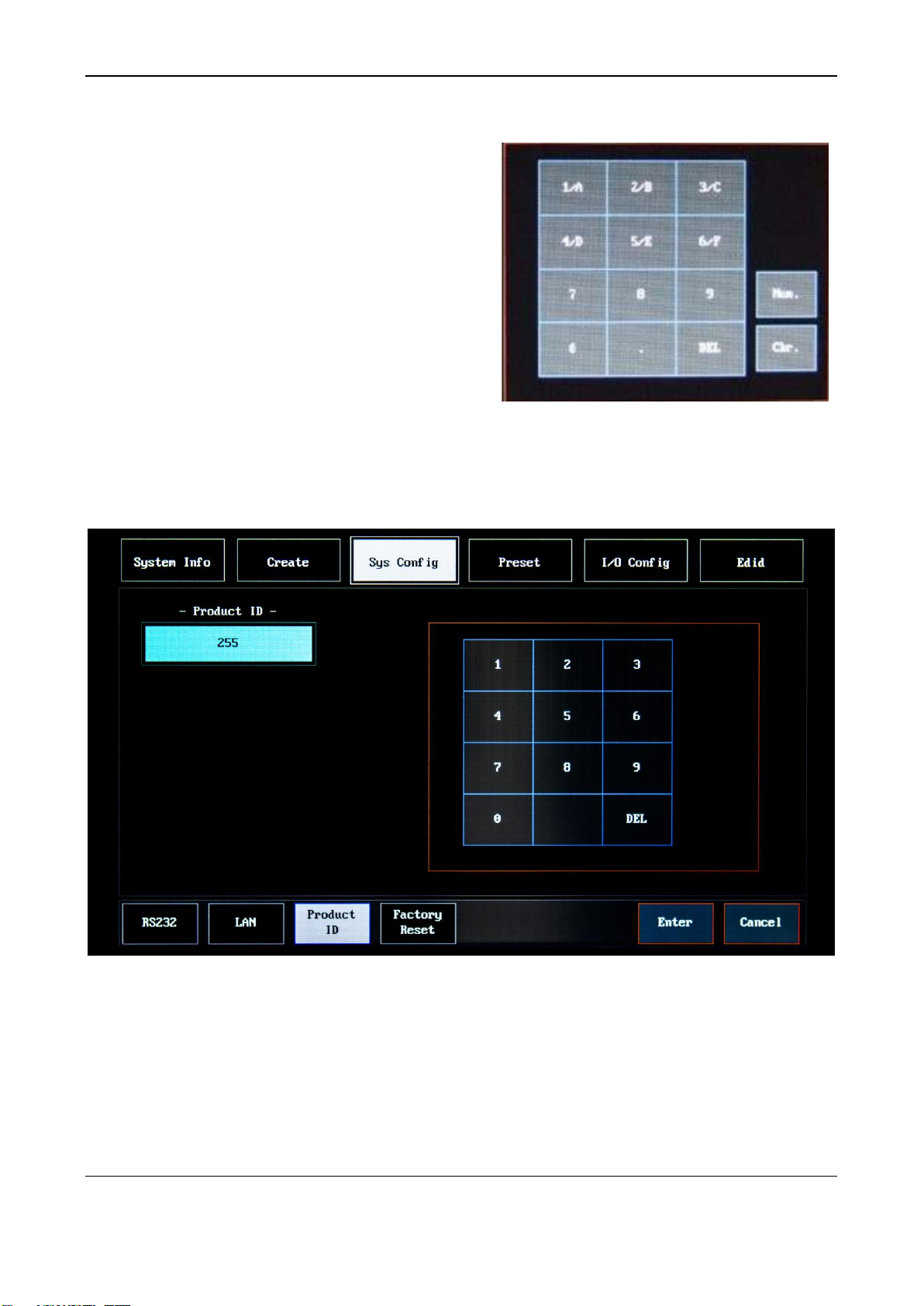
Default Router ID is 255.
*Up to 255 units of PM Matrix router can be connected and operated in the same network either via RS-232
or LAN control by assigning different ID to each individual matrix router
FAQ:
Q: What are my other actions if I’m using an external control device which requires different RS-232
Setting?
A: There are more settings that can be selected to meet your system requirement.
Here is the list of supported options for RS-232 :
Supported Baud rate: 4800 bps, 9600 bps, 14400 bps, 19200 bps, 38400 bps, 57600 bps, 76800 bps,
115200 bps.
Supported data bit: 5 bit, 6bit, 7 bit, 8bit
Supported parity: non, even, odd
Supported stop bit: 1 bit, 2 bit
3.2 LAN communication
FAQ:
Q: What are my other options if I’m using an external control device which requires different LAN setting?
A: There are four specific values that need to be changed in order to connect with your network system.
IP address, gateway, subnet mask, and mac address.
They can be easily be re-configured by using the number/alphabet key pad on the right side of LAN
config screen.

PureLink by Dtrovision
8
Number/Alphabet key pad - >
Select IP address - > Select gateway address ->
Select subnet make -> Press enter to make change.
3.3 Router ID & Factory reset
Router ID
Router ID is associated with protocol. Therefor, it is very important to know the ID number for
the matrix router that you want to control
FAQ:
Q: What will happen if I use incorrect ID number from my command?
A: Router will send you a “router ID error” message.

PureLink by Dtrovision
9
Factory Reset
Factory reset will turn PM matrix system back to the factory default setting.
RS-232 baud rate: 19200 bps
IP address: 192.168.00.002
Gateway: 192.169.001
In/output connection: no connection
Product ID: 255
FAQ:
Q: What would happen to the other settings on the PM matrix router?
A: Here are the lists of other changes after the factory reset.
1. All video/audio switching connection becomes clear
2. All audio output volume will be set to 0db
3. Input board’s video will be set to SM: HDMI/SDI and audio will be set to AS: embedded
4. Output Board’s audio will be set to 1S: embedded, 2S: embedded

PureLink by Dtrovision
10
4. Preset
Summary:
Preset Function enables you to pre-program video & audio’s I/O channel and recall them as you need
them.
Definition of each button in preset menu:
Preset select: PM has 16 empty slots where you can use to store your setting.
Channel edit: Modify and save you video/audio I/O channel.
Name edit: You can name your preset.
Store: Save preset setting.
Preset delete: Delete selected preset.
FAQ:
Q: What will happen to my preset if the power outage suddenly occurs?
A: All preset will remain stored even if the power outage occurs. However, factory reset will delete all
presets.
Q: How can I modify my previously stored preset?
A: You can always go back to channel edit menu and change the setting again.
Table des matières
Manuels Routeur réseau populaires d'autres marques

NETGEAR
NETGEAR FS526T - Switch Manuel utilisateur

Korenix
Korenix JetNet 5710G Series Manuel utilisateur

Automated Logic
Automated Logic ZN551 Manuel du propriétaire

Cisco
Cisco ASR 1000 Series Manuel de l'opérateur

EnGenius
EnGenius ESR-9710 Manuel utilisateur

Cisco
Cisco 805 Series Instructions d'utilisation et de sécurité