
Dojo Pebble Manuel utilisateur

1
Dojo by BullGuard-DL0010
User’s Guide
9 Devonshire Square EC2M 4YF London. United Kingdom
Company website: dojo.bullguard.com
For information, contact: info@dojo-labs.com
For support, contact: helpdesk@dojo-labs.com
May 2017
® All rights reserved.

Overview - System Components
2
Table of Contents
Overview...............................................................................................................................3
System Components…………………………………………………………………………………3
Getting Help..........................................................................................................................3
Setup....................................................................................................................................4
Before You Start ...................................................................................................................4
Unpacking the Dojo Pebble Kit..............................................................................................4
Setting Up Dojo.....................................................................................................................4
Connecting the Dojo Base Unit to the Router........................................................................5
Downloading and Installing the Dojo App on your Smartphone.............................................8
Powering on the Dojo Pebble................................................................................................8
Registering a New Dojo User and Pairing the Dojo App with the Dojo Base Unit..................9
Discovering Devices in Your Network .................................................................................17
Using the Dojo App.............................................................................................................18
Logging In...........................................................................................................................18
Dojo Tab.............................................................................................................................19
My Devices Tab..................................................................................................................21
Device Groups....................................................................................................................22
Changing Groups................................................................................................................24
Editing Device Details.........................................................................................................25
Alerts and Actions...............................................................................................................26
Removing an Action from a Device.....................................................................................28
Dojo Menu ..........................................................................................................................29
Protecting a Device with Remote Access............................................................................31
Router settings....................................................................................................................31
Dojo app settings................................................................................................................32
Regulatory Compliance Information....................................................................................33
Technical Specification .......................................................................................................33
Base Unit............................................................................................................................33
Pebble ................................................................................................................................33
Product Information.............................................................................................................33
FCC Statement...................................................................................................................33
CE.......................................................................................................................................34

Overview - System Components
3
Overview
Welcome to Dojo, the smart security and privacy solution for your smart connected home.
Dojo keeps you in control of your home network and privacy by monitoring your Wi-Fi
network and alerting you of new devices trying to connect. Dojo provides a security
technology that connects to your network and acts as the essential layer between your smart
devices and any threats to your security and privacy.
Just tell Dojo how to respond to each new device. If any suspicious device tries to connect to
your Wi-Fi network, you can block it.
Dojo can be monitored from mobile devices running Android or iOS operating systems.
This guide provides you instructions for connecting the Dojo system to your home network
and for using the Dojo app to monitor and control devices in the network.
Both DOJO DL0007R and Pebble DL0007v2 have Bluetooth on board, The DOJO
DL0007R unit sends alerts to the remote units via BT BLE (Bluetooth Low
Energy) and the remote unit light LEDs. And Pebble DL0007v2 uses Broadcom
20737s (BLE SIP) module to communicate with the main unit over BLE.
System Components
The main components of the solution protecting the home network are the following:
•Dojo Base Unit: A local intelligent unit which takes care of threat detection and
prevention alongside network management and control. Dojo constantly analyzes all the
network traffic within the home network and enforces the security policy of that specific
network. This analysis is done both on the device and Dojo-Labs cloud.
•Dojo Cloud Service: Dojo-Labs runs a cloud-based cyber security engine that
constantly collects and analyzes the metadata that has been generated by all the
deployed Dojos devices.
•Dojo Mobile App: The Dojo application is the main interface for using the service. It
provides an intuitive user interface that lets you take control over your home network
security and privacy without much technical knowledge.
Getting Help
In addition to this guide, the following resources are available for information:
•A Quick Start Guide is included in the Dojo Pebble kit.
•Visit the company website at: dojo.bullguard.com. It includes a collection of FAQs that
provide answers to many common questions.
If you experience technical difficulties, mail the support team at: helpdesk@dojo-labs.com

4
Setup
This chapter describes how to set up the Dojo network, install the Dojo app, register to the
Dojo service and discover the devices in your network.
Before You Start
Before you begin to set up the Dojo Pebble, ensure that you:
•Have four AA batteries.
•Have your Wi-Fi router admin credentials.
•Have powered on your smartphone and that it has Bluetooth turned on.
Unpacking the Dojo Pebble Kit
Open the Dojo Pebble kit. It includes the following items (see Figure 1):
•Dojo Pebble
•Dojo base unit
•Quick Start Guide
•Ethernet cable
•AC adapter
Figure 1: Dojo Pebble kit
Setting Up Dojo
There are four general steps in the setup:
STEP 1: Connecting the Dojo Base Unit to the Router
STEP 2: Downloading and Installing the Dojo App on your Smartphone
STEP 3: Powering on the Dojo Pebble
STEP 4: Registering a New Dojo User and Pairing the Dojo App with the Dojo Base Unit

Setup - Setting Up Dojo
5
Connecting the Dojo Base Unit to the Router
There are two modes for connecting the Dojo base unit to the router, depending on the way
your home network is set up:
•Router mode: When using your service-provider router only. The connections look like
this:
Figure 2: Router setup
•Bridge router: When using both your service-provider router and an additional Wi-Fi
router. The connections look like this:
Figure 3: Bridge setup
It is important to understand which setup your network uses, both for the physical setup and
software configuration.
Router Mode
1. Plug one end of the provided Ethernet cable into the ETH2 port of the Dojo base unit,
as shown in Figure 4 then plug the other end into an available port in your ISP Wi-Fi
router.

Setup - Setting Up Dojo
6
Figure 4: Router mode power connection
2. Plug the AC adapter into the Dojo base unit as shown in Figure 5 ( Figure 4) , then
connect the adapter to a power outlet.
Figure 5: Router mode network connection
Wait a few minutes before you continue with the setup.

Setup - Setting Up Dojo
7
Bridge Mode
1. On the Wi-Fi router side, unplug the cable connecting the Wi-Fi router to the service-
provider router.
2. Plug one end of the Ethernet cable that was provided in the Dojo kit into the ETH2
port of the Dojo base unit. Plug the other end into the same port of the Wi-Fi router
from which you unplugged the cable in step 1. See Figure 6.
3. Plug the AC adapter into the Dojo base unit and connect the adapter to a power
outlet. See Figure 6.
Figure 6: Power and ETH2 connections
4. Plug the Ethernet cable that you unplugged in step 1 into the ETH1 port.

Setup - Setting Up Dojo
8
Figure 7: ETH1 connection
Wait a few minutes before you continue with the setup.
Downloading and Installing the Dojo App on your Smartphone
Use the QR code in the Quick Start Guide code for downloading the Dojo app from the Play
Store for Android devices or App Store for iOS devices.
Powering on the Dojo Pebble
1. Turn the Pebble over, so that the Dojo logo is visible.
2. Slide the battery cover off in the direction of the arrows, to expose the battery holder.
3. Insert four AA batteries into the battery holder. Ensure they are aligned properly.
Close the battery cover.
4. Power on the Pebble: Press and hold down the button located next to the Dojo logo
for a few seconds.

Setup - Setting Up Dojo
9
Red, green, and blue circles flash to indicate that the Pebble is powering on.
5. Turn the Pebble right-side up.
The hollow in the base unit is designed to hold the Pebble. Place it there, or anywhere
within five meters of the base unit.
Registering a New Dojo User and Pairing the Dojo App with the Dojo Base Unit
In this phase of the setup, you register your username and pair the Dojo app with the Dojo
base unit.
As you perform the following procedures, make sure you are within five meters of the Dojo
base unit.
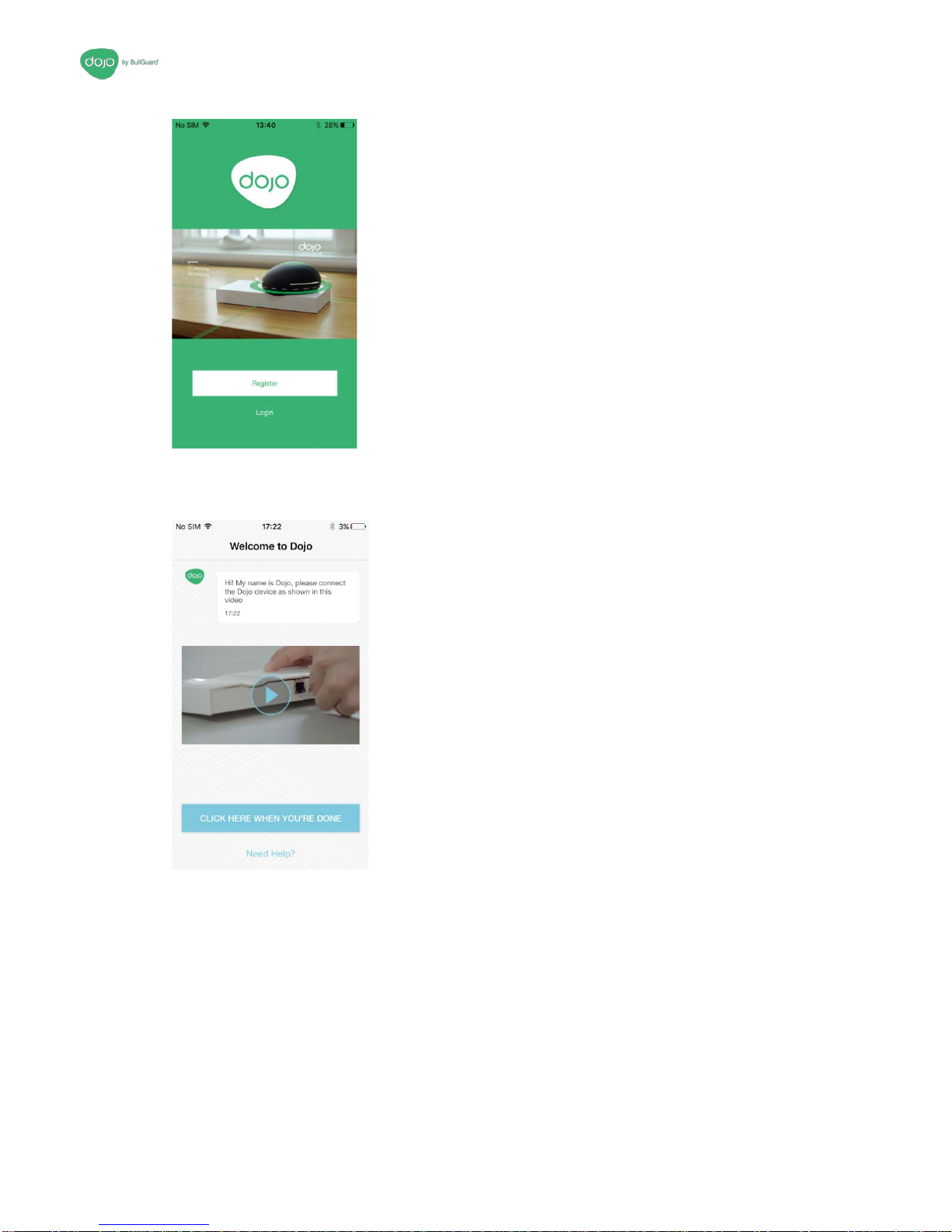
1. Open the Dojo app.
Figure 8: Push notifications screen
2. It is recommended to allow push notifications. Select Allow.
3. Touch Register.
Setup - Setting Up Dojo
10
Figure 9: Registration screen
4. Touch Register.
Figure 10: Welcome screen
If you have already performed the instructions in Connecting the Dojo Base Unit to the
Router, on page 5, touch Click Here When You’re Done. Wait for the app to display
Successfully connected to Dojo.
Table des matières


