CYP COH-TR6 Manuel utilisateur

COH-TR6
4K UHD+HDMI/DP over Fiber (10GbE)
Transceiver
Operation Manual
Operation Manual

®
registered trademarks of HDMI licensing Administrator, Inc.

DISCLAIMERS
The information in this manual has been carefully checked and
is believed to be accurate. Cypress Technology assumes no
responsibility for any infringements of patents or other rights of third
parties which may result from its use.
Cypress Technology assumes no responsibility for any inaccuracies
that may be contained in this document. Cypress also makes no
commitment to update or to keep current the information contained
in this document.
Cypress Technology reserves the right to make improvements to this
document and/or product at any time and without notice.
COPYRIGHT NOTICE
No part of this document may be reproduced, transmitted,
transcribed, stored in a retrieval system, or any of its part translated
into any language or computer le, in any form or by any means—
electronic, mechanical, magnetic, optical, chemical, manual, or
otherwise—without express written permission and consent from
Cypress Technology.
© Copyright 2018 by Cypress Technology.
All Rights Reserved.
TRADEMARK ACKNOWLEDGMENTS
All products or service names mentioned in this document are
trademarks of the companies with which they are associated.

SAFETY PRECAUTIONS
Please read all instructions before attempting to unpack, install or
operate this equipment and before connecting the power supply.
Please keep the following in mind as you unpack and install this
equipment:
• Always follow basic safety precautions to reduce the risk of re,
electrical shock and injury to persons.
• To prevent re or shock hazard, do not expose the unit to rain,
moisture or install this product near water.
• Never spill liquid of any kind on or into this product.
• Never push an object of any kind into this product through any
openings or empty slots in the unit, as you may damage parts
inside the unit.
• Do not attach the power supply cabling to building surfaces.
• Use only the supplied power supply unit (PSU). Do not use the PSU
if it is damaged.
• Do not allow anything to rest on the power cabling or allow any
weight to be placed upon it or any person walk on it.
• To protect the unit from overheating, do not block any vents or
openings in the unit housing that provide ventilation and allow for
sufcient space for air to circulate around the unit.
• Please completely disconnect the power when the unit is not in
use to avoid wasting electricity.
VERSION HISTORY
REV. DATE SUMMARY OF CHANGE
VS1 2018/11/07 Final technical review
VS2 2018/12/06 Updated Sections 6 (RS-232 Bypass), 8.1, 8.3
VS3 2018/12/20 Added Sections 6.3, 6.4, 6.5; updated
Section 6.7, 8.2
VS4 2020/01/16 Changed "Local Priority" to "Auto Mode"

CONTENTS
1. Introduction......................................................1
2. Applications.....................................................1
3. Package Contents ..........................................2
4. System Requirements......................................2
5. Features............................................................3
6. Operation Controls and Functions.................4
6.1 Front Panel ................................................. 4
6.2 Rear Panel.................................................. 5
6.3 IR Cable Pinouts ........................................ 7
6.4 RS-232 Bypass Pinout................................. 7
6.5 OSD Menu.................................................. 8
6.6 Basic AV Extension .................................. 13
6.7 Advanced AV Extension ........................ 14
7. Connection Diagram ....................................18
8. Specications ................................................19
8.1 Technical Specications ........................ 19
8.2 Video Specications............................... 20
8.3 Audio Specications............................... 22
8.4 Cable Specications .............................. 23
9. Acronyms .......................................................24

1
1. INTRODUCTION
This Transceiver is designed for high-quality, IP routable, AV extension
with minimum latency. Every Transceiver can be congured to
function as either a Transmitter or a Receiver, enhancing the exibility
of any installation. By using a sophisticated ultra-light compression
scheme (lossless for most content) it’s a great solution for extending
4K audio/video streams (HDMI or DisplayPort) and data. Advanced
HDMI content such as HDR (High Dynamic Range), 10-bit color and
multi-channel HD Bitstream audio can be transmitted in pass-through
mode. The use of interchangeable, eld replaceable, SFP+ modules
allows for transmission distances of up to 30km (Maximum transmission
distance depends on the SFP+ modules used). Multiple control and
data signals may also be transmitted along with the audio and video,
including IR, RS-232, USB (for KVM) and Ethernet.
When combined with the optional control center or control software,
the functionality of the Transceiver expands exponentially. Multiple
Transceivers may be combined with one or more 10-Gigabit ber
Ethernet switches and the units can be used together to form a
distributed video matrix, a multi-viewer system, or a video wall system
adding to their exibility in large event installations. The built-in EDID
and HDCP management functionality enables the unit to t into every
situation. Basic conguration of the unit can be achieved via front
panel buttons with an On-Screen Display (OSD). Advanced control
requires optional control software and a LAN connection.
2. APPLICATIONS
• Video, Audio, LAN, IR, RS-232, and USB over ber extension
• Hotel or convention center display
• Multi-monitor broadcast
• Long distance data and video transmission immune to RF
interference
• Distributed video matrix system
• Distributed video wall system
• Remote KVM system control

2
3. PACKAGE CONTENTS
• 1×HDMI/DP over Fiber (10GbE) Transceiver
• 1×12V/3A DC Power Adapter
• 1×Power Cord
• 1×3-pin Terminal Block to DE-9 (Male) Adapter Cable
• 1×3-pin Terminal Block to DE-9 (Female) Adapter Cable
• 1×USB Mini-B to Type-A Adapter Cable
• 1×Shockproof Feet (Set of 4)
• 1×Operation Manual
4. SYSTEM REQUIREMENTS
• HDMI or DisplayPort source equipment such as a media player,
video game console, PC, or set-top box
• HDMI receiving equipment such as an HDTV, monitor, or audio
amplier
• Analog audio receiving equipment such as headphones, an audio
amplier or powered speakers.
• IEEE 802.3ae compatible SFP+ ber module supporting a dual-
optical ber connection style, such as LC, or a pre-terminated
crossover dual-optical ber cable. Single-mode and multi-mode
support is dependent on the SFP+ modules used.
• A 10 Gigabit ber Ethernet network switch with jumbo frame and
IGMP snooping support is required for distributed video systems.
(Optional, required for multi-Tx/Rx systems)
• PC control software or control system hardware to congure
distributed matrix, video wall or multi-view systems. (Optional)

3
5. FEATURES
• HDMI 2.0 and DVI 1.0 compatible
• HDCP 2.2 and HDCP 1.x compliant
• Can be congured to function as either a Transmitter or a Receiver
• 1 HDMI and 1 DisplayPort input
• 1 HDMI output (Functions as local monitor output in Transmitter
mode)
• 1 analog stereo jack (switchable between input/output mode)
• IP switchable with minimum latency (requires optional control
center or control software)
• Ultra-light compression, lossless for most content
• Extension up to 30km (depending on the ber module used)
• Independent breakaway A/V matrix switching (requires optional
control center or control software))
• Video wall generation (requires optional control center or control
software)
• Multi-view compositing (requires optional control center or control
software)
• Supports pass-through of 10/12-bit HDR sources (Point-to-Point and
Genlock mode only)
• Supports pass-through of audio formats including LPCM 2.0/5.1/7.1,
Bitstream and HD Bitstream from HDMI or DisplayPort sources
• Analog stereo audio extension, insertion and extraction (insertion
and extraction requires optional control center or control software)
• Bi-directional LAN, IR, RS-232 & USB 2.0 extension
• Signal transmission interfaces with 10-Gigabit Ethernet switches via
XFI, IEEE 802.3ae, compatible SFP+ ber modules
• Basic conguration via front panel buttons with an On-Screen
Display (OSD)
• Supports the use of an external control center or control software to
provide expanded functionality (Contact your authorized dealer for
more information)

4
6. OPERATION CONTROLS AND FUNCTIONS
6.1 Front Panel
HDMI / DP OVER FIBER TRANSCEIVER
POWER
T/R SOURCE
GbE VIDEO TX
LINK
RX USB
MENU
-
+ ENTER
INFO
1 2 3 54 6 7 8
1POWER LED: This LED will illuminate to indicate the unit is on and
receiving power.
2T/R LED: This LED indicates if the unit is in Transmitter (Green LED) or
Receiver (Amber LED) mode.
3SOURCE LED: This LED will illuminate to indicate that a local video
input is selected and live. Green indicates that the local HDMI
input is live and amber indicates that the local DisplayPort input is
live.
Note: When the unit is in Receiver mode, and streaming is active,
this LED will remain off.
4STREAMING STATUS LED BLOCK
AGbE LED: This LED will illuminate and blink to indicate a live and
active connection on the local gigabit Ethernet port.
BVIDEO LED: This LED will illuminate when a video signal is live on
the optical ber streaming port. When no video is active the
LED will remain off, even if the streaming connection is valid.
CTX & RX LINK LEDs: These LEDs will illuminate and blink to
indicate data transmission and reception activity across the
optical ber streaming connection.
5MENU BUTTON: Press to enter the OSD menu, or to back out from
menu items.
6 − (MINUS) BUTTON: Press to move down or adjust selections
within OSD menus. When not in a menu, press to manually switch
between the available inputs.
7 + (PLUS) BUTTON: Press to move up or adjust selections within OSD
menus. When not in a menu, press to manually switch between the
available inputs.

5
8ENTER/INFO BUTTON: When inside an OSD menu, press to conrm a
selection within the OSD or to go deeper into a menu item. When
not in a menu, press to activate the Information OSD.
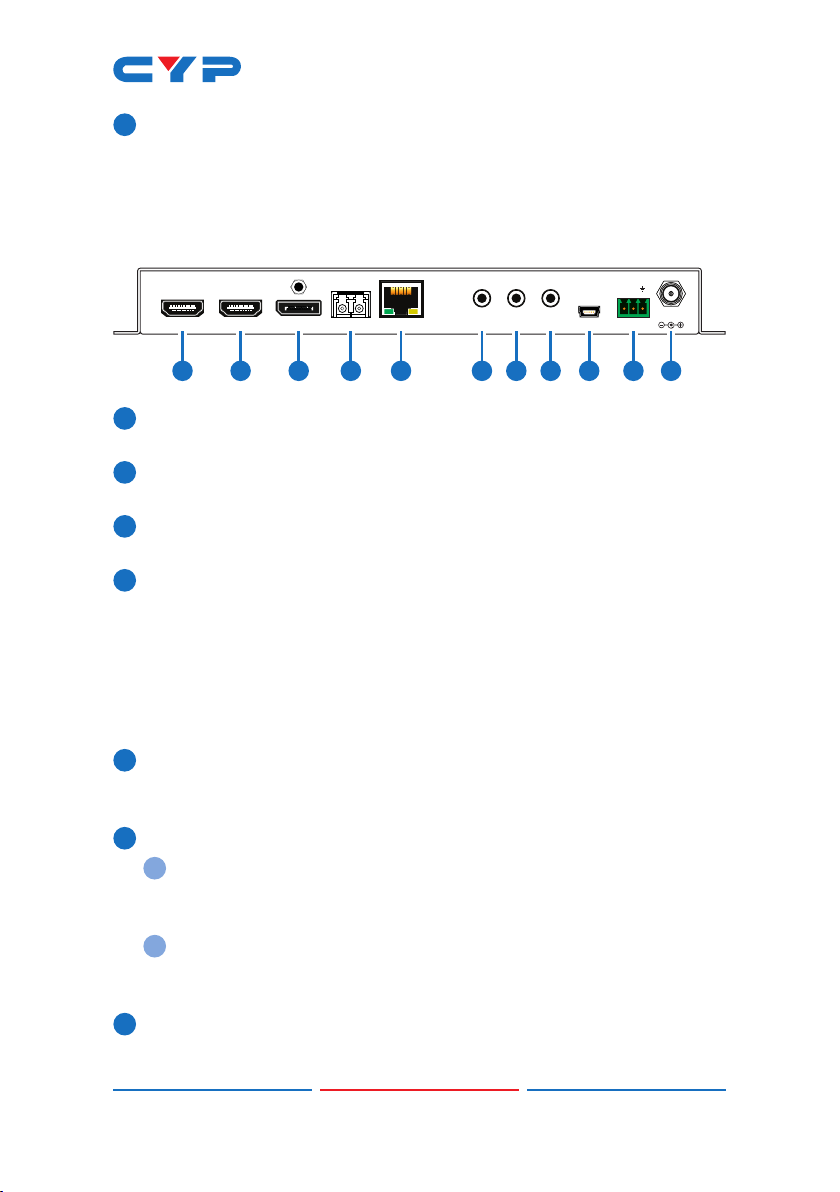
6.2 Rear Panel
SFP+DP INHDMI INHDMI OUT USBIR INIR OUTAUDIOLAN RS-232
TX RX
DC 12V
1110987654321
1HDMI OUT PORT: Connect to an HDMI TV, monitor or amplier for
digital video and audio output.
2HDMI IN PORT: Connect to HDMI source equipment such as a
media player, game console or set-top box.
3DP IN PORT: Connect to DisplayPort source equipment such as a
PC, laptop or set-top box.
4SFP+ PORT: Insert a standard SFP+ module, and connect the
appropriate optical cable to allow data transmission between
compatible Transmitter/Receiver units or to a 10-gigabit optical
ber network switch.
Note: Single-mode and multi-mode support is dependent on
the SFP+ modules used. Simplex SFP+ modules must use different
wavelengths for each end (e.g. 1330/1270nm).
5LAN PORT: Connect to an Ethernet supporting device or to your
local network as appropriate to extend the network between the
Transmitter and Receiver.
6AUDIO PORT:
ATransmitter Mode: Connect to the stereo analog output of a
device such as a CD player or PC. The audio signal is passed
directly to the audio port on the connected Receiver.
BReceiver Mode: Connect to powered speakers or an amplier
for stereo analog audio output. The audio signal comes directly
from the audio port on the connected Transmitter.
7IR OUT PORT: Connect to an IR Blaster to transmit IR signals to
devices within direct line-of-sight of the IR Blaster.
Table des matières
Autres manuels CYP Émetteur-récepteur

CYP
CYP AVX-501C-TR Manuel utilisateur

CYP
CYP COH-TR7 Manuel utilisateur

CYP
CYP SDV-FTRX Manuel utilisateur

CYP
CYP CH-V502TR Manuel utilisateur

CYP
CYP CDPS-P314EDC Manuel utilisateur

CYP
CYP CH-U331TR Manuel utilisateur

CYP
CYP CH-701TR Manuel utilisateur

CYP
CYP CH-V501TR Manuel utilisateur

CYP
CYP PUV-3150TR-UEAO Manuel utilisateur

CYP
CYP AVX-501F-TR Manuel utilisateur


