
Cyber Acoustics Essential Manuel utilisateur
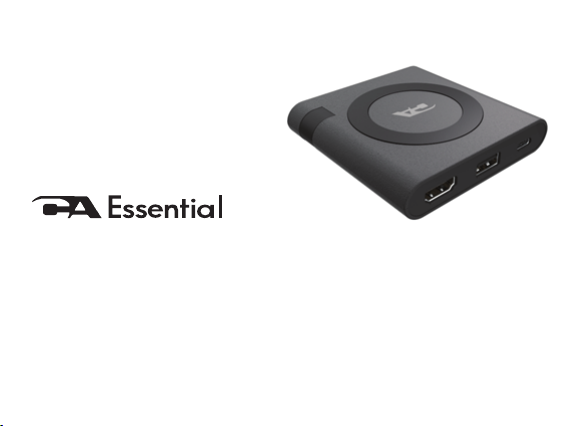
Quick Start Guide
www.CyberAcoustics.com CA P/N: DS1500 Rev. A01
2021-01
Micro Docking Station

In the Package
Quick-Start Guide
Micro Docking Station
CA Essential Micro Docking Station
Quick Start Guide
www.CyberAcoustics.com
Micro Docking Station
CA P/N: DS1000 Rev.A00
2020-09

Table of Contents
Using the CA Essential Micro Docking Station
Using CA Essential Micro Docking Station with your Laptop
USB Type C AC Power Adapter
Using CA Essential Micro Docking Station a USB Type C
15W Power Adapter (Not Included)
Technical Specications
Frequently Asked Questions
Contacting Customer Support
Safety and Precautions
Pages
1 - 2
3 - 4
5 - 6
7
8 - 9
10
11 - 13

Page 1
Using CA Essential Micro Docking Station
- The CA Essential Micro Docking Station will get its power when connected to the Laptop’s
USB Type C port. The functionality will vary based on the power available from the
Laptop’s USB Type C port.
- Power available for attached peripherals and wireless charging are dependent on the
power supplied by your Laptop’s USB Type C port. The USB Type C port on your laptop
may support either 7.5W or 15W. If the power supplied is 15W then all the functions of the
CA Essential Micro Docking Station can be used simultaneously. If the power supplied is
7.5W NOT all functions of the CA Essential Micro Docking Station can be used simultane-
ously.
- The 7.5W power supplied by the Laptop’s USB Type C port will not allow the Qi Wireless
Charger, USB Type A port, USB Type C port and the HDMI port to be used simultaneously.
On these Laptops the Qi Wireless Charger will be disabled when the USB Type A port and
USB Type C port are being used.
- If the power supplied by the Laptop’s USB Type C port is 7.5W a USB Type C 15W Power
Adapter purchased separately will be necessary to power the CA Essential Micro Docking
Station to allow the Qi Wireless Charger, USB Type A port, USB Type C port and the HDMI
port to be used simultaneously.
Note: USB Type C 15W Power Adapter and Cable available at www.cyberacoustics.com

Page 2
USB Type C
Connection
Step 2: Connect your Peripherals to the
CA Essential Micro Docking Station.
USB Type A
Gen 2 Port
HDMI Connection
to a TV or Monitor
Step 3: Place your device supporting Wireless
Charging on the top of the CA Essential
Micro Docking Station.
Step 1: Connect CA Essential Micro Docking Station to your Laptop.
Using CA Essential Micro Docking Station - Continued

Page 3
Using CA Essential Micro Docking Station with your Laptop USB Type C AC
Power Adapter
- If your Laptop computer comes with a USB Type C Power Adapter rated at 90W or higher. This power
adapter can be used to power the CA Essential Micro Docking Station as well as slowly charge the
battery on your laptop.
Step 1: Connect CA Essential Micro Docking Station to your Laptop USB Type C AC Power Adapter as shown on.
Step 3: Connect CA Essential Micro Docking Station to your Laptop.
Step 2: Plug your Laptop USB Type C AC Power Adapter to a power source.

Page 4
Laptop USB Type C
AC Power Adapter
Using CA Essential Micro Docking Station with your Laptop USB Type C AC
Power Adapter - Continued
Step 4: Connect your Peripherals to the CA Essential Micro Docking Station.
USB Type A
Gen 2 Port
HDMI Connection
to a TV or Monitor
Step 5: Place your device supporting Wireless charging on the top of the CA Essential Micro Docking Station.
Note: The CA Essential Micro Docking Station will support standalone charging of your smartphone
when the CA Essential Micro Docking station is not connected to your Laptop. The CA Essential Micro
Docking Station still needs to be connected to a power source with your Laptop USB Type C AC
Power Adapter.

Using the CA Essential Micro Docking Station with a USB Type C
15W Power Adapter (Not Included)
Step 3: Insert the end of the USB Type C Docking Station Cable into the USB Type C port on your Laptop as show below.
Step 2: Insert the other end of the USB Type C Charging Cable into the connector of a USB Type C 15W Power Adapter as shown
and plug the USB Type C 15W Power Adapter into a power source.
Step 1: Insert the USB Type C Charging Cable into the USB Type C port on the CA Essential Micro Docking Station.
Page 5

USB Type A
Gen 2 Port
USB Type C
15W Power Adapter
HDMI Connection
to a TV or Monitor
Step 5: Place your device supporting Wireless charging on the top of the CA Essential Micro Docking Station.
Note: The CA Essential Micro Docking Station will support standalone charging of your smartphone
when the CA Essential Micro Docking station is not connected to your Laptop. The CA Essential Micro
Docking Station still needs to be connected to a power source with a USB Type C 15W Power
Adapter and Cable.
Using the CA Essential Micro Docking Station with a USB Type C
15W Power Adapter (Not Included) - Continued
Step 4: Connect your Peripherals to the CA Essential Micro Docking Station.
Page 6

Page 7
Technical Specication
Interface
Specication
- USB Type A: Supports USB3.1 Gen1 and Gen2
- USB Type C: Supports USB3.1 Gen1 and Gen2 (Power Delivery
with USB Data and DP Alt mode)
- HDMI: Support HDMI2.0 with HDCP2.2
- Power Delivery: Supports PD3.0 without Fast Power Role Swap
- Video output maximum resolutions:
- 1 x HDMI 2.0b (2 lanes DP HBR3, 3840 x 2160 @ 60Hz)
- 1 x DisplayPort 1.4 (4 lanes DP1.4, 3840 x 2160 @ 60Hz)
- Supports HDR10
- Supports DP1.4 with DPCP
Video Output
Resolution
- Supports 5W Qi wireless charging.
- USB Type C Bus Power: Supports 15W (5V/3A) Laptop Bus Power.
- Using Laptop USB Type C AC power adapter: 90W Adapter recommended
(Using less than a 90W Adapter will function, but Laptop may not charge or
may experience reduced performance.)
- Upstream USB Type C power delivery for charging Laptop: Maximum 65W
- Supports Power Delivery pass through
- PDO support: Bypass (Follow USB Type C AC power adapter’s PDO)
Power
Requirements
Supported operating
system
Operating temperature
- Windows 10 64-bit, MAC OS X 10.4.11 or Higher
- Product working at ambient temperature for 0~30°C
Table des matières


