
Cricket Crosswave Instructions de montage

CRICKET CROSSWAVE™

1
Thank You for Choosing the
CRICKET CROSSWAVE™
• Thesupportedfunctionsandactualappearancedepend
ontheproductyoupurchased.Thefollowingpictures
areprovidedforillustrationonly.Fordetailsaboutyour
productselection,consultyourserviceprovider.
• ThisguidebrieydescribesthefunctionsoftheCRICKET
CROSSWAVE™.Fordetailsabouthowtosetthemanagement
parameters,refertoHelponthewebmanagementpage.
• IftheCRICKETCROSSWAVE™isplacedinanenvironment
withpoorventilation,itmayoverheatafterextendeduse.
Whenitoverheats,itwillswitchoordisconnectfrom
thenetworkautomaticallytoprotectitself.Ifthishappens,
placetheCRICKETCROSSWAVE™inawell-ventilated
location,thenrestarttheCRICKETCROSSWAVE™.
• Supportedwebbrowser:WindowsInternetExplorer6.0,7.0,or
8.0;Firefox3.0orlater;Safari3.0orlater;Chrome2.0orlater.

2
Getting to Know Your
CRICKET CROSSWAVE™
Packaging List
Thepackageshouldcontainthefollowingitems.Ifanyoftheitems
aremissingordamaged,contactyourlocaldealerimmediately.
Topurchaseoptionalaccessories,contactCricket.
MainUnit Battery
Charger QuickStartGuide
SafetyInformation
WarrantyExchange
ProgramDocument
DataCable

3
Application Scenarios
AWi-FideviceorcomputercanbeconnectedtotheInternetthroughthe
CRICKETCROSSWAVE™.Theactualconnectionproceduredependson
theoperatingsystemoftheWi-Fideviceorcomputer.Youcanperformthe
connectionoperationsasprompted.
Scenario 2:One-deviceaccessviaUSB.
Scenario 3:Multi-device
accessviaWi-FiandUSB
atthesametime
(Maximum 3 Wi-Fi and 1 USB
Connections at one time).
Scenario 1:Multi-device
accessviaWi-Fi(Maximum 3
Wi-Fi connections at one time).
Smart phone Game machine
Laptop
Smart phone
Game machine
Laptop

4
1 Wi-Fiindicator
2 Wi-Fibutton
3 Powerbutton
4 Powerindicator
5 Networksignal
indicator
6 USBconnector
7 Externalantenna
interface
8 MicroSDcardslot
9 Resetbutton
10 SSIDandWi-Fikey
label
INDICATOR STATUS
WiFi • O:Wi-Fiisdisabled.
• Continuously on green:Wi-Fiisenabled.
Power • Blinking red:Batterypowerlevelis
lowandmustbechargedimmediately.
OtherwisetheCRICKETCROSSWAVE™
willpoweroautomatically.
• Continuously on red:
Batterypowerisweak.
• Blinking green:Battery
isbeingcharged.
• Continuously on green:
Batterypowerisgood.
Signal • Continuously on red:Nosignal.
• Continuously on green:Thesignalexists.
• Blinking green:The
CRICKETCROSSWAVE™
isuploadingand
downloadingdata.
Note: TogetthebestsignalstrengthtrytopositiontheCRICKETCROSSWAVE™nearawindowandnotina
basement.AsaroughguidetoWi-Fisignalstrength:Whenpoweredbyamaincharger–upto30meters
indoors.WhenpoweredbyaPCorwiththebattery–upto10metersindoors.
1
2
3
4
5
6
7
810
9

5
Before You Start
Installing the Battery
Installthebatteryasshown.
Installing the MicroSD Card
InstallthemicroSDcardasshown.
Note:
• ThemicroSDcardisanoptionalaccessory.Youcan
purchaseoneyourselforataCricketstore.
• ToremovethemicroSDcard,pressinthecardgently.
ThemicroSDcardwillpopoutforremoval.
• Donotremovethecardwhileinuse.Doingsomaydamagethecardand
theCRICKETCROSSWAVE™,anddatastoredonthecardmaybelost.
1 2 3

6
Charging the Battery
Note:
• Ifyouhavenotusedthebatteryforalongtime,itmustbechargedrst.
• Ifthepowerindicatorblinksredduringthecharging,youmustwaitforthepower
indicatortoblinkgreen,andthenusetheCRICKETCROSSWAVE™.
Caution:Usechargerincludedwiththe
CRICKETCROSSWAVE™.Onlyusechargers
certiedandtestedwithindustrystandard.
Useofanincompatiblecharger,orone
fromuncertiedorunidentiedsource
maycausetheCRICKETCROSSWAVE™
tomalfunction,fail,orevencauseare.
Suchusevoidsallwarranties,whether
expressedorimplied,ontheproduct.
Method 2: Charging by Connecting to a PC.
ConnecttheCRICKETCROSSWAVE™toa
PCusingacompatibledatacable.
Method 1: Charging by Using the Charger.

7
Accessing the Internet
via Wi-Fi Connection
Pleaseberemindedthatyouneedtoactivatethedevicebeforeyou
canconnecttointernetthroughUSBorWi-Fi.Followstepbystep
instructionsbelowforactivation.
Step 1: Power on the CRICKET CROSSWAVE™
Step 2: Establish a Wi-Fi Connection
Step 3: Activate the Device
Step 4: Access the Internet

8
1. Power on the CRICKET CROSSWAVE™
Pressandholdthepowerbuttonuntiltheindicatorscome
on.TheCRICKETCROSSWAVE™ispoweredon.
Note:Pressandholdthepowerbuttonuntiltheindicatorsturno.
ThisindicatesthattheCRICKETCROSSWAVE™ispoweredo.
2. Establish a Wi-Fi Connection
a. EstablishaWi-FiConnection(onaPC).
1. WhentheCRICKET
CROSSWAVE™ispoweredon,
Wi-Fiisenabledbydefault.
(If the CRICKET CROSSWAVE™ is
using battery power and has not
been accessed for 10 minutes by
default, Wi-Fi is disabled. You can
press and hold the Wi-Fi button for
3 seconds to enable the Wi-Fi.)
2. SelectStart >Control Panel
>Network Connections>
Wireless Network Connection.
Note:TosetupaWi-Ficonnection,
thePCmustbeinstalledwitha
wirelessnetworkadapterandthe
wirelessconnectionisturnedon.
IfWirelessNetworkConnection
isdisplayed,thewirelessnetwork
adapterisavailable.Otherwise,check
yourwirelessnetworkadapter.
3. ClickView available wireless
networkstodisplaythe
wirelessnetworklist.
9
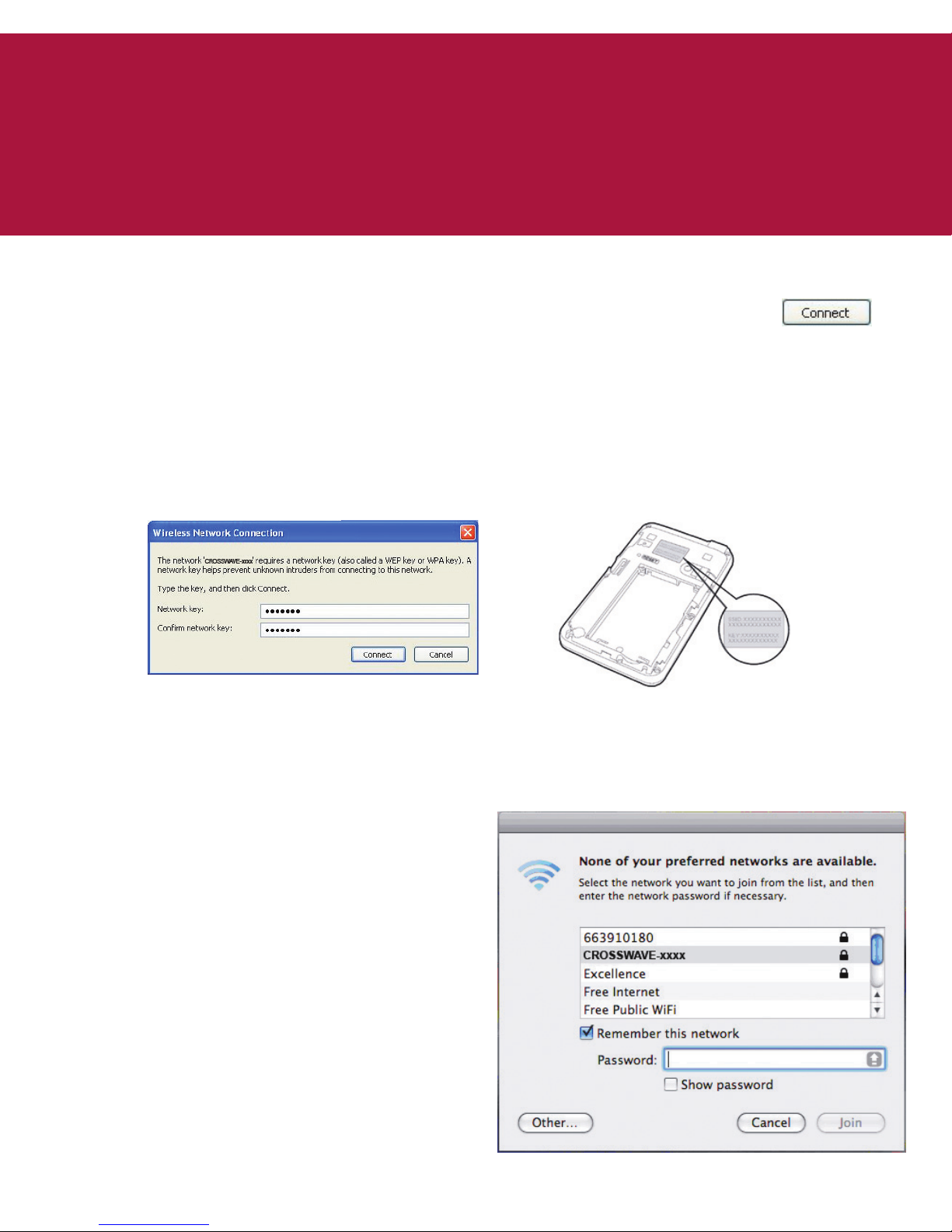
4. Selectthenetwork“CROSSWAVE-xxxx”,andthenclick.
5. IftheencryptionparameterisalreadysetfortheCRICKET
CROSSWAVE™,theWirelessNetworkConnectiondialog
boxisdisplayedandrequiresyoutoenterthenetwork
keyanditsconrmation.TheSSIDandNetworkkey(Wi-Fi
key)labelisaxedtothebackofCRICKETCROSSWAVE™
underbatterycover(SeePictureforlocationreference).
b. EstablishaWi-FiConnection(onaMAC).
1. MakesurethattheWi-Fiindicatoriscontinuouslyongreen.
2. IfAirPortiso,followthestepsbelow.
• GotoAirPorticonand
selectTurn AirPort On.
• Awindowofavailable
Wi-Fisignalswillbe
provided.Select
theCRICKET
CROSSWAVE™ device.
• InputtheWi-FiKEY
locatedunderCRICKET
CROSSWAVE™battery
coverasPassword.
• SelectJoin.
Table des matières
Autres manuels Cricket Routeur sans fil


