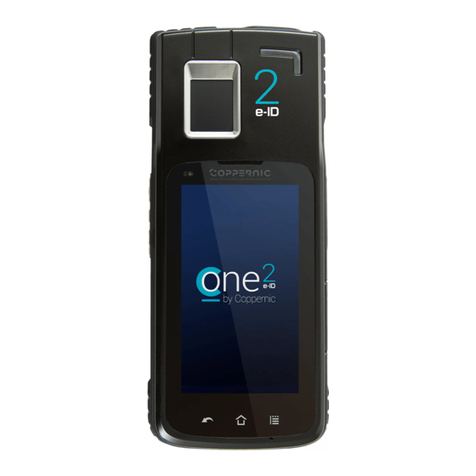
User Manual
C-One e-ID x / MR2xxx
2/18
TABLE OF CONTENTS
Product Hardware description. ...........................................................................................................................3
Product Software description.............................................................................................................................. 5
2.1 OS..................................................................................................................................................................5
2.2 CpcServices ...................................................................................................................................................5
2.3 F-droid...........................................................................................................................................................5
How to charge the C-One e-lD ............................................................................................................................6
How to insert and remove Micro SIM card(s) into the C-One e- ID x / MR2xxx ..................................................7
How to insert and remove Micro SD card into the C-One e- ID x / MR2xxx ........................................................8
Data capture to use on the C-One e- ID x / MR2xxx............................................................................................9
6.1 SCAN A BARCODE WITH THE IMAGER...........................................................................................................9
6.1.1 Hardware................................................................................................................................................9
6.1.2 Software.................................................................................................................................................9
6.2 TAKE A PICTURE WITH THE CAMERA ..........................................................................................................10
6.2.1 Hardware..............................................................................................................................................10
6.2.2 Software...............................................................................................................................................10
6.3 DECODE A FINGERPRINT .............................................................................................................................11
6.3.1 Hardware..............................................................................................................................................11
6.3.2 Software...............................................................................................................................................11
6.4 INSERT AND READ A SMARTCARD...............................................................................................................12
6.4.1 Hardware..............................................................................................................................................12
6.4.2 Software...............................................................................................................................................12
6.5 READ A CONTACTLESS CARD.......................................................................................................................13
6.5.1 Hardware..............................................................................................................................................13
6.5.2 Software...............................................................................................................................................13
6.6 COMMUNICATIONS.....................................................................................................................................14
6.6.1 Extension and communication ports....................................................................................................14
6.6.2 Wireless communications ....................................................................................................................14
Warnings of use Wireless Devices.....................................................................................................................15
European Regulatory Information.....................................................................................................................16
FCC INFORMATION TO USERS...........................................................................................................................18
9.1 FEDERAL COMMUNICATION COMMISSION INTERFERENCE STATEMENT...................................................18