Comway 4G DTU Guide rapide

1
Comway 4G DTU Configuration Instructions
Directory
1. Install and run 4G DTU configuration software:...................................................................... 2
2. Configuring the Software Dashboard......................................................................................2
1) Methods for a computer to connect to the DTU:............................................................2
2) Connect DTU via serial port.............................................................................................3
3) Via Ethernet or VPN connection DTU:.............................................................................4
4) Via WIFI Connect DTU .....................................................................................................5
5) Read device parameters and save parameters to configuration file :............................. 5
6) Send the at command through the debugging tool........................................................6
3. DTU connects to internet or apn private network:.................................................................7
1) 4G connection to INTERNET or APN private network:.................................................... 7
2) Connect to INTERNT or private network via a local router: ............................................8
4. 4G DTU socket communication parameter configuration..................................................... 9
1) COMWAY Protocol.........................................................................................................10
2) Transparent transmission protocol :..............................................................................11
3) Transparent transmission + ID mode ............................................................................12
5. Network communication configuration ................................................................................12
1) Set the network parameters of dtu...............................................................................12
2) VPN communication configuration ...............................................................................14
3) Port mapping configuration ..........................................................................................14
4) Network device IP information .....................................................................................15
6. Configure WIFI parameters ...................................................................................................15
7. Modbus RTU to TCP configuration........................................................................................16
8. Modbus TCP to RTU configuration........................................................................................17
9. Configuration of advanced options.......................................................................................18
1) Choice of TCP or UDP:................................................................................................18
2) Enable network management:......................................................................................19
3) Reboot mode of DTU :...................................................................................................19
4) Scheduled or timed tasks:............................................................................................. 19
10. Multi-server parallel communication and SMS settings .......................................................20

2
Comway product configuration software can connect DTU or RTU through serial
ports, Ethernet, WIFI and VPN networks, etc., and can configure Comway's 4G DTU and
RTU products. Due to the limitation of the software interface, the setting of more complex
functions needs to refer to the "COMWAY 4G DTU Extended AT Command Set", and
realize it through AT command configuration.
1. Install and run 4G DTU configuration software:
Download and unzip the configuration file, run " dtu_config.exe ” to see the interface
as shown below:
Select 4G DTU general configuration in the product list to read and configure
parameters.
2. Configuring the Software Dashboard
In the configuration page list as shown above , select Dashboard. On the right
interface, first connect the DTU through the serial port or network port.
1) Methods for a computer to connect to the DTU:
The 4G DTU configuration software can connect the DTU through the serial port,
Ethernet port or WIFI of the computer, as shown in the figure below

3
2) Connect DTU via serial port
serial port number of the computer connected to the DTU (click Update in the
drop-down menu to display all available serial ports) and related communication
parameters: baud rate and parity bit.
DTU factory default serial port parameters: baud rate 115200, data bit 8, stop bit 1,
check bit no.
Do not insert the SIM card when connecting the DTU through the serial port (the
power will be turned off when inserting and unplugging the SIM card) to prevent the DTU
serial port from entering the data connection mode.
Correctly set serial port parameters , click : connect device .
When the user cannot connect to the dtu through the serial port normally, you can
run the configuration software first , click "connection in configuration mode" , and "wait
for the device to be powered on to enter the configuration mode" appears, and then
power on the device . (note the order of operations)

4
After the serial communication is normal, it will display "Device connection is
successful".
At this point, click the " Read from Device " button to correctly read the existing
configuration parameters of the DTU.
3) Via Ethernet or VPN connection DTU:
DTU IP in the "Connection Parameters" field Address (default 1 92.168.1.251 ), VPN
IP (need to run vpn-client software first) and click " Connect Device ".

5
After "Device connection is successful" is displayed, click " Read from device " to
obtain the internal parameters of D TU .
4) Via WIFI Connect DTU
For DTUs with WIFI labels produced after 2020, the WIFI hotspot mode is enabled
by default, and the default IP address is also 192.168.1.251. First, through the WIFI of the
laptop, search for the DTU hotspot, the hotspot name is the 12-digit product serial
number of DTU, and the connection password: comway666.
5) Read device parameters and save parameters to configuration file :
In the following interface, click " Read from Device " to read all the configuration
parameters saved in the dtu.
In the following interface, click " Save to Device ", which will save the existing
parameters in the configuration software to the dtu at one time.

6
Click the Save to stored button to save the configuration parameters modified by the
user in the form of a file, which is convenient to directly read the configuration file and
quickly complete the DTU configuration in the future.
Click the " Load from device " button to directly read the configuration parameters
from the already configured settings file, and cooperate with the " Save to Device "
button to quickly configure the DTU parameters. The operation steps are as follows:
1: Enter the file name, 2: Click "+" to create a new file, 3: Click "Save to Pre-saved
Configuration".
6) Send the at command through the debugging tool
Not all AT commands are displayed in the interface of the configuration software.
Sometimes it is necessary to directly input AT commands for debugging. To do this, you
can use the AT command debugging tool, click to enter: Command mode, you can enter
the AT command, and then click: Send the commandline, thereby executing the AT
command, and the result is displayed in the following window.

7
The basic flow of operation of the configuration software :
WRITE SAVE CONFIGURATION RESET DTU RUN
Write the command to save the configuration and restart the DTU modification to
take effect
3. DTU connects to internet or apn private network:
1) 4G connection to INTERNET or APN private network:
After inserting the SIM card, the PWR light of the DTU is always on, that is, the
connection to the Internet is realized. When connecting to the APN private network, you
need to set the APN address of the private network card in "Advanced Setting", as
shown in the figure below.

8
2) Connect to INTERNT or private network via a local router:
DTU has a Ethernet (WL-4010/4011/4050/L-4015 and other models) and WIFI,
which can be connected to a local area network or WIFI, and connected to the Internet
through a broadband router.
When connecting to the Internet through the Ethernet, if the IP address of the router
is: 192.168.1.1, the settings are as follows:
When connecting to the Internet through WIFI, on the "WIFI Settings" page, set
"Open WIFI Terminal", set the name and password of the connected hotspot, and the
authentication encryption method, and then set the correct IP address, as shown in the

9
following figure:
4. 4G DTU socket communication parameter configuration
Select the serial communication main server configuration page , the configuration
process is as follows:
Choose a communication protocol
Set the server address and port number. The server address can be a fixed IP
address or a dynamic domain name.
Select the server connection method
The working mode of the DTU can be selected as constant mode or manual
mode .
Constant connection mode means that after the DTU is powered on, it
automatically connects to the pre-set server, and reconnects immediately after
disconnection;
manual mode means that after the DTU completes startup, the serial port enters
the AT command mode, which can realize SMS sending and receiving or other
needs to respond Application scenarios of AT commands.

10
Set DTU serial communication parameters
You can set the communication parameters of the DTU serial port: baud rate,
data bits, stop bits and parity bits . These parameters need to be exactly the
same as the serial communication parameters of the connected device to
ensure the normal serial communication.
The following descriptions are given according to the communication protocol:
Protocol 0 : TRANSPARENT ( Tcp/ip protocol),
Protocol 1: COM WAY protocol (private protocol for connecting comway
Dc-vcom software),
Protocol 2: ID _TRANSPARENT (Tcp/ip + ID mode)
1) COMWAY Protocol
Comway protocol is a communication protocol developed by Comway IOT
communication Corp. based on the TCP/IP protocol, and is only used to establish a
connection with the COMWAY Dc-vcom software. The specific configuration is shown in
the following interface:
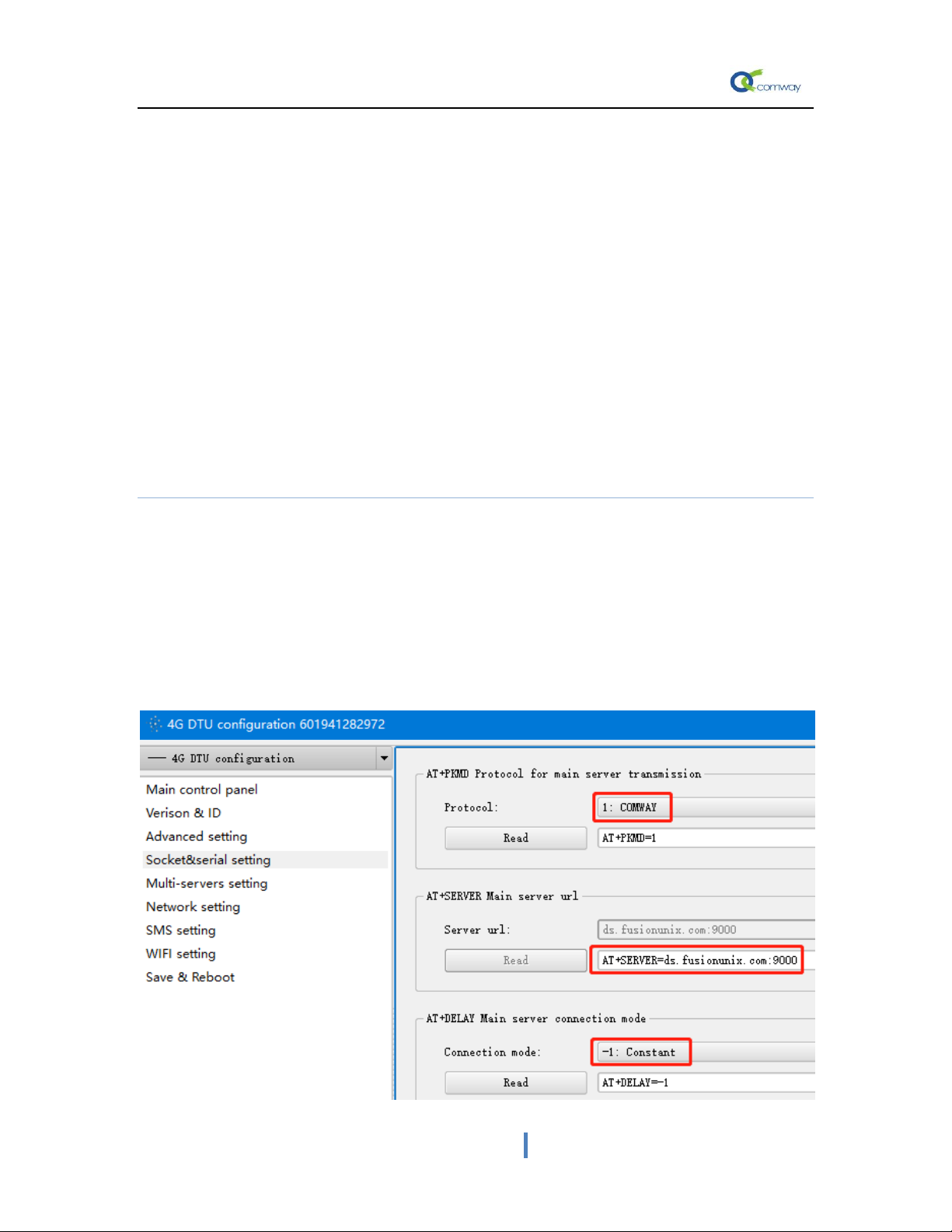
Server configuration page of socket as shown in the figure below , you need to select
1: COMWAY protocol, default server address: ds.fusionunix.com and port number
(9000) , The DTU ‘s 12 -digit barcode is a factory-set unique identification ID number.
Table des matières
Manuels Matériel réseau populaires d'autres marques

Matrix Switch Corporation
Matrix Switch Corporation MSC-HD161DEL Manuel utilisateur

B&B Electronics
B&B Electronics ZXT9-IO-222R2 Manuel utilisateur

Yudor
Yudor YDS-16 Manuel utilisateur

D-Link
D-Link ShareCenter DNS-320L Manuel utilisateur

Samsung
Samsung ES1642dc Instructions d'utilisation

Honeywell Home
Honeywell Home LTEM-PV Instructions de montage