
Cisco MERAKI MV52 Manuel utilisateur

MV52 Installation Guide
Overview
The Cisco Meraki MV52 is the first varifocal bullet camera in the second-generation smart camera family. Aligning with
our other cameras, it eliminates the complex and costly servers and video recorders required by traditional solutions
which removes the limitations typically placed on video surveillance deployments.
Datasheet here: Click here
FAQ and Troubleshooting MV52: Click here
Dimensions
Box Contents
A single camera box contains:
• One camera hardware
1

• One mount template
• Two set screws
• Six screws
• One M2.5 torx key
• One M5 torx key
Powering the MV52
The MV52 features a 1000BASE-TX Ethernet port with 802.3at PoE+ and requires 30W of power to run. Route the
Ethernet cable from an active port on a PoE switch or PoE injector. Additionally, a 12V DC input option is available as
well. As seen below:
MV52 requires 30W power, dedicated entirely to itself for higher processing and IR load
Pre-Install Preparation
You should complete the following steps before going on-site to perform an installation:
2

Configure Your Network in Dashboard
Upgrade this camera to run on the latest 4.15 Beta Firmware.
The following is a brief overview only of the steps required to add an MV52 to your network. For detailed instructions
about creating, configuring and managing Meraki Camera networks, refer to the online documentation
(https://documentation.meraki.com/MV).
1. Login to http://dashboard.meraki.com. If this is your first time, create a new account.
2. Find the network to which you plan to add your cameras or create a new network.
3. Add your cameras to your network. You will need your Meraki order number (found on your invoice) or the serial
number of each camera, which looks like Qxxx-xxxx-xxxx, and is found on the bottom of the unit.
4. Verify that you the camera is now listed under Cameras > Monitor > Cameras.
Check and Configure Firewall Settings
If a firewall is in place, it must allow outgoing connections on particular ports to particular IP addresses. The most
current list of outbound ports and IP addresses for your particular organization can be found here.
DNS Configuration
Each MV52 will generate a unique domain name to allow for secured direct streaming functionality. These domain
names resolve an A record for the private IP address of the camera. Any public recursive DNS server will resolve this
domain.
If utilizing an on site DNS server, please whitelist *.devices.meraki.direct or configure a conditional forwarder so that
local domains are not appended to *.devices.meraki.direct and that these domain requests are forwarded to Google
public DNS.
Assigning IP Addresses
At this time, the MV52 does not support static IP assignment. MV52 units must be added to a subnet that uses DHCP
and has available DHCP addresses to operate correctly.
Install Instructions
Each MV52 comes with an instruction pamphlet within the box. This pamphlet contains detailed step-by-step guides and
images to assist in the physical install of the camera.
The camera out of the box comes with a protective lens cover. Please remove this lens cap before installation.
Due to its advanced night mode and processing capabilities, it is typical for this camera to operate with a high external
temperature. Note that the camera can get up to 50C when night mode is turned on. Due to this, it is ideal to mount this
3


The MA-MNT-MV-21 can be mounted on a pole (>40 mm currently supported) as below:
• Attach the pole mount to hug the pole
• Drag a metal cable tie around the top/bottom of this mount
Considering the weight of this camera, it is recommended to use safety cable wires
Adjacent to a junction box (no conduit adapter-in-box)
Adjacent mounts to a 3.5'' junction box would be ideal
Mounting Instructions
Ensure that deployments of this camera are properly planned with the corresponding labor and equipment for a smooth
experience.
5

Note: The fixed power cable will not be exposed to the outdoor environment after the successful installation of
the MV52 on a wall using the above-provided pigtails.
1. Place the mounting template onto the surface (wall/ceiling) and drill six holes as well as the center hole, as marked (if
needed).
2. The following inputs are currently available for the MV52:
• A - PoE+ input
• B - 2 pin 12VDC input
• C - Audio input
6

3. Pass the cable through the center hole and plug it in. Then, in an anti-clockwise direction, unscrew the top of the base
from the rest of the camera.
4. At this point, you will need something to support the base of the camera, or let it hang off of its cable and the base.
Drill in the six provided screws (or any appropriate screw with less than 8.6 mm head size) onto the base and into the
surface. You can either run the cable through the wall or let the cable out to the side by unscrewing the cut available (as
shown in the zoomed-in illustration).
5. Grab the camera to fix it into a horizontal position, closer to the base.
7

6. In a clockwise motion, rotate the top of the base to affix the camera to the base, while leaving some space to rotate
and aim the camera later.
7. With the base top aligned to the base, rotate the camera using the ball joint to fix your field of view/angle. Ensure that
the opening is facing the direction in which the camera needs to look, and that the hood is on the top.
Do not tighten the base before checking on the angles/view
8. Tighten the top of the base clockwise once you have a confirmed position.
8

9. Tighten this even further by using the M5 and M2.5 torx keys provided around the joint and the top of the base.
10. Remove the green IR safely label once you have finished positioning your MV52.
LED Indicator
The various status conditions of an MV are indicated by the following colors and patterns:
• Rainbow (solid, rotating through colors) - MV is booting up.
• Flashing Blue - MV is searching for WiFi network(s).
• Flashing Green - MV is upgrading or initializing for the first time.
• Solid Green - MV is connected via Ethernet.
9
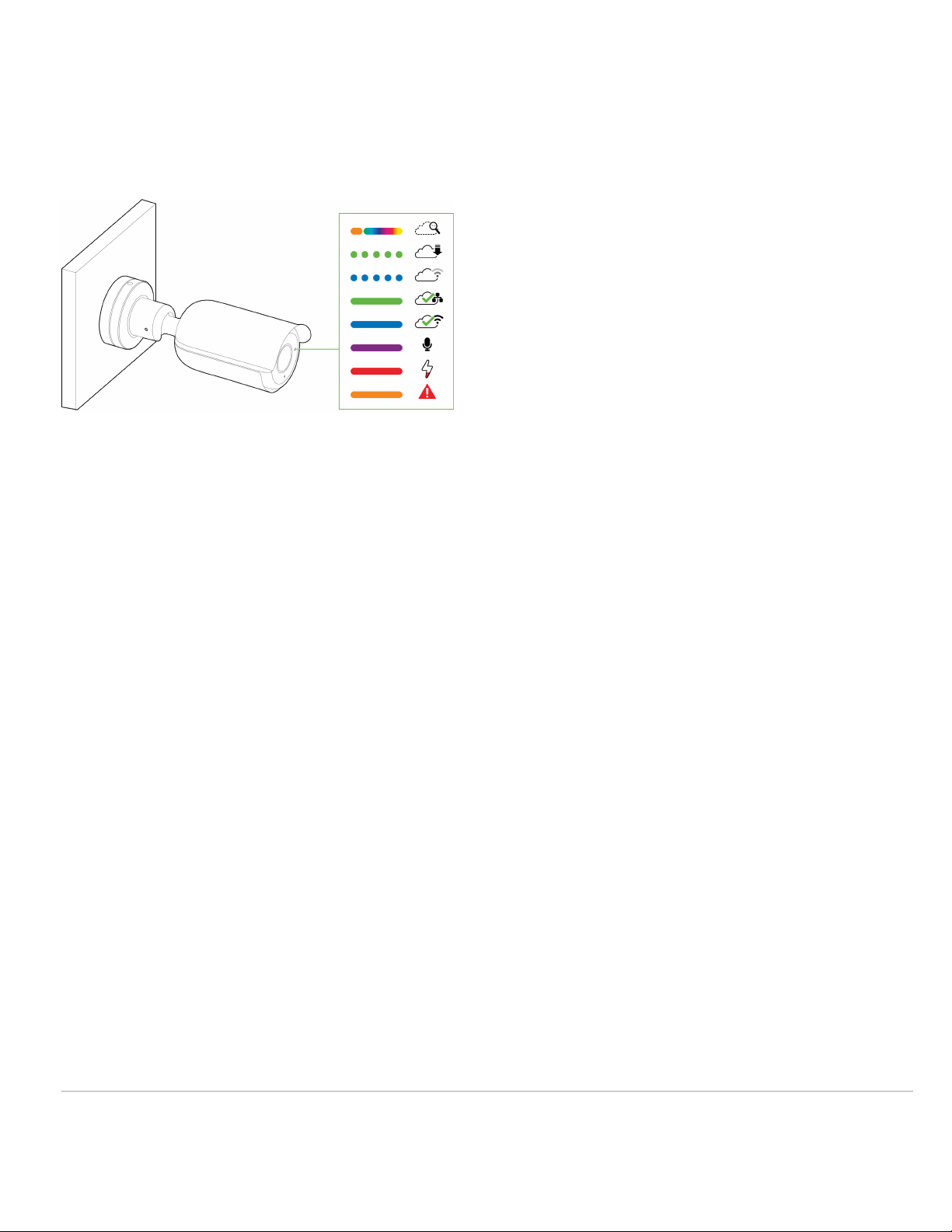
• Solid Blue - MV is connected via WiFi.
• Solid Violet - MV has audio recording enabled.
• Solid Amber - MV has a network issue and cannot talk to dashboard
• Solid Red - Power connection is below <7.8V
10
Table des matières
Autres manuels Cisco MERAKI Appareil photo numérique


