
CDVI FTC1000 Manuel utilisateur


2cdvi.ca
FTC-1000
AI Facial Recognition Temperature Scanner
Copyright (C) 2019 CDVI. All rights reserved. ATRIUM Access Control is protected by copyright law and international treaties.
Unauthorized reproduction or distribution of this product, or any portion of it, may result in severe civil and criminal penalties,
and will be prosecuted to the maximum extent possible under law.
All other brand and product names are trademarks or registered trademarks of their respective companies.
The information contained in this publication is subject to change without notice.
1] PRODUCT PRESENTATION........................................................3
2] PACKAGE CONTENTS ............................................................4
3] WIRING ......................................................................5
4] PROGRAMMING VIA WEB SERVER .................................................6
5] PROGRAMMING VIA SOFTWARE..................................................11
6] TROUBLESHOOTING TIPS .......................................................15
Thank you for purchasing our products and for
the condence you placed in CDVI.

3
cdvi.ca
FTC-1000
AI Facial Recognition Temperature Scanner
1] PRODUCT PRESENTATION
The FTC-1000, designed for facial recognition and body temperature detection, ensures hygienic touch-
free access and health management. Quick and easy installation makes it suitable for any environment.
Management software is included for conguration and set-up of multiple units. *This is not a medical device
and should not be used in the diagnosis of any disease or other conditions.
FTC-1000 terminal
• Stand-alone biometric solution
• 30,000 faces capacity
• Events buer: 25,000
• Detects body temperature and mask
• Temperature accuracy: +/- 0.5°F (+/- 0.3°C)
• Ideal for health management
• Relay output: C-NO-NC
• Visual and audio feedback
• Power requirements: 12 V DC 2A (provided)
• Camera: 2 mega pixel
• Screen: 7″ HD LCD 600*1024
• IP66
• NDAA compliant
• Dimensions: 8.6 x 4.4 x 0.85 in. (218 x 112 x 22 mm)
• Aluminum housing and ultra white tempered glass panel
• Operating temperature: 50°F to 122°F (10°C to 50°C)
Accessories (sold separately)
• C20 Desktop: 1.3 x 7.4 H in. (33 x 189 mm)
• C60 Child Base: 24 in. (60 cm)
• C110 Adult Base: 43 in. (110 cm)

4cdvi.ca
FTC-1000
AI Facial Recognition Temperature Scanner
2] PACKAGE CONTENTS
This chapter details how to install and setup the FTC-1000.
The box contains:
• (1) FTC-1000
• (1) Power supply with AC power cord plug
• (1) USB key with software and documentation
• (1) Allen key
Allen KeyPower Supply USB Key

5
cdvi.ca
FTC-1000
AI Facial Recognition Temperature Scanner
3] Wiring
Connecting the FTC-1000
Setting up the FTC 1000 can be done directly via its web server http://IP_address: 7080
and via the software platform SDP2000 using the webpage http://localhost:8686.
Install and connect the device (Power, LAN and Unlock Control).
(Future use)
(Future use)
6cdvi.ca
FTC-1000
AI Facial Recognition Temperature Scanner
4] Programming Via the Web Server
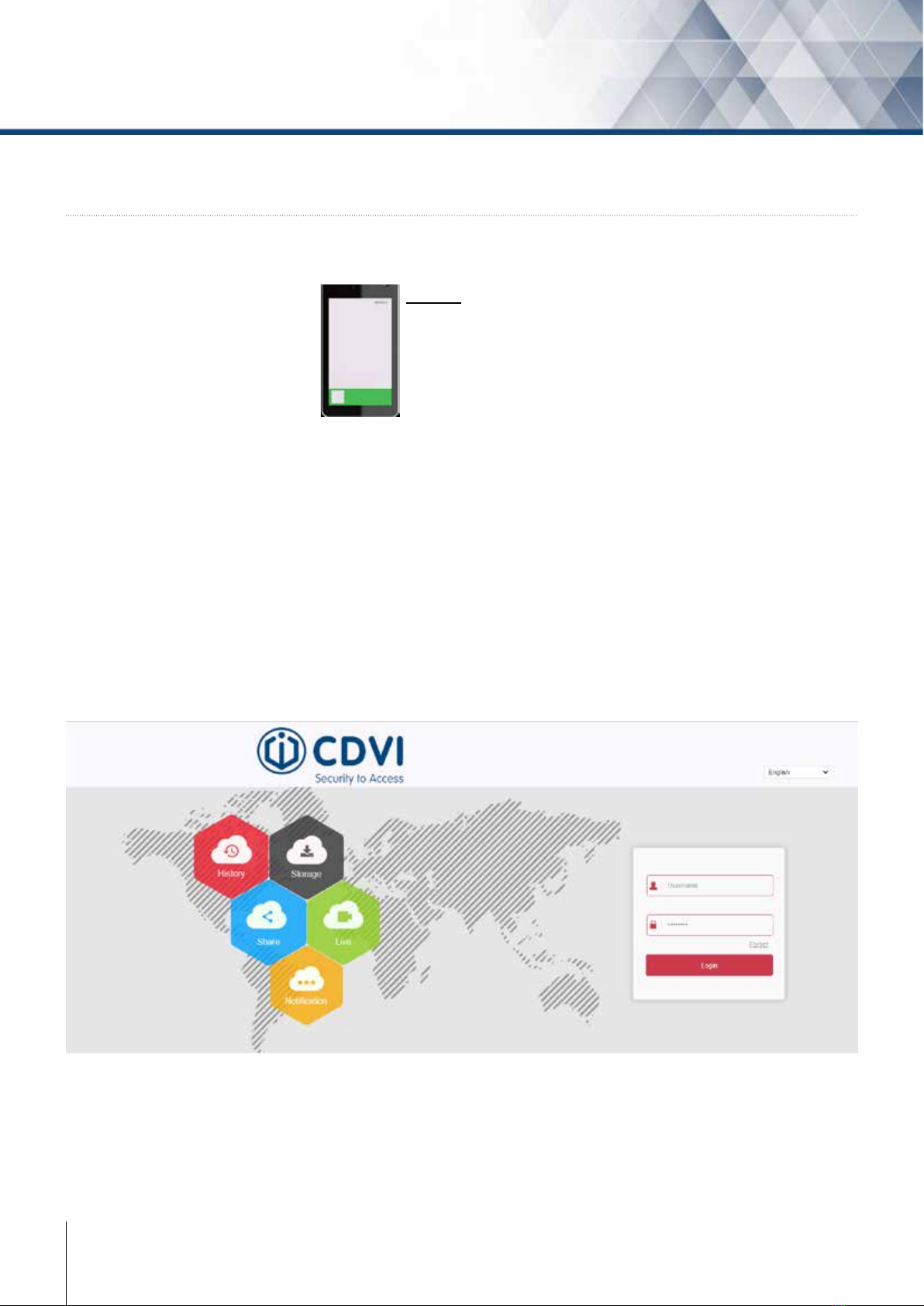
The rst time the FTC-1000 is powered up, its IP address is displayed on the top right corner of the monitor.
Open a browser and log onto:
http://IP_address:7080
Login with the default credentials
Username : admin Password : 12345
IP Address
Note: If there is no DHCP server, the FTC will display a default IP address 192.168.1.88, and if your computer
is within the same subnet, then you can connect successfully. See computer’s network settings to match the
subnet 192.168.1.x.
Select the web browser language from the drop down menu in the top right corner.

7
cdvi.ca
FTC-1000
AI Facial Recognition Temperature Scanner
Updating Firmware
It is recommended to update the scanner to the latest rmware version.
The rmware le can be downloaded from www.cdvi.ca, in the Download Center.
Under the Conguration tab, click on System --> System Conguration --> System Maintenance
In the Update section, click on Browse, select the previously saved rmware le (.img le) and click Update.
Once the update process is complete clear the cache by hitting CTRL+F5 keys.

8cdvi.ca
FTC-1000
AI Facial Recognition Temperature Scanner
Time Zone: Select your time zone from the drop down list
Set Date/Time Manually: Check to set the date and time manually
Synchronize with the computer: Check to synchronize with the computer’s date and time
Click Save to conrm changes.
Temperature check: Click to enable the temperature control
Temperature compensation: Compensate for the temperature detected in hot or cold rooms
Alarm temperature: Set threshold for abnormal temperature alarm
Click Save to conrm changes.
Temperature Settings
Click on Temperature --> Temperature
To set up the scanner’s Date and Time, select the Conguration tab.
Click on System --> System Conguration --> Date
Date & Time Settings

9
cdvi.ca
FTC-1000
AI Facial Recognition Temperature Scanner
Visitor passage: Select to enable access of persons not in the FTC personnel database (this will be set up
later using the SDP2000 software)
Mask dectection: Select to enable the mask (PPE) detection feature (enables access only if the use of a mask
(PPE) is detected)
Relay time: Set the relay activation time (in milliseconds)
Relay state: Normal: active relay for door unlocking
Reverse: activate relay in case of alarm
Real Face: Do not modify
Thermal map: Show or hide thermal result of temperature scan
Click Save to conrm changes.
Face Recognition Settings
Click on Face Recognition --> Face Recognition
To change the temperature scale (°F or °C), click on System --> System Conguraiton -->
Display Conguration
Temperature scale: Select Fahrenheit or Celsius for how you would like the temperature to be displayed on
the scanner
Display conguration:Select what is to be displayed in the top right corner of the scanner screen
Language:Select display and voice language of scanner
Device name: Type in name of scanner (ex: CDVI front door)
Click Save to conrm changes.

10 cdvi.ca
FTC-1000
AI Facial Recognition Temperature Scanner
Enable e-mail alarm notications: Select to recieve email noticaions of abnormal events (ex: high
temperature, mask not detected, etc).
Attach le: Select to have snapshot from scanner attached to the email
Fill out email subject line, the sender account and add up to 3 recipients.
Email Notications
Click on Local Network --> Advance setup --> SMTP Conguration
Event Log Settings
Click on System --> System Conguration --> Snapshot
Record keeping: Enable to save records of scans or events
Save picture: Enable to save the snapshot of each scan
Set record stay time: Not limited: stores all events by overwriting the oldest (25,000 events buer)
Set retention time-life cycle of stored data, once set period is reached log events are
deleted from the memory
Autres manuels pour FTC1000
2
Table des matières
Autres manuels CDVI Scanner


