burroughs SmartSource Advantage Manuel utilisateur

www.burroughs.com
Document Imaging
Scanner
SmartSource Advantage
User's Manual

2 SmartSource Advantage User's Manual
Preface
Copyright
This document may not be reproduced or copied in any way, stored electronically, or
translated into any language, without the permission of DCT.
Disclaimer
The contents of this manual have been checked carefully for accuracy, and every eort has
been made to ensure that there are no errors. However, DCT makes no guarantee as to the
accuracy of the contents of this document and reserves the right to make changes to the
contents without prior warning.
I49-004544 A
July 2010
Document Capture Technologies, Inc.
4255 Burton Drive, Santa Clara, CA 95054
408.436.9888, www.docucap.com

SmartSource Advantage User's Manual 3
FCC Compliance Statement
This equipment (SmartSource Advantage) has been tested and found to comply with the
limits for a Class B digital device, pursuant to Part 15 of the FCC rules. These limits are designed
to provide reasonable protection against harmful interference in a residential installation.
This equipment generates, uses and can radiate radio frequency energy and, if not
installed and used in accordance with the instructions, may cause harmful interference to
radio communications. However, there is no guarantee that interference will not occur
in a particular installation. If this equipment does cause harmful interference to radio
or television reception, which can be determined by turning the equipment o and on,
the user is encouraged to try to correct the interference by one or more of the following
measures:
• Reorientorrelocatethereceivingantenna.
• Increasetheseparationbetweentheequipmentandreceiver.
• Connecttheequipmentintoanoutletonacircuitdierentfromthattowhichthe
receiver is connected.
• Consultthedealeroranexperiencedradio/TVtechnicianforhelp.
Note: A shielded Hi-Speed USB interface cable with ferrite core installed on the scanner
connector end must be used with this equipment.
Caution: Changesormodicationsnotexpresslyapprovedbythemanufacturerresponsible
for compliance could void the user's authority to operate the equipment.
ThisdevicecomplieswithPart15oftheFCCRules.Operationissubjecttothefollowing
two conditions: (1) This device may not cause harmful interference, and (2) this device
must accept any interference received, including interference that may cause undesired
operation.

4 SmartSource Advantage User's Manual
Safety Precautions
Before using your scanner, read the following safety guides carefully, which detail the
properoperationofthescanneranditsaccessoriestopreventinjuriesordamagetousers
or equipment.
Power Source and AC Power Cord:
• Useapowersourceonlywithapowerratingspeciedonthemarkinglabel.
• Inserttheplugcompletelyintotheoutlet,asalooseconnectionmaycausearcingand
result in re.
• Placeandroutethepowersupplycordsuchthatitisnotlikelytobewalkedonor
pinched by items placed upon or against them, paying particular attention to the cord
nearthepowerplugs,conveniencereceptacles,andatthepointwhereitexitsfrom
the outlet.
• Whenthescannerisleftunattendedandunusedforlongperiodsoftime,unplugit
from the wall outlet.
Moving and Storing the Scanner:
• Donotplacethescanneronanyslippery,slanted,orunstablesurface.Theproduct
mayslideorfall,causingseriousinjurytopeopleaswellasseriousdamagetothe
product.
• Donotusethisscannernearwater.Neverspillliquidofanykindontheproduct,orit
may result in electric shock or other hazards.
• Thisscannershouldbesituatedawayfromheatsourcessuchasradiators,heat
registers, stoves, or other products (including ampliers) that produce heat.
Service:
• Whenyouneedarepairservice,unplugthescannerfromthepoweroutletandconsult
qualied service personnel.
• Whenreplacementpartsarerequired,usereplacementpartsthatarespeciedbythe
manufacturer or have the same characteristics as the original parts.

SmartSource Advantage User's Manual 5
Table of Contents
Preface................................................................................................................................................................. 2
FCC Compliance Statement ........................................................................................................................ 3
Safety Precautions .......................................................................................................................................... 4
Knowing About Your Scanner .................................................................................................................... 6
Features of SmartSource Advantage ............................................................................................. 6
InstallationRequirements.................................................................................................................. 8
Taking a Closer Look............................................................................................................................. 9
Front/BackView............................................................................................................................ 9
OpenView ....................................................................................................................................10
Initial Setup .....................................................................................................................................................11
Following Three Easy Steps..............................................................................................................11
Step 1: Unpacking Package Contents ................................................................................11
Step 2: Installing the Software..............................................................................................12
Step 3: Connecting the Scanner...........................................................................................13
To the Power Adapter.....................................................................................................13
To the Hi-Speed USB Cable...........................................................................................13
Positioning Documents ..............................................................................................................................14
To Load a Stack of Documents .......................................................................................................14
To Load Cards........................................................................................................................................15
Document Notices..............................................................................................................................15
Customizing the Function Button...........................................................................................................16
Care and Cleaning.........................................................................................................................................17
Cleaning the Scanner Glass Surfaces ...........................................................................................17
CleaningtheRollers ...........................................................................................................................18
Maintenance...................................................................................................................................................19
ReplacingtheSeparationRollerAssembly................................................................................19
ReplacingtheFeedRollerAssembly ............................................................................................21
Appendix..........................................................................................................................................................23
FixingPaperJams................................................................................................................................23
Troubleshooting ..................................................................................................................................24
Specications........................................................................................................................................26

6 SmartSource Advantage User's Manual
Knowing about Your Scanner
SmartSource Advantage is a sheet-fed color document scanner with a built-in automatic
document feeder (ADF) that can hold up to 20 sheets of papers for the unattended volume
scanning. It features 600 dpi optical resolution, 65-inch (1651 mm) long document scanning
support, andhasathroughputrunof15pages(simplex)or30imagesperminute(duplex)in
color.
Features of SmartSource Advantage
SmartSource Advantage comes with several important features, including the following:
• Portable,compactandconvenient—Withaperfectsmallsize,SmartSource Advantage
reforms your imagination about a sheet-fed scanner. From the oce to the home, the
coee shop to the hotel, SmartSource Advantage easily aords users portable and mobile
opportunities for document capture on the go.
• Superbabilitytohandledocumentsinversatilematerials—SmartSource Advantagelets
users easily digitize patient IDs, business cards, bank statements, legal documents,
insurancepapers,andmedicalrecordsinjustseconds.
• Duplexscanninginasinglepass—Allowsyoutoscanbothsidesofonesheetina
singlepass.Withthisfeature,thescannercanhandleupto40ipmingrayscale/black&
white and 30 ipm in color at 200 dpi.
• Automaticdocumentfeederwithcardscanning—Theautomaticdocumentfeeder
canholdupto20sheetsofpapers(0.05"/1.25mmthickness)atatime,supporting
dimensionsfrom3.15"x2.1"(80mmx52mm)to8.5"x65"(216mmx1651mm).
• Energy-savingLEDlightsource—AdoptingLEDsasthelightsource,whenthe
scanner is detected by the system, there are no requirements for any warm-up time
before carrying out the scan, which boots your productivity and reduces energy costs.
Withitsstableperformance,theimagequalitywillremainconsistentevenafterthis
scanner is used for a certain period of time.
• Oneprogrammablefunctionbutton—Theprogrammablefunctionbuttononthe
front panel provides you with an intuitive and easy way to access scanner functions.
• Hi-SpeedUSBport—Hi-SpeedUSBiscapableofhighdatatransferratesofupto480
Mbit/sec,providingthehighdatatransferrateviatheincludedHi-SpeedUSBcable.

SmartSource Advantage User's Manual 7
• NewandadvancedScanWizardDIsoftware—Itsall-in-onecontrolpaneloers
ahostoffeaturesandimageadjustmentcontrols.SupportingtheTWAINdriver,
ScanWizardDIalsofeaturesfulldocumentscanningtoolsandon-screenproong.Its
multi-scanning area and preview option allow you to obtain quick scans in the preview
window. It comes out several distinguished advantages:
– Barcodeseparator—Withthisfeature,youcanbatchscandocumentswithout
starting and stopping each time a new le begins by using barcode numbers on
the documents. It saves you huge amounts of time and money to organize, to
indexandtosearchlesofdocumentsinseconds,enhancingtheeciencyand
productivity of le management.
– Papercount—Thepapercountfeatureallowsuserstokeeptrackofallscan
actions from both atbed and ADF. This feature helps to estimate when you
may need to replace the rubber or separation pad, or to apply maintenance and
service to your scanner, making the use of your scanner more eectively.
– Savemultipleimagesasasinglele—Thisadvancedfeatureallowsuserto
save multiple scanned images as a single le, depending on the number of the
scanned images that are dened for document archival.
– Auto-cropandauto-deskew—Theauto-cropfunctionautomaticallydetectsthe
size of the original image, crops the full scan frame to t the image, and removes
unwanted black borders. The auto-deskew function automatically corrects
distorted images for proper alignment.
– Colordropout—Red,greenandbluecolorscanbedroppedouttoallowfor
clearer and more accurate forms processing with problematic color documents.
– Presetsetting—Thisfeatureallowsyoutosavethepredenedscanningvalues,
and then retrieve them later for scanning same types of materials, which brings
fast and convenient access for users.
– Documentenhancement—Thisfeaturebringsoutandimprovesthereadability
oftextinadocumentthatincludesotherelementssuchascolor,pictures,or
graphs.

8 SmartSource Advantage User's Manual
InstallationRequirements
In order to use your SmartSource Advantage, your computer must satisfy the following system
requirements:
• CD-ROMdrive(forinstallingsoftware)
• Colordisplaywith24-bitcoloroutputcapability
• 512MBRAMormore
• PentiumIVPCorhigherwithaHi-SpeedUSB(USB2.0)port
• MicrosoftWindows2000,XP,Vistaor7

SmartSource Advantage User's Manual 9
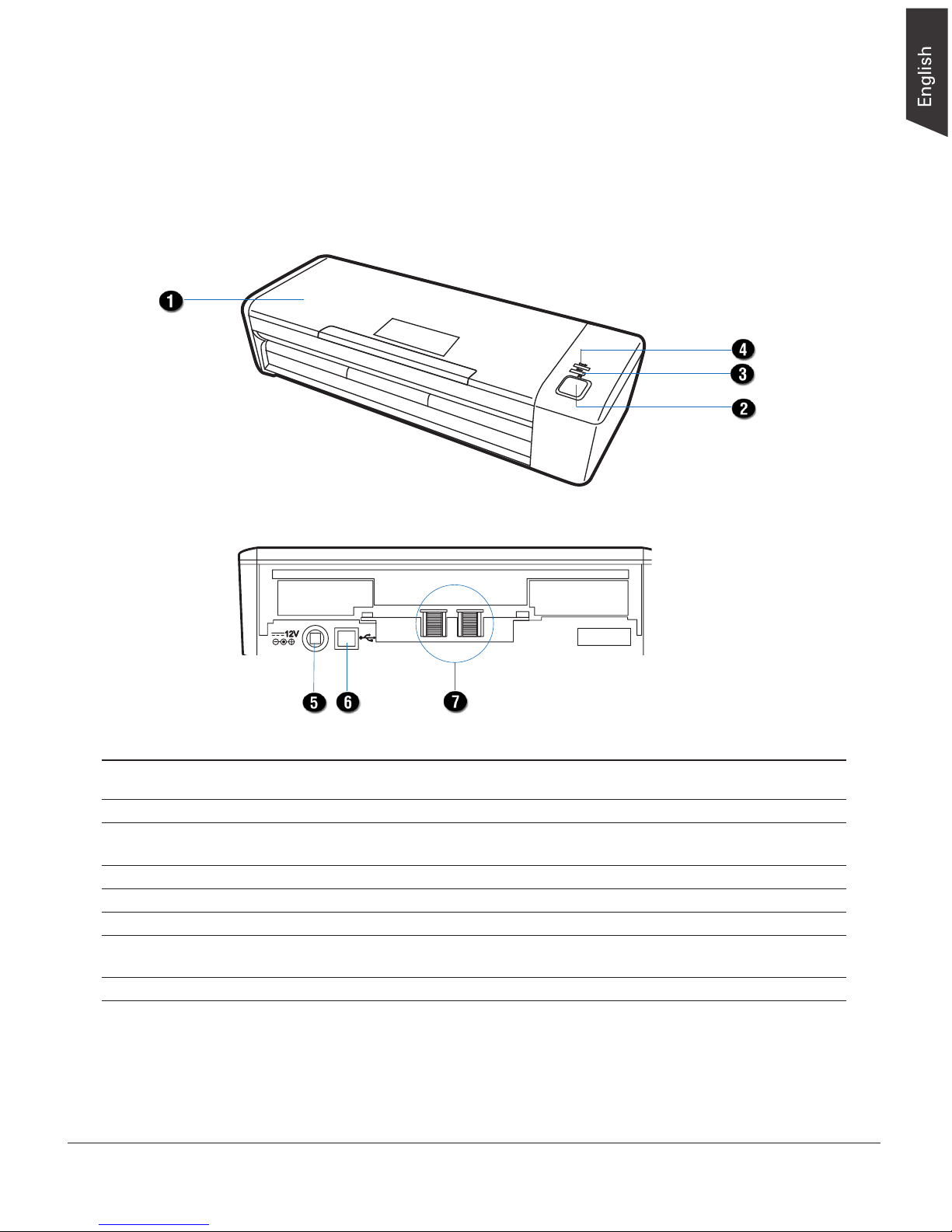
No. Names of Parts Functions of Parts
1 Top Cover Document feed tray
2 Programmable Function Button Allows users to customize the button to perform its
preferred functions via software settings.
3 ERRORIndicator(Red) Indicatesiferrorshappenwhenthescannerisrunning.
4 READYIndicator(Green) Indicatesthescannerisreadytoscan.
5 Power Connector Connects the scanner to the power adapter.
6 Hi-Speed USB Port Connects the Hi-Seed USB (USB 2.0) cable to the
computer.
7 FeedRollerAssembly Usedtofeeddocumentsintothefeeder.
Taking a Closer Look
Front/BackView
F1
Error
Ready

10 SmartSource Advantage User's Manual
F1
Err
or
Rea
dy
OpenView
No. Names of Parts Functions of Parts
1 TrayExtender Usedtoextendthelengthofthedocumentfeedtray.
2 Document Feed Tray Holds the documents to be fed into the feeder.
3 Guide Arm Slides to hold a stack of documents.
4 Scanner Cover The cover of the scanner.
5 FeedRollerAssembly Usedtofeeddocumentsintothefeeder.
6 Glass Surfaces The places where the CIS cartridges are stored.
7 SeparationRollerAssembly Usedtoseparateeachsheetwhenastackofdocuments
are fed into the feeder.
8 PickRollers Usedtopickupdocumentsintothefeeder.
9 OutputRollers Usedtoejectdocumentsafterscanning.
10 Card Tray Holds the card to be fed into the feeder.
Table des matières
Autres manuels burroughs Scanner