BTC 9001URF Manuel utilisateur

9001URF
USB Wireless Keyboard & Mouse Kit
User’s Guide
Version 1.3
封面內頁 封面內頁

The information in this document is subject to change without notice and does not represent a
commitment on the part of the vendor.
No warranty of representation, either expressed or implied, is made with respect to the quality,
accuracy or fitness for any particular purpose of this document. The manufacturer reserves the
right to make changes to the content of this document and/or the products associated with it at any
time without obligation to notify any person or organisation of such changes.
In no event will the manufacturer be liable for direct, indirect, special, incidental or consequential
damages arising out of the use or inability to use this product or documentation, even if advised of
the possibility of such damages.
Copyright ©2003. All rights reserved
IBM, PC/AT and PS/2 are registered trademarks of International Business Machines Corporation.
Microsoft, Windows, and Windows NT are registered trademarks of Microsoft Corporation in the
United States of America and/or other countries.
All other trademarks are trademarks of their respective holders.

Table of Contents
1Introduction...................................................................................................1
What's in this package ................................................................................1
2System Requirements .................................................................................2
3Hardware Installation...................................................................................3
4Software Installation....................................................................................7
4.1 Keyboard Driver Installation...............................................................7
5Using the Keyboard and Mouse ................................................................8
5.1 Using the Keyboard.............................................................................8
5.2 Using the Mouse.................................................................................10
6Troubleshooting .........................................................................................11


1
1 Introduction
Congratulations on your purchase of this USB wireless RF keyboard and mouse!
This keyboard and mouse will finally free you of the constraints of your desktop
by providing a wireless connection between your keyboard/mouse and your PC.
Pass around the keyboard or mouse during meetings without having to bother
about a cable blocking your way or write e-mails and surf the Internet from the
comfort of your living room couch!
This keyboard and mouse kit consists of a keyboard, a mouse and a receiver.
The keyboard and mouse can operate freely within a radius of at least 3.28 feet
(1meter) from the receiver, which itself has a maximum range from your PC of
around 3.28 feet (1meter). The wireless keyboard contains multimedia keys and
three ACPI keys to make you save more hand-movement and access to Internet
much quickly. Besides, the wireless mouse uses an optical sensor instead of
mouse ball. The precise sensor detects motion on hundreds of surfaces,
including wood, plastic, or even your pants leg, and prevents you from the
interference caused by dust. Because the keyboard and mouse use radio
frequencies to transmit the wireless signal it has no constrictions on viewing
angles such as with infrared devices like your TV’s remote control, etc.
Besides providing unprecedented freedom of movement when operating the
keyboard or mouse, the kit also offers more extra functionality by introducing
dedicated buttons for often used Internet browser functions as well as Sleep
functions. (Please note: The Internet keys work only under MicrosoftInternet
Explorer 5.0 or later version!). And last but not least, this package also provides
a special driver, which provides unique shortcut functions.
In order to enjoy your keyboard and mouse to their full potential we
recommended you read this manual carefully prior to installation.
What's in this package
! A wireless keyboard with palmrest
! A wireless mouse
! A receiver
! A driver disk
! A user's guide
! Batteries (4 pcs of AA alkaline batteries)

2
2 System Requirements
! MicrosoftWindows98, WindowsME, Windows2000 or Windows
XP operating system
! MicrosoftInternet Explorer 5.0 or later version (for the Internet keys)
! Standard sound card (for CD and Video operation)
! The system supporting ACPI or APM II (for power management buttons)
! ATX mother board and ATX power supply (for power management
buttons)
! USB port
Please refer to table below for the other system requirements for the features.
Operating System
Function Description
Windows 98
Windows ME /
Windows 2000 /
Windows XP
Wireless
Functionality Available immediately
after hardware installation Available immediately
after hardware installation
Keyboard Extra
Multimedia Buttons
Requires keyboard driver
installation (see driver
disk for details)
Requires keyboard driver
installation (see driver
disk for details)
Keyboard Extra
ACPI Keys
Requires enabling of
system ACPI (Power
Management) function
Available immediately
after hardware installation
Keyboard Battery
Low Function
Requires installation of
keyboard driver (see
driver disk for details)
Requires installation of
keyboard driver (see
driver disk for details)
Keyboard LED Light
Function
Requires installation of
keyboard driver (see
driver disk for details)
Requires installation of
keyboard driver (see
driver disk for details)
Mouse Battery Low
Function
Requires installation of
keyboard driver (see
driver disk for details)
Requires installation of
keyboard driver (see
driver disk for details)

3
3 Hardware Installation
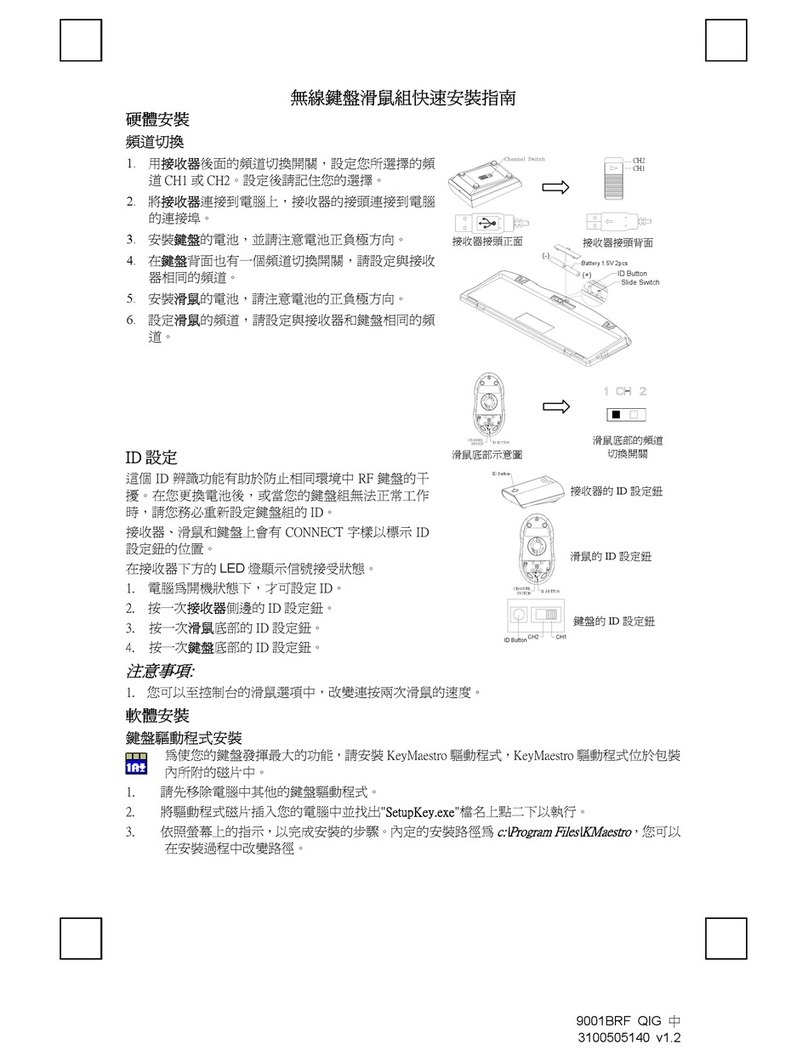
Slide Switch Setting
Step 1: Take the receiver and select channel CH1 or CH2 by using the slide
switch on the side of the receiver. (Remember your selection.)
CH1
CH2
Step 2: Connect the receiver to your PC by plugging in the receiver’s USB plug
into your PC.
Step 3: Take the keyboard and make sure the batteries on the back are
installed correctly. (Follow the polarity signs in the battery compartment.)
Channel Switch
(-) Battery 1.5V 2pcs
(+) ID Button
Back View of Receiver Channel Switch of Receiver
Bottom View of Keyboard
Front View of Receiver Plug Back View of Receiver Plug

4
Step 4: Use the slide switch in the battery compartment of the keyboard to
select the same channel as the one selected in step 2 on the receiver.
CH2 CH1
ID Button
Step 5: Take the mouse and make sure the batteries on the back are installed
correctly. (Follow the polarity signs in the battery compartment.)
utton
Step 6: Use the slide switch in the battery compartment of the mouse to select
the same channel as the one selected in step 2 and 5. (Open the battery
cover to find the switch channel setting)
Remarks:
1. Both of the keyboard and mouse use 2pcs.standard UM-3 (AA) 1.5V alkaline
batteries.
2. Battery life is approximately 3-4 months, depending on the intensity of usage.
3. Make sure the receiver is placed in a location where is relatively free of
strong electromagnetic or transmission sources in order to ensure optimal
reception of the keyboard and mouse signal.
Channel Switch & ID Setting of
keyboard
Bottom View of Mouse
Channel Switch of Mouse

5
ID Button Setting
This wireless keyboard kits contains 2 channels, and each channel contains 255
sets ID. This extra ID-recognition function helps to protect against interference
from other RF keyboards in the same environment.
# The word CONNECT labels the ID button on each unit.
# The LED under ID button of receiver shows connecting condition.
Step 1: Press the ID button on the top of the receiver once.
ID Button
Step 2: Press the ID button on the bottom of the mouse once.
utton
Step 3: Press the ID button on the bottom of the keyboard once.
CH2 CH1
ID Button
Remarks:
1. You must follow the procedure above to set the ID of receiver, mouse and
keyboard. Once the receiver ID button is pressed you have 30 seconds to
complete the entire process, or you will need to begin again.
ID Button of Receiver
ID Button of Mouse
ID Button of Keyboard

6
2. When the receiver’s connector is plugged in, the yellow receiver light will
flash. Once the IDs of mouse, keyboard and receiver are set, it will remain
steadily lit. Please note that do not press on any key when you set ID of
keyboard, or the setting will fail.
3. When changing the batteries of keyboard or mouse, there is no need to
reset all the ID’s. Simply reset one of them.
4. When keyboard batteries are low, a battery low icon will show on the
system tray.
5. When mouse batteries are low, a battery low icon will show on the
system tray.
6. The optical mouse is designed to conserve battery life and will enter a
power saving “Sleep” mode if it is inactive for 21 minutes. Click a button on
the mouse to wake it up. Move the mouse does not wake it.
Detachable Palmrest
At your discretion, you may choose to connect the palmrest with keyboard.
To connect the palmrest with the keyboard please follow figure 1 & figure 2.
Figure 1
Figure 2
Autres manuels pour 9001URF
2
Table des matières
Autres manuels BTC Accessoires informatiques

BTC
BTC 9001URF Manuel utilisateur

BTC
BTC 6301URF Manuel utilisateur

BTC
BTC 9001BRF Manuel utilisateur

BTC
BTC 9001URF Manuel utilisateur

BTC
BTC 2003RF Manuel utilisateur

BTC
BTC 9001ARF Manuel utilisateur

BTC
BTC 2001ARF Manuel utilisateur

BTC
BTC 9128URF II Manuel utilisateur

BTC
BTC 2001ARF Manuel utilisateur

BTC
BTC 2003RF Manuel utilisateur