
Brecknell CP103 Manuel utilisateur

CP103
Thermal Mini Printer
User Instructions
AWT 35-501163
Issue AB

CP103 printer_u_en_501163.book
Brecknell is a trademark of the Illinois Tool Works group of companies whose ultimate parent company is
Illinois Tool Works Inc (“Illinois Tool Works”). Copyright © 2013 Illinois Tool Works. All rights reserved.
No part of this publication may be reproduced by making a facsimile copy, by the making of a copy in three dimensions of a two-dimensional
work and the making of a copy in two dimensions of a three-dimensional work, stored in any medium by electronic means, or transmitted in
any form or by any means, including electronic, mechanical, broadcasting, recording or otherwise without the prior written consent of the
copyright owner, under license, or as permitted by law.
This publication was correct at the time of going to print, however Avery Weigh-Tronix reserves the right to alter without notice the
specification, design, price or conditions of supply of any product or service at any time.

CP103 Thermal Printer User Instructions 1
Table of Contents
Chapter 1 General Information and Warnings ........................................................................................ 2
About this Manual ..............................................................................................................2
Special Messages ....................................................................................................... 2
Description ......................................................................................................................... 2
Package and Accessories .................................................................................................. 3
Warnings ............................................................................................................................ 3
Prepare the Printer for Use ................................................................................................ 3
Signal Light Status ............................................................................................................. 4
Power Light ................................................................................................................. 4
Feed Light ................................................................................................................... 4
Specifications ..................................................................................................................... 4
Paper Roll Specifications ................................................................................................... 5
Chapter 2 Communication ........................................................................................................................ 6
RS-232 Serial Interface ...................................................................................................... 6
CP103 Printer PS/2 Connector .......................................................................................... 6
Serial Cable Definition ....................................................................................................... 7
Chapter 3 Printer Self Test and Cleaning ................................................................................................ 8
Cleaning the Print Head ..................................................................................................... 8
Steps for Cleaning Print Head ..................................................................................... 8
Chapter 4 Programming ............................................................................................................................ 9
Communicate with the Printer .......................................................................................... 10
Select Printer Type .................................................................................................... 10
Select COM Port ....................................................................................................... 10
Check Printer Baud Rate ........................................................................................... 11
Select Baud Rate ...................................................................................................... 11
Make Changes to Printer Configuration ........................................................................... 12
Change Printer Baud Rate ........................................................................................ 12
Set the Printer Data Bits ............................................................................................ 13
Set the Printer Stop Bit .............................................................................................. 13
Set the Printer Parity ................................................................................................. 14
Restore Default Baud Rate ....................................................................................... 14
Time and Date ........................................................................................................... 15
Company Information ................................................................................................ 16
Underline Printing ...................................................................................................... 17
Inverse Font .............................................................................................................. 18
Line Feed .................................................................................................................. 18
Character Dot Choice ................................................................................................ 19
Font Choice ............................................................................................................... 19
Time and Date Display Mode .................................................................................... 20
Print Height and Width .............................................................................................. 20
Upside Down Printing ................................................................................................ 21
Printer Escape Command Code Definitions .............................................................. 21
Logo Download ......................................................................................................... 22

2 CP103 Thermal Printer User Instructions
1 General Information and Warnings
1.1 About this Manual
This manual is divided into chapters by the chapter number and the large text at the top
of a page. Subsections are labeled as shown by the 1 and 1.1 headings shown above.
The names of the chapter and the next subsection level appear at the top of alternating
pages of the manual to remind you of where you are in the manual. The manual name
and page numbers appear at the bottom of the pages.
1.1.1 Special Messages
Examples of special messages you will see in this manual are defined below. The
signal words have specific meanings to alert you to additional information or the relative
level of hazard.
1.2 Description
The CP103 Printer is a portable thermal printer which uses a power supply adapter.
The communication interface is via RS-232 Serial. The CP103 printer can be used for
a variety of instruments or handheld data printing.
Figure 1.1 Printer Description
NOTE: This is a Note symbol. Notes give additional and important information, hints
and tips that help you to use your product.
RS-232 Interface
Feed Button
Power Input
Power Button
Power Indicator Light
Paper Cutter
Feed Light
Paper Dispenser

CP103 Thermal Printer User Instructions 3
1.3 Package and Accessories
lPortable Thermal Printer
lRS-232 Serial Data Cable
lThermal Paper Roll
lDriver disc (for RS-232/USB)
1.4 Warnings
lRead all operating instructions carefully before use.
lAvoid lengthy exposure to extreme heat or cold. Your printer works best
when operated at normal room temperature.
1.5 Prepare the Printer for Use
1. Install a roll of thermal paper in paper dispenser by lifting the dispenser cover
and placing the paper in with the thermal side facing outward. Refer to Figure
1.1 for paper dispenser location.
1a. To test which side is thermal, run a fingernail across the paper. A mark should
show on the paper. If no mark appears, try the other side of the paper.
2. With about 1/2 inch of paper sticking out, close the paper dispenser cover.
3. Connect RS-232 cable by plugging the PS/2 end of the cable to the printer.
Refer to Figure 1.1 for PS/2 connector location.
4. Connect AC power adapter to the printer by plugging the adapter connector
into the printer power supply plug. Refer to Figure 1.1 for power input location.
5. When ready, plug the other end of the AC adapter into a wall socket.
6. Plug the RS-232 serial cable in the host device.
7. Press the [POWER] button to turn on the printer.

4 CP103 Thermal Printer User Instructions
1.6 Signal Light Status
1.6.1 Power Light
1.6.2 Feed Light
1.7 Specifications
Power Light Light Color Printer Status Specification
Steady red light Red In the process of recharging battery
Red light blinks one time slowly every one second Red Battery power is low, recharge battery
Steady green light Green Battery voltage is good
Blinks between red and green light Red/Green Battery failure
Blinks 3 times between red and green light Red/Green Printing is finished or printer is in power on mode
No light None No power is detected
Feed light Light Color Printer status specification
Steady red light Red Feed paper or receiving data
Red light blinks quickly (2 times/sec) Red No paper
Red light blinks 3 times and then stops Red Printer parameter setting is finished and ok
Steady green light Green Printer status is ok but not connected bluetooth
Always alternating blink between red and green light Red/Green Printer dead, the buffer is full or temperature of
printhead is too high
Item Specification
Dimension (W×D×H) 104×75×48mm
Weight 145g (without battery and paper roll)
Print Width 58mm
Print Speed 90mm/s (MAX)
Memory 10K byte buffer and 8M byte flash
Interface RS-232 baud rate 4800 - 115200bps
Resolution 8 dot/mm (203dpi)
Language Support Figure, English characters, bit-image, bar code, curve
Character Size ANK: 12*24(dot), 1.5*3.0 (W*L, mm);
Chinese Character: 24*24 (dot), 3.0*3.0 (W*L, mm)
Print Commands ESC/POS compatible command set
Other Features Paper auto-detection, power detection, thermal protection, with machine charging, automatic sleeping mode
Working Conditions Temperature: 0° - 50°, Humidity 20% - 85%
Storage Conditions Temperature: -20° - 70°, Humidity 5% - 95%

CP103 Thermal Printer User Instructions 5
1.8 Paper Roll Specifications
Item Specification
Roll Width: 58mm
Roll Diameter: ≤43mm
Paper Thickness 0.06 - 0.08mm
Paper Type Thermal
6 CP103 Thermal Printer User Instructions
2 Communication
The CP103 Mini Thermal Printer uses a RS-232 serial interface connection with the
host communication. If a serial port is unavailable on the host device, it is possible to
use a serial / USB converter.
2.1 RS-232 Serial Interface
RS-232 is developed according to the EIA standard asynchronous transmission serial
interface. The specifications are as following:
lData transmission: serial interface
lSynchronization: asynchronous
lSignal Level: RS-232 level, logic 1:-5.4v, logic 0: +5.4v
lHardware Flow Control: optional
lBaud rate: 1200 bps to 115200 bps (NOTE: At 1200 baud, continous
printing mode of data sending from Host is not supported)
lData word length: 8 bits
lStop bit: 1bit
lParity: None
The printer self-testing page will show the current baud rate. The default baud rate is
115200bps. Refer to Chapter 3for details on the Printer Self Test.
2.2 CP103 Printer PS/2 Connector
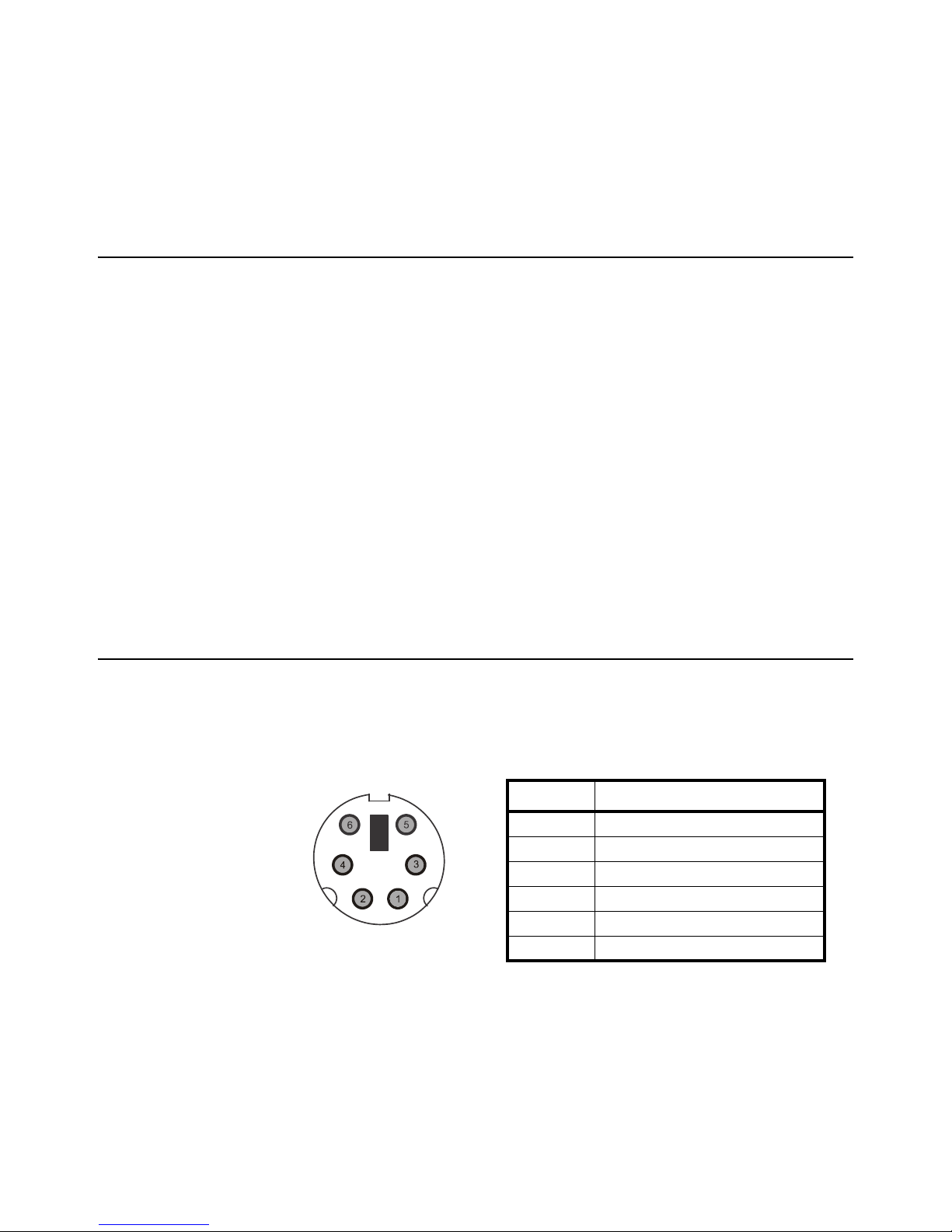
The following drawing illustrates the PS2 socket pinout located on the CP103 printer.
This connection is used for RS-232 communication with an indicator or computer and
requires the PS2 to RS-232 interface cable (serial cable).
Pin Description
1 TXD - data output
2 no connection
3GND
4 no connection (12V DC- IN is optional)
5 RXD - data input
6 no connection (12V DC- IN is optional)

CP103 Thermal Printer User Instructions 7
2.3 Serial Cable Definition
Wire Colors PS2 Connector Pinout
male
Pin Description DB9 Pinout
female
white 1 TXD 2
blue 2 Null 8
black 3 GND 5
yellow 4 12 V Input 7
red 5 RXD 3
green 6 12 V Input 6
51
96
432
87

8 CP103 Thermal Printer User Instructions
3 Printer Self Test and Cleaning
With the printer off, press and hold the [POWER] button until the printer begins to print
a self-testing page and then release the [POWER] button.
The page gives specific information regarding version of firmware, interface type, print
speed, default baud rate, etc.
3.1 Cleaning the Print Head
When the printer displays the following symptoms the print head should be cleaned:
lThe printer does not print clearly and the thermal paper is good
lThe page-test printing is not crisp and clear
lPaper feed is noisy
3.1.1 Steps for Cleaning Print Head
1. Turn off the power to the printer and open the paper dispenser cover. Remove
the thermal paper roll.
1a. If the printer was just printing then wait for the print head to cool down.
2. With a soft cotton cloth dipped in rubbing alcohol (make sure there is no
dripping), wipe the thermal printer head gently and remove any dust or debris.
3. Wait for the rubbing alcohol to evaporate completely and then place the
thermal paper roll back in the printer. Close the paper dispenser cover and
print a test page.
Table des matières
Autres manuels Brecknell Imprimante


