Black Box VWP-1060 Manuel utilisateur

24/7 TECHNICAL SUPPORT AT 1.877.877.2269 OR VISIT BLACKBOX.COM
RADIAN
1000
SERIES
V W P-106 0
USER MANUAL
RADIAN VIDEO
WALL PROCESSOR

2
TABLE OF CONTENTS
NEED HELP?
LE AVE THE TECH TO US
LIVE 24/7
TECHNICAL
SUPPORT
1.877.87 7. 2 2 69
1. 8 7 7. 8 7 7. 2 2 6 9 BLACKBOX.COM
SAFETY .............................................................................................................................................................................................. 2
Safety Precautions.........................................................................................................................................................................................2
QUICK START GUIDE......................................................................................................................................................................... 5
STEP 1: Keyboard and Mouse .......................................................................................................................................................................5
STEP 2: Connect to a Network (Optional)....................................................................................................................................................6
STEP 3: Connect Input Source ......................................................................................................................................................................6
STEP 4: Connect Control Screen (Optional) and Monitors.........................................................................................................................7
STEP 5: Powering On the System .................................................................................................................................................................8
STEP 6: Windows®7 Setup............................................................................................................................................................................9
STEP 7: Activate Windows 7..........................................................................................................................................................................9
STEP 8: Display Setup..................................................................................................................................................................................10
STEP 9: Radian Video Wall Manager ..........................................................................................................................................................11
1. SPECIFICATIONS......................................................................................................................................................................... 14
2. OVERVIEW.................................................................................................................................................................................... 15
2.1 Introduction.............................................................................................................................................................................................15
2.2 Features ..................................................................................................................................................................................................15
2.3 What’s Included...................................................................................................................................................................................... 15
2.4 Hardware Description............................................................................................................................................................................16
2.4.1 Chassis............................................................................................................................................................................................16
2.4.2 Compatible Input/Output Cards ...................................................................................................................................................................17
3. CABLING ...................................................................................................................................................................................... 18
3.1 Connecting the Keyboard and Mouse ..................................................................................................................................................18
3.2 Connecting to a Network (Optional).....................................................................................................................................................18
3.3 Connecting Input Sources.....................................................................................................................................................................19
3.4 Connect Monitors and Control Screen (Optional)...............................................................................................................................19
3.4.1 Screen Order ...................................................................................................................................................................................19
3.4.2 Connecting the Control Screen (Optional)..................................................................................................................................................21
3.4.3 How to Disable the Control Screen ..............................................................................................................................................................21
3.5 Connecting Power Cables .....................................................................................................................................................................22
4. OPERATION.................................................................................................................................................................................. 23
4.1 Switching On...........................................................................................................................................................................................23
4.2 Initial System Boot on Delivery .............................................................................................................................................................24
4.2.1 Select Language Pack....................................................................................................................................................................24
4.2.2 Select Country and Region ............................................................................................................................................................................24
4.2.3 Names and Password.....................................................................................................................................................................................25
4.2.4 Enter the Product Key .....................................................................................................................................................................................25
4.2.5 System Backup.................................................................................................................................................................................................25
4.3 Opening Radian Video Wall Manager ...................................................................................................................................................26
4.4 Displaying Video Captures ....................................................................................................................................................................26

3
1. 8 7 7. 8 7 7. 2 2 6 9 BLACKBOX.COM
NEED HELP?
LE AVE THE TECH TO US
LIVE 24/7
TECHNICAL
SUPPORT
1.877.87 7. 2 2 69
TABLE OF CONTENTS
5. SOFTWARE................................................................................................................................................................................... 28
5.1 Radian Video Wall Manager...................................................................................................................................................................28
5.2 Radian Video Wall Manager — Features and Tools.............................................................................................................................28
5.3 Radian Video Wall Manager Software..................................................................................................................................................29
5.4 Software Utilities....................................................................................................................................................................................32
6. TECHNICAL SUPPORT................................................................................................................................................................ 33
6.1 Contacting Black Box.............................................................................................................................................................................33
6.2 Shipping and Packaging........................................................................................................................................................................33
7. MAINTENANCE............................................................................................................................................................................ 34
Filter Maintenance........................................................................................................................................................................................34
APPENDIX A: ADVANCED USERS .................................................................................................................................................. 35
A.1 Installing CODEC Packs to Play Video ................................................................................................................................................35
A.2 Firmware Updates..................................................................................................................................................................................35
A.3 Restoring to Factory Settings...............................................................................................................................................................35
A.3.1 Selecting a Boot Device .................................................................................................................................................................35
A.3.2 Reactivate Windows.......................................................................................................................................................................36
A.3.3 Install Display Drivers and Software .............................................................................................................................................36
APPENDIX B: REGULATORY INFORMATION ................................................................................................................................ 37
B.1 FCC IC and RFI Statements ...................................................................................................................................................................37
B.2 NOM Statement .....................................................................................................................................................................................38
DISCLAIMER/ TRADEMARKS USED IN THIS MANUAL............................................................................................................... 39
Disclaimer .....................................................................................................................................................................................................39
Trademarks Used in this Manual.................................................................................................................................................................39

41. 8 7 7. 8 7 7. 2 2 6 9 BLACKBOX.COM
NEED HELP?
LE AVE THE TECH TO US
LIVE 24/7
TECHNICAL
SUPPORT
1.877.87 7. 2 2 69
SAFETY
SAFETY PRECAUTIONS
To prevent damage to your Radian 6-Slot Chassis or injury to personnel operating the equipment, please read the following safety
precautions prior to operation. These instructions should be made available to all those who will use and operate the Chassis.
POWER SUPPLY
All Radian products require a power supply. This power supply must be disconnected when equipment is being upgraded or
relocated.
CABLES
Do not expose cables to any liquids; doing so may cause a short circuit that could damage the equipment. Do not place heavy
objects on top of any cables as this can cause damage and possibly lead to exposed live wires.
VENTILATION
All computer equipment should be located in a well ventilated area. All ventilation holes on the computer casing must be kept clear
of any obstruction at all times. Failure to do so will result in the system overheating and damaging your equipment.
WORKING ENVIRONMENT
The equipment should be located in an environment free from dust, moisture and extreme changes in temperature and should be
placed on a stable and solid work surface. Liquids (hot/cold drinks etc) should not be placed near the equipment as spillage could
cause serious damage.
GAS/FLAMMABLE LIQUIDS
Electronic equipment should never be used in the presence of gas or any flammable liquid, doing so could result in an explosion or
serious fire.
SMOKE/UNUSUAL SMELLS
If you notice smoke or unusual smells being emitted from your system, turn off and unplug the system from the power supply.
The system should then be passed to a qualified technician for inspection. Continued operation could result in personal injury and
damage to property.
MAINTENANCE
Apart from what is detailed in this user guide, maintenance should only be carried out by competent technicians. Any Black Box
plug-in cards that are physically damaged should be returned to Black Box for repair using Black Box RMA procedures.
REPLACABLE BATTERIES
CAUTION: Risk of explosion if batteries are replaced by an incorrect type. Dispose of used batteries according to the local laws/
regulations and manufacturer’s instructions.

5
1. 8 7 7. 8 7 7. 2 2 6 9 BLACKBOX.COM
NEED HELP?
LE AVE THE TECH TO US
LIVE 24/7
TECHNICAL
SUPPORT
1.877.87 7. 2 2 69
QUICK START GUIDE
A version of the Quick Start Guide is included below and on the following pages for your convenience.
Each Black Box Radian system is custom built to order, so the components, number and type of input and output cards will differ
from system to system.
STEP 1: KEYBOARD AND MOUSE
Connect the keyboard and mouse to USB Ports.
FIGURE 1. CONNECT KEYBOARD AND MOUSE

61. 8 7 7. 8 7 7. 2 2 6 9 BLACKBOX.COM
NEED HELP?
LE AVE THE TECH TO US
LIVE 24/7
TECHNICAL
SUPPORT
1.877.87 7. 2 2 69
QUICK START GUIDE
STEP 2: CONNECT TO A NETWORK (OPTIONAL)
FIGURE 2. CONNECT TO A NETWORK (OPTIONAL)
STEP 3: CONNECT TO AN INPUT SOURCE
As each system is custom built, the number and type of inputs will differ from system to system.
Input Connectors
FIGURE 3. CONNECT TO AN INPUT SOURCE

7
1. 8 7 7. 8 7 7. 2 2 6 9 BLACKBOX.COM
NEED HELP?
LE AVE THE TECH TO US
LIVE 24/7
TECHNICAL
SUPPORT
1.877.87 7. 2 2 69
QUICK START GUIDE
STEP 4: CONNECT A CONTROL SCREEN (OPTIONAL) AND MONITORS
Many of our wall controllers are configured to use a control screen (Internal Graphics Device) prior to leaving the factory.
If required, connect the control screen to the motherboard as shown below. If a control screen is not required, you will need
to change the BIOS settings.
1
4
MONITOR 2
MONITOR 3
MONITOR 4
MONITOR 5
MONITOR 7
MONITOR 6
MONITOR 8
MONITOR 1
CONNECT GRAPHIC OUTPUTS TO
MONITORS USING DISPLAYPORT CABLES.
(NOT SUPPLIED)
CONTROL SCREEN
(OPTIONAL)
4 x 2 Video Wall
13 4
5678
2
FIGURE 4. CONNECT TO A CONTROL SCREEN (OPTIONAL) AND MONITORS

81. 8 7 7. 8 7 7. 2 2 6 9 BLACKBOX.COM
NEED HELP?
LE AVE THE TECH TO US
LIVE 24/7
TECHNICAL
SUPPORT
1.877.87 7. 2 2 69
QUICK START GUIDE
STEP 5: POWERING ON THE SYSTEM
Connect the power cable, then plug into and turn on the power supply.
Switch on the system.
POWER
SWITCH
FIGURE 5. SWITCH ON THE SYSTEM

9
1. 8 7 7. 8 7 7. 2 2 6 9 BLACKBOX.COM
NEED HELP?
LE AVE THE TECH TO US
LIVE 24/7
TECHNICAL
SUPPORT
1.877.87 7. 2 2 69
QUICK START GUIDE
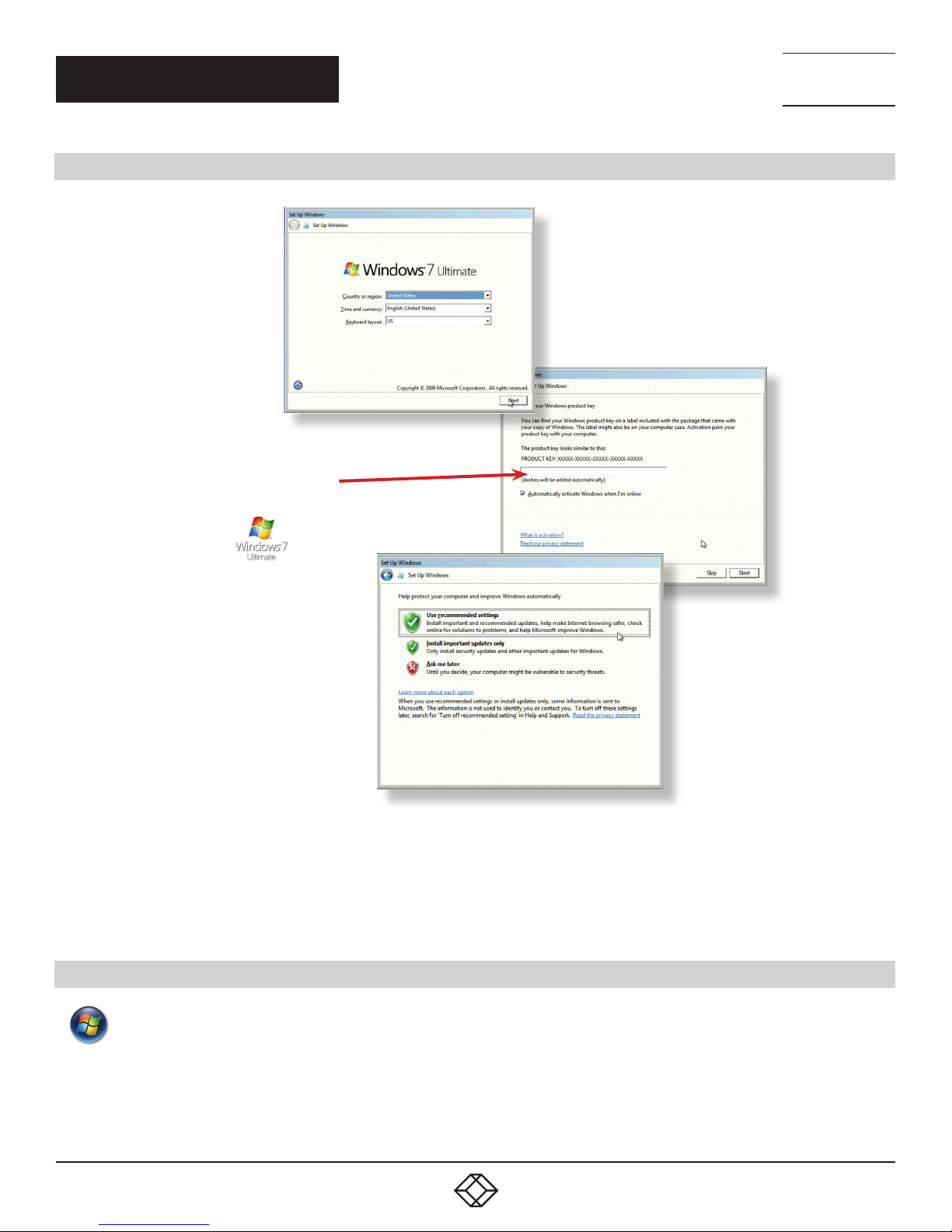
STEP 6: WINDOWS 7 SETUP
The Product key is
located behind the front
panel. Gently pull away
the front panel for access
FIGURE 6. WINDOWS 7 SETUP
We recommend that you use only Internet-standard characters in the computer name. The standard characters are the numbers
0 through 9, upper and lower-case letters from A through Z and the hyphen character. Computer names cannot consist entirely
of numbers, contain spaces or use special characters such as: < > ; : “ ?* + = \ | ? ,.
STEP 7: ACTIVATE WINDOWS 7
Start | Computer | Properties | Activate Windows now.
Select the appropriate method available.
To view the product key, gently pull away the front panel of the 6-Slot Chassis. The front panel is held in place with a series
of magnetic points.

10 1. 8 7 7. 8 7 7. 2 2 6 9 BLACKBOX.COM
NEED HELP?
LE AVE THE TECH TO US
LIVE 24/7
TECHNICAL
SUPPORT
1.877.87 7. 2 2 69
QUICK START GUIDE
STEP 8: DISPLAY SETUP
All Radian wall controllers have pre-configured settings for the wall layout and screen resolution. Change settings using the TWIN
tab.
Start | Control Panel | Appearance and Personalization | Adjust screen resolution.
1
2
3
FIGURE 7. DISPLAY SETUP
Table des matières