
BeWAN ADSL Router Manuel utilisateur

User’s guide

Warning
The information in this manual may be modified without prior notice.
THE MANUFACTURER CANNOT BE HELD RESPONSIBLE IF THERE IS A PARTIAL
DISCREPANCY BETWEEN THE MANUAL AND THE PRODUCT IT DESCRIBES, OR IF
ACCIDENTAL DAMAGE OCCURS DUE TO USE OF THIS MANUAL AND PRODUCT.
The manual and the software provided is protected by Copyright law, and may not be copied or
distributed in any way for any purpose. The use of the software is intended for one product only.
Violation of these rules may result in prosecution by law and the person to be held responsible
economically for any inconvenience and loss to the copyright owner.
Copyright © 2001-2002, BeWAN systems. All rights reserved.
June 2002 edition
BeWAN and the BeWAN systems logo are the registered trademarks of BeWAN systems.
All other trade names are the trademarks or registered trademarks of their respective holders.

BeWAN ADSL Router User’s guide 3
Table of contents
Introduction ................................................................................................ 5
Before starting...................................................................................................................... 5
Contents of the BeWAN ADSL Router box........................................................................ 5
Indicator lights and connectors ............................................................................................ 6
Indicators .....................................................................................................................................6
Connectors ...................................................................................................................................6
Ethernet Connection .................................................................................. 7
Direct connection ................................................................................................................. 7
Indirect connection to an external hub................................................................................. 7
The ADSL Configurator ............................................................................ 9
Installing the ADSL Configurator ....................................................................................... 9
De-installing the ADSL Configurator................................................................................ 11
With Windows 98/Me..................................................................................................................11
With Windows 2000....................................................................................................................11
With Windows XP.......................................................................................................................12
Using the ADSL Configurator................................................................. 13
Creation / Modification of a profile................................................................................... 13
PPPoA (RFC 2364)....................................................................................................................14
PPPoE (RFC 2516)....................................................................................................................20
Saving a profile .................................................................................................................. 22
Updating a profile ..............................................................................................................23
Firmware updating ............................................................................................................. 24
Configuration of the computers .............................................................. 26
PC running Windows 95/98/Me ........................................................................................ 26
Verification of the protocols.......................................................................................................26
PC parameterisation ..................................................................................................................28
Configuration verification..........................................................................................................32
PC running Windows NT................................................................................................... 34
Verification of the protocols.......................................................................................................34
PC parameterisation ..................................................................................................................36
Configuration verification..........................................................................................................40

BeWAN ADSL Router User’s guide 4
PC running Windows 2000................................................................................................ 42
Verification of the protocols.......................................................................................................42
PC parameterisation ..................................................................................................................43
Configuration verification..........................................................................................................47
PC running Windows XP................................................................................................... 49
Verification of the protocols.......................................................................................................49
PC parameterisation ..................................................................................................................49
Configuration verification..........................................................................................................53
Macintosh (Mac OS 8.x to 9.x).......................................................................................... 55
Verification of the protocols.......................................................................................................55
Macintosh parameterisation ......................................................................................................55
Macintosh (Mac OS X.1) ................................................................................................... 58
Macintosh parameterisation ......................................................................................................58
Installing via the USB port ...................................................................... 61
USB connection ................................................................................................................. 61
Installing the USB drivers.................................................................................................. 62
Installation with Windows 98.....................................................................................................62
Installation with Windows Me....................................................................................................67
Installation with Windows 2000.................................................................................................72
Installation with Windows XP ....................................................................................................79
Appendix.................................................................................................... 84
Telnet commands ............................................................................................................... 84
Basic Telnet principles ...............................................................................................................84
Opening a Telnet session............................................................................................................84
List of main commands...............................................................................................................85

BeWAN ADSL Router User’s guide 5
Introduction
Congratulations, you have just acquired the BeWAN ADSL Router, an ergonomic and high-
performance router offering dynamic management of an ADSL-based Internet connection and its
sharing over a local network. Your Internet access can use either the Ethernet cable or the USB
port. Before using it, you will require a subscription with an ADSL service provider and an Internet
service provider using ADSL.
Before starting
In this manual, we consider that the following conditions are true:
1. You have a Analog line with an ADSL access.
2. You have a subscription with an Internet service provider (ISP), who has confirmed your
connection parameters (identifiers, password, DNS servers, etc.).
Contents of the BeWAN ADSL Router box
In addition to the modem, the BeWAN ADSL Router box also contains the following elements:
BeWAN ADSL CD-ROM containing the
software and manual
ADSL RJ11 cable
Power supply cable
Crossed Ethernet cable (red)
USB cable

BeWAN ADSL Router User’s guide 6
Indicator lights and connectors
Indicators
Located on the front of the BeWAN ADSL Router, the indicators provide information on the status
of the BeWAN ADSL Router and of its connections.
Indicator
name
Indicator
colour
Position Corresponding
connector
ACT Orange Blinks when packets are sent or received over
the network
POWER
ADSL Orange Blinks while establishing the synchronisation
On when synchronised
ADSL
Eth Orange Blinks when initialising
On when the connection is operational
LAN
USB Orange Blinks when initialising
On when the connection is operational
USB
Power Green On when the BeWAN ADSL Router is
connected
POWER
Connectors
All of the connectors for the BeWAN ADSL Router unit are on the back.
Refer to the connection diagrams in the “Ethernet Connection” chapter on page 7.

BeWAN ADSL Router User’s guide 7
Ethernet Connection
This chapter provides the various connection diagrams for the BeWAN ADSL Router. If you have
an Ethernet card, this type of connection is preferred over a USB connection (refer to the “Installing
via the USB port” chapter on page 61).
Note: before beginning, you must have installed an Ethernet 10Base-T card in your
computer.
Note: when using your ADSL connection, you can simultaneously use your telephone or fax.
Direct connection
Proceed as follows to directly connect a computer to the BeWAN ADSL Router:
1. Locate the crossed Ethernet cable (red). Connect one end of this cable to the modem’s LAN
port, and the other end to the RJ45 on the computer’s Ethernet card.
2. Locate the RJ11 cable. Connect one end of this cable to the ADSL port on the BeWAN ADSL
Router, and the other end to your phone jack.
3. Locate the power supply cable. Connect one end of this cable to the Power port on the BeWAN
ADSL Router, and the other end to an electrical outlet which complies with the specifications
indicated on the power pack.
Indirect connection to an external hub
To indirectly connect a computer to the BeWAN ADSL Internet, using an external Ethernet hub
(not supplied), proceed as follows:
1. Obtain a straight Ethernet cable (cable not supplied). Connect one end of this cable to the LAN
port on the BeWAN ADSL Router, and the other end to one of the Ethernet ports on the
external hub.
2. Then connect the computer to the external Ethernet hub (additional cable not provided).
Note: of course, you can connect other computers and equipment to the external hub.

BeWAN ADSL Router User’s guide 8
3. Locate the RJ11 cable. Connect one end of this cable to the ADSL port on the BeWAN ADSL
Router, and the other end to your phone jack.
4. Locate the power supply cable. Connect one end of this cable to the Power port on the BeWAN
ADSL Router, and the other end to an electrical outlet which complies with the specifications
indicated on the power pack.

BeWAN ADSL Router User’s guide 9
The ADSL Configurator
Installing the ADSL Configurator
In order to set the parameters of your BeWAN ADSL Router, you must install the ADSL
Configurator.
1. Insert the BeWAN ADSL CD-ROM in your drive. If your PC’s configuration is set up for it, the
installation program will launch automatically. If it does not, run the autorun.exe program
which is located at the root of the CD-ROM.
2. Click on the product BeWAN ADSL Router, and then select your language.
3. Click on Software and then on ADSL Configurator.
4. The ADSL Configurator installation Wizard appears. Click on Next.
5. Read the Readme, then click on Next.
BeWAN ADSL Router User’s guide 10
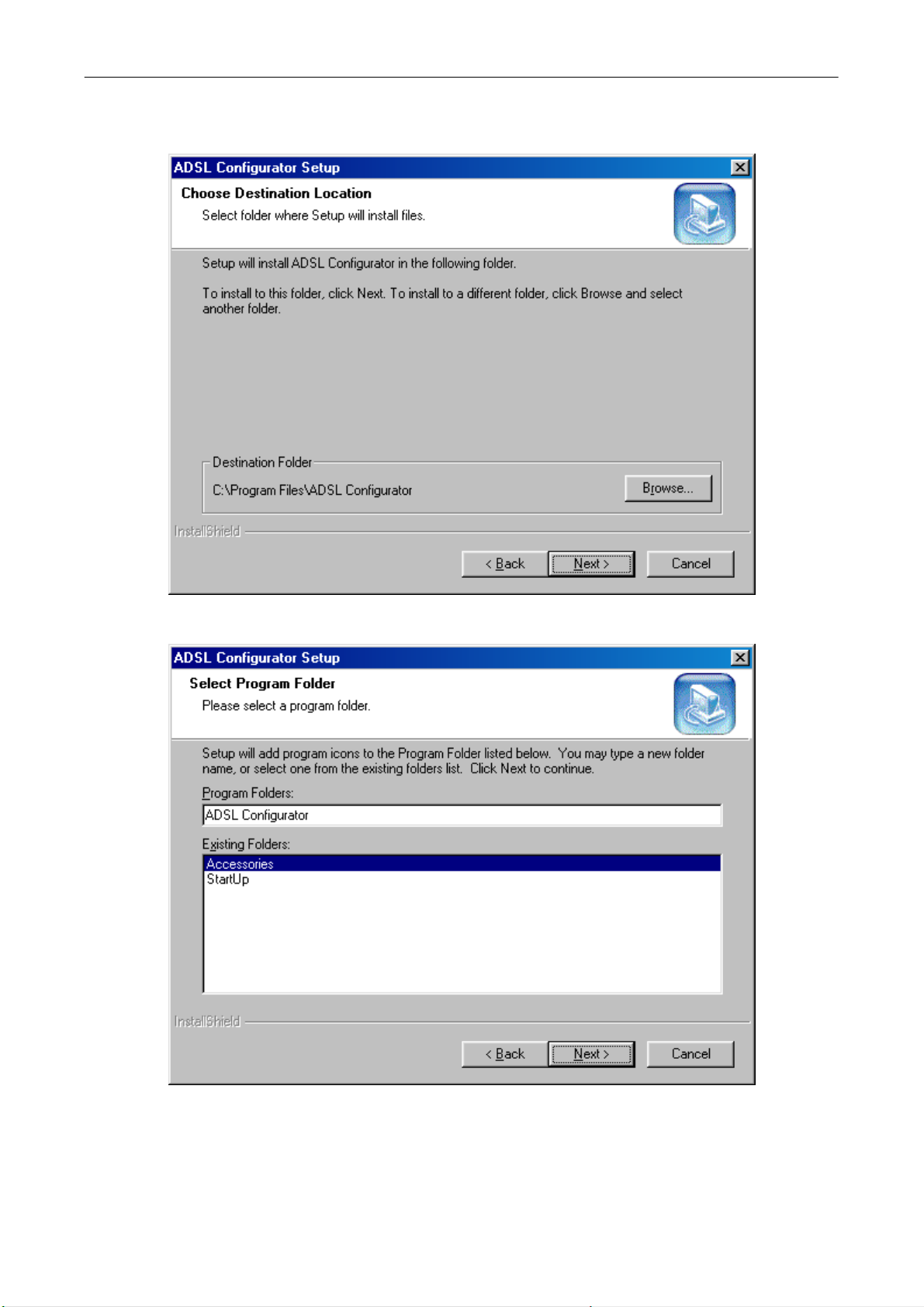
6. The Wizard is now ready to install the software. It has defined the default destination directory.
Click on Next.
7. Select the program folder and then click on Next.
8. After a verification of the configuration, you can begin copying the files. Click on Next.
Table des matières
Manuels Routeur réseau populaires d'autres marques


NETGEAR
NETGEAR FS526T - Switch Manuel utilisateur

Korenix
Korenix JetNet 5710G Series Manuel utilisateur

Automated Logic
Automated Logic ZN551 Manuel du propriétaire

Cisco
Cisco ASR 1000 Series Manuel de l'opérateur

EnGenius
EnGenius ESR-9710 Manuel utilisateur

Cisco
Cisco 805 Series Instructions d'utilisation et de sécurité