Avery Weigh-Tronix ZG110 Manuel utilisateur

Model ZG110
Impact Printer
User Instructions
AWT 35-500728 Issue AA July 2011

© Avery Weigh-Tronix, LLC 2011. All rights reserved.
No part of this publication may be reproduced, stored in an electronic retrieval system, or transmitted in any form
or by any means, electronic, mechanical, photocopying, recording or otherwise without the prior written consent of
the copyright owner, or as permitted by law or under license. Full acknowledgment of the source must be given.
Avery Weigh-Tronix is a registered trade mark of the Avery Weigh-Tronix, LLC. This publication was correct at the
time of going to print however, Avery Weigh-Tronix, LLC reserves the right to alter without notice the specification,
design, price or conditions of supply of any product or service at any time.
All third party brands and product names used within this document are trademarks or registered trademarks of
their respective holders.
ZG110_u_en_500728.book

ZG110 Impact Printer User Instructions 3
Table of Contents
Chapter 1 General Information and Warnings ........................................................................................ 5
About this Manual ..............................................................................................................5
Special Messages .............................................................................................................. 5
Electrical Installation .......................................................................................................... 6
Pluggable Equipment ......................................................................................................... 6
Wet Conditions ................................................................................................................... 6
Routine Maintenance ......................................................................................................... 6
Installation .......................................................................................................................... 6
Power Supply Details ......................................................................................................... 6
Alternative Power Supply Arrangements ..................................................................... 7
Printer Firmware Revisions ................................................................................................ 7
Copyright Notice and Disclaimer ........................................................................................ 7
EMC Caution ...................................................................................................................... 7
Chapter 2 Getting Started ......................................................................................................................... 8
Connections and EMC Precautions ................................................................................... 8
Printer View (backside) ............................................................................................... 8
Connector Details ........................................................................................................ 8
PSU Jack Socket Detail .............................................................................................. 9
Connecting to a PC ............................................................................................................ 9
Application Program .................................................................................................. 10
Chapter 3 Modes of Operation ............................................................................................................... 11
Idle Mode ......................................................................................................................... 11
Paper Feed Button ........................................................................................................... 11
LED Indications ................................................................................................................11
Alternative LED Pattern Set ...................................................................................... 11
Printing Method ................................................................................................................12
Dot Addressable Graphics ............................................................................................... 12
Data Buffer ....................................................................................................................... 13
Serial Interface (standard RS-232 version) ...................................................................... 13
Chapter 4 Control Code Tables .............................................................................................................. 14
Codes Received by the ZG110 ........................................................................................ 14
Chapter 5 Paper and Ribbons ................................................................................................................ 16
Loading Paper ..................................................................................................................16
Paper Low Sensor ........................................................................................................... 16
Removing Paper or Clearing a Jam ................................................................................. 16
Changing the Ink Ribbon Cartridge .................................................................................. 17

4 ZG110 Impact Printer User Instructions

ZG110 Impact Printer User Instructions 5
1 General Information and Warnings
1.1 About this Manual
This manual consists of user instructions to be used as a guide for printer installation
and operation. Be sure to read all instructions before making any connections.
The manual is divided into chapters by the chapter number and the large text at the top
of a page. Subsections are labeled as shown by the 1 and 1.1 headings shown above.
The manual name and page numbers appear at the bottom of the pages.
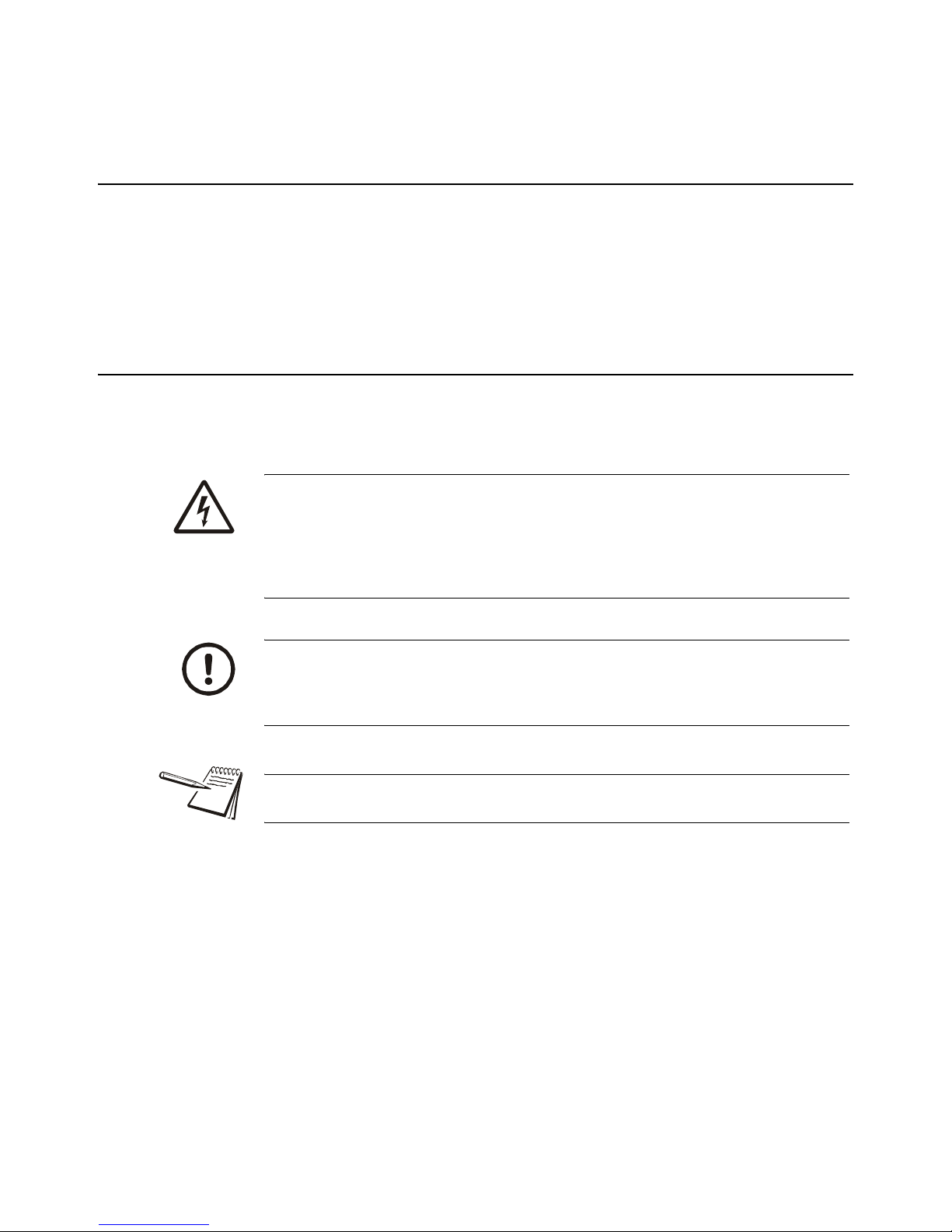
1.2 Special Messages
Examples of special messages you will see in this manual are defined below. The
signal words have specific meanings to alert you to additional information or the relative
level of hazard.
ELECTRICAL WARNING!
THIS IS AN ELECTRICAL WARNING SYMBOL.
ELECTRICAL WARNINGS MEAN THAT FAILURE TO FOLLOW SPE-
CIFIC PRACTICES OR PROCEDURES MAY RESULT IN ELECTROCU-
TION, ARC BURNS, EXPLOSIONS OR OTHER HAZARDS THAT MAY
CAUSE INJURY OR DEATH.
CAUTION!
This is a Caution symbol.
Cautions give information about procedures that, if not observed, could result
in damage to equipment or corruption to and loss of data.
NOTE: This is a Note symbol. Notes give additional and important information, hints
and tips that help you to use your product.

6 ZG110 Impact Printer User Instructions
1.3 Electrical Installation
1.4 Pluggable Equipment
Pluggable equipment must be installed near an easily accessible socket outlet.
1.5 Wet Conditions
1.6 Routine Maintenance
Always turn off the ZG110 and isolate from the power supply before starting any routine
maintenance to avoid the possibility of electric shock.
Make sure that it is placed securely on a flat and level surface.
1.7 Installation
1.8 Power Supply Details
The ZG110 is directly powered through the power jack at the rear of the printer.
AC Operation
An optional universal power supply may be purchased, part number AWT05-505594.
CAUTION: The power cable must be connected to an earth-grounded electrical
outlet. The electrical supply must have a circuit breaker with an appropriate
rating to protect from over-current conditions.
IF IN DOUBT SEEK ADVICE FROM A QUALIFIED ELECTRICIAN.
The Model ZG110 printer is not a washdown unit. Do not install near water!
DANGER: RISK OF ELECTRICAL SHOCK. NO USER SERVICEABLE
PARTS. REFER TO QUALIFIED SERVICE PERSONNEL FOR SERVICE.

ZG110 Impact Printer User Instructions 7
DC Operation
The printer is designed for direct connection to a +12V or +24V vehicle battery.
Alternatively, the user may make their own power supply arrangements as described
below.
1.8.1 Alternative Power Supply Arrangements
The ZG110 is designed to be operated from a 9V to 36V voltage source that is capable
of supplying the primary power for the printer.
The electrical specification for the power supply input of the ZG110 printer is:
The recommended power supply input is either a 12V or 24V vehicle battery, this allows
the printer to perform at its best. However, the printer will automatically accommodate
any DC input voltage in the range 9V to 36V.
1.9 Printer Firmware Revisions
The manufacturer reserves the right to modify and improve the firmware in its printer
products at any time. Every effort is made to ensure backward compatibility, however,
no guarantee in this respect is given or implied.
1.10 Copyright Notice and Disclaimer
Copyright subsists in the manufacturer's intellectual property, including controller
firmware (embedded software) and circuit diagrams, pin connection lists and
application data. No warranty in respect of patent rights of the manufacturer or of third
parties is given. Unauthorized reproduction or amendment of controller firmware may
result in prosecution.
EPSON is a registered mark of its owner Seiko Epson Corporation. References to this
or other owners' marks in this document are for illustrative purposes only.
The manufacturer does not assume responsibility for interchangeable functionality of
other parties' command sets.
1.11 EMC Caution
System EMC compliance remains the responsibility of the system designer. It is
recommended that screened cables are used; earthing arrangements will depend on
the application.
Input Voltage Range: +9V to +36V internal over voltage at 37V and reversal protection

8 ZG110 Impact Printer User Instructions
2 Getting Started
2.1 Connections and EMC Precautions
2.1.1 Printer View (backside)
2.1.2 Connector Details
A single socket on the rear of the printer combines all data and charger functions.
Printer side: Hosiden TCS7167 6-way Socket (mini-DIN style)
User side: Hosiden TCP7160 6-way Plug & Cable or equivalent
Figure 2.1 Connector view from rear of printer
Power Supply Connector
(PSU Jack Socket)
RS-232 Connector
(Mini-DIN)

ZG110 Impact Printer User Instructions 9
2.1.3 PSU Jack Socket Detail
The maximum insertion length is 12 mm.
RS232 Data Cable Configuration (9 pin)
A D-9 Female socket with the following pinout:
2.2 Connecting to a PC
1. Make hardware connections.
1a. Be sure the PC has a D-type serial connector; otherwise, a serial to USB
converter will need to be used.
2. Use one of the two serial ports for the ZG110, whichever is free.
3. Check that the printer wakes up when the paper feed button is pressed, and
that it produces a Self Test print.
4. Set up the computer's serial port to match the printer
Pin Function
1 TxD Data Output
2 BUSY Output
3 RxD Data Input
4 Optional Baud Select
5 Ground (0V)
6 No Connection
Pin Dimension (mm) Function
Inner Inside Ø 2.1 Positive 9-36 VDC Input
Outer Outside Ø 5.5 Negative / 0V Common
D-9 Pin Name Function (refers to PC) ZG110 Pin
Shell FGND Frame Ground Screen
3 TxD Serial Data Output 3
2 RxD Serial Data Input 1
6 & 8 CTS & DSR Busy Input 2
5 SGND Signal Common 0V 5

10 ZG110 Impact Printer User Instructions
4a. Your proposed application program may have a way of doing this, or you can
get to the DOS prompt [eg C:\>] and type the following command line
(assuming you have connected the printer to COM1:):
MODE COM1:9600,N,8,1 [ENTER]
4b. This will set up the port (COM1:) to 9600 baud, No parity, 8 data bits, and 1
stop bits which is the default setting for the ZG110.
5. Send some data to the printer from your computer
5a. An easy way to do this from the DOS prompt is to type:
DIR >COM1: [ENTER]
This should send a directory listing to the printer. The lines will probably overflow, but
it will at least show that the communication between the computer and the printer is
working.
You can also send data from QBASIC, for example:
OPEN "COM1:9600,N,8,1" FOR RANDOM AS #1
PRINT#1, "Hello"
Alternatively, in Windows, use the terminal (Hyper terminal) program to send some text
to the printer.
2.2.1 Application Program
Once communications between your computer and the printer have been established,
you can try driving the printer from your application program.
Table des matières
Autres manuels Avery Weigh-Tronix Imprimante

Avery Weigh-Tronix
Avery Weigh-Tronix WP-250 Manuel utilisateur

Avery Weigh-Tronix
Avery Weigh-Tronix ZG310 Manuel utilisateur

Avery Weigh-Tronix
Avery Weigh-Tronix WP-234 Manuel utilisateur

Avery Weigh-Tronix
Avery Weigh-Tronix WP-233 Series Manuel utilisateur

Avery Weigh-Tronix
Avery Weigh-Tronix ZG354 Manuel utilisateur

Avery Weigh-Tronix
Avery Weigh-Tronix WP-234 Manuel utilisateur

Avery Weigh-Tronix
Avery Weigh-Tronix TM-295 Manuel utilisateur