
Avalue Technology EPC-BYT2 Manuel utilisateur

Facial Recognition
Quick Installation Guide
1st Ed –30 July 2018
Copyright Notice
Copyright 2018 Avalue Technology Inc., ALL RIGHTS RESERVED.

Facial Recognition
2Facial Recognition Quick Installation Guide
FCC Statement
THIS DEVICE COMPLIES WITH PART 15 FCC RULES. OPERATION IS
SUBJECT TO THE FOLLOWING TWO CONDITIONS:
(1) THIS DEVICE MAY NOT CAUSE HARMFUL INTERFERENCE.
(2) THIS DEVICE MUST ACCEPT ANY INTERFERENCE RECEIVED INCLUDING
INTERFERENCE THAT MAY CAUSE UNDESIRED OPERATION.
THIS EQUIPMENT HAS BEEN TESTED AND FOUND TO COMPLY WITH THE LIMITS
FOR A CLASS "A" DIGITAL DEVICE, PURSUANT TO PART 15 OF THE FCC RULES.
THESE LIMITS ARE DESIGNED TO PROVIDE REASONABLE PROTECTION AGAINST
HARMFUL INTERFERENCE WHEN THE EQUIPMENT IS OPERATED IN A
COMMERCIAL ENVIRONMENT. THIS EQUIPMENT GENERATES, USES, AND CAN
RADIATE RADIO FREQUENCY ENERGY AND, IF NOT INSTATLLED AND USED IN
ACCORDANCE WITH THE INSTRUCTION MANUAL, MAY CAUSE HARMFUL
INTERFERENCE TO RADIO COMMUNICATIONS.
OPERATION OF THIS EQUIPMENT IN A RESIDENTIAL AREA IS LIKELY TO CAUSE
HARMFUL INTERFERENCE IN WHICH CASE THE USER WILL BE REQUIRED TO
CORRECT THE INTERFERENCE AT HIS OWN EXPENSE.
A Message to the Customer
Avalue Customer Services
Each and every Avalue’s product is built to the most exacting specifications to ensure
reliable performance in the harsh and demanding conditions typical of industrial
environments. Whether your new Avalue device is destined for the laboratory or the factory
floor, you can be assured that your product will provide the reliability and ease of operation
for which the name Avalue has come to be known.
Your satisfaction is our primary concern. Here is a guide to Avalue’s customer services. To
ensure you get the full benefit of our services, please follow the instructions below carefully.
Technical Support
We want you to get the maximum performance from your products. So if you run into
technical difficulties, we are here to help. For the most frequently asked questions, you can
easily find answers in your product documentation. These answers are normally a lot more
detailed than the ones we can give over the phone. So please consult the user’s manual
first.
To receive the latest version of the user’s manual; please visit our Web site at:
http://www.avalue.com.tw/

Quick Installation Guide
Facial Recognition Quick Installation Guide
3
Content
1. Getting Started............................................................................................................4
1.1 Safety Precautions ................................................................................................4
1.2 Packing List...........................................................................................................4
1.3 EPC-BYT2 System Overview................................................................................5
1.3.1 Front View................................................................................................................................ 5
1.3.2 Rear View................................................................................................................................ 5
1.4 EPC-BYT2 System Dimensions ............................................................................6
1.4.1 Front & Top View..................................................................................................................... 6
2. Renity Signs Setting...................................................................................................7
2.1 Prerequisites Setting .............................................................................................8
2.2 Renity Signs - Content Management System (CMS) Setting ..............................12
2.3 Renity Signs –SRS Account Setting...................................................................20
2.4 Renity Signs –People Counting Report..............................................................29

Facial Recognition
4Facial Recognition Quick Installation Guide
1. Getting Started
1.1 Safety Precautions
Warning!
Always completely disconnect the power cord from your
chassis whenever you work with the hardware. Do not
make connections while the power is on. Sensitive
electronic components can be damaged by sudden power
surges. Only experienced electronics personnel should
open the PC chassis.
Caution!
Always ground yourself to remove any static charge before
touching the CPU card. Modern electronic devices are very
sensitive to static electric charges. As a safety precaution,
use a grounding wrist strap at all times. Place all electronic
components in a static-dissipative surface or static-shielded
bag when they are not in the chassis.
1.2 Packing List
1 x EPC-BYT2 Signage Box
Renity Signs Signage Software For Facial Recognition (Pre-loaded)

Quick Installation Guide
Facial Recognition Quick Installation Guide
5
1.3 EPC-BYT2 System Overview
1.3.1 Front View
Connectors
Label
Function
Note
POWER
Power on button
1.3.2 Rear View
Connectors
Label
Function
Note
COM1
Serial port 1 connector
D-sub 9-pin, male
HDD
HDD indicator
LAN1/2
RJ-45 Ethernet 1/2 with (L)LED for
ACT/LINK and (R)LED for speed
PWR
System power indicator
USB2.0
USB 2.0 connector x 3
USB3.0
USB 3.0 connector
VGA
VGA connector
DB-15 female connector
HDMI
HDMI connector
DC-IN
DC Power-in connector
LED
POWER

Facial Recognition
6Facial Recognition Quick Installation Guide
1.4 EPC-BYT2 System Dimensions
1.4.1 Front & Top View
(Unit: mm)

Quick Installation Guide
Facial Recognition Quick Installation Guide
7
2. Renity Signs Setting

Facial Recognition
8Facial Recognition Quick Installation Guide
2.1 Prerequisites Setting
Step1. Connect the power, HDMI (recommended) or VGA and LAN cables of the signage
box.

Quick Installation Guide
Facial Recognition Quick Installation Guide
9
Step2. Please configure the Device ID
As follow description is only suitable for distributors. Otherwise, if end customers change
their Device ID and ask us where their data is, we can’t help them.
So before shipping, distributors should help customers to set their Device ID on the target
device.
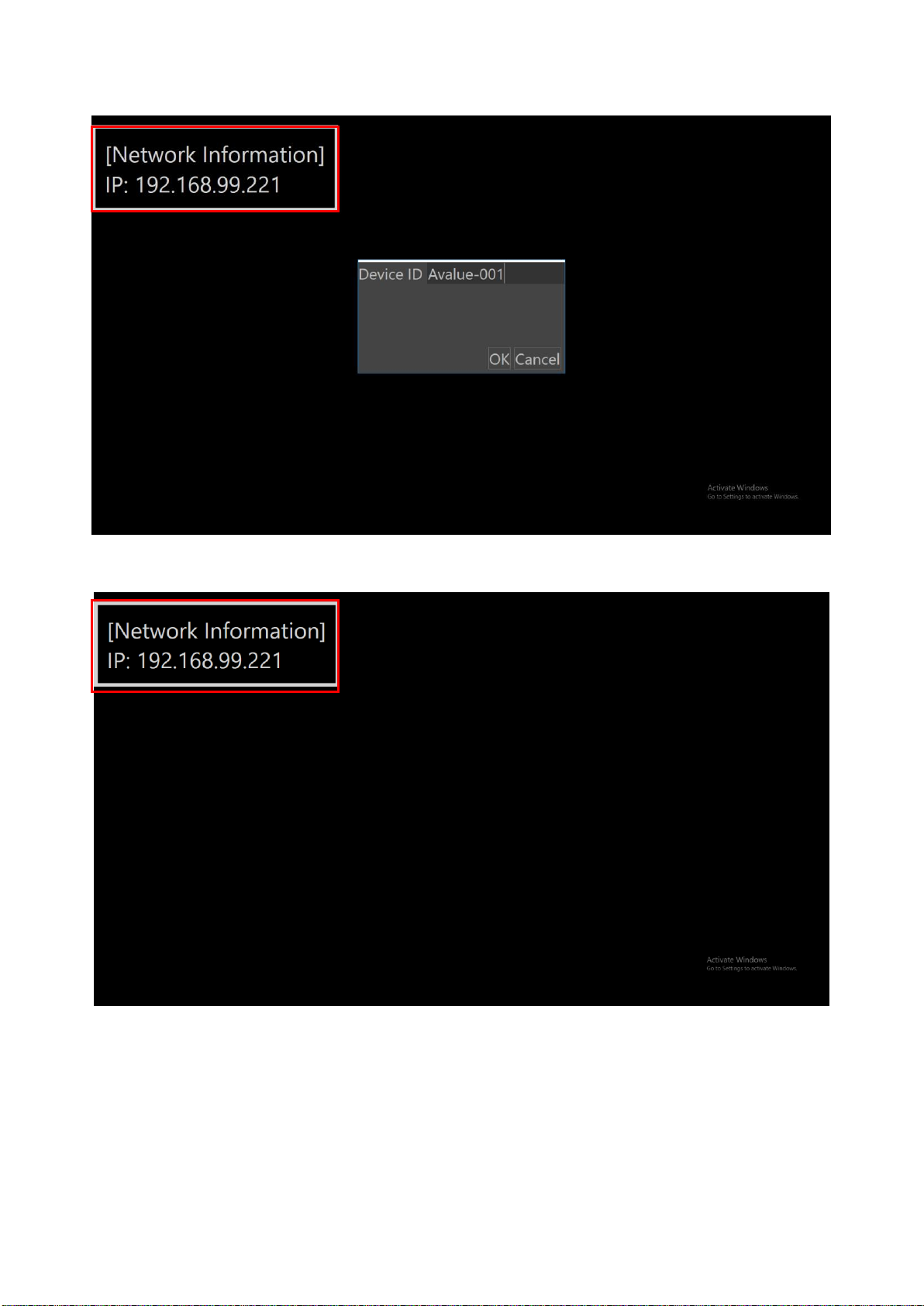
When distributors turn the target device on, it will display screen as follow.
No matter target device has played content whether not, distributors can press F2 key to
set Device ID as follow.
CAUTION. Device ID should be the same with Renity SRS Device ID, then end customers
can see all of their data in the Business Intelligence and data is related.
Facial Recognition
10 Facial Recognition Quick Installation Guide
When distributors have entered Device ID, they can click OK button to finish setting.
Step3. Please note the IP address of the device
When you turn device on, IP address will be shown on the left corner of the screen.
Autres manuels pour EPC-BYT2
1
Table des matières
Autres manuels Avalue Technology Matériel réseau

Manuels Matériel réseau populaires d'autres marques

Matrix Switch Corporation
Matrix Switch Corporation MSC-HD161DEL Manuel utilisateur

B&B Electronics
B&B Electronics ZXT9-IO-222R2 Manuel utilisateur

Yudor
Yudor YDS-16 Manuel utilisateur

D-Link
D-Link ShareCenter DNS-320L Manuel utilisateur

Samsung
Samsung ES1642dc Instructions d'utilisation

Honeywell Home
Honeywell Home LTEM-PV Instructions de montage


