
Audient iD4 Manuel utilisateur

HIGH PERFORMANCE USB INTERFACE
audient.com
connect with us.
USER MANUAL V1.1

iD4 is the culmination of years of
experience in high performance analogue
and digital circuit design, delivering the
audio performance of a large format
recording console in a compact and elegant
desktop package.
iD4 provides a single world-class Audient
console mic pre, JFET D.I, class leading
converter technology, console style
monitor control, and our virtual scroll wheel
technology
ScrollControl
.
Inside the box you should find:
• iD4
• Type A to Type B USB 2.0 Cable
• Printed Quick Start Guide
Features include:
• 1 x Class-A Audient Console Mic
Preamplifier
• 1 x Discrete JFET instrument input.
• High performance AD/DA converters
• Main Speaker Outputs
• Two Class-AB Headphone Outputs
• Zero Latency Monitoring
• iD
ScrollControl
Mode
• All-Metal Enclosure
• USB 2.0 bus powered
WELCOME & THANK YOU
Thank you for purchasing
this Audient product!
Introduction

iD4 Overview 1
Safety Information 2
Declaration of Conformities 4
5
Mac Installation 6
Windows Installation 7
iOS Installation 9
Product Registration 10
Firmware Update 10
11
Microphone & Line Input 12
Instrument Input 13
Loudspeaker Outputs 13
Headphone Outputs 13
Monitor Control 14
Volume Encoder 14
Monitor Mix 14
Monitor Pan 15
MUTE Speakers 15
iD Button 16
Metering 16
Status LED 16
Kensington Lock 16
17
Sample Rate 18
Buffer Size & Latency 18
Operation on macOS 19
Operation on iOS 19
Operation on Windows 19
20
Logic Pro Setup 21
Pro Tools Setup 22
Cubase/Nuendo Setup 23
Ableton Setup 24
Troubleshooting & FAQ 25
Specifications 27
Dimensions 28
Warranty & Contact 29
Service 30
CONTENTS
Contents

1
ID4 OVERVIEW
Phantom Power
Indicator Meters
USB Status
LED
Channel 1
Mic Preamp
Gain
Speaker Mute
Button
iD Button
Channel 2
D.I Gain
Volume
Encoder
Monitor
Mix
Phantom
Power Swich
USB
2.0
Mic / Line
Input
Speaker
Outputs
D.I Instrument
Input
6.35mm Headphone
Output
3.5mm Headphone
Output

2
Important Safety Instructions
Please read all of these instructions and save them for later reference before connecting
the USB cable and powering up iD4.
iD4 itself does not operate with any high voltage mains supply inside the unit but appropriate
safety measures should still be adhered to prevent electrical shock and fire hazards.
In the event of a unit failure, do not attempt to open the iD4 yourself. Please contact Audient
support so that a suitable method of repair or replacement can be recommended.
support.audient.com
Consult a qualified technician if you suspect difficulties. Do not attempt to tamper with the unit
whilst connected or disconnected - HAZARDOUS TO HEALTH
SAFETY INFORMATION
! WARNING !
TO REDUCE RISK OF FIRE OR ELECTRIC SHOCK, DO NOT EXPOSE THIS APPARATUS TO
RAIN OR MOISTURE.
NO USER SERVICEABLE PARTS INSIDE.
PLEASE REFER SERVICING TO QUALIFIED SERVICE PERSONNEL.

3
SAFETY INFORMATION
Important Safety Instructions
1. Read these instructions
2. Keep these instructions
3. Heed all warnings
4. Follow all instructions
5. Do not use this equipment near water
6. Clean only with dry cloth
7. Do not install near any heat sources such as radiators, heat registers, stoves, or other
equipment (including amplifiers) that produce heat
9. Protect cables from being walked on or pinched particularly at convenience
receptacles, and the point where they exit from the equipment
10. Only use attachments/accessories specified by the manufacturer
11. Switch off your computer and unplug this equipment during lightning storms or when
unused for long periods of time
12. Refer all servicing to qualified service personnel. Servicing is required when the
equipment has been damaged in any way, liquid has been spilled or objects have fallen
into the equipment, the equipment has been exposed to rain or moisture, does not
operate normally, or has been dropped
13. The equipment should not be exposed to dripping or splashing and no objects filled
with liquids (such as vases) should be placed on the equipment

4
FCC Part 15B
This apparatus has been tested and found to comply with the limits of a class-A digital device,
pursuant to Part 15B of the FCC Rules. These limits are designed to provide reasonable
protection against harmful interference in a residential installation. This equipment generates,
uses and can radiate radio frequency energy and, if not installed and used in accordance with
the instructions, may cause harmful interference to radio communications. If this equipment
does cause harmful interference to radio or television reception, which can be determined by
turning the equipment off and on, the user is encouraged to try to correct the interference by
one or more of the following measures:
1. Re-orient or relocate the receiving antenna
2. Increase the separation between the equipment and receiver
3. Connect the equipment into an outlet on a different circuit from that
to which the receiver is connected
4. Consult the dealer or an experienced radio/TV technician for help
DECLARATION OF CONFORMITIES
We, Audient Ltd, Aspect House, Herriard, Hampshire, RG25 2PN, UK,
01256 381944, declare under our sole responsibility that the product iD4
complies with Part 15 of FCC Rules.
Operation is subject to the following two conditions:
1. This device may not cause harmful interference,
2. This device must accept any interference received,
including interference that may cause undesired operation
Audient Ltd has conformed where applicable, to the European Union’s Directive
2002/95/EC on Restrictions of Hazardous Substances (RoHS) as well as the
following sections of California law which refer to RoHS, namely sections 25214.10,
25214.10.2, and 58012, Health and Safety Code; Section 42475.2, Public Resources
We, Audient Ltd, declare that the product, the iD4, to which this declaration
relates, is in material conformity with the appropriate CE standards and directives
for an audio product designed for consumer use.

5
INSTALLATION

6
MAC INSTALLATION
System Requirements
• OS X/macOS : 10.7.5 (Lion) or later
• Mac: Intel CPU, 1GB RAM Minimum
1. Connect iD4
Using the USB cable provided, connect
iD4 to a USB port on your Mac.
2. Check Connectivity
Once connected to your computer and
powered on, the green status LED on iD4 will
illuminate.
If at any time the status LED turns off
during normal operation please check all
connections and if further problems develop
please contact Audient support.
3. Set iD4 as Audio Device
Select iD4 in the audio device list found in:
System Preferences > Sound > Output
You will need to check that iD4 is selected as
the audio device in your chosen Digital Audio
Workstation Software (DAW) as well. This
setting is normally found in an Audio Settings
or Preferences menu. See pages 18 - 22
for information on setting up iD4 with some
common DAWs.
USB

7
Windows System Requirements:
• Windows 7 or later (32 or 64 bit)
• Intel Core 2 @ 1.6 GHz, or AMD
equivalent
• 1 GB RAM Minimum
1. Download the iD Drivers
Head to our website for the latest version of
our iD Windows Installer:
audient.com/id4-downloads
2. Connect iD4
Using the USB cable provided, connect
iD4 to your computer’s USB port.
3. Run iD Driver Setup
Double click on the installer to run the
iD mixer setup and follow the onscreen
instructions.
4. Reboot PC
Reboot your PC to make sure that all the
drivers have been applied.
WINDOWS INSTALLATION
Autres manuels pour iD4
4
Table des matières
Manuels Interface USB populaires d'autres marques

PASCO
PASCO SCIENCEWORKSHOP 750 Manuel utilisateur
Phonic
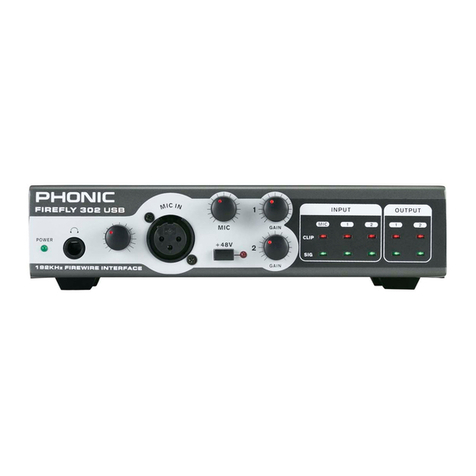
Phonic FIREFLY 302 USB Manuel utilisateur

OHAUS
OHAUS Scout STX Series Manuel utilisateur

Denon
Denon DN-HC4500 - DJ Mixer USB Controller Manuel utilisateur

Lutron Electronics
Lutron Electronics Stanza SZ-CI-USB-CPN5138 Manuel utilisateur

Paradox
Paradox PMC5-TI00 Manuel utilisateur


Thorsis Technologies
Thorsis Technologies isDNet USB Manuel utilisateur

Thorsis Technologies
Thorsis Technologies isHRT USB Manuel utilisateur

microHAM
microHAM DigiKeyer Manuel utilisateur

Apogee
Apogee Jam X Manuel utilisateur

RigExpert
RigExpert TI-3000 Manuel utilisateur

microHAM
microHAM USB Interface II Manuel utilisateur