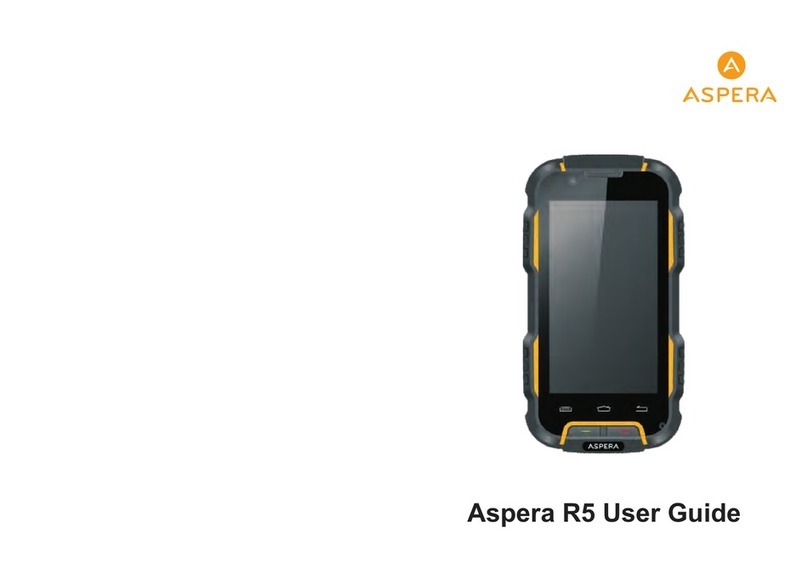
ASPERA R3 Manuel utilisateur

ASPERA R3
USER MANUAL

2
CONTENTS:
WELCOME! 6
CHAPTER 0 - SKILLS INTRODUCTION 9
0.1 Finger gestures
9
0.2 The SIM Card
9
0.2.1 Installing the SIM card 9
0.2.2 Entering your PIN 10
0.3 Lock Screen & Home Screen
10
0.3.1 Main Home Screen. 11
0.3.2 Extended Home screen 11
0.4 Home Screen Setting
11
0.4.1 Changing wallpaper 11
0.4.2 Adding a widget to Home screen 11
0.4.3 Adding application icons and other shortcuts to Home screen 12
0.4.4 Rearranging or removing widgets and icons 12
0.5 Checking notifications
13
0.5.1 Opening the Notifications panel 13
0.5.2 Closing the Notifications panel 13
0.6 Adjusting the ringer volume
13
0.7 Connecting your phone to a computer
13
0.7.1 As a media device 13
0.7.2 Copying files to and from the storage card 13
0.7.3 Disconnect the phone from the computer. 14
CHAPTER 1 - PHONE 14
1.1 Phone calls
14
1.1.1 Making a call 14
1.1.2 Answering or Rejecting a Call 15
1.1.3 Using In-call Options 16
1.1.4 Ending a call 17
1.2 Video Calls
17
1.2.1 About Video Call 17
1.2.2 Making a Video Call 17
1.3 Using Call Log 18
1.3.1 Using the Call log tab 18
1.4 Adjusting Phone Settings
19
1.5 Call setting 20
1.6 Turning the Phone Function On and Off
20

3
CHAPTER 2 - CONTACTS 21
2.1 About Contacts
21
2.2 Contacts List
21
2.2.1 Add a new contact 21
2.2.2 To search for a contact 21
2.2.3 Delete contact 21
2.2.4 Display options 21
2.2.5 Import/Export 22
2.2.6 Edit contact 22
2.2.7 Groups 22
CHAPTER 3 - MESSAGING 23
3.1 Using Message
23
3.1.1 Open Messaging 23
3.1.2 Creating and sending SMS and MMS messages 23
3.1.3 To create and send a text message 23
3.1.4 To create and send a multimedia (MMS) message 24
3.1.5 To save a message as a draft 25
3.1.6 Receiving text and multimedia messages 25
3.1.7 To open and read a text message 25
3.1.8 To open and view a multimedia message 26
3.2 Using Email
26
3.2.1 Adding a POP3/IMAP email account 26
3.2.2 Composing and sending emails 27
3.2.3 Viewing 27
3.2.4 Managing emails 27
3.2.6 Deleting an email account 28
CHAPTER 4 - CAMERA AND MULTIMEDIA 28
4.1 Photos
28
4.2 Camera
30
4.2.1 Taking photos 30
4.2.2 Shooting videos 30
4.2.3 Closing Camera 30
4.3 Music
31
4.3.1 Playing songs 31

CONTENTS: C0NTINUED
4
CHAPTER 5 - GOOGLE APPS 33
5.1 Signing In to Your Google Account
33
5.2 Using Gmail/Google Mail
33
5.2.1 To open Gmail/Google Mail 34
5.2.2 To refresh Gmail/Google Mail 34
5.2.3 Creating and sending emails 34
5.3 Using Google Maps
35
5.3.1 To enable Location source 35
5.3.2 To find your location on the map 35
5.3.3 Searching for places of interest 35
5.3.4 Viewing maps 36
5.3.5 Getting directions 36
5.4 Using Google Latitude (Available by Country)
37
5.4.1 Opening Latitude 37
5.4.2 Sharing your locations 37
CHAPTER 6 - SETTINGS 37
6.1 SIM management
37
6.1.1 SIM Information 37
6.1.2 Default SIM 37
6.1.3 General settings 37
6.2 Wireless & networks
37
6.2.1 Airplane mode 37
6.2.2 Wi-Fi 37
6.2.3 Bluetooth 40
6.2.4 Tethering
40
6.2.5 VPN Settings
41
6.2.6 Mobile Networks
42
6.2.7 Data usage 42
6.4 Audio profiles 42
6.5 Display 43
6.6 Storage 43
6.7 Battery 43
6.8 Applications 43
6.9 Accounts & sync 43
6.10 Location services 43
6.11 Security 43
6.12 Language & input 44
6.13 Backup & reset 44
CONTENTS:

5
6.14 Date & time 44
6.15 Schedule power on/off 44
6.16 Accessibility 44
6.17 Developer options 44
6.18 About phone 44
CHAPTER 7 - OTHER APPLICATIONS 45
7.1 Clock
45
7.1.1 Setting the local date, time zone, and time 45
7.1.2 Setting alarms 45
7.2 Recorder
46
7.3 Radio
46
7.3.1 Open Radio 46
7.3.2 Selectable channel 46
7.3.3 Adjust the volume 46
7.3.4 Scan & Save 46
7.4 Calendar
47
7.5 Calculator
47
7.6 Browser
48
7.6.1 Open browser 48
7.6.2 Basic operations 48
7.6.3 More 48

6
WELCOME!
PLEASE READ THIS INFORMATION BEFORE USING. IT WILL HELP YOU MAKE
BETTER USE OF YOUR PHONE.
Aspera is continually improving our products and services and we reserve all the
rights to revise and change the description of this product and its software as well
as this user manual without obligation to notify any person of such revisions and
changes.
This user manual is for your better use of this phone not an approval of any
accessories. All the pictures in this manual are for reference only. There may be
slight differences between the appearance of phone and keys and contents of
display used in this manual and those of your phone. Please refer to your phone
for actuality. Some features introduced in this manual are network or subscription-
dependent features. Please contact your service provider in such case.
SAFETY INFORMATION
BATTERY:
If a conductive material such touches the exposed terminal, short circuit may occur
resulting in property damage, bodily injury or burn. To avoid
risk of leaking charge, take care when handling a charged battery particularly when
placing it inside your pocket, purse or other container with metal objects.
KEEP YOUR MOBILE DEVICE SEALS TIGHT WHEN AROUND WATER:
Keep your mobile device dry.
USE WHILE DRIVING
Always obey the laws and regulations on the use of mobile devices in the area
where you drive. Give full attention to driving and the road.
AIRCRAFT
Mobile devices may cause harmful interference so turn off your mobile device
before boarding an aeroplane.
BLASTING AREAS
Always obey the related limits and regulations and do not use your mobile device in
blasting areas. Turn off your mobile device in areas posted “turn off electronic devices”.
Read this information before using your mobile
device otherwise it may result in personal injury
or your device not complying with local laws.

7
POTENTIALLY EXPLOSIVE ATMOSPHERES
Turn off your mobile device in the gas station and areas near fuel and chemical
containers. Turn off your mobile device in areas posted “turn off electronic devices”.
MEDICAL DEVICES
Turn off your mobile device whenever instructed to do so by posted signs near
some medical equipment. Mobile device may interfere with pacemakers, hearing
aids and some other medical transplanting equipment. Do not put your mobile
device near pacemakers nor carry in the breast pocket.
ACCESSORIES AND BATTERY
Use the accessories, batteries and chargers approved by manufacturer. Use of
batteries not approved by manufacturer may cause injury.
EMERGENCY CALLS
Turn on your phone and keep it in service areas, dial emergency phone numbers
and then press send key to make a call.
WHEN LOSING YOUR PHONE
To avoid any economic damage, please inform the Network Provider to lock your
SIM card when you have lost your phone.
When you inform the Network Provider to lock your SIM card they may need
to know the IMEI No. of your phone, which you can find printed on the label on
the back of your phone when taking off the battery. Please keep a record of this
number for future need.
For safety consideration, you can take preventative measures such as setting a PIN
Code for your SIM card to prevent other persons using your SIM card without your
permission.
KEEP AWAY FROM CHILDREN
Keep the phone, battery and charger away from children to avoid any personal injury.

8
Any kind of fluid
Keep the phones protective seals tight when you are around fluids.
Extreme heat or cold
Avoid the temperature below -10C or above 50C.
Microwave
Do not dry your phone in a microwave oven.
Dust, dirt and sand
Keep the phones protective seals tight when you are in the vicinity of
dust, dirt and sand
Cleaning solutions
Use only a dry soft cloth to clean your phone. Don’t use alcohol or other
cleaning solutions.
Ground
Be careful not to drop your phone on hard surfaces
USE AND CARE
To care for this mobile device, keep it away from:

9
CHAPTER 0: SKILLS INTRODUCTION
0.1 FINGER GESTURES
Tap
When you want to type using the keyboard, select items onscreen such as
application and settings icons, or press onscreen buttons, simply tap them with
your finger.
Press and hold
To open the available options for an item (e.g. contact or link in a web page), simply
press and hold the item.
Swipe or slide
To swipe or slide means to quickly drag your finger vertically or horizontally across
the screen or optical trackball.
Drag
Press and hold your finger with some pressure before you start to drag. While
dragging, do not release your finger until you have reached the target position.
Flick
Flicking the screen is similar to swiping, except that you need to swipe your finger
in light, quicker strokes. This finger gesture is always in a vertical direction, such as
when flicking the contacts or message list.
Rotate
For most screens, you can automatically change the screen orientation from
portrait to landscape by turning the phone sideways. When entering text, you
can turn the phone sideways to bring up a bigger keyboard. Refer to the Settings
chapter for more details.
Pinch
For some applications, like Photos or the web browser, you can “pinch” the screen
using 2 fingers (for example, thumb and index fingers) to zoom in or zoom out
when viewing a picture or a web page.
0.2 THE SIM CARD
0.2.1 Installing the SIM card
If you have a SIM card to install, install it before setting up your phone. Sim 1
WCDMA connects to 3G frequency and Sim 2 GSM connects to 2G frequency.

10
CHAPTER 0: SKILLS INTRODUCTION
IMPORTANT: A SIM card is required to use cellular services when connecting to
GSM networks and WCDMA networks. Your phone can use a 3G WCDMA sim card
and may also use a SIM card for connecting to a 2G GSM network.. Your sim card is
subject to your wireless service provider’s policies, which may include restrictions
on switching service providers and roaming, even after conclusion of any required
minimum service contract. Contact your wireless service provider for more details.
Availability of cellular capabilities depends on the wireless network.
0.2.2 Entering your PIN
If your SIM card is preset with a PIN (Personal Identification Number), you will be
prompted to enter the PIN to proceed. Enter the SIM PIN, and then tap OK.
Most SIM cards are preset with a PIN (Personal Identification Number) that is
provided by your mobile operator. When prompted, enter the preset PIN, and then
tap Enter. If you enter the wrong PIN three times, the SIM card is blocked. If this
happens, you can unblock it with the PUK (PIN Unblocking Key) obtained from your
mobile operator.
0.2.3 Installing battery
Assemble the battery as shown in the Quick Start Guide; be careful that the contact
metal of the battery should be consistent with the socket of the mobile phone.
0.3 LOCK SCREEN & HOME SCREEN
Table des matières
Autres manuels ASPERA Téléphone portable

ASPERA
ASPERA R5 Manuel utilisateur

ASPERA
ASPERA Wren Manuel utilisateur

ASPERA
ASPERA A50 Manuel utilisateur

ASPERA
ASPERA R5 Manuel utilisateur

ASPERA
ASPERA F28 Manuel utilisateur

ASPERA
ASPERA R25t Manuel utilisateur

ASPERA
ASPERA F40 Manuel utilisateur

ASPERA
ASPERA A42 Manuel utilisateur

ASPERA
ASPERA R10 Manuel utilisateur

ASPERA
ASPERA SWIFT Manuel utilisateur

ASPERA
ASPERA R8 Manuel utilisateur

ASPERA
ASPERA F46 Manuel utilisateur

ASPERA
ASPERA R7 Manuel utilisateur

ASPERA
ASPERA R3D Manuel utilisateur

ASPERA
ASPERA F42 Manuel utilisateur

ASPERA
ASPERA R6 Manuel utilisateur

ASPERA
ASPERA R12 Manuel utilisateur

ASPERA
ASPERA Jazz 2 Manuel utilisateur

ASPERA
ASPERA F26 Manuel utilisateur