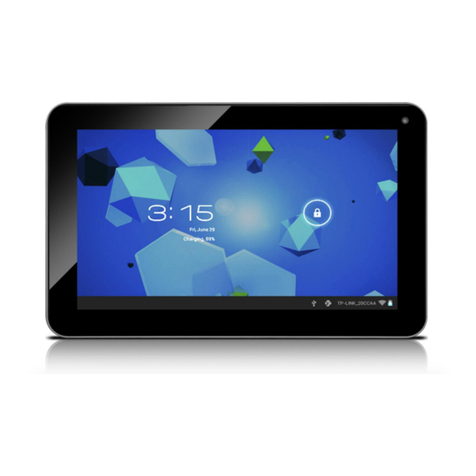
AOC breeze MW0812 Manuel utilisateur

-1-
Table of Contents
CHAPTER 1 PRODUCT OVERVIEW.....................................................................................1
1.1 FUNCTIONS OVERVIEW..................................................................................................1
1.2 NOTES .........................................................................................................................1
1.3 PACKAGING LIST ..........................................................................................................2
1.4 TECHNICAL SPECIFICATIONS..........................................................................................3
CHAPTER 2 BUTTONS AND APPEARANCE.......................................................................5
CHAPTER 3 EASYCONFIG....................................................................................................7
CHAPTER 4 BASIC OPERATIONS .....................................................................................10
4.1 BOOTING UP...............................................................................................................10
4.2 SHUTDOWN................................................................................................................10
4.3 NETWORK..................................................................................................................10
4.4 LOCKING KEY.............................................................................................................11
4.5 RESET .......................................................................................................................11
4.6 CONNECTING TO PC AND FILE TRANSFER ....................................................................11
4.7 VOLUME ADJUSTMENT ................................................................................................11
4.7.1 Adjusting the media volume ......................................................................11
4.7.2 Adjusting the notification volume .............................................................12
4.8 CHARGING .................................................................................................................12
4.9 TOUCH SCREEN OPERATIONS ......................................................................................13
4.10 SEARCH BUTTON......................................................................................................13
CHAPTER 5 COMMON FEATURES....................................................................................14
5.1 LANDSCAPE/PORTRAIT DISPLAY SWITCHING ................................................................14

-2-
5.2 USING VIRTUAL KEYBOARD TO TYPE............................................................................15
5.2.1 Android keyboard........................................................................................15
5.2.2 Editing text...................................................................................................15
5.3 NOTIFICATION PANEL..................................................................................................16
5.3.1 Opening notification panel.........................................................................16
5.3.2 Closing notification panel ..........................................................................16
5.4 RECENTLY RUN APPLICATIONS....................................................................................16
5.5 CHANGING WALLPAPER ..............................................................................................16
5.6 POWER CONTROL.......................................................................................................17
CHAPTER 6 MAIN INTERFACE...........................................................................................18
6.1 MAIN INTERFACE ........................................................................................................18
6.2 APPLICATIONS INTERFACE ..........................................................................................19
6.3 BROWSER..................................................................................................................20
6.3.1 Opening browser.........................................................................................20
6.3.2 Going to a webpage ....................................................................................20
6.3.3 Setting a home page ...................................................................................20
6.3.4 Browsing a webpage...................................................................................20
6.3.5 Managing bookmarks..................................................................................22
6.4 VIDEO PLAYER............................................................................................................25
6.4.1 Video playing ...............................................................................................25
6.4.2 Delete video .................................................................................................27
6.5 AUDIO PLAYER ...........................................................................................................27
6.5.1 Playlist..........................................................................................................28
6.5.2 Playing audio ...............................................................................................28
6.5.3 SOUND EFFECTS......................................................................................................30
CONVERTED FILES TO THE PRODUCT TO PLAY. ...................................................................30
6.6 PICTURE BROWSER ....................................................................................................30
6.6.1 Browsing pictures .......................................................................................31
CHAPTER 7 APPLICATIONS...............................................................................................34

-3-
7.1 MOVING A PROGRAM ICON OF THE INTERFACE..............................................................34
7.2 DELETING A PROGRAM ICON........................................................................................34
7.3 RESTORING A PROGRAM ICON .....................................................................................34
7.4 ADDING A PROGRAM ICON...........................................................................................34
7.5 ADDING A WIDGET......................................................................................................35
7.6 CREATING A FOLDER ..................................................................................................35
7.7 RENAMING A FOLDER..................................................................................................35
CHAPTER 8 COMMON TOOLS ...........................................................................................36
8.1 E-MAIL.......................................................................................................................36
8.1.1 Opening e-mail.............................................................................................37
8.1.2 Creating and sending e-mails ....................................................................37
7.1.3 Receiving and reading e-mail.....................................................................38
8.1.4 Replying or forwarding e-mail....................................................................39
8.1.5 Managing e-mail ..........................................................................................39
8.1.6 Create new account.....................................................................................39
8.1.7 Account settings .........................................................................................39
8.1.8 Delete e-mail account .................................................................................40
8.2 RECORDER ................................................................................................................40
8.3 ALARM.......................................................................................................................41
IN THE MAIN INTERFACE,TAP “ALARM CLOCK”TO ENABLE THE ALARM FUNCTION. .............41
8.3.1 Set alarm ......................................................................................................42
8.3.2 Add alarm.....................................................................................................42
8.3.3 Delete alarm .................................................................................................42
8.3.4 Alarm settings..............................................................................................42
8.3.5 Changing alarm display..............................................................................42
8.4 CALCULATOR.............................................................................................................43
8.5 EXPLORER .................................................................................................................43
8.6 INSTALLING APPLICATIONS .......................................................................................43
8.7 UNINSTALL APPLICATION...........................................................................................44

-4-
CHAPTER 9 SETTINGS .......................................................................................................45
9.1 WIRELESS &NETWORK SETTINGS ...............................................................................45
9.2 SETTINGS...................................................................................................................48
9.2.1 Wireless & networks ...................................................................................48
9.2.2 Sound ...........................................................................................................49
9.2.3 Display..........................................................................................................49
9.2.4 Location & security.....................................................................................50
9.2.5 Applications.................................................................................................51
9.2.6 Accounts & sync .........................................................................................51
9.2.7 Privacy..........................................................................................................51
9.2.8 Storage .........................................................................................................52
9.2.9 Search...........................................................................................................52
9.2.10 Language & keyboard...............................................................................53
9.2.11 Voice input & output .................................................................................53
9.2.12 Accessibility...............................................................................................53
9.2.13 Date & time.................................................................................................53
9.2.14 Touch screen calibration..........................................................................54
9.2.15 About device..............................................................................................54
CHAPTER 10 USING MICRO SD (TF) CARD......................................................................55
CHAPTER 11 CONNECTING TO USB DRIVE ....................................................................56
CHAPTER 12 ABOUT THE BATTERY AND POWER.........................................................57
CHAPTER 13 FIRMWARE UPDATING / RESETTING TO FACTORY ...............................58
CHAPTER 14 FREQUENTLY ASKED QUESTIONS...........................................................59
CHAPTER 15 TROUBLESHOOTING...................................................................................61

-1-
Chapter 1 Product Overview
1.1 Functions overview
z8 inch wide screen True Color TFT touch screen with a high resolution of 800*600
pixels.
zSurf the Internet wirelessly via Wi-Fi to enjoy the Internet on the go.
zSupport all mainstream e-mail services for more convenient e-mail sending and
receiving.
zSwitching between portrait mode and landscape mode is possible through gravity
sensing. Four-direction rotation display is supported.
zSupport Video Player, Audio Player, Photo Browser and Shelves.
zEquipped with a built-in microphone, enabling audio-recording.
zEco settings enables the brightness to be freely adjusted.
1.2 Notes
zDo not use the unit in an overly hot, cold, wet, or dusty environment. Do not expose it
to sunlight.
zTry not to use this unit in an environment with a strong magnetic field or static
electricity.
zAvoid dropping this unit or strong impacts.
zThe adapter of this product should not be dropped and splashed with liquid. Any
object filled with liquid, such as a vase, should not be placed on the top of it.
zThere are no user-serviceable parts inside the product. Do not dismantle this unit.
Otherwise, the warranty may be voided. Contact servicing personnel if you need
help.
zThe battery life may vary depending on the use condition and production time.
zIt is not allowed to replace the battery of the product yourself. Do not dismantle the

-2-
unit yourself. Explosion may occur if the battery is not properly replaced. Contact the
professional servicing personnel.
zAs the workmanship of motherboard manufacturers are different from each other, it
is recommend to perform charging using the adapter provided, instead of using the
USB port of the motherboard, to ensure charging stability.
zThe long life of a lithium battery is due to its much smaller memory effects than that
of the regular Nickel-Cadmium battery. But if the lithium battery is degrading, contact
the local Service Center directly.
zIf the battery is improperly replaced, an explosion may occur. Only use the same
brand battery or equivalent for replacement.
zThe company is not liable for the data loss or deletion on machine resulting from the
misuse of software, improper operation of the battery, servicing, other accidents, or
other indirect loss thereof.
zThe actual product may be different from that described in the Instructions due to the
software update. These Instructions are for informational purposes only.
1.3 Packaging list
AOC Breeze Tablet Unit X1
USB cable X1
Power adapter X1
Quick Start Guide X1
About the Touchscreen X1
Warranty Statement X1
Touch Pen X2
Note: The actual accessories provided with the product may vary.

-3-
1.4 Technical specifications
Basic specifications
Model no. AOC Tablet MW0812
Installed OS Android OS 2.3
Processor (CPU) ARM Cortex-A8,Cpu Frequency Up To 816MHz
Memory 512MB
WLAN WI-FI IEEE 802.11b/g
Bluetooth Bluetooth 2.1 + EDR
Storage capacity Built-in 4GB Flash Memory
Expansion cards Micro SD (TF) card, up to 32 GB.
LCD 8 inch HD TFT LCD touch screen (resistive single touch)
with a resolution of 800*600 pixels
Audio output Headset: Stereo output; internal speakers: Mixed output.
Power specifications
Voltage Supply voltage: 5V Charging voltage: 5V
Current
Max. current for playback is 1A DC.
Max. current for charging is 1A DC.
Battery used Built-in lithium-ion polymer rechargeable battery, 3.7V,
4800mAh
Power adapter AC input:100-240V 50/60Hz DC input:5V 2.5A
Charging time
It takes about 7 hours for the battery to be fully charged
when the provided charger is used with power-down. The
charging time may vary depending on the remaining
battery level.
Note: do not charge the battery for more than 12 hours
when the charger is used.

-4-
Battery use time
(Under the condition
that the battery is fully
charged in a normal
temperature)
Audio: About 18 hours
Video: About 6 hours
Web browsing: About 7 hours
External dimensions
Dimension (L×W×H) 8.46 x 5.7 x 0.57 in (21.5 x 14.65 x 1.45 cm)
Weight 1.16 lbs (0.525kg) (with battery)
Port Mini USB 2.0 high speed port, OTG, 3.5mm headset
Environmental conditions
Operating
temperature 0°C ~ 40°C
Storage temperature -20°C ~ 55°C
Max. humidity 90% RH (non-condensation)
Supported OS Windows2000/XP/Windows 7/Vista, Macintosh OS X]
Note: Windows 2000+SP1/SP2 is not supported by this product. The user should
upgrade to SP3 or above. This product does not guarantee all video formats are
playable. Even if some formats are listed in the Instructions, they may be not properly
played. This is normal.

-5-
Chapter 2 Buttons and Appearance
A. Power button B. Volume “+” and “-” buttons
C. Operation indicator
D. Home button: Press to return to the main interface; press and hold to bring
out the 8 applications recently run.
E. M button (Menu button): Open the
corresponding menu.
F. Back button
G. Built-in MIC Recording H. Touch screen (“Screen”)
I. External speaker
A
B
C
D
E
F
G
I
H

-6-
J. Headset jack K. MINI USB port (connecting
to PC)
L. OTG port (connecting to USB
drive) M. TF card slot
N. Power cable jack O. Reset button
Note 1: During operation, sounds will be automatically output from the external
speaker if there is audio output.
Note 2: In the Instructions, “Press” means tapping a button while “Press and Hold”
means continuously pressing a button for 2 ~ 3 seconds.
Note 3: The Volume “+” and “-” icons, Back icon, and Menu icon function as the
“volume adjustment button,” “back button,” and “menu button” on the top and front of the unit.
You can make selections based on your preferences. They will not be described in the
sections below.
O
J
M
N
L
K
Autres manuels pour breeze MW0812
1
Table des matières
Autres manuels AOC Comprimé

AOC
AOC MW0712 Manuel utilisateur

AOC
AOC D70V50G Manuel utilisateur

AOC
AOC A724G Manuel utilisateur

AOC
AOC A724G Manuel utilisateur

AOC
AOC MW0841 Manuel utilisateur

AOC
AOC A941 Manuel utilisateur

AOC
AOC D70A15 Manuel utilisateur

AOC
AOC breeze MW0711 Manuel utilisateur

AOC
AOC A110-E Instructions de fonctionnement

AOC
AOC Q70S15 Manuel utilisateur

AOC
AOC breeze MW0812 Manuel utilisateur

AOC
AOC A727 Manuel utilisateur

AOC
AOC A741 Manuel utilisateur

AOC
AOC U807G Manuel utilisateur

AOC
AOC S70A12-1N Manuel utilisateur

AOC
AOC D80A11 Manuel utilisateur

AOC
AOC A723G Manuel utilisateur

AOC
AOC A726 Manuel utilisateur

AOC
AOC breeze MW0711 Manuel utilisateur

AOC
AOC MW0733 Manuel utilisateur