®
www.AlloyLED.com | Call: 800.910.LEDS [5337] | Text: 510.400.6690 | solutions@AlloyLED.com v2.3
Controls & Features
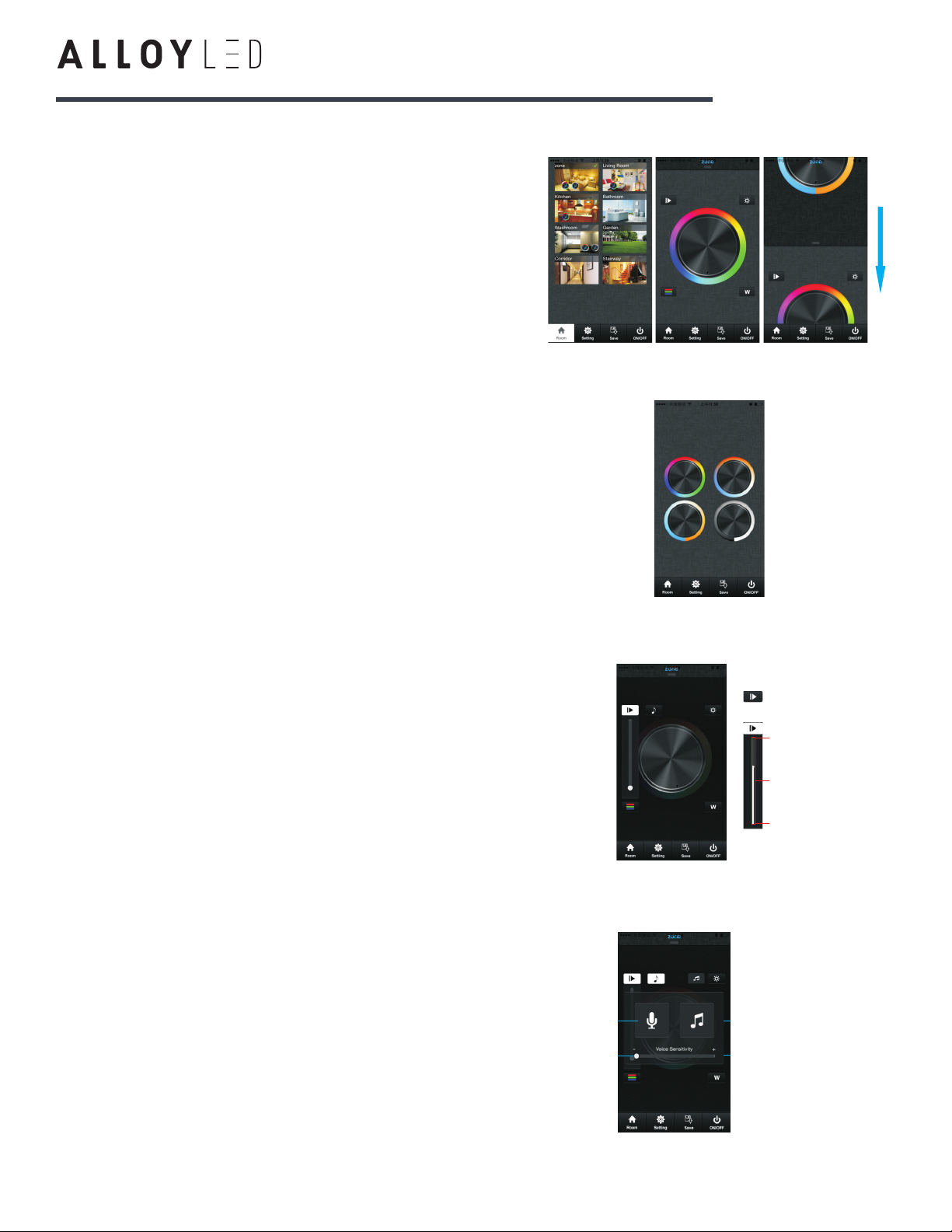
Room Button
1. Press the Room button
2. Short press the middle of a room picture.
3. A green checkmark at the upper right corner of the picture indicates it has
been selected. Multiple rooms can be choose at the same time.
4. Press the Room button again to confirm the room selection. The top of the
picture will indicate the name of the selected room.
Long press the middle of the room picture to turn on/off the corresponding
rooms/zones. There will be a red “off” mark at the upper right corner of the
room picture when the room is switched off.
Color Wheel
There are four different color wheels you can select for a room that has not been
edited: RGB-W/RGB, CDW, CCT, and single color.
Scroll through color wheels by swiping the upper area of the screen down. (P17)
Or fast press twice to enter the color wheel selection interface to choose a color
wheel (P18)
Run/Pause Button
The Run/Pause button (P19) can be used in the RGB and CDW color wheels: the fol-
lowing shows RGB as an example.
Press the Run/Pause button to run a mode. Press once to run the first mode. Press
the button again to pause. Press again to run the next mode. There are a total of 10
build-in modes. If you select a color on the wheel after pausing, the mode will return
to the first mode.
Long press the Run/Pause button and the LED lights will flash twice to indicate that
the running mode in different zones will be switched from Synchronized to col-
or-changing or from color-changing to Synchronized running.
Music (P20)
In Voice mode, the LED lighting will change in response to a voice nearby. The louder
the voice, the faster the speed of this mode. The LED lighting will return to the adjusted
speed when no voice is present.
In Music mode, the LED lighting will change in response to a voice nearby. The louder
the voice, the faster the speed of this mode. The LED lighting will return to the adjust-
ed speed when no voice is present. When you press the music note key, your mobile
device’s music player will open.
Move the slider to the left to increase the microphone sensitivity, so that a quieter voice
will slow down the mode. Lower the mic sensitivity by moving the slider to the right.
Learning ( combining)
1)Selected any one room and there will be small mark on the
upper right side.
2)Press room button .
3)Press learning key on RF controllers SR-1009xx series
4)Touch the color wheel,LED lighting will blink to confirm room
designation
Press at on receiver(SR-1009Fxx) over 5
seconds until light flash, then delete the learned ID.
learning key
LED
Delete
First way:
Second way:
Manual
a. Room button(P27,P28)
Choose Room button
Short press middle of zone picture
1
2
Mark on the upper right side of room picture to indicate
choose successfully, multiple rooms can be choose at same time
3
Press room button again be confirm the rooms’ selection
4
Upper area will indicate room’s name we selected.
5
P29
b. color wheel
There will be four different color wheels we can select if we did
not edit the room: RGB, CDW, CCT, Single color.
1)Slide the upper areas from top to down to choose color wheel
from one to one. (P16,P17)
P15 P16 P17
P18 P19
18)
c. pause&run button(P19)
Running button exist in RGB, CDW color wheel interface, they
are similar so here will take RGB as an example to explain.
Running & Pause button
Moving speed
adjust libe
Fastest speed
Lowest speed
Attention
P20
d. music(P20)
When choose ,it will
open your local music
palyer
The lowest,need a high
voice affect moving speed.
The highest,a low voice
will affect the moving
speed lowest
This button exist in RGB/CDW interface, they are similar, so
here will take RGB as an example to explain.
1)Short press the button
2)Brightness level can be adjusted
from 0-255 to an accurate color.
e. RGB/CDW brightness level line(P21)
P21
Attention
Before adjust the color by color line, LED might in already in
an existing color, so we need zero clearing each channel first:
moving each channel in any level between 1-225, then move it
back to zero, then RGB lighting will off which means zero
clearing successfully.
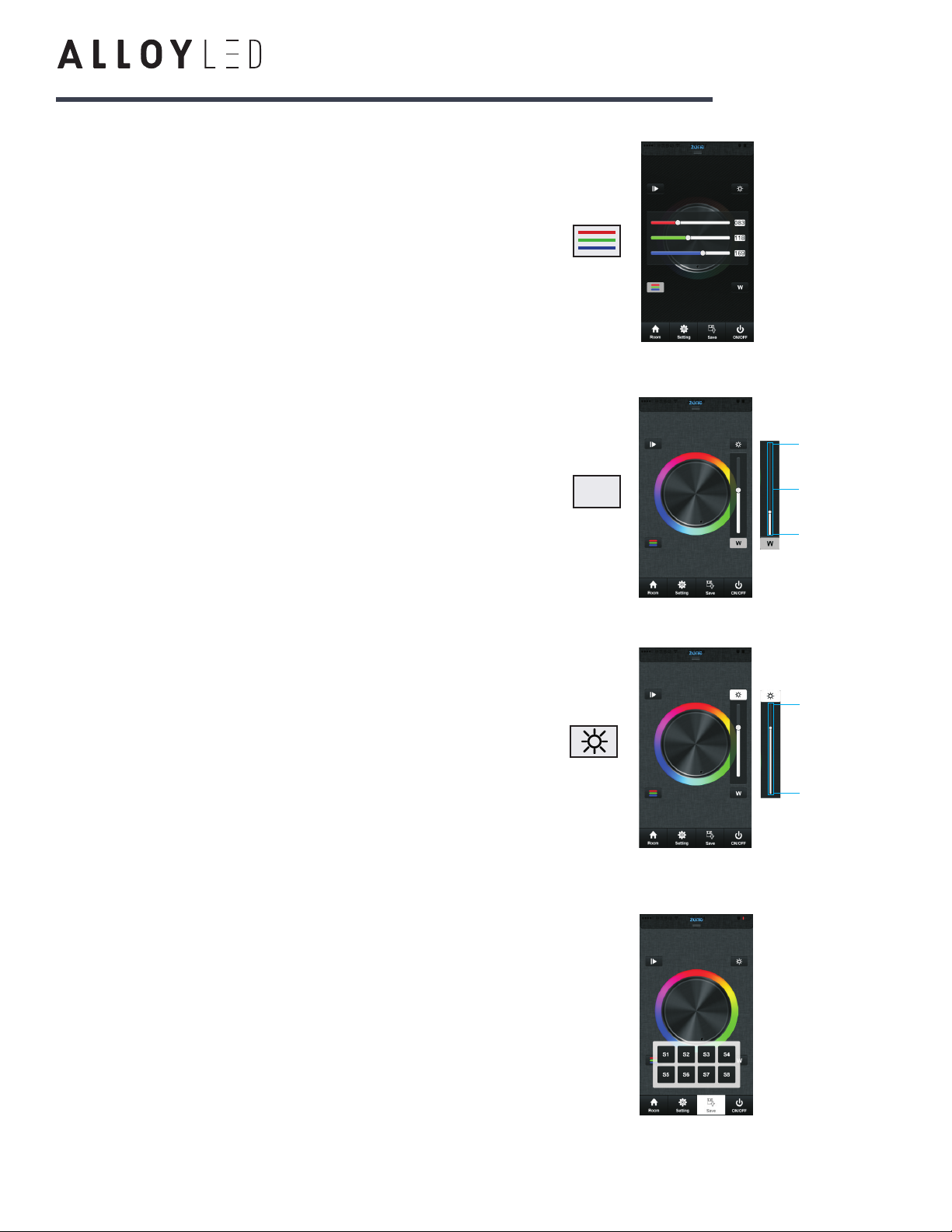
f. W button(P22)
This button only exists in RGB channels color wheel interface to
adjust W channel brightness independently.
P22
P23
100% brightness
1% brightness
W channel’s
brightness level
100% brightness
1% brightness
Long press W button to ON/OFF W channel independently.
In RGB color wheel interface,it only adjusts R,G and B three channels
brightness,and cannot adjusts W channel.We need use W button
to adjust W channel brightness independently.
g. Brightness button(P23)
Brightness button exist in RGB, CDW and CCT color wheel
interface.
In CDW and CCT color wheel interface, it adjusts all channels
brightness.
P24
h. Save button(P24)
1.Save
1)Select rooms/zones
2)Select color or moving modes
3)Short press save button
4)Long press any button of S1-S8
5)LED lighting will flash indicate save successfully.
2.Recall
1)Select rooms/zones
2)Short press save button
3)short press saved button in S1-S8
4)LED will indicate saved color or moving modes
Learning ( combining)
1)Selected any one room and there will be small mark on the
upper right side.
2)Press room button .
3)Press learning key on RF controllers SR-1009xx series
4)Touch the color wheel,LED lighting will blink to confirm room
designation
Press at on receiver(SR-1009Fxx) over 5
seconds until light flash, then delete the learned ID.
learning key
LED
Delete
First way:
Second way:
Manual
a. Room button(P27,P28)
Choose Room button
Short press middle of zone picture
1
2
Mark on the upper right side of room picture to indicate
choose successfully, multiple rooms can be choose at same time
3
Press room button again be confirm the rooms’ selection
4
Upper area will indicate room’s name we selected.
5
P29
b. color wheel
There will be four different color wheels we can select if we did
not edit the room: RGB, CDW, CCT, Single color.
1)Slide the upper areas from top to down to choose color wheel
from one to one. (P16,P17)
P15 P16 P17
P18 P19
18)
c. pause&run button(P19)
Running button exist in RGB, CDW color wheel interface, they
are similar so here will take RGB as an example to explain.
Running & Pause button
Moving speed
adjust libe
Fastest speed
Lowest speed
Attention
P20
d. music(P20)
When choose ,it will
open your local music
palyer
The lowest,need a high
voice affect moving speed.
The highest,a low voice
will affect the moving
speed lowest
This button exist in RGB/CDW interface, they are similar, so
here will take RGB as an example to explain.
1)Short press the button
2)Brightness level can be adjusted
from 0-255 to an accurate color.
e. RGB/CDW brightness level line(P21)
P21
Attention
Before adjust the color by color line, LED might in already in
an existing color, so we need zero clearing each channel first:
moving each channel in any level between 1-225, then move it
back to zero, then RGB lighting will off which means zero
clearing successfully.
f. W button(P22)
This button only exists in RGB channels color wheel interface to
adjust W channel brightness independently.
P22
P23
100% brightness
1% brightness
W channel’s
brightness level
100% brightness
1% brightness
Long press W button to ON/OFF W channel independently.
In RGB color wheel interface,it only adjusts R,G and B three channels
brightness,and cannot adjusts W channel.We need use W button
to adjust W channel brightness independently.
g. Brightness button(P23)
Brightness button exist in RGB, CDW and CCT color wheel
interface.
In CDW and CCT color wheel interface, it adjusts all channels
brightness.
P24
h. Save button(P24)
1.Save
1)Select rooms/zones
2)Select color or moving modes
3)Short press save button
4)Long press any button of S1-S8
5)LED lighting will flash indicate save successfully.
2.Recall
1)Select rooms/zones
2)Short press save button
3)short press saved button in S1-S8
4)LED will indicate saved color or moving modes
Learning ( combining)
1)Selected any one room and there will be small mark on the
upper right side.
2)Press room button .
3)Press learning key on RF controllers SR-1009xx series
4)Touch the color wheel,LED lighting will blink to confirm room
designation
Press at on receiver(SR-1009Fxx) over 5
seconds until light flash, then delete the learned ID.
learning key
LED
Delete
First way:
Second way:
Manual
a. Room button(P27,P28)
Choose Room button
Short press middle of zone picture
1
2
Mark on the upper right side of room picture to indicate
choose successfully, multiple rooms can be choose at same time
3
Press room button again be confirm the rooms’ selection
4
Upper area will indicate room’s name we selected.
5
P29
b. color wheel
There will be four different color wheels we can select if we did
not edit the room: RGB, CDW, CCT, Single color.
1)Slide the upper areas from top to down to choose color wheel
from one to one. (P16,P17)
P15 P16 P17
P18 P19
18)
c. pause&run button(P19)
Running button exist in RGB, CDW color wheel interface, they
are similar so here will take RGB as an example to explain.
Running & Pause button
Moving speed
adjust libe
Fastest speed
Lowest speed
Attention
P20
d. music(P20)
When choose ,it will
open your local music
palyer
The lowest,need a high
voice affect moving speed.
The highest,a low voice
will affect the moving
speed lowest
This button exist in RGB/CDW interface, they are similar, so
here will take RGB as an example to explain.
1)Short press the button
2)Brightness level can be adjusted
from 0-255 to an accurate color.
e. RGB/CDW brightness level line(P21)
P21
Attention
Before adjust the color by color line, LED might in already in
an existing color, so we need zero clearing each channel first:
moving each channel in any level between 1-225, then move it
back to zero, then RGB lighting will off which means zero
clearing successfully.
f. W button(P22)
This button only exists in RGB channels color wheel interface to
adjust W channel brightness independently.
P22
P23
100% brightness
1% brightness
W channel’s
brightness level
100% brightness
1% brightness
Long press W button to ON/OFF W channel independently.
In RGB color wheel interface,it only adjusts R,G and B three channels
brightness,and cannot adjusts W channel.We need use W button
to adjust W channel brightness independently.
g. Brightness button(P23)
Brightness button exist in RGB, CDW and CCT color wheel
interface.
In CDW and CCT color wheel interface, it adjusts all channels
brightness.
P24
h. Save button(P24)
1.Save
1)Select rooms/zones
2)Select color or moving modes
3)Short press save button
4)Long press any button of S1-S8
5)LED lighting will flash indicate save successfully.
2.Recall
1)Select rooms/zones
2)Short press save button
3)short press saved button in S1-S8
4)LED will indicate saved color or moving modes
Learning ( combining)
1)Selected any one room and there will be small mark on the
upper right side.
2)Press room button .
3)Press learning key on RF controllers SR-1009xx series
4)Touch the color wheel,LED lighting will blink to confirm room
designation
Press at on receiver(SR-1009Fxx) over 5
seconds until light flash, then delete the learned ID.
learning key
LED
Delete
First way:
Second way:
Manual
a. Room button(P27,P28)
Choose Room button
Short press middle of zone picture
1
2
Mark on the upper right side of room picture to indicate
choose successfully, multiple rooms can be choose at same time
3
Press room button again be confirm the rooms’ selection
4
Upper area will indicate room’s name we selected.
5
P29
b. color wheel
There will be four different color wheels we can select if we did
not edit the room: RGB, CDW, CCT, Single color.
1)Slide the upper areas from top to down to choose color wheel
from one to one. (P16,P17)
P15 P16 P17
P18
P19
18)
c. pause&run button(P19)
Running button exist in RGB, CDW color wheel interface, they
are similar so here will take RGB as an example to explain.
Running & Pause button
Moving speed
adjust libe
Fastest speed
Lowest speed
Attention
P20
d. music(P20)
When choose ,it will
open your local music
palyer
The lowest,need a high
voice affect moving speed.
The highest,a low voice
will affect the moving
speed lowest
This button exist in RGB/CDW interface, they are similar, so
here will take RGB as an example to explain.
1)Short press the button
2)Brightness level can be adjusted
from 0-255 to an accurate color.
e. RGB/CDW brightness level line(P21)
P21
Attention
Before adjust the color by color line, LED might in already in
an existing color, so we need zero clearing each channel first:
moving each channel in any level between 1-225, then move it
back to zero, then RGB lighting will off which means zero
clearing successfully.
f. W button(P22)
This button only exists in RGB channels color wheel interface to
adjust W channel brightness independently.
P22
P23
100% brightness
1% brightness
W channel’s
brightness level
100% brightness
1% brightness
Long press W button to ON/OFF W channel independently.
In RGB color wheel interface,it only adjusts R,G and B three channels
brightness,and cannot adjusts W channel.We need use W button
to adjust W channel brightness independently.
g. Brightness button(P23)
Brightness button exist in RGB, CDW and CCT color wheel
interface.
In CDW and CCT color wheel interface, it adjusts all channels
brightness.
P24
h. Save button(P24)
1.Save
1)Select rooms/zones
2)Select color or moving modes
3)Short press save button
4)Long press any button of S1-S8
5)LED lighting will flash indicate save successfully.
2.Recall
1)Select rooms/zones
2)Short press save button
3)short press saved button in S1-S8
4)LED will indicate saved color or moving modes
Run/Pause button
Fastest speed
Adjust speed
Slowest speed
RGB-W
/RGB
CDW single
color
CCT
Page 6 of 7