Akura AEMP218 Manuel utilisateur

1

Package Components
① ② ③ ④ ⑤
USB Cable Ear
Quick Start
Guide
AAA Ba
Installation CD ttery phone
2

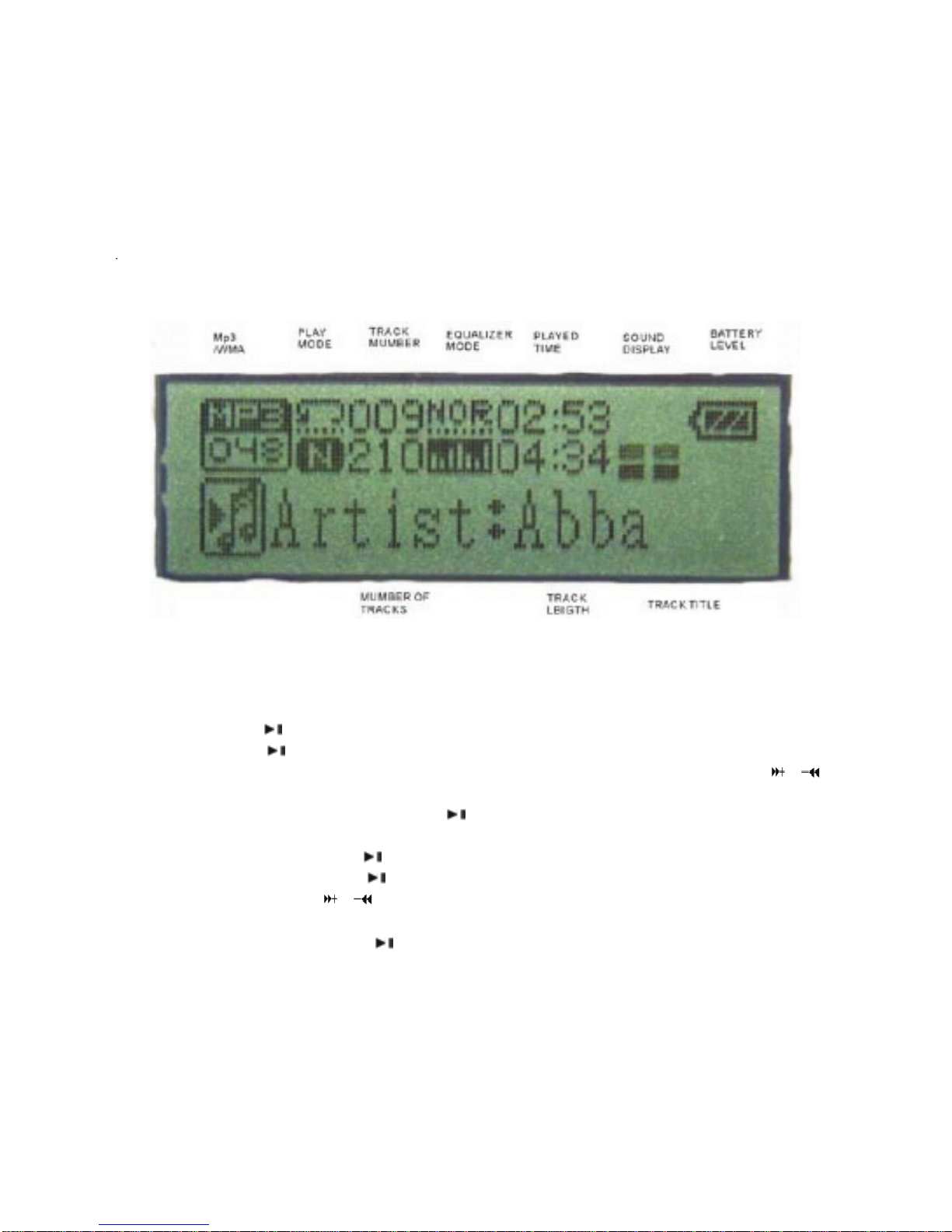
LCD Display
Play MP3 Music
To Start :
1. Connect earphone to earphone jack.
2. Switch “LOCK” to unlock position.
3. Long press button to enter into “MSC” mode.(The default is “MSC” mode.)
4. Short press button to play music.
In the play mode, short press “M” to enter into sub menu and short press /
button to select your desired mode (e.g. Repeat, Equalizer, 3D, Play Rate, Intro,
Display, A-B, File Browse) Short press to confirm.
To return to main-Menu: Long press “M” button.
To Pause play: Short press button.
To resume play: Short press button again .
To change tracks: use / buttons .
To enter record mode: long press R/V button start to record.
To turn unit off: Long press 【】button.
3

Repeat:
1. Select repeat mode and short press button to enter into repeat menu.
2. Short press / button to select your desired option(e.g. No Repeat, One,
All, Random All, Dir Repeat, Dir All Repeat, Dir Random All )
3. Short press button to confirm.
4. Press to restart playing music
Equalizer:
1. Select Equalizer mode and short press button to enter into Equalizer menu.
2. Short press
/ button to select your desired option (e.g. Normal, Pop, Rock,
Classic, Jazz, Bass, Custom EQ)
3. Short press button to confirm.
3D:
1. Select 3D mode and short press button to enter .
2. Short press
/ button to select your desired option (e.g. On, Off)
Play Rate:
1. Select Play Rate mode and short press button to enter into the menu.
2. Short press
/ button to select your desired option(e.g. 1.00X, 1.14X,
1.33X, 0.67X, 0.80X)
3. Short press button to confirm
Intro
1. Select “Intro” mode and short press button to enter into the menu.
2. Short press
/ button to select your desired option from “00” to “15”
seconds
3. Short press button to confirm
4

Display:
1. Select “Display” mode and short press button to enter into the menu.
2. Short press
/ button to select your desired option(e.g. Off, Wave motion,
Stereo)
3. Short press button to confirm.
A-B
1. Select “A-B” mode and short press button to enter into the menu.
2. Short press R/V button to select “A” point and short press R/V button again to
select “B” point.
3. Short press R/V button a third time to cancel “A-B” repeat.
File Browse
1. Select “File Browse” mode and short press button to enter into the menu.
2. Short press
/ button to select your desired file.
3. Short press R/V button to delete the file, short press / button to select “Yes”
or “No” ,Short press 【】button to confirm delete.
4. Short press 【】button to play your desired file.
Adding/ Removing MP3 Files
1. Turn on the MP3 player.
2. Plug USB connector into computer
3. Add MP3 files to the USB storage‘s folder
4. Delete any MP3 files from the USB storage’s folder
5. Close the USB Storage’s folder (right click on icon).
6. Follow Operating system guidelines for removal of unit.
7. Remove unit from Computer.
Menu Navigation
¾【MENU】button: Enter Main-Menu or Sub-Menu or return
¾Skip button (【 】/【 】): Shift menus.
¾Play/Pause button (【】): Play, Pause, or confirm.
5

Adjust Volume
In MP3 Play or RPL mode, short press R/V and short press / buttons to
adjust the volume
RPL (Record mode and Play the record mode)
1. Long press “M” button to enter into main menu.
2. Short press / button to select RPL mode.
3. Short press button to confirm.
4. Long press R/V button start to record. (No record file.)
5. Short press button to pause record.
6. Short press “M” button to save the record file.
7. Short press button to play the record.
8. Short press “M” button to enter into sub menu( e.g. Repeat, Play Rate, Intro,
Display, A-B, File Browse)
9. Short press button to confirm.
10. To remove a recorded file see SYS menu
NOTE: Record power supply is no less than 1.2V
SYS (system)
1. Long press “M” button to enter main menu.
2. Short press
/ button to select “SYS“ mode.
3. Short press button to enter into the menu.
4. Press
/ to choose your desired mode(e.g. USB Mode, Time, Power,
Language, Display, Sys Tools)
5. Short press button to confirm.
USB Mode:
Short press / button to select USB Mode (Pen Drive or DRM Download)
Time:
Short press / button to select Time (Adjust , Alarm and Time Zone)
1. Adjust Time: Short press “M” button to select YY-MM-DD and the time
options, and short press / button to adjust the time.
6

DRM: (NOTE: To use the DRM function, the computer OS must be Windows XP ,
installed with Media player 10 or later version, and a connection with internet is
available.
1. In USB Mode select DRM Download mode using / and a short press of
button to confirm.
2. Plug in the Player to the USB port of the PC.
3. Enter the Media Player mode in the computer to automatically operate the
synchronous download.
NOTE: After plugging in the USB cable, press “M” button to switch between
USB mode and MTP (Media Transfer Protocol) mode for DRM function.
Power: Short press / button to select Auto off: 000, always on in playback.
Auto off: When you select “Auto off: 000” , press “M” button to select “000” then
press / to select your desired time.( in minutes).
Language:
1. Select language mode and short press button to confirm.
2. Short press / to select your desired option(e.g. English, Chinese(Simp)
Chinese (Trad), Czech, Danish, Finnish, French, German, Greek, Hungarian,
Italian, Japanese, Korean, Norwegian, Polish , Portuguese, Russia, Spanish,
Swedish, Turkish, Ukrainian, Dutch, Thai, Arabic)
3. Short press button to confirm.
Display:
Short press / button to select Contrast, and Backlight.
Contrast
Short press / button to select your desired number from 00 to 10.
Backlight:
Select “Backlight” mode and short press / button to select your desired options
(Off, 1Sec, 2 Sec, 3Sec, 4 Sec, 5Sec, 62 Sec, 7Sec, 8Sec, 9Sec, ON)
7

Sys Tools:
1. Short press
/ button to select your desired option.(e.g. Del File, Format,
Reset, System Info.)
2. Short press
/ button to select “Format” mode and short press button to
enter into the menu.
3. Short press button to enter into sub menu(e.g. Quick, Complete)
4. Short press / button to select your option , short press button to
confirm and short press / button to select “Yes/NO”
5. Short press button to confirm.
Note :- Format will remove all contents of the player
Select “Reset” mode and short press button to confirm. Short press /
button to select “Yes/NO”
Note; Reset, will not remove the contents of the player, it resets all settings to
factory default.
Select “System Info” mode and short press / button to see “FW,CHIP and
FREE”
DEL FILE. Press , to select the file menu, press / buttons to select
“MTPMEDIA”. Press , to enter the file, press / buttons to select the file to
delete, press , press to select YES/NO and press to delete the file.
To return to any part of the menu, press the “M” button.
CD disk use specification
USB Flash Disk driver for windows 98SE ONLY
(1) Put CD disk to the CD rom of your computer.
(2) Switch on your MP3 player and then connect to the PC.
Click the mouse right key to turn on CD driver and to operate “CD disk/driver
/MP3/SETUP.EXE” file.
8

FORMAT YOUR MP3PLAYER. If using your PC to format the player, select FAT32 for
OS systems Win 2000 and XP. For Win 98 use FAT16.
If your player says it is full but has not used all the memory space, the player will have
been formatted incorrectly.
MP3 Files. Most MP3 files are encoded at 128KB/s. If you use certain music software
you may re encode at a lower bit rate (eg 48Kb/s). You will not loose much sound
quality but increase your file count by X 3.
¾Some WMA files may not play depending upon the format “Play rate”
mode.
9
(3) Click “NEXT” to enter
into the next picture.
(4) Click “NEXT” to enter
into the next picture.
(5) Choose “Finish” to finish
setup program. Restart the
PC and you can use the
MP3 player.

Notice
¾Please unlock the LOCK button before use.
¾EQ is not used when playing WMA format music.
¾Do not subject the player ti temperatures above 35deg C or below – 5 deg C
¾Do not use earphones while driving an automobile or riding a bicycle, it’s not
only dangerous but also against the law.
¾Take care when walking in the street with loud music playing especially at road
junctions.
¾Do not turn up the volume too high, doctors warn against prolonged exposure
to high volume.
¾Stop using the device or turn the volume down if you have ringing in your ears.
¾Our packages use cardboard, polyethylene, and do not use any unnecessary
materials
¾The player is write-protected if you switch the “LOCK” to lock.
¾The Music Lyrics feature will only be operational if the file contains the music
lyrics.
Battery Disposal. Do NOT throw exhausted batteries on a fire, break open or in the
general household waste.
Contact your local waste disposal authority.
10
The crossed out wheelie bin is intended to show this appliance or
its accessories may not be placed in the household waste, when it
reaches the end of its useful life. Contact the local authorities for
instructions for disposal.
Table des matières
Autres manuels Akura Lecteur MP3
Manuels Lecteur MP3 populaires d'autres marques

Blaupunkt
Blaupunkt Compact Drive MP3 Manuel utilisateur

Memorex
Memorex MMP9008 - 8GB USB 2.0 Manuel utilisateur

Meizu Electronic Technology
Meizu Electronic Technology E5 Manuel utilisateur

Naxa
Naxa NMV-173NX Manuel utilisateur

Philips
Philips PSA250 Manuel utilisateur

Zipy
Zipy go! Waving Manuel utilisateur