
Agama V-1300 Manuel utilisateur

English
i
Table of Contents
Agama V-1300 Features 1
Set up the device 2
Using Instant MessengerApplication 3-4
CrazyTalk CamSuite PRO 5-15
CrazyTalk CamSuite PRO with IM Application 16-21
Trouble shooting for web camera 22

English
-1-
Symbol for Separate Collection in European Countries
This symbol indicates that this product is to be collected separately.
The following apply only to users in European countries:
zThis product is designated for separate collection at an appropriate
collection point. Do not dispose of as household waste.
zFor more information, contact the retailer or the local authorities in charge
of waste management.
Experience true plug and play with Agama V-1300! Hook it up to a USB
port and start video chatting right away! No drivers are needed for this
USB Video Class web camera.
1.SnapShot Button
You can press the snapshot button to take
images in CrazyTalk CamSuite PRO after
install Agama Button Manager from the
CD.
2.IM Button
Press the IM hotkey can connect with
MSN or Skype application directly.
3. Manual Lens
Adjust the focus by twisting the lens.
4.LED Indicator
When Agama V-1300 is connected to the
computer's USB port, the LED will light up
when performing video application.
5.Microphone
6.Swivel and Clipping
Base
The adjustable clipping base
fits easily to almost anything
- notebook panel, CRT, and
LCD monitors.
Agama V-1300 Features

English
-2-
Agama V-1300 supports UVC (USB Video Class) which can plug and
play in Windows 7, Vista, XP SP2 or Mac 10.4.9 and above without
using a device driver.
1. Make sure your PC OS system is Windows 7, Vista, XP SP2 or Mac
10.4.9 and above.
2. Plug in the Agama V-1300 to a USB port.
3. Agama V-1300 is now ready for use with any application. It can work
properly with any video chat software that supports a video feature. If you
use Mac OS, you can use iChat for online chatting.
Image Capture under Windows XP SP2:
1. Double-click on the My Computer icon. Or click Start ÆMy Computer
2. Now look for and double-click on “USB Video Device”, then you can start
to capture still images.
NOTE
To check if Windows XP system is SP2 (Service Pack 2).
−Click on the My Computer icon on your desktop or in the Windows
Start menu.
−When the menu appears, click Properties.
If your Windows XP system isn’t SP2 (Service Pack 2), go to the website
http://www.microsoft.com to upgrade your version.
Set up the Device

English
-3-
MSN Messenger
a. For live video function, you’ll need MSN Messenger version 6 or
later. If you don’t have it, refer to the website:
http://messenger.msn.com to download.
b. Sign onto MSN Messenger service.
c. Choose a friend on the contact list and click “OK” to confirm.
d. Double-click on your friends, who are available to chat. Click on
the webcam icon.
e. Your friend will then receive an invitation message. When your
friend confirms to talk, the video chat will start.
f. For the further information, refer to the website at
http://messenger.msn.com
Yahoo Messenger
a. Download Yahoo Messenger at http://messenger.yahoo.com and
finish the registration, if you don’t have it.
b. Sign onto Yahoo Messenger.
c. From the main window, click Tools menu, then select “Start My
Webcam”.
d. Right-click on a name in your Messenger List and choose “View
Webcam”.
e. Your friend will then receive an invitation message. When your
friend clicks YES, the video chat will start.
f. For the further information, refer to the website at
http://messenger.yahoo.com
Using Instant Messenger Application

English
-4-
AOL Instant Messenger
a. You can download AOL Instant Messenger free at
http://www.aim.com and finish the registration, if you don’t have it.
b. Sign onto AOL Instant Messenger.
c. Click on “Show Messenger Lists” and choose the friend you want
to start with video chat.
d. Your friend will then receive an invitation message. When your
friend confirms to talk, the video chat will start.
e. For the further information, refer to the website at
http://www.aim.com
NOTE
Make sure you already connected the camera to the computer before
running any video conferencing or video chat programs.
Also make sure you close other webcam programs before running the
video conferencing or video chat program.

English
-5-
As an added bonus, the bundled program - CrazyTalk Cam Suite PRO
enriches your video chatting with a lot of fun by following these advanced
features.
Capture still image and video in different resolutions and
upload to YouTube directly.
Continuously changing talking animated characters appear
during online video chats with lip-sync movement.
Change facial expressions or add face accessories and comic
stamps to your face during online video chats.
Using CrazyTalk Cam Suite PRO

English
-6-
Shares your favorite video clips and photo slideshows instantly
without waiting to download.
Shows live desktop activity for online presentation, distant
training, and software operation.
Notifies you what happens in front of the webcam while you
are away.
With the Enable Video Chat feature, you may decrease the
loading of your system by stopping sending the video data to
your IM partner.
To show the Preference window. You can change the general
settings in Preference dialog box.
Shows the properties window of your web cam driver. The
controls provided depend on the drivers respectively.
System Requirements
Make sure that your PC meets the following minimum system requirements
before running CrazyTalk Cam Suite PRO.
Minimum Recommended
Hardware
CPU Pentium 4, 2.0 GHz Pentium 4, 3.0 GHz or
higher
RAM 256 MB 512 MB or higher
Disk Space 100 MB 200 MB
Accessories Duplex sound card, VGA card, keyboard,
mouse, microphone, speaker
Software
Operating System Windows 7 / Vista / 2000/ XP
Instant Messenger Such as Skype for Windows v3.0 or above
DirectX DirectX 9 or above

English
-7-
Capture
You may click Snapshot or Record button to capture and share an image or
a video of yourself from your webcam.
Camera on/off Mixer for music/sound
Sketch and Text Background Music
Voice Morph Preview
Snapshot button Delete
Still image resolution Email
Video record button YouTube upload
Video resolution Thumbnail/List view
Volume adjust
English
-8-
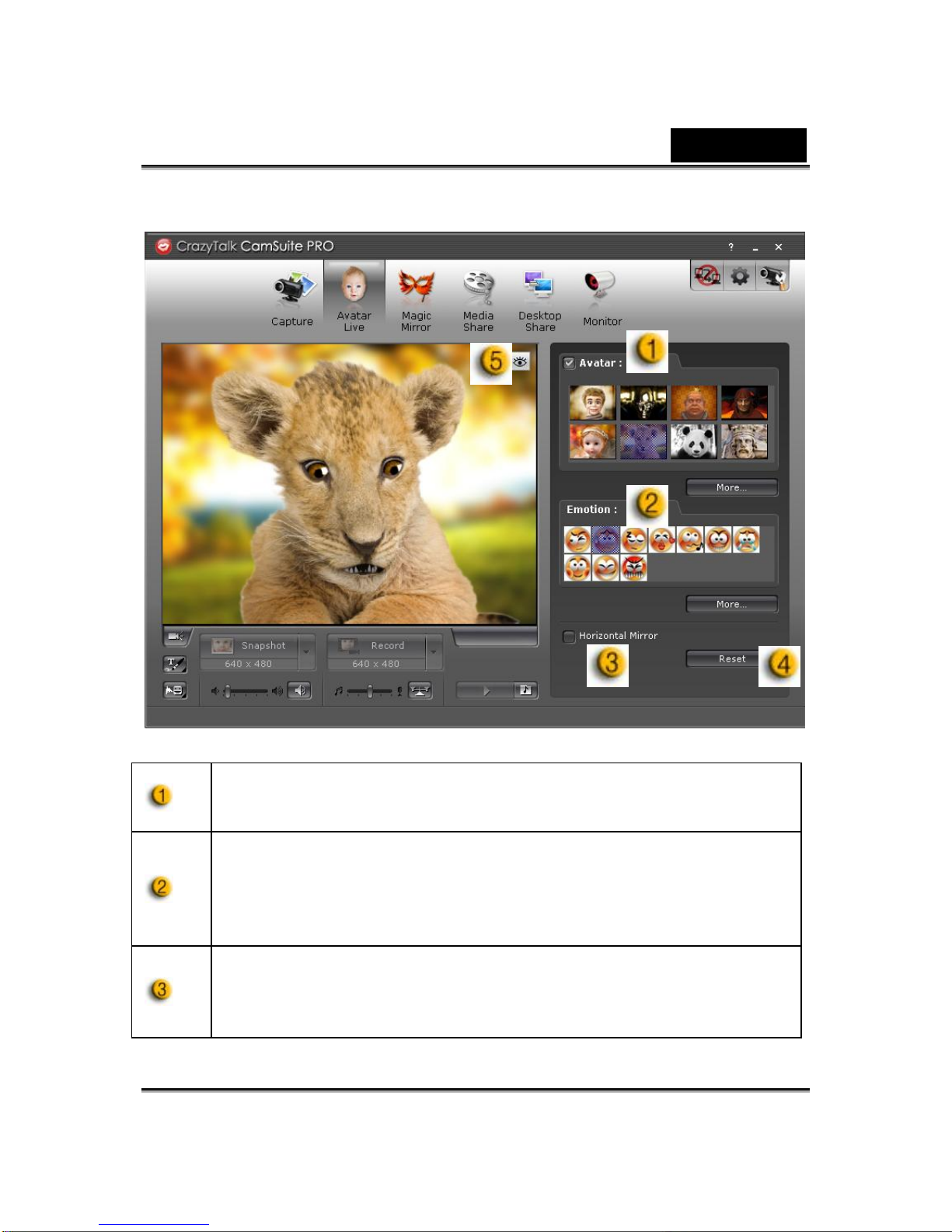
Avatar Live
You can use the selected avatar to have video chats with your friends.
Avatar
You can use default avatars or press more to create your own
avatars.
Emoticons
You are able to add different emotive expressions to your avatar
along with the sound effect. If you are using video conference,
the avatar and emotive animation are both visible to your
conferencing partner.
Horizontal Mirror
Tick the Horizontal box to have the camera window flip
horizontally so that the avatar moves along with your head more
mirror-like.

English
-9-
Reset
Click the Reset button to rectify and zoom your avatar to the
appropriate size and angle to fit in the camera window.
Preview
You may click the Preview button to launch the preview window
Magic Mirror
You can utilize your own face applied different effects by Magic Mirror and to
have video chats with your friends.
Morph
You can change the selected face morph to your face.
Effect
You may add a comic effect to your face.
Preview
Click the Preview button to launch the preview window
Table des matières
Autres manuels Agama Webcam


