AEE S41B Manuel utilisateur

1
aee.com
DE
EN
ES
PT
IT
EL
FR
NL
PL
CS
HU
SV
FI
NO
RU
DA
Contents
Precautions.................................................................................................... 2
Preface
.......................................................................................................... 2
Warranty
........................................................................................................ 2
List of Accessories
......................................................................................... 3
Preparations Before Use
............................................................................... 7
Photo Modes
................................................................................................11
Settings........................................................................................................ 13
Specications
.............................................................................................. 17
Notice
.......................................................................................................... 18
S41B
AEE
User manual

3
aee.com
DE
EN
ES
PT
IT
EL
FR
NL
PL
CS
HU
SV
FI
NO
RU
DA
List of Accessories
Camera TFT display Water-proof housing
Plug bracket unit Flat Adhesive Mount USB data cable
Quick start guide CD-ROM Moisture-proof foam
The accessories you've received may be slightly different from above. The package is
subject to change without further notice.

4
aee.com
DE
EN
ES
PT
IT
EL
FR
NL
PL
CS
HU
SV
FI
NO
RU
DA
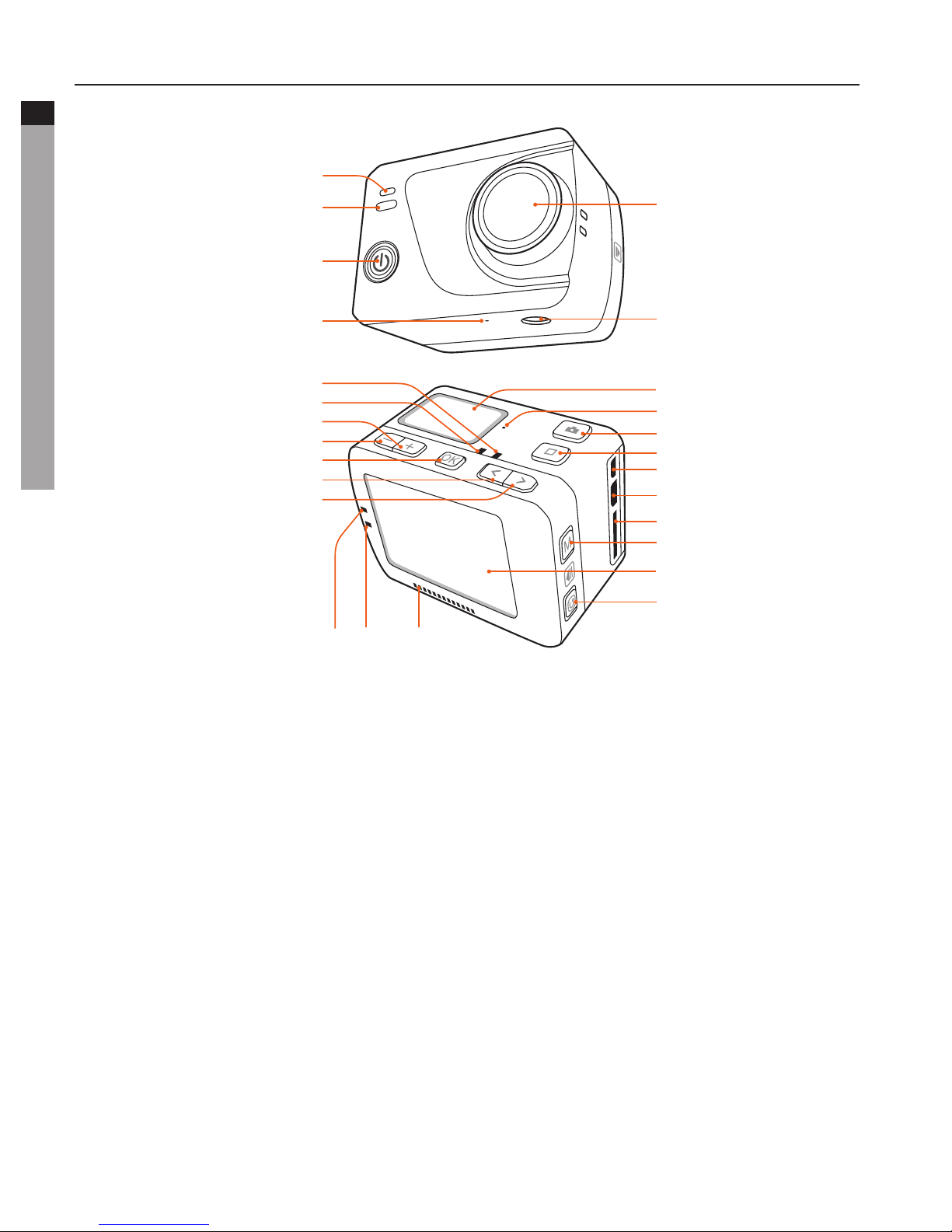
Component Guideline
17
7
8
9
10
11
12
13
14 15 16
18
19
20
21
22
23
24
25
26
1
( L1
)
( L2
)
( L3
)
( L4
)
2
3
4
5
6
1. Charging status indicator
2. Recording status indicator
3. Video recording/Power key
4. Microphone
5. Lens
6. Tripod mount
7. Charging status indicator
8. Recording status indicator
9. Up key
10. Down key
11. OK key
12. Left arrow key
13. Right arrow key
14. Recording status indicator
15. Charging status indicator
16. Speaker
17. LCD segment display
18. Microphone
19. Shutter key
20. Stop key
21. Mini HDMI interface
22. USB interface
23. TF card slot
24. Menu key
25. TFT display
26. Playback key

5
aee.com
DE
EN
ES
PT
IT
EL
FR
NL
PL
CS
HU
SV
FI
NO
RU
DA
2. Description of Indicators
Position
Status
Green indicator Red indicator Blue indicator
L1/L3 L2/L4 L2
Startup /Flash once and then
Stay on Flash once
Video
recording Flash slowly / /
Audio
recording Flash slowly / /
Photo
shooting Flash once Stay on /
Card full Stay on Stay on /
Charging
(switched off) / Flash slowly /
Fully charged
(switched off) / Stay on /
Low-battery
indicator /Flash fast for 5s and
then auto power off /
Data
transmission / Stay on flash slowly
Wi-Fi on / Stay on flash slowly

6
aee.com
DE
EN
ES
PT
IT
EL
FR
NL
PL
CS
HU
SV
FI
NO
RU
DA
3. LCD Segment Display
00:00:01
2H30
1080P- 25
1
56
2
3
47
100-0088
1888
8M
1
2
3
47
Video mode Capture mode
Icon Functions
1
Working mode (Video recording)
Working mode (Photo shooting)
2
1080P-25 Video resolution
8M Photo resolution
3
00:00:01 Recording timer
100-0088 Number of recorded files
4
2H30 Remaining recordable time
1888 Remaining shots
5MView angle
6Wi-Fi
7Battery level

7
aee.com
DE
EN
ES
PT
IT
EL
FR
NL
PL
CS
HU
SV
FI
NO
RU
DA
Preparations Before Use
1. Charging
Start up the unit to check the battery power. If the battery level is low, charge it.
Use USB cable to charge video camera:
Power adapter
Input: 100~240V 0.5A
Output: DC 5V 2000mA
2. Insert and Remove The Memory Card
Though all TF cards above Class 10 can be used on video camera, high-speed card is
recommended to perform high-definition shooting. When shooting during dynamic motion,
brand SDHC cards are recommended for use in order to ensure smooth shooting.
* Insert the memory card
a. Ensure that video camera is switched off.
b. Insert TF card into the memory card slot in the arrow direction flatly to the end. A "click"
can be heard to indicate the card has been well inserted.
* Remove the memory card
Press the center of exposed part of TF card and TF card will pop up slightly. Then pull it
out flatly.
Before connecting the host to Wi-Fi or the remote control, please first insert the TF card.
3. Startup
Long press "Video Recording" key for 5s to turn on/off the camera. Once the camera is turned
on, the red indicator will be turned on and the top screen will display the video recording
information.

8
aee.com
DE
EN
ES
PT
IT
EL
FR
NL
PL
CS
HU
SV
FI
NO
RU
DA
Video Modes
1. Basic Operations of Video Recording
a. Turn on video camera to enter recording standby mode;
b. Aim the lens to the subject and preview it in TFT display;
c. Press "Video recording" key once to start video recording;
- The system will tick once to indicate the effective of video recording, TFT display is shown
as below for video recording:
Working mode
(video recording)
Remaining video recording
time of memory card
Resolution of video recording
Time of video
recording
Battery level
Visual angle
2H30 1080P/25
000:00:01
d. During video recording, press the "Stop" key once to stop video recording.
- the system generates a tick tone twice ,indicating that the video recording operation
stops recording, and the time counter stops.
- The display will return to recording standby mode.
2. Basic Operations of audio record
a. Enter audio record mode and press "Video Recording" key to start audio recording.
- The system will tick once to indicate the effective of video recording:
2H30
000:00:01
Working mode
(Audio recording)
Remaining audio recording
time of memory card
Recording time
Battery level
b. During audio recording, press the "Stop" key once to stop audio recording.
- The system generates a tick tone twice, indicating that the video recording operation
stops.
- The display will return to recording standby mode.
* Exit audio record mode:
a. Press "M" key to enter the camera setting menu;
b. Press "<" / ">" key to select " " and press "OK" key to confirm;
c. Press "<" / ">" key to select " " mode and press "OK" key to confirm, video camera
will return to recording standby mode.

9
aee.com
DE
EN
ES
PT
IT
EL
FR
NL
PL
CS
HU
SV
FI
NO
RU
DA
3. Parameter Setting For Video Recording
Perform the following steps to set the parameters for video recording:
a. Press "M" key to enter the setting menu;
b. Press "+" / "-" key to select " ";
c. Press "<" / ">" key to move cursor to the sub-menu you want to configure, Press "OK" key
to enter the sub-menu;
d. Press "<" / ">" key to select the parameters you want;
e. Press "OK" key to confirm;
f. Press "M" key again to exit the setting menu.
• Execution Mode
- Video recording ( );
- Video-only Mode ( ): In this mode, you can record a video without voice;
- Voice recording ( );
- Time Lapse Mode ( ): Time Lapse function can record one picture as a frame of the
video according to the time interval you set. It doesn’t need the post editing, and can
easily make the continous evolution and movement. The available options are 1s, 2s, 5s,
10s and 30s;
- Auto Video Mode ( ): If this function is enabled, the system will auto start recording
videos according to the countdown time you set. The available options are 5s, 10s, 20s;
• Video resolution
The optional resolutions for video recording are listed as below:
Resolutions PAL System NTSC System
1080P(16:9)
1920 x 1080 25fps 25fps, 30fps, 50fps, 60fps
720P(16:9)
1280 x 720 50fps 50fps, 60fps, 100fps, 120fps
WVGA(16:9)
848 x 480 100fps 100fps, 120fps, 200fps, 240fps

10
aee.com
DE
EN
ES
PT
IT
EL
FR
NL
PL
CS
HU
SV
FI
NO
RU
DA
• View Angle
Optional view angle: Wide, Medium, Narrow, Small.
: Wide : Medium : Narrow : Small
• Bitrate
This unit provides two bit rate options: high " " and normal " ". (If high bit rate is
selected, you will get clearer picture with increased file size).
• Video Content Loop
You can activate or deactivate loop recording function. If ON, video file will be
automatically stored in segment of 10 minutes; If OFF, video file will be stored in segment
of 15 minutes.
• 180° Photo Rollover
When this function is activated, upright video file can be obtained when using video
camera to shoot video upside down.
• Display Time
You can choose to display or not display the video recording time at the bottom right
corner of the photo.
• Available functions under different resolutions (●) :
Resolution
Function
1080P 720P WVGA
25f 30f 50f 60f 50f 60f 100f 120f 100f 120f 200f 240f
Time Lapse ● ● ● ● ● ● - - - - - -
Auto Video ● ● ● ● ● ● ● ● ● ● ● ●
View Angle ● ● ● ● ● ● - - - - - -
Bitrate ● ● ● ● ● ● ● ● ● ● ● ●
Video Content Loop ● ● ● ● ● ● ● ● ● ● ● ●
180° Photo Rollover ● ● ● ● - - - - - - - -
Display Time ● ● ● ● ● ● - - - - - -

11
aee.com
DE
EN
ES
PT
IT
EL
FR
NL
PL
CS
HU
SV
FI
NO
RU
DA
Photo Modes
1. Basic Operations of Photo Shooting
a. Turn on video camera to enter recording standby mode;
b. Cast the lens to the subject and preview it on the display;
c. Press the "Shutter" key once to switch the working mode to "photo modes";
d. Press the "Shutter" key again to shoot one photo.
- The system generates will click to indicate completion and the system will return to photo
shooting standby mode;
- TFT display under photo shooting mode is shown as below:
1888 8M
Working mode
(photo shooting)
Remaining number of
shots of memory card
Resolution for photo shooting
Battery level
2. Parameter Settings for Photo Shooting
Perform the following steps to set the parameters for photo shooting:
a. Press "M" key to enter the setting menu;
b. Press "+" / "-" key to select " ";
c. Press "<" / ">" key to move blue cursor to the sub-menu you want to configure, Press "OK"
key to enter the sub-menu;
d. Press "<" / ">" key to select the parameters you want;
e. Press "OK" key to confirm;
f. Press "M" key again to exit the setting menu.
• Capture Mode
- Single Shot Mode ( ): Take one photo when the photo shooting key is pressed;
- Fast Shot Mode ( ): video camera takes several photos within one second. three modes
are available: 3 p/s, 6 p/s and 8 p/s (photo/second);
- Continuous Shooting Mode ( ): In this mode, you can shoot photos continuously as
per the preset time interval until you press the "Stop" key. The available modes options are
0.5s, 1s, 2s, 3s, 5s, 10s, 20s;
- Self Timer Mode ( ): When the "Shutter" key is pressed once under recording standby
mode, video camera will start countdown and take a photo at the set time. The available
modes options are 3s, 5s, 10s.
• Photo Resolution
Select the required resolution for shooting. You can set this parameter to "8M", "5M" or
"3M".
Table des matières
Autres manuels AEE Caméra d'action

AEE
AEE S50+ Series Manuel utilisateur

AEE
AEE S60 PLUS Manuel utilisateur

AEE
AEE S70 Manuel utilisateur

AEE
AEE lyfe titan Manuel utilisateur

AEE
AEE S71T Plus Manuel utilisateur

AEE
AEE S71T Plus Manuel utilisateur

AEE
AEE MagiCam sd23 Manuel utilisateur

AEE
AEE S40 Pro Manuel utilisateur

AEE
AEE magicam s50 Manuel utilisateur

AEE
AEE SD21 Manuel utilisateur

AEE
AEE sd20 Manuel utilisateur

AEE
AEE S71 MagiCam Manuel utilisateur

AEE
AEE Magicam S50+ Manuel utilisateur

AEE
AEE S70 Guide d'installation

AEE
AEE SD18 Manuel utilisateur

AEE
AEE S71 Touch Magicam Manuel utilisateur

AEE
AEE MD10 Manuel utilisateur

AEE
AEE magicam s50 Manuel utilisateur

AEE
AEE S71 MagiCam Manuel utilisateur