
Acer ALH-508d Manuel utilisateur

I
Copyright
Copyright ©1999 by this company and all rights reserved. No part of this
publication may be reproduced, transmitted, transcribed, stored in a
retrieval system, or translated into any language or computer language, in
any form or by any means, electronic, mechanical, magnetic, optical,
chemical, manual or otherwise, without the prior written permission of this
company.
Disclaimer
This company makes no representations or warranties, either expressed
or implied, with respect to the contents hereof and specifically disclaims
any warranties of merchantability or fitness for any particular purpose. Any
software described in this manual is sold or licensed "as is". Should the
programs prove defective following their purchase, the buyer (and not this
company, its distributor, or its dealer) assumes the entire cost of all
necessary servicing, repair, and any incidental or consequential damages
resulting from any defect in the software. Further, this company reserves
the right to revise this publication and to make changes from time to time
in the contents hereof without obligation to notify any person of such
revision or changes.
Brand and product names are trademarks and/or registered trademarks of their
respective companies.

II
Table of Contents
0. Preface..................................................1
1. Introduction............................................2
2. LED Indicators and Ports Description... 5
3. Quick Installation Guide........................ 8
A. Product Limited Warranty...................... 9

Abstract
This user's manual covers the following topics :
• Product overview and the summary of it's features.
• Description of Front Panel and Rear Panel including the
meaning of LED indicators, functions and usage of ports.
• Installation procedure and application
Package Contents
Carefully unpack the contents of the package and check if the following items
are included:
• One ALH-508d Dual-speed hub
• Accessory container
- One power cord
- One external switching power adapter
- 2 rubber stands
• This user’s manual
Figure 0.ProductconfigurationofALH-508d
Please contact your dealer immediately should there be any wrong, missing,
or damaged parts. If possible, kindly keep the carton and the original packing
materials to repack the product for repair or replacement.
0. Preface
1
User's Manual

1.1 General Description
Thanks for your purchasing our products. Acer Netxus will keep on providing
brand new technologies and high quality products to fulfill your need.
Acer ALH-508d 8-port 10/100Mbps Dual Speed Mini Hub offer a cost-effective
solution to today's growing need of network speed integration. With efficient
eight 10/100Mbps plug-and-play dual speed ports equipped in its compact
hub, it is possible to achieve the coexistence of 10Mbps and 100Mbps devices
in a single network now and step to 100Mbps network in the future. ALH-
508ds dual-speed hub is further furnished with internal switch function, which
combines both dual speed feature and network segmentation function
together and progress to a higher level of network flexibility and efficiency.
Acer ALH-508d provides LED indicators for network status monitoring. With
these indicators, the user can observe the network status very easily. This
repeater hub will indicate the system power, networking collision, 100 Mbps,
port link/RX.
With cost effective solution to upgrade the network bandwidth, ALH-508d
dual-speed mini hub will be the best choice for your need.
1.1.1 Apply the ALH-508d to build a new network
With one ALH-508d, you can easily setup a new network with 10Mbps and
100Mbps.(See Figure 1.1.1)
Figure 1.1.1 Application to setup a new network
1. Introduction
2
User's Manual
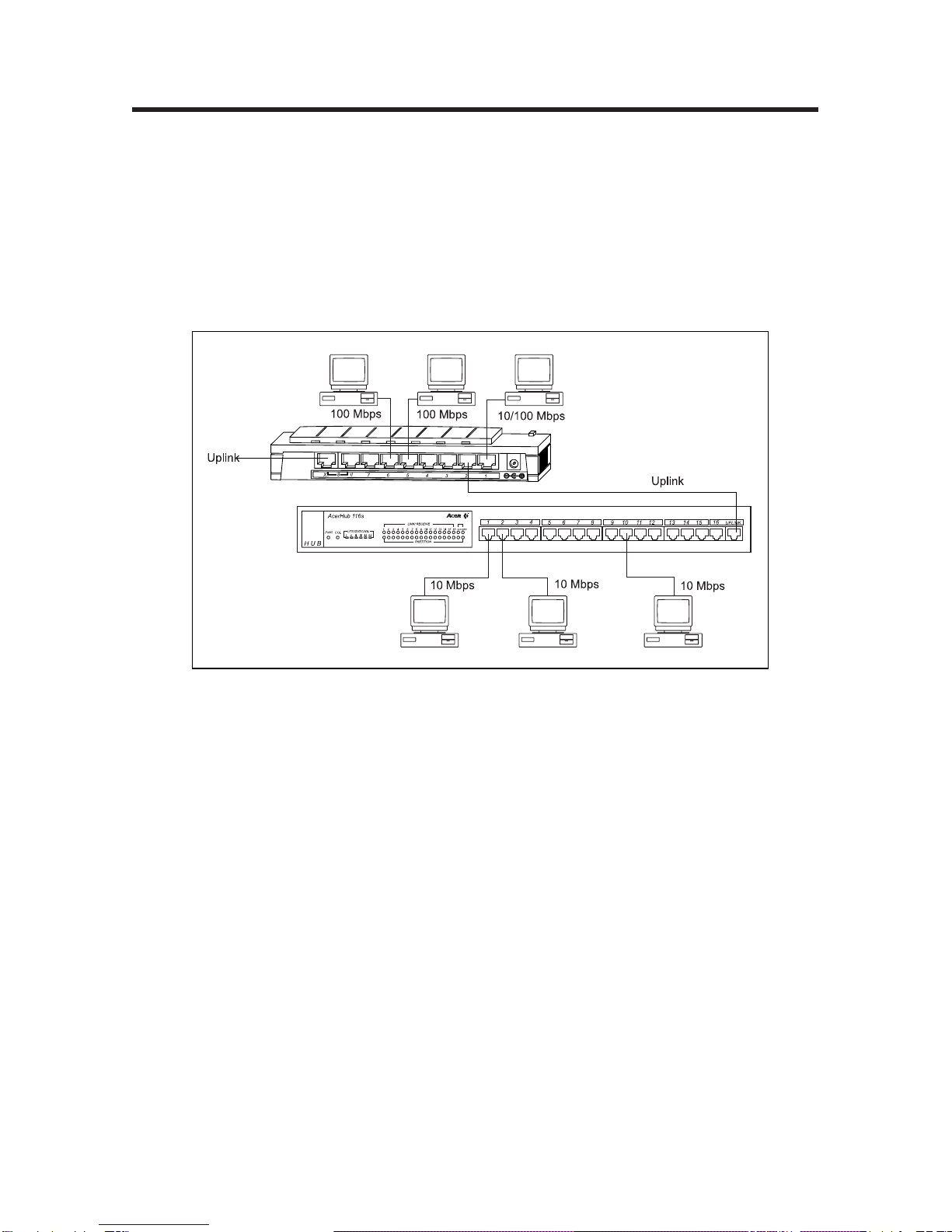
1.1.2 Apply the ALH-508d to upgrade your Ethernet network
You can use the uplink port of the Ethernet hub to uplink to normal port of
ALH-508d to upgrade some key network user from 10Mbps to 100Mbps by
connect to ALH-508d and leave the others connect to the Ethernet hub
segment.
Figure 1.1.2 Application to upgrade your network
3
User's Manual

1.2 Features
• IEEE 802.3/802.3u Class I and II repeater compliant
- Support 8 10BASE-T/100BASE-TX interface (RJ-45 phone jack)
- Support 1 uplink port (RJ-45 phone jack)
• 10BASE-T/100BASE-TX auto speed detection
• Mini compact size
• One Uplink port to support uplink function
• Build-in switching function to connect 10 and 100Mbps
network domains
• LED indicators
- Global System Power LED
- Global ACT built-in switch LED
- Global 10 Mbps and 100 Mbps Network Collision LED
- 100/10 Mbps LEDs for each port
- Link/RX LEDs for each port
• Power supply
- External switching power supply AC100-240V, 50-60Hz
• EMI: FCC Class A, CE Mark, VCCI-1, C-Tick
• Environment
- Operating temperature: 0~50°C(32~122°F)
- Operating Humidity: 20 to 80% non-condensing
4
User's Manual

This chapter describes the function and usage of the LEDs in the front and
rear panel.
2.1 Front Panel
Figure 2.1thefr ont panel
2.1.1 LED indicators
The front panel LEDs will be lighted at the first few seconds for power-on
diagnostic.
The naming and meaning of LED indicators is listed in the following:
• PWR
Color : Green
Function : Power good indicator
This LED is located at the upper left corner of the front panel. It
will be lighted up when the hub is power-on.
• ACT
Color : Green
Function : Build-in switching indicator
This LED is located below the Power LED and indicates the built-in
switch is active, and connection between 10Mbps and 100Mbps
segments are exchangeable.
2. LED Indicators and Ports
Description
5
User's Manual

• COL 10
Color : Yellow
Function : Collision indicator
It will flash when 10 Mbps segment network collision occurs.
• COL 100
Color : Yellow
Function : Collision indicator
It will flash when 100 Mbps segment network collision occurs.
• LINK/RX
Color : Green
Function : Indicates if the port is linked to another port or
receiving data
The LINK LED is lighting on when the cable link between the Hub and the
station is good. If the LED does not light on, it means the cable link is not
established even when the cable is plugged into the RJ-45 phone jacks of
the hub and adapter card. When this LED is flashing, it means the data is
coming and the Hub will repeat it to all the ethernet ports. By this way,
the data will be sending to the designated nodes and the Networking data
processing is completed by the Hub.
• 100/10
Color : Green
Function : Indicates if the port is working at 100Mbps or 10Mbps
The 100/10 LED is lighting on when the cable link between the 100Mbps
Port is good.If the LED does not light on,it means the cable link is
established on 10Mbps.
6
User's Manual

• UTIL%
Color : Green for 5,15,25,50% and Yellow for 75+ %
Function : Network utilization indicator
This indicator is designed for network traffic monitoring and the degree
Of traffic is divided into 5 grades--5% ... 75+% are denoting the
Percentage of bandwidth of the network is used and how the network
Loading is.
The denotation of 75+% means the network bandwidth is used more
than 75%.Simply speaking,if we treat the network bandwidth of
100Mbps to be 100%,then75+% does mean the network traffic occupy
more than 75% network bandwidth for data transmitting or receiving.
2.1.2 100BASE-TX Twisted-Pair Port
The RJ-45 phone jacks are located in the front panel. They are designed for
10BASE-T/100BASE-TX Twister-Pair cable connection with UTP CAT 5
cables.
2.2 Rear panel
The rear panel includes one power connector, which accepts 100-240V AC,
50-60Hz power input.
Figure 2.2.1 the r ear panel
7
User's Manual

3.1 Unpack the product
Please unpack the product and make sure that contents are as list.
Please contact your dealer immediately should there be any wrong, missing,
or damaged parts. If possible, kindly keep the carton and the original packing
materials to repack the product for repair or replacement.
3.2 Power adapter connection
1. Plug the power cord into an AC outlet
2. Insert the output plug into the jack of ALH-508d.
3. Once both sides of power adapter are connected to the proper jack or
outlet, the ALH-508d is powered on and ready for use.
3.3 Connect ALH-508d to PC
1.Insert one end of the UTP CAT 5 twisted-pair cable into the RJ-45
connector that is numbered from 1 to 8 port of ALH-508d. Please orient
the cable correctly and push it into the connector until you hear a click. .
2.Please make sure that the maximum cable length from your computer to
the hub does not exceed 100 meters.
Figure 3.3 Connect ALH-508d to PC by UTP cable
3. Quick Installation Guide
8
User's Manual
Table des matières
Autres manuels Acer Changer


