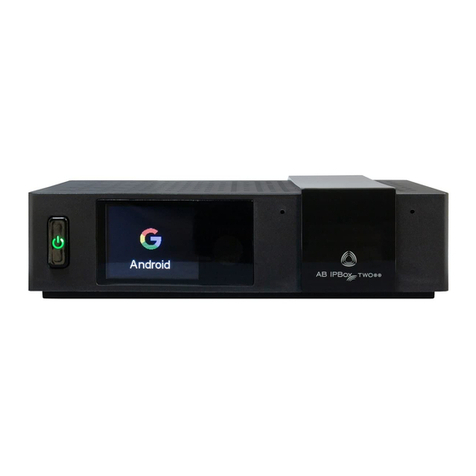
AB IPBox 9000HD Manuel utilisateur


2
0. INTRODUCTION
Welcome to the world of new High Definition Digital Receiver that will make your life richer and closer to
your dream. Before using your new receiver, we recommend you to read this manual carefully for your own
safety and correct operational manual. This product is fully compliant with the DVB standards and transmits
digital broadcasting service directly to your TV
The STB is easy to use and adaptable for future upgrade. The software is to be upgraded continuously to
improve the function.
1. SAFETY INFORMATION
Please read the following recommended safety caution carefully for your safety
“DANGER OF THE HIGH VOLTAGE AND RISK OF ELECTRIC SHOCK!”
Power Supply: 110-220V AC 50/60Hz
The socket-outlet shall be installed near the equipment and shall be easily accessible.
Allow clear space around the STB for sufficient ventilation.
Never place the STB on soft furnishing or carpet.
Do not stack other electronic equipment on top of the STB.
Use a soft/dry cloth and a mild solution to clean the exterior of the STB.
Never allow liquids. The inside of the STB shall not be exposed to dripping, spray or other objects filled with
liquids.
Do not use any attachments that are not recommended.
Do not allow the unit to be exposed hot, cold or humid conditions.
Service should be carried out only at a qualified service agent.
Do not connect or modify cables when the STB is plugged in.
Do not remove the cover.
Warning:
AB-COM s.r.o. company does not hold any responsibility for any harms caused by using unofficial or illegal
software.
AB-COM s.r.o. company warns that watching of european Pay TV channels on European Union territory
without paying all corresponding abonentfees is illegal.
If anybody uses any of products of AB-COM s.r.o. company in order to watch Pay TV channels without correct
paying he does it on his own responsibility and and will carry all potential legal effects.
2. HOW TO USE THIS MANUAL
This manual provides complete instructions for installing and using the STB. The following symbols will be
served as follows.
Symbol
Explanation
1. MENU (Capital & Bold)
Represents Main Menu category.
1.1. Menu(Bold)
Represents a sub
-
categor
y of the main menu
1.1.1.Menu
Indicates a selectable option in a sub
-
category.
Press the MENU key on the RCU (Remote Control Unit) to enter intothe main menu.
In some menus, you are asked to put the PIN (Personal Identification Number) code as a password.

3
Factory default password is '0000'.
2.1 How to move the cursor
Use the Navigation Buttons
UP and Down Direction button:Navigate the cursorUpwards and Downwards.
Left and Right Direction button: Navigate the cursor Left and Right
2.2 How to select an option
OSD(On Screen Display)- menus supportto navigate the functions or options with these buttons.
Use these buttons to reach the targeting option or function. To select the desired option or function, press OK
button.
2.3 How to use the virtual keyboard
In some menus, you are asked to putalphabetical characters on the virtual keyboard. Select each alphabet
character by pressing OK button. and then move the cursor on “Save” (Save key) on the virtual keyboard, and
press OK button to save it.
In case of inputmode “a”,the numeric buttons of RCU works alphabetically with Small letters
In case of input mode “A”,the numeric buttons of RCU works alphabetically with Capital letters
In case of input mode “@”, the numeric buttons of RCU works numerically

4
3. BEFORE YOU BEGIN
3.1 Advanced Features
DVB compliant DVB-S, DVB-S2, DVB-T, DVB-C supported
Smart tuner supported(Plug & Play)
MPEG-2 MP@HL Video Decoder
MPEG-4 AVC/H.264 HP@L4 Video Decoder
DIVX supported
MP3 decoder
Dolby AC3 DownMix decoder
HDMI v.1.2A with HDCP supported
Multi-format Audio Decoder
High Definition and Standard Definition
DVBCommon Interface (2 slots) supported
Format resolution: 1080i, 720p, 576p
USB 2.0(Host) supported
USB 1.0(Client) supported
Network Interface Supported (high speed Ethernet)
VFD Display : Capability for display of various information
SCPC and MCPC receivable from C/Ku-band satellites
Channel list editing
Favorite channel list editing
True-color On-Screen Display (OSD)
Full Picture In Graphic (PIG) function
Electronic Program Guide (EPG) for on screen channel information
Subtitle & Teletext supported
Parental lock facility by channel and program event
LINUX open source (someparts under the terms of GPL, accordingly expandable)
4. THE CONTENTS OF THE BOX
Please make sure that the following items are included in the Package.
STB main unit
Remote Control Unit
2 Batteries (size AAA ALKALINE)
Operation Manual

5
5. REMOTE CONTROL UNIT (UNIVERSAL TYPE)
Music
Playback or
return to live
Slow motion with
rate
Pause
Photo Album
Fast reverse or
r
a
n
dom play
Fast forward or random play
Repeat
Record
Teletex
Stop
Alternate
audio
Multifeed
Switch On /
Audio m
ute
RCU respond to TV
RCU respond to STB
Swap Picture
PIP on/off
Sub picture position
in PIP mode
Sub channel
list in PIP
Recall
Volume
+,
-
Info banner
Recorded
Page up/down or
Program up/down
Electronic Program
Navigation buttons
or Vol+,- Ch+,-
To exit from the OSD
menu
Favorite
Book or check mark
Main Menu or previous
menu
Subtitle

6
5.1. Programming the remote control for your TV set.
This Universal type remote control works for bothTV and PVR.
There are two ways to program the remote control; Automatic Code Search and Direct Entry.
5.1.1 Using automatic code search
1. Turn on the component (TV) you want to control.
2. Press and hold the TV button until the LED (TV button) turns on red, then release the key.
3. Point the remote at the component (TV), press and release the UP ( ) button, and then wait three
seconds or until the LED stops flashing.
At this point the remote control is searching for the correct code to program. If, after three seconds, the
component (TV) you want to control does not turn off, press and release UP ( ) button again to make
the remote to search the next set of codes.
4. If the component you want to control does turn off; Press and release OK button, then the LED blinks
three times.
5.1.2. Using direct entry method
1. Turn on the component (TV) you want to control.
2. Locate the Code List (refer to code list on the page 59). Find your TVbrand that you want to control.
3. Press and hold the TV button until the LED on the remotecontrol turns on red, then release the key.
4. Enter 3-digit code from the code list, then the LED blinks three times.
5. If you get no response, repeat these steps using the next code listed for your TV brand until the
component responds to the remote control command.
5.1.3. Locking the volumecontrol.
Locking the volume controls to a single device makes it easier to control volume, without having an
unexpected volume change. If you lock the remote's volume controls to the TV set, you will be always
able to change the volume to the level you want, without having adjusting it twice on multiple devices.
If you want to lock the volume for the TV system;
1. Press and hold the STB component key until the LED on the remote control turns on.
2.Enter3-digit code,9 9 9 .
3. Press and release the STB componentkey, then the LED blinks three times.
5.1.4. Unlocking the volume control.
If you want to unlock the volume for the STB component;
1. Press and hold the STB button until the LED on the remote control turns on.
2. Enter 3-digit code, 9 9 9 .
3. Press and release the STB component key, then the LED blinks three times.
NOTICE: Find the TV brand code list on the page 44.

7
6. FRONT PANEL CONTROL
Two slots for the smart cards
Two slots for CAM
MVFD (MatrixVacuum Fluorescent Display) – displays channel name, error messages, current time and
status and remote control commands
Power button On/Off
Menu Button
EPG Button
FILE Button
OK button
Right direction button (Vol +)
Left direction button (Vol -)
Up direction button (CH +)
Down direction button (CH -)
Note:
Cold off (Shutdown): Press and hold power button on front panel or RCU over 2 seconds.
Warm off (Standby): Press power button on front panel or RCU

8
Stand by mode
TV channel
Radio channel
Actual channel is satellite
Actual channel is terrestrial
* If none of these symbols is highlighted thenactual program is cable (DVB-C)
A file record from HDD is being playied
Recording
Normal watching, timeshift or file playback
Timeshif activated on live program
Scheduled Timer event in Standby mode.
* It does not indicate when STB is turned off
Actual channel (record) is in HD format
There is a device connected to USB host
Actual channel is locked or STB is locked
Actual channel is in Dolby Digital audio format
Mute function is activated
Indication of operation tuner/tuners
MP3 playback
Repeat of selected section
Video resolution of actual program
7. REAR PANEL CONNECTIONS

9
Rear panel with built-in two tuners:
Telephone MODEM
Serial port
RS
S
-
vid
ANTENNA IN for Cable or Terrestrial
antenna
CVBS and
Audio L, R
HDD
AC on/off
LNB IN for Satellite
Optical Digital Audio for Digital
Component
Video YPbPr
TV and VCR
SCART
Tuner
2
HDMI
AC power
USB Host 2.0
USB 1.1
client
Ethern

10
8. INSTALLATION
Most effective and common setting methods are suggested below.Please follow the instructions carefully.
8.1 Connection with Satellite dish
Analog Video : TV SCART(CVBS, YUV, RGB), RCA(CVBS), Components(Y Pb Pr), S-video(Y/C)
Analog Audio : TV SCART(L,R), RCA(L,R)
Digital Video : HDMI
Digital Audio : HDMI, S/PDIF
Table des matières
Autres manuels AB IPBox Récepteur