3nStar Nustar 5sx Manuel utilisateur

1
Nustar 5sx
Android 11 Data Collector
USER MANUAL

2
Table of Contents
Statement ..................................................................................................................................................... 1
Chapter 1 Product Intro ................................................................................................................................ 2
1.1 Intro..................................................................................................................................................... 2
1.2 Precaution before using battery ......................................................................................................... 2
1.3 Notes................................................................................................................................................... 3
Chapter 2 Installation Instructions................................................................................................................ 4
2.1 Appearance ......................................................................................................................................... 4
2.2 Install Micro SD and SIM cards ........................................................................................................... 5
2.3 Battery Charge .................................................................................................................................... 5
2.4 Buttons and function area display ...................................................................................................... 6
Chapter 3 Call Function................................................................................................................................. 7
3.1 Calling Numbers.................................................................................................................................. 7
3.2 Contacts .............................................................................................................................................. 7
3.3 SMS and MMS..................................................................................................................................... 7
Chapter 4 Barcode Reader............................................................................................................................ 8
Chapter 5 RFID Reader.................................................................................................................................. 9
5.1 NFC...................................................................................................................................................... 9
Chapter 6 Other Functions.......................................................................................................................... 10
6.1 PING tool ...........................................................................................................................................10
6.2 Bluetooth .......................................................................................................................................... 10
6.3 GPS ....................................................................................................................................................11
6.4 Volume Setup....................................................................................................................................11
6.5 Sensor................................................................................................................................................ 12
6.6 Keyboard ...........................................................................................................................................12
6.7 OTG Function .................................................................................................................................... 13
6.8 Network ............................................................................................................................................ 13
6.9 Keyboard Emulator ...........................................................................................................................14
Chapter 7 Device Characteristic..................................................................................................................15

1
Statement
No part of this publication may be reproduced or used in any form by any electrical or mechanical
means without written permission from 3nStar. This includes electronic or mechanical means, such as
photocopying, recording, or information storage and retrieval systems. The material in this manual is
subject to change without notice.
The software is provided strictly on an “as is” basis. All software, including firmware, furnished to the
user is on a licensed basis. 3nStar grants the user a non-transferable and non-exclusive license to use
each software or firmware program delivered hereunder (licensed program). As already noted, such
license may not be assigned, sublicensed, or otherwise transferred by the user without prior written
consent from 3nStar. No right to copy a licensed program in whole or in part is granted, except as
permitted under copyright law. The user shall not modify, merge, or incorporate any form or portion of
a licensed program with other program material, create a derivative work from a licensed program, or
use a licensed program in a network without written permission from 3nStar.
3nStar reserves the right to make changes to any software or product to improve reliability, function, or
design.
3nStar does not assume any product liability arising out of, or in connection with, the application or use
of any product, circuit, or application described herein.
No license is granted, either expressly or by implication, estoppel, or otherwise under any 3nStar
intellectual property rights. An implied license only exists for equipment, circuits, and subsystems
contained in 3nStar products.

2
Chapter 1 Product Intro
1.1 Intro
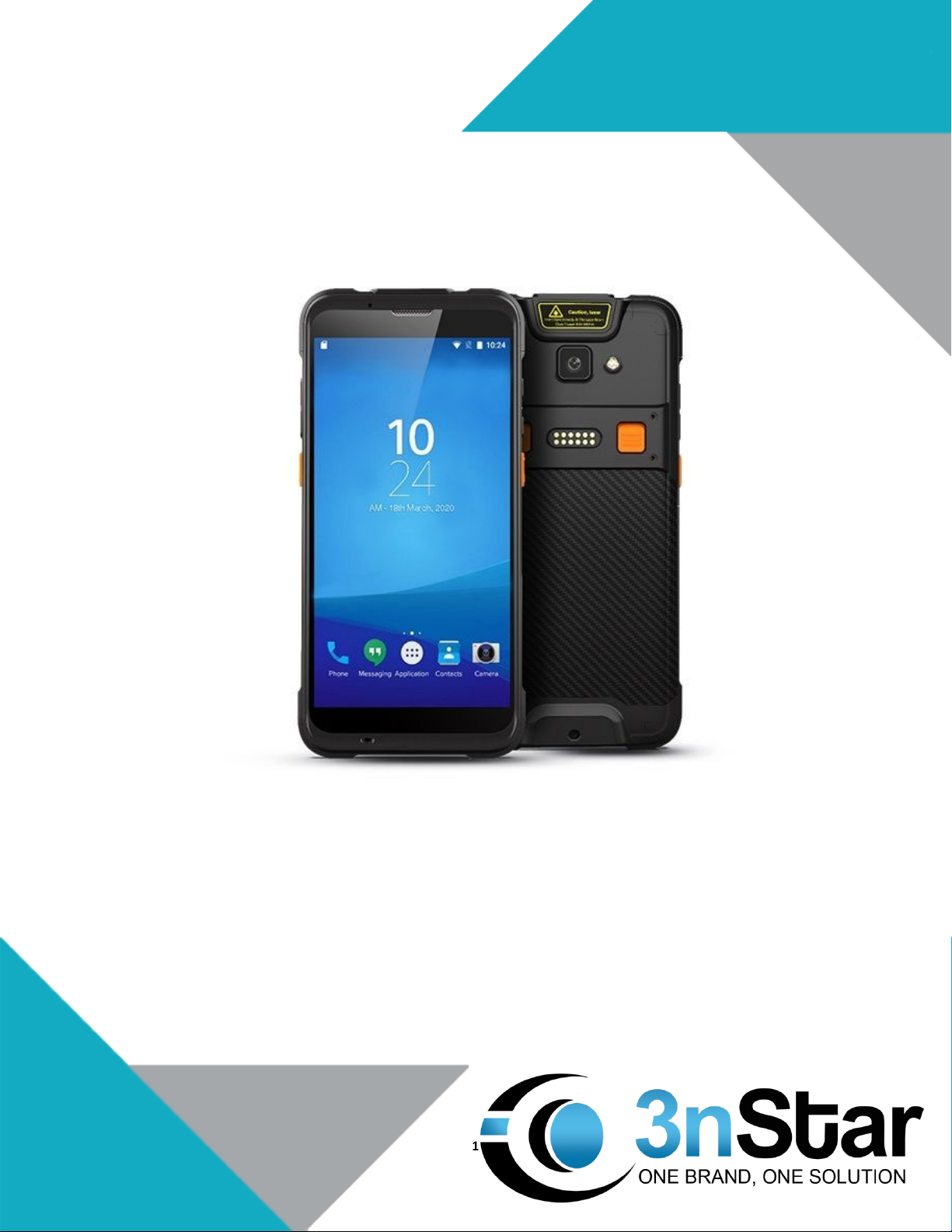
3nStar Nustar 5sx is a newly developed rugged handheld computer with large screen and strong
extensibility. Running on AndroidTM 11 OS, it is equipped with a Qualcomm Octa-core processor for
high-speed processing. With 5.5-inch high-definition display, it is integrated with barcode scanning,
NFC, and other functions. The data collection device supports quick charge and UHF sled for good
extensibility that can meet the needs in logistics, warehouse, manufacturing, retail, asset tracking,
power patrol inspection, etc.
1.2 Precaution before using battery
1. Do not leave the battery unused for long time, no matter if it is in the device or inventory. If the
battery has been used for 6 months, it should be checked for its charging function or it should
be disposed correctly.
2. The lifespan of Li-ion battery is around 2 to 3 years and can be circularly charged from 300 up to
500 times (one full battery charging period means it’s completely charged and completely
discharged).
3. When the Li-ion battery is not in use, it will continue discharge slowly. Therefore, battery
charging status should be checked frequently and reference of the related battery charging
information on the manuals should be taken.
4. Observe and record the information of a newly unused and non-fully charged battery, based on
the operating time of the new battery, and compare it with a battery that has been used for a
long time. According to product configuration and application program, the operating time of
battery would be different.
5. Check the battery charging status at regular intervals.
6. When the battery operating time drops below about 80%, charging time will be increased
remarkably.
7. If a battery is stored or otherwise unused for an extended period, be sure to follow the storage
instructions in this document. If you do not follow the instructions, and the battery has no
charge remaining when you check it, consider it to be damaged. Do not attempt to recharge it or
to use it, and instead replace it with a new battery.
8. Store the battery at temperatures between 5 °C and 20 °C (41 °F and 68 °F).

3
1.3 Notes
1. Using the incorrect battery type causes risk of explosion. Please dispose the used battery
according to instructions.
2. Due to the used enclosure material, the product should only be connected to a USB Interface of
version 2.0 or higher. Connection to the power USB is prohibited.
3. The adapter should be installed near the equipment and must be easily accessible.
4. The suitable temperature for the product and the accessories is -20℃to 50℃.
CAUTION: RISK OF EXPLOSION IF BATTERY IS REPLACED BY AN INCORRECT BATTERT TYPE. DISPOSE
OF USED BATTERIES ACCORDING TO THE INSTRUCTIONS.

4
Chapter 2 Installation Instructions
2.1 Appearance
Nustar 5sx back and front appearances are showing as follows:
Button
Description
Side
button
1. Power
Locate on right side, press to ON/OFF device.
2. PTT key
Locate on right side, its function can be defined by
software.
3.SCAN
Scanning button located on both sides. There are two
scanning buttons.
4. Volume +/-
Volume up and down

5
2.2 Install Micro SD and SIM cards
The card sockets go as follow:
2.3 Battery Charge
By using the USB Type-C contact, the original adaptor should be used for charging the device. Make
sure not to use other adaptors to charge the device.
Note:
1. The pistol grip battery will work as a power bank to give power to the main device battery.
When the device battery power is under 50%, it starts to charge the main device battery. It will
keep charging until the pistol grip battery is at a percentage of 15%.
2. When the pistol grip is installed to the main device, restart the device once so the pistol grip
battery will be correctly detected.
3. When put the device with pistol grip together to charge, it will charge the main device battery
first, once main device battery is up to 95%, it will start to charge the pistol grip battery.

6
2.4 Buttons and function area display
Nustar 5sx has 6 side buttons, 2D scanning module locates on the top. HD camera and flashlight
locate at rear. NFC identification surrounds the camera.

7
Chapter 3 Call Function
3.1 Calling Numbers
1. Click the icon.
2. Click number key to input phone numbers.
3. Click the icon to call.
4. Click the icon to end call.
3.2 Contacts
1. Click contacts to open contacts list.
2. Click the icon to add new contacts.
3. Click the icon to import/export contacts.
3.3 SMS and MMS
1. Click to open message window.
2. Click to input message receiver and contents.
3. Click to send out messages.
4. Click to add attachment pictures and videos.

8
Chapter 4 Barcode Reader
1. In App Center, open the 2D barcode scan test.
2. Press the “SCAN” button or click the scan key to start scanning. The parameter “Auto interval” can
be adjusted.
Caution: Please scan codes in the correct way otherwise the scanning will be failed.
2D code:
Max. radiant power: 0.6mW
Wavelength: 655nM
IEC 60825-1 (Ed.2.0).
21CFR 1040.10 and 1040.11 standard.
Autres manuels pour Nustar 5sx
1
Table des matières
Autres manuels 3nStar Enregistreur de données