2connet 2C-POS80-02 Manuel utilisateur

POS Thermal Receipt Printer
2C-POS80-02
User’s Manual
(Ver 1.05)
www.2connet.com

Content
Introduction .......................................................................................................................................................... 1
Chapter 1 Feature and Performance ............................................................................................................... 1
1.1
Print Performance ........................................................................................................................................ 1
1.2
Print Paper .................................................................................................................................................... 2
1.3
Print Font ....................................................................................................................................................... 2
1.4
Interface......................................................................................................................................................... 2
1.5
Print Control Commands............................................................................................................................. 3
1.6
Power Supply................................................................................................................................................ 3
1.7
Operation Environment ............................................................................................................................... 3
1.8
Outline Dimension........................................................................................................................................ 3
1.9
Model classification...................................................................................................................................... 4
Chapter 2 Operation Specification ................................................................................................................... 4
2.1
Printer Appearance ...................................................................................................................................... 4
2.2
Paper Installation.......................................................................................................................................... 5
2.2.1
Paper Loading................................................................................................................................... 5
2.2.2
Solution to Paper Jam...................................................................................................................... 5
2.3
Interface......................................................................................................................................................... 6
2.3.1
Serial Interface .................................................................................................................................. 6
2.3.2
Ethernet Interface ............................................................................................................................. 7
2.3.3
USB Interface.................................................................................................................................... 7
2.3.4
Cash Drawer Interface..................................................................................................................... 7
2.3.5
Power Connection ............................................................................................................................ 8
2.4
Buttons and Indicators................................................................................................................................. 8
2.5
Power on status.......................................................................................................................................... 11
2.6
Self-test........................................................................................................................................................ 11
2.7
Hexadecimal Printing................................................................................................................................. 12
2.8
Parameter Setting ...................................................................................................................................... 13
2.9
Enter the program upgrade mode............................................................................................................ 13
Appendix A......................................................................................................................................................... 14

Warning
This is a class A product. In a domestic environment this product
may cause radio interference in which case the user may be
required to take adequate measures.
Introduction
It is a new type line thermal printer, it features in fast speed print, low print noise,
high reliability, perfect print quality and ribbon needless, avoiding the vexation of
regular maintenance.
Small outline dimension, simple operation, and extensive application, especially
suitable for commercial cash register, PC-POS, bank POS and all kinds of receipts
print.
Chapter 1 Feature and Performance
1.1
Print Performance
●Print method: direct thermal
●
Print paper width: 79.5±0.5mm
●
Print density: 8 dots/mm, 576 dots/line
●
Print speed: 160mm/s - 200mm/s
●
Reliability
(1)
Print Head Life:150km
Using condition:
*
Print 12 × 24 ASCII characters, print 50 lines each time, intermittent print
repeatedly
*
Use specified thermal paper
(2)Cutter Life: 1500,000 cuts
●
Valid print width: 72mm

1.2
Print Paper
●
Thermal paper roll model: TF50KS-E (Japan paper co.ltd)
AF50KS-E (JUJO THERMAL)
●
Thermal paper roll: Paper Type--Thermal Paper 79.5 xф80mm(max)
Inner Diameter---13mm (min.)
Thickness --- 0.06mm~0.08mm
1.3
Print Font
●
ANK Character Set
12×24 dots,1.5(W)×3.00(H)mm
●
GB GB2312-80(Chinese):
24×24 dots,3.00(W)×3.00(H)mm.
1.4
Interface
●
RS-232C Serial Interface:
DB-9 socket (female), supports XON/XOFF and DTR/DSR protocols.
Baud rate: 1200, 2400, 4800, 9600, 19200, 38400, 57600, 115200bps
adjustable.
Data structure: 1start bit + (7 or 8) data bits + 1 stop bit.
Parity checking: no parity or odd/even parity optional.
●
Ethernet Interface:
Standard Ethernet interface.
●
USB Interface
Standard USB interface
●
Cash Drawer Control
DC24V, 1A, 6-pin RJ-11 socket.

1.5
Print Control Commands
●
Character print commands: support double-width, double height print of ANK
characters, user-defined characters and Chinese characters, the character line
spacing is adjustable.
●
Graphics print commands: support the print of bit-map graphics and download bit-
map graphics with different density
●
GS bar code print commands:
support UPC-A,UPC-E,EAN-13,EAN-8,CODE39,ITF25,CODEBAR,CODE93,
CODE128,PDF417,QR code,DATA Matrix code print.
1.6
Power Supply
●
DC24V±10%, 1.5A, A-1009-3P power socket
1.7
Operation Environment
●
Operation temperature: 0~50℃; Relative humidity: 10~80%
●
Storage temperature: -20~60℃; Relative humidity: 10~90℃
1.8
Outline Dimension
●
179(L)mm×152(W) mm×118 (H)mm

4
1.9
Model Speed
Model Interfaces - Optional
Print speed (Max)
2C-POS80-02
USB, USB+LAN, USB+WiFi 160mm/s –200mm/s
Chapter 2.0 Operation Specification
2.1
Printer Appearance
Printer part name diagram:
Figure 2-1 Printer Part Name Diagram

7
!Caution!
1. Pay attention to the direction of loading paper, make the printing surface face to the
print head.
2. Please don’t feed or draw the paper forwards or backwards with hands.
3. Keep clean of the print head, avoid to influence the printing quality.
2.2
Paper Installation
2.2.1
Paper Loading
This printer adopts 79.5mm±0.5mm width thermal paper
roll.Steps of Loading Thermal Paper are as below:
Hold down the upper cover button on the left side, open the movable upper cover,
draw a certain length of the paper roll, put the paper end on the print head, close the
upper cover and press it downwards lightly.
2.2.2
Solution to Paper Jam
If cutter jam, turn off the power, and turn on again, the cutter will be back to original
position. If paper jam, open the paper storage cover, and take out the paper. If the
cutter can not be back to the original position, open the cover of it, and turn the white
plastic gear by the direction suggestive on the cutter by hand to make the cutter be
back to the original position.
If cutter jam, but hope no loss of data in printer, don’t turn off the power. Get the
cutter back to the original position by the above mentioned method by hand. Then

8
open the paper cover and take out the paper, close the paper cover. The printer will
recover automatically from Cutting Error.
2.3
Interface
2.3.1
Serial Interface
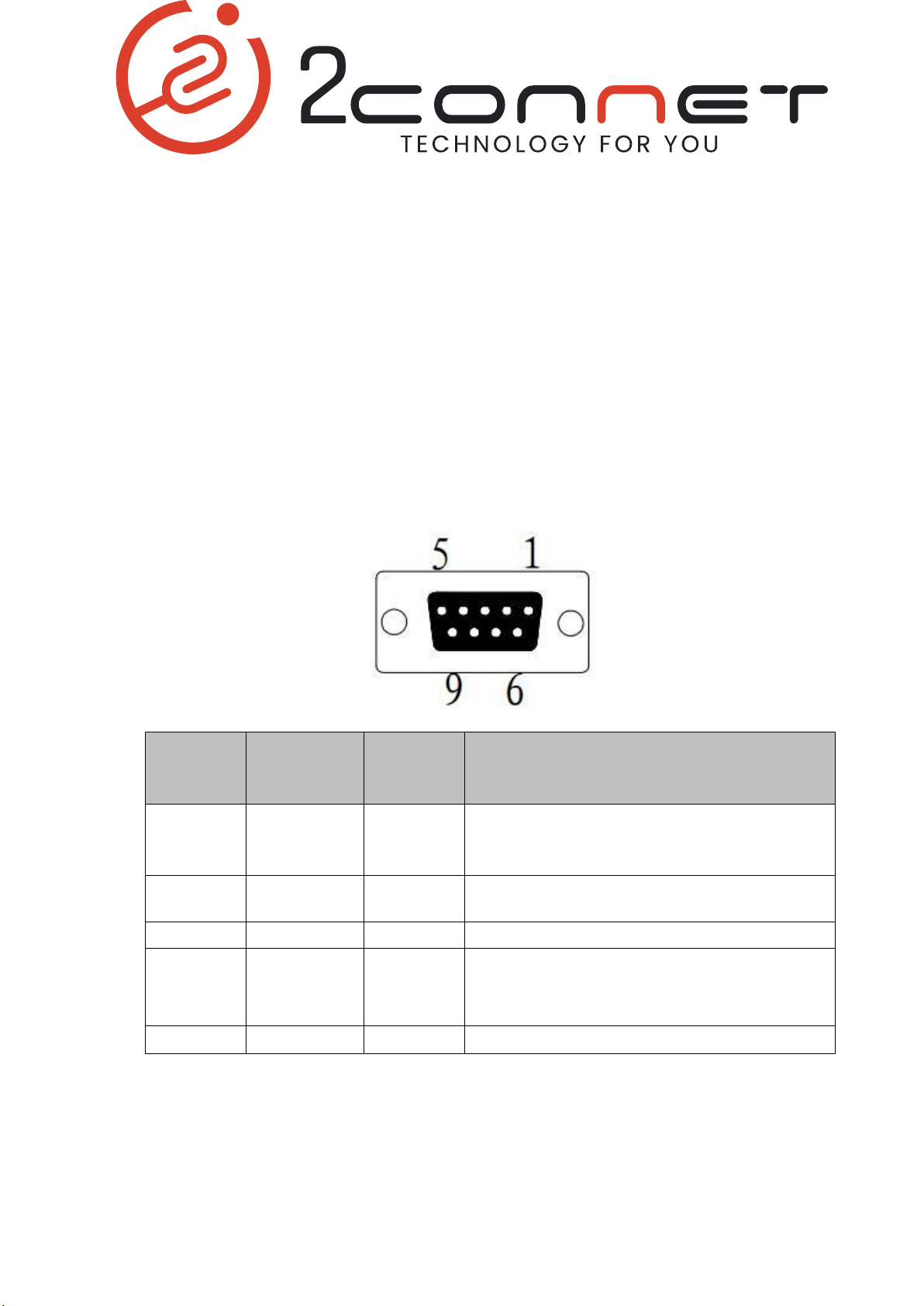
The serial interface of the printer is compatible with RS-232C, supports DTR/DSR
and XON/XOFF handshaking protocols, uses DB9 socket (female). The pin order of
the serial port is as Fig.2-2 shows:
Pin No. Signal
Name
Source
Description
2
TXD
Printer Printer transmits control code X-ON/X-OFF
and data to host
3 RXD Host Printer receives data from host
6 DSR Printer Same with CTS
8
CTS
Printer
Signal “MARK” means the host is busy and
can not receive data.Signal “SPACE”
means the printer is ready to receive data.
5 GND —— Signal Ground

9
Pin Function Notes
1 V Bus Power +5V
2 Data- Data-
3 Data+ Data+
4 GND Ground
2.3.2
Ethernet Interface
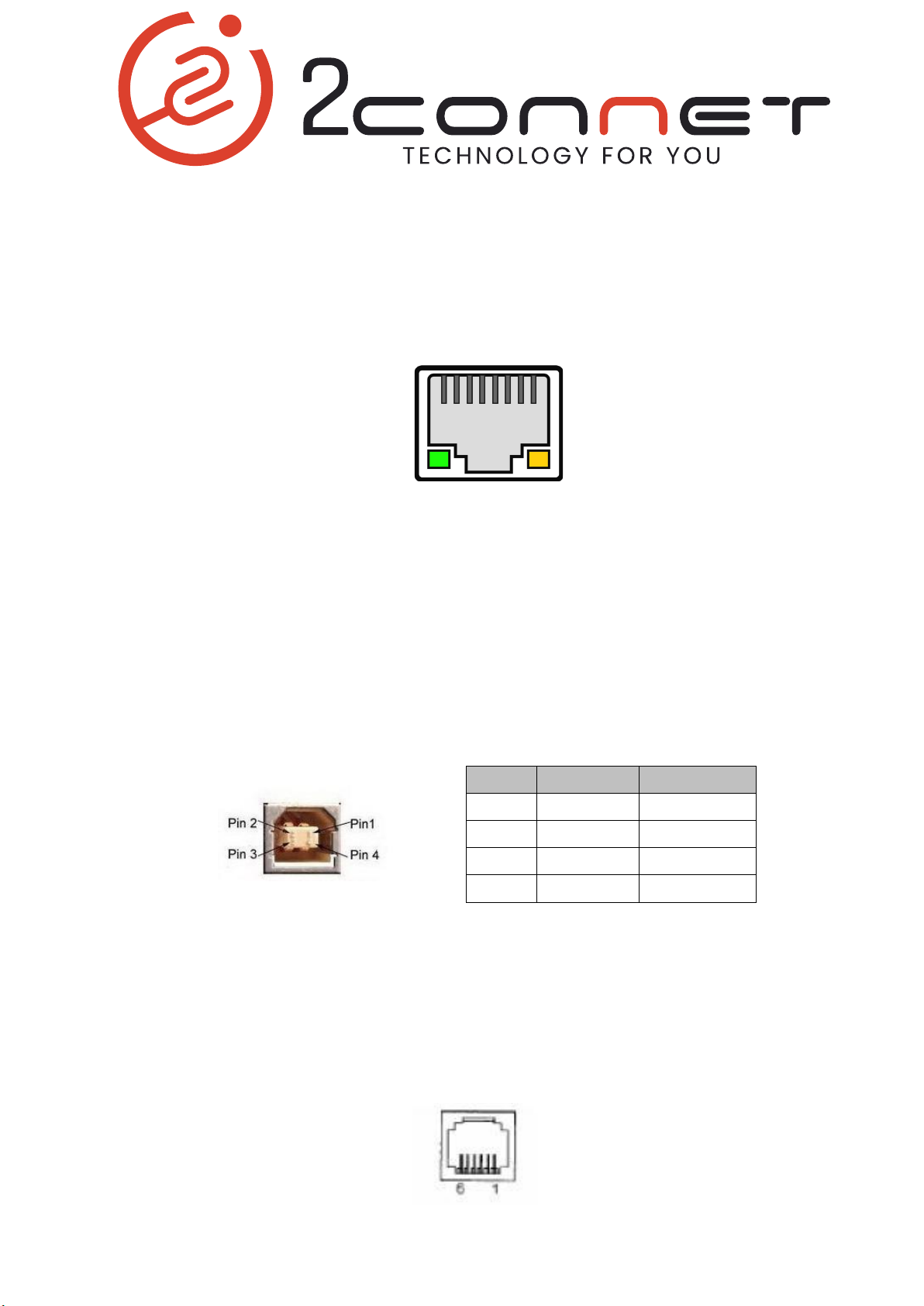
The model with Ethernet interface use RJ45 Network socket. The appearance is as
Fig.2-3 shows:
Fig2-3 Ethernet Interface
2.3.3
USB Interface
The standard accessories of the printer includes a Mini USB cable with D Type
connector which connects printer and main device. The USB type belongs to the
slave device type(DEVICE). Pins description of Mini-USB as Fig.2-3 below:
Fig.2-4 USB interface
2.3.4
Cash Drawer Interface
The cash drawer interface of the printer adopts RJ-11 6-pin socket, as Fig.2-5 shows:

10
Fig.2-5 Cash Drawer Interface
The pin assignment is as below:
Pin No. Signal Direction
1 Chassis Ground ——
2 Cash drawer driversignal 1 Out
3 Cash drawer on/offstatus signal In
4 +24VDC ——
5 Cash drawer driversignal 2 Out
6 Signal ground ——
2.3.5
Power Connection
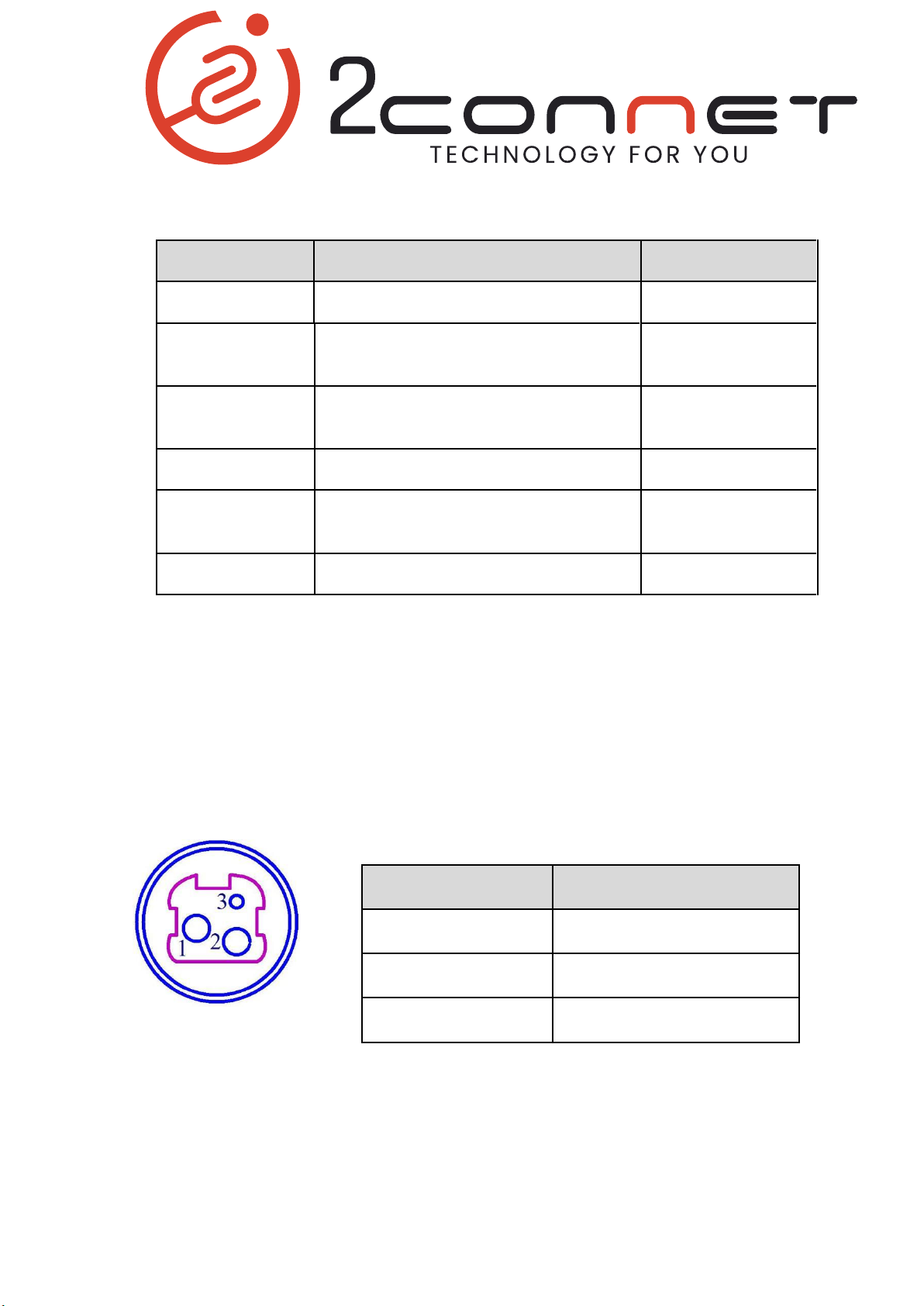
The printer uses the external power supply adopter as 24V±10%,1.5A,
power socket is A-1009-3P model, as Fig. 2-5 shows:
The pin assignment is as below:
Pin No. Signal
1 +24VDC
2 Ground
3 NC
Fig.2-6 Definition of power socket and pin
Table des matières
Autres manuels 2connet Imprimante