ZMARTFUN ZMF TAP N SET Manuel utilisateur

ZMF TAP N SET
CHESS CLOCK
ZMARTFUN ELECTRONICS, INC.
Manual version v1.1, 11-7-2019

2

CONTENTS
1. PRODUCT DESCRIPTION ........................................................................................4
2. PROGRAMMING WITH YOUR CELLPHONE .....................................................6
3. MENU OPTIONS .........................................................................................................8
3.1 Quick Time Change ............................................................................................... 8
3.2 Set Time in Hours and Minutes ............................................................................ 9
3.3 Set Time in Minutes and Seconds ......................................................................... 9
3.4 Set Delay ................................................................................................................. 9
3.5 Set Increment ....................................................................................................... 10
3.6 Set Tournament Modes ....................................................................................... 10
3.7 Set Scrabble Mode ............................................................................................... 11
3.8 Set FIDE Mode ..................................................................................................... 12
3.9 Set LED Indicators to On/Off ............................................................................. 12
3.10 Set Sound to On/Off ........................................................................................... 12
3.11 Exit Menu ........................................................................................................... 13
4. PENALTY TIME CHANGES ...................................................................................13
5. REPLACING BATTERIES .......................................................................................13
6. RETURNS ...................................................................................................................13
7. TECHNICAL SPECIFICATIONS ...........................................................................14
8. TROUBLESHOOTING .............................................................................................14
3

1. PRODUCT DESCRIPTION
These are the coolest chess clocks on the market. They can be programmed by
just tapping your cellphone against the clock. They can also be programmed
just like the ZMF-II or ZMF-Pro clocks. Programming with a cellphone only
works if the clock hasn’t started running yet. These clocks were designed and
engineered by avid chess players in the USA. The clocks can be used for nearly
every competitive two-player board game. Some of the main features of this
clock are:
x DESIGNED AND ASSEMBLED IN THE USA!
x Can be programmed by setting the time on an app on your phone and
then just tapping the phone against the clock when the clock hasn’t
started yet.
x Touch sensing buttons or push buttons depending on the model.
x Very easy to program menus.
x Delay, Increment, Hour-glass, and Scrabble programmable between 1
and 40 minutes (New Feature).
x Large LCD display.
x Programmable tournament modes with and without move counter. Three
time controls available.
x Double click option prevents clock from being reset when it is paused.
x Three different preset settings/modes can be kept in memory at all times.
x Highly accurate clock.
x Sound and LED indicators can be turned off.
x Clock can be used for nearly every competitive two-player board game.
x Low power consumption. Batteries should provide power for more than
400 hours of use under normal conditions.
x Very strong plastic enclosure to protect your clock
x Affordable price.
x 2 AA batteries not included.
x Patent pending.
4

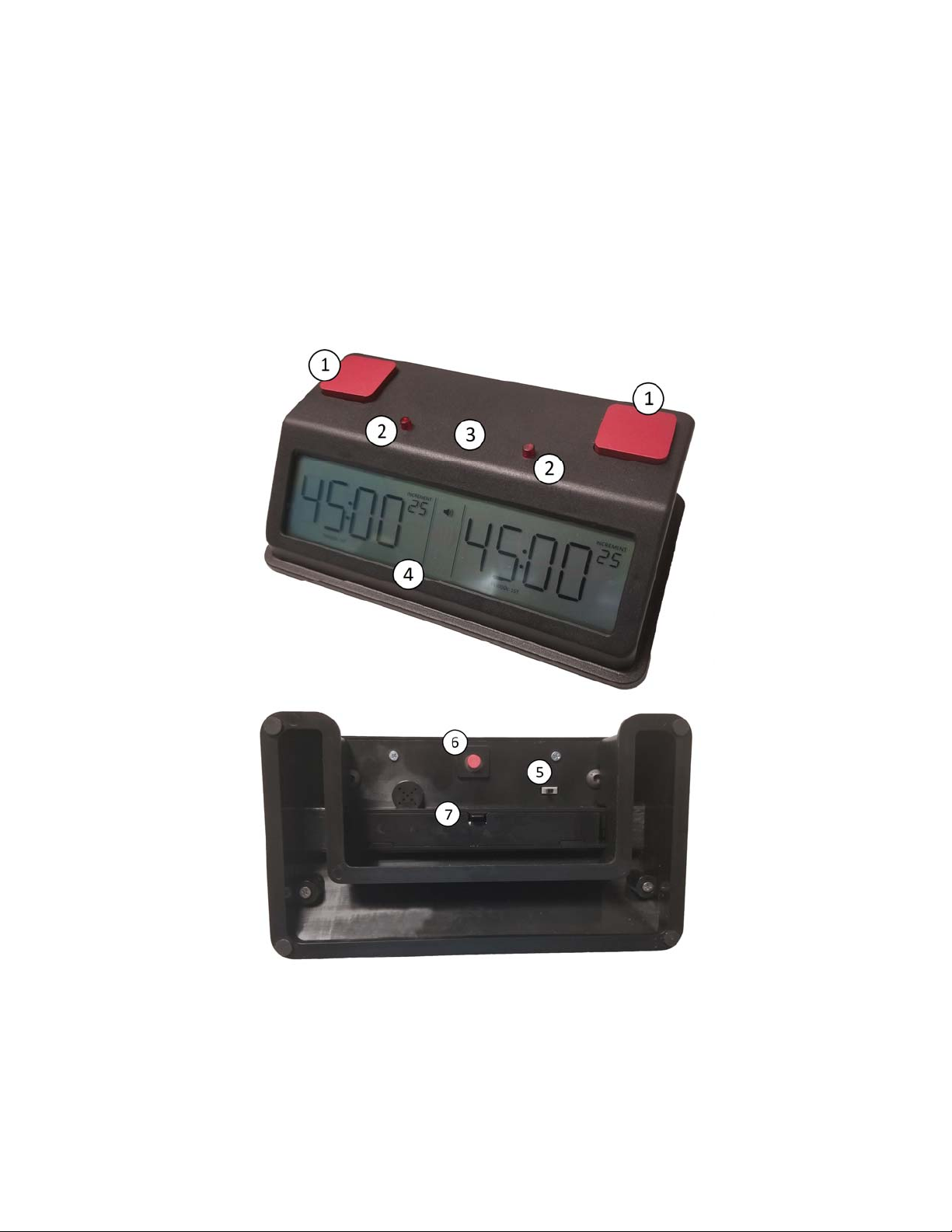
The main components of this clock are:
1) Touch sensing or push buttons depending on the model
2) LED player indicators
3) Cellphone should be tapped here to program the clock
4) LCD display
5) On/Off slide switch.
6) Menu, Set/Stop button
7) Battery compartment
5

2. PROGRAMMING WITH YOUR CELLPHONE
The ZMF Tap N Set can be programmed with an app available for Android®
and iOS®. The app can be downloaded for free from the Play Store or the App
Store, respectively.
6

Just enter the time settings that you want to use and tap the cellphone against
the clock between the two LED indicators at point “3” as shown in the image
below:
Note that the time setting must be a valid one for the clock to receive it. For
example, a time setting of 10 minutes for one player and zero minutes for the
other won’t be accepted by the clock.
When programming the ZMF Tap N Set with a cellphone, the phone will
vibrate and the clock’s LED indicators will momentarily blink to indicate that
the operation was successful. The location of the NFC antenna in a cellphone
can vary from one model to another. The best way to find out where the
antenna is located is to try tapping the cellphone against the clock using the
bottom, middle, or top part of the phone until it works.
7

3. MENU OPTIONS
To enter the menu options
1. Press the menu button to stop the game (assuming a game is in progress).
2. Double click the menu button to reset the timer to its preset setting/mode.
3. Press and hold for 5 seconds the menu button.
4. Use any of the player's touch buttons to navigate through the menu
options.
3.1 Quick Time Change
1. Press the menu button to stop the game.
2. Double click the menu button to reset the timer to its preset setting/mode.
3. Press and hold for 5 seconds the menu button to enter the menu options.
If a regular time setting was preset (ex: MM:SS MM:SS, or HH:MM
HH:MM) then a flashing time display will be seen (ex: flashing 05:00
05:00).
4. Press the menu button one more time to enter "Quick Time Change"
mode or press any of the player buttons to enter the menu options. If in
"Quick Time Change" mode, make changes using the player buttons and
the menu button until time is set.
Note: A quick touch of any of the players' buttons is required to increment or
decrement the time by one unit. If the finger/hand is left touching the button
the time will keep changing. This feature was intentionally included in the
clock design to facilitate setting up the time in the unit.
8

3.2 Set Time in Hours and Minutes
1. Press the menu button to enter this mode when a flashing "HH:MM
HH:MM" is displayed. Time can be set in hours and minutes (HH:MM).
2. Use any of the player buttons to change the time and accept the settings
using the menu button.
3.3 Set Time in Minutes and Seconds
1. Press the menu button to enter this mode when a flashing "MM:SS
MM:SS" is displayed. Time can be set in minutes and seconds (MM:SS).
2. Use any of the player buttons to change the time and accept the settings
using the menu button.
3.4 Set Delay
1. Press the menu button to enter this mode when a flashing "DEL F 00" is
displayed. A flashing "F" will be displayed ("F" is the default setting).
2. Use any of the players touch buttons to set the delay mode.
x F - Flashing: The display flashes back and forth between the delay
seconds and the actual clock time. This is the default setting from
factory.
x C - Countdown: Only shows the delay seconds counting down.
x t - Time only: Only shows the actual clock time.
3. Use any of the player buttons to set the number of seconds for the delay.
A maximum of 60 seconds can be programmed for this function.
4. Press the menu button to accept the settings.
5. Go to "PLAY - - - -" and press the menu button to start a new game.
9

3.5 Set Increment
1. Press the menu button to enter this mode when a flashing "INC - 00" is
displayed. A flashing "00" will be displayed.
2. Use any of the player buttons to set the number of seconds for the
increment. A maximum of 60 seconds can be programmed for this
function.
3. Press the menu button to accept the settings.
4. Go to "PLAY - - - -" and press the menu button to start a new game.
3.6 Set Tournament Modes
1. Press the menu button to enter this mode when a flashing "P-00 000" is
displayed.
2. Enter the number of moves that you want for the first time control.
Choose 2t or 3t for two or three time controls respectively with the move
counter off (New Feature). Press the menu button
3. Enter the number of minutes that you want for the first time control, and
then press the menu button. Skip to step 5 if the move counter is off
(options 2t or 3t).
4. If only two time controls are required press the menu button (ex: -ALL
000 with a flashing 000). If three time controls are required then use any
of the player's buttons to set the number of moves for the second time
control and press the menu button (ex: 2-20 000 with a flashing 000).
5. Enter the number of minutes that you want for the second time control
and then press the menu button.
6. If three time controls were selected from step 4 or option 3t was selected,
then enter the number of minutes for the third time control and press the
menu button.
7. Go to "PLAY - - - -" and press the menu button to start a new game.
10
Table des matières
Autres manuels ZMARTFUN Horloge
Manuels Horloge populaires d'autres marques
Silicon Laboratories
Silicon Laboratories SI5324 Manuel utilisateur

Heathkit
Heathkit GC-1005 Manuel utilisateur

Oregon Scientific
Oregon Scientific PRYSMA RMR221P Manuel utilisateur

Andrew O'Malley
Andrew O'Malley DOTKLOK Manuel utilisateur

ALGE-Timing
ALGE-Timing ASC3 Manuel utilisateur

Bodet
Bodet Profil 960 Manuel utilisateur