Zksoftware iFace 100 Series Manuel d'exploitation

iFace100SeriesProductUserManual
Version:1.1
Date: August2011
AboutThisManual
Thisdocumentintroducestheuserinterfaceandmenuoperationsofthe iFace100
series products. For the installation, see iFace100 Series Products Installation
Manual

Aboutthismanual
Allfeaturesaresubjecttotheactualproduct.Wecanneitherpromise thatthe
informationconsistentwiththeactualproductbecauseoftheconstantlyupdated
ofproduct,norassumeanydisputeresultingfromtheactualtechnicalparameters
doesnotmatchthisinformation,anychangewithoutpriornotice.
The★markedfeatureofthemanualthatnotallequipmentavailable.Please
subjecttotheactualproduct.
Captionsinthisdocumentmaydoesnotmatchthepictureoftheproduct,
Pleasesubjecttotheactualproduct.

iFace100SeriesProductUserManual
I
Content
1InstructionforUse........................................................................................1
1.1TheDistance,FacialExpressionandStandPose............................... 1
1.2EnrollmentPose ................................................................................... 2
1.3FingerPlacement.................................................................................. 3
1.4 AppearanceoftheiFace100productserials...................................... 4
1.5MainInterface ...................................................................................... 6
1.6VerificationModes ............................................................................... 7
1.6.1FingerprintVerification★...................................................... 7
1.6.2FaceVerification .................................................................... 9
1.6.3PasswordVerification.......................................................... 11
1.6.4IDCardVerification ★....................................................... 12
2MainMenu..................................................................................................15
3AddingaUser .............................................................................................17
3.1AssignuserID.................................................................................... 18
3.2Inputusername.................................................................................. 19
3.3 EnrollingaFingerprint★.................................................................. 20
3.4EnrollingaPassword ......................................................................... 21
3.5EnrollinganIDCard ★.................................................................... 22
3.6EnrollingaFace ................................................................................. 23
3.7ModifyUserRights............................................................................ 24
3.8EnrollPhotos★.................................................................................. 25
4.UserManagement ....................................................................................26
4.1.AddingaUser.................................................................................... 27
4.2DeleteaUser...................................................................................... 27
4.3EditaUser.......................................................................................... 28
4.4QueryaUser ...................................................................................... 29
5CommunicationrelatedSettings..............................................................30
6.SystemConfiguration...............................................................................32

content
II
6.1GeneralParameters ............................................................................ 33
6.2DisplayParameters............................................................................ 34
6.3FingerprintParameters★................................................................... 35
6.4FaceParameters ................................................................................. 37
6.5LogSettings ....................................................................................... 39
6.6KeyboardDefinitions......................................................................... 40
6.7 Update ............................................................................................... 42
7.DataManagement ....................................................................................43
7.1QueryaRecord .................................................................................. 44
8Date/TimeSetting ......................................................................................46
8.1SetDate/Time .................................................................................... 46
8.2BellSetting ★................................................................................... 47
9.AutoTest.....................................................................................................50
10USBDiskManagement...........................................................................52
11SystemInformation..................................................................................54
Appendix.........................................................................................................56
Appendix1 T9InputMethod................................................................... 56
Appendix2PhotoIDFunction★............................................................ 57
Appendix3StatementonHumanRightsandPrivacy ............................. 59
Appendix4EnvironmentFriendlyUseDescription................................ 61

iFace100SeriesProductUserManual
1
1InstructionforUse
1.1TheDistance,Facial Expression andStandPose
1)Therecommendeddistance:
Therecommendeddistancebetweenpersonand
device is 0.5m (applied to height range
1.5~1.85m).Accordingtotheobtainedfaceimage
from device to adjust, when the face image is
comparatively bright, please move backwards
appropriately; when the face image is
comparatively dark, please move forwards
appropriately.
Note:Duringtheenrollmentandverification,pleaseremainthenormal
facialexpressionandstandpose.
2)The recommended facial expression and several pooreffect facial
expressions:
3)Therecommdedstandposeandseveralpooreffectstandposes:

1InstructionforUse
2
1.2EnrollmentPose
Duringtheenrollment,displaythefaceinthecentreofscreenaspossible.According
tothedevice’svoiceprompts,dosomesmallscopeheadactionssuchasturnleft,
turnright,rise,bowandsoontoensurethatthedifferentpartsoffaceareinputted
into system to improve the verification accuration. The enrollment poses are as
follows:
Lookahead
(rise)
Focuson
thescreen
Focuson
thecamera
(bow)
Turnleft
slightly
Turnright
slightly

iFace100SeriesProductUserManual
3
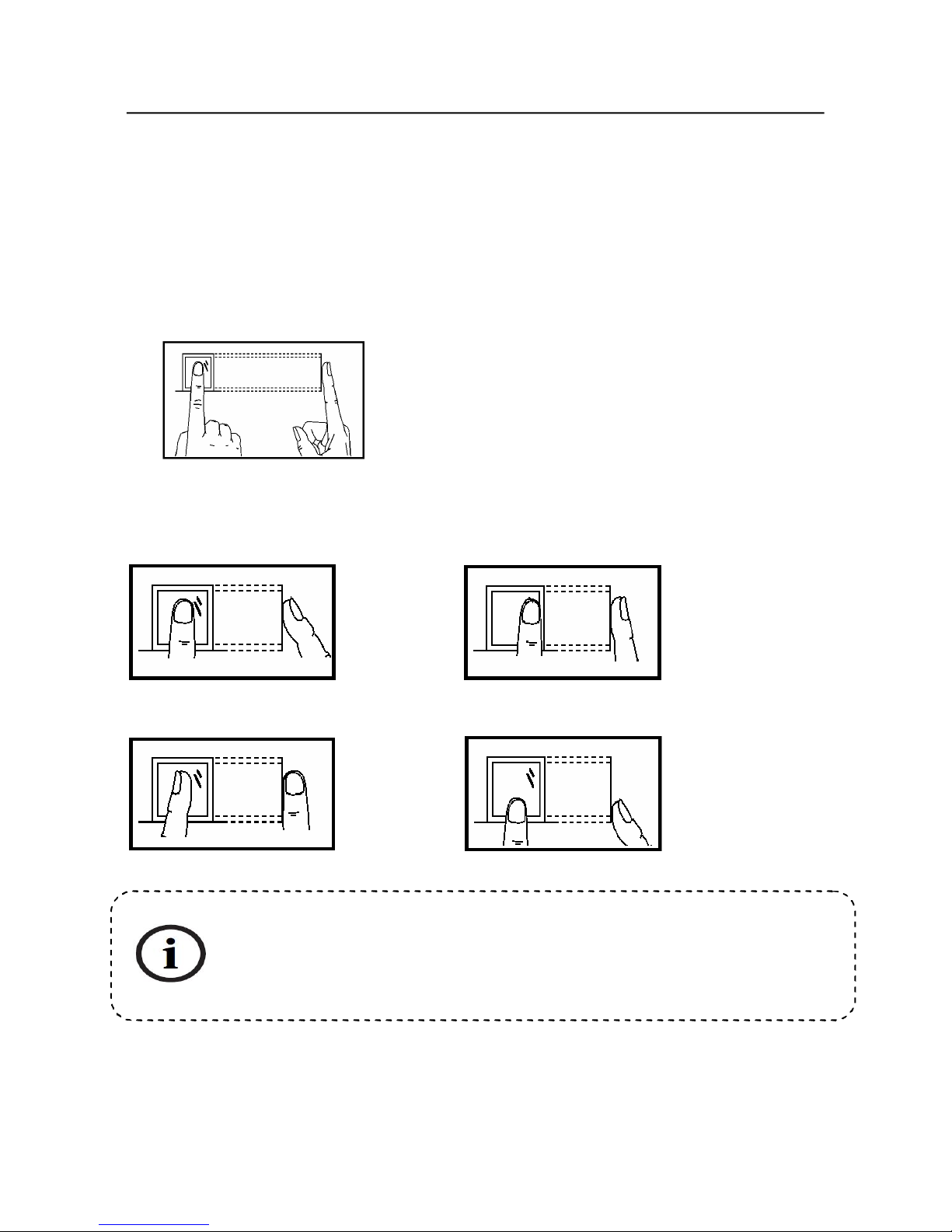
1.3FingerPlacement
Recommendedfingers:Theindexfinger,middlefingerortheringfinger;thethumb
and little finger are not recommended (because they are usually clumsy on the
fingerprintcollectionscreen).
1) Properfingerplacement:
2) Improperfingerplacement:
Slanting
Offcenter
Notflattothesurface Offcenter
Thefingerisflattothesurface
andcenteredinfingeredguide.
Pleaseenrollandverifyyourfingerprintbyusingtheproperfingerplacement
mode.Weshallnotbeheldaccountableforanyconsequencesarisingoutof
thedegradationinverificationperformanceduetoimproperuseroperations.
Weshallreservetherightoffinalinterpretationandrevisionofthisdocument.

1InstructionforUse
4
Indicator
Keypad
TFTscreen
Camera
Indicator
Keypad
Fingerprint
sensor
ID card swipe
area
TFTscreen
Camera
1.4 AppearanceoftheiFace100productserials
Thefeaturemaybedifferentfrom yourdevice.Please subjecttothe actual
product.

iFace100SeriesProductUserManual
5
Keypad:
key function
Numeric
key
1.0~9,usedtoinputemployeenumber,passwordandsoon.
2.usedtoentercharactersin T9Input.
ESC 1.Canceltheoperationandreturntothesuperiormenu.
2.closeT9input.
MENU menu,OK
Space back. Pressit when User ID, password, andsystem value
areinputincorrectlytodeletethewrongvalueandinputthevalue
again.。
OK OK
* 1.pageup&pagedownkeyinlistpage
2.shortcut.
# 1.pageup&pagedownkeyinlistpage
2.shortcut.
F1/▲ 1.upward.
2.shortcut.
F2/▼ 1.downward.
2.shortcut.
F3/ 1.modifycurrentitemvalue.
2.shortcut.
F4/ 1.modifycurrentitemvalue.
2.shortcut.
AB Facial/FingerprintSwitchKey;Saveandreturntothelastmenu.

1InstructionforUse
6
1.5MainInterface
① Date:Currentdateisdisplayed.
② Time:Currenttimeisdisplayed.Boththe12hourand24hourtimesystemsare
supported.
③ AttendanceStatus:Currentattendancestatusisdisplayed.
④ Facial/FingerprintImage:Ifafacialimageisdisplayed,theterminaliscurrently
in the facial recognition mode; if a fingerprint image is displayed, the terminal is
currently in the fingerprint recognition mode. You can change current recognition
mode of the terminal through ⑤ Facial/Fingerprint Switch Key and Keyboard
ShortcutKeys.
⑤ Facial/Fingerprint Switch Key: By pressing the “AB” key, you can switch
betweenthefacialandfingerprintrecognitionmodes.
Notice:Onlycertainmodelshavefingerprintattendancefunction.
① Date
② Time
③ AttendanceStatus
④ Facial/FingerprintImage
Table des matières
Manuels Système de sécurité populaires d'autres marques

EDM
EDM Solution 6+6 Wireless-AE Manuel utilisateur

Highway Safety Group
Highway Safety Group EA401 Manuel utilisateur

Siren
Siren LED GSM Manuel utilisateur

Detection Systems
Detection Systems 7090i Instructions de montage

Se-Kure Controls
Se-Kure Controls MicroMini SK-4841 Manuel utilisateur

Siemens
Siemens FDM273 Manuel utilisateur