
Yumpu MT08 Manuel utilisateur

User Manual of MT08
- 1 -
GPS Vehicle Tracker
User Manual (Model: MT08)
Please Read Carefully Before Operation

User Manual of MT08
- 2 -

User Manual of MT08
- 3 -
Contents
1. Product Overview------------------------------------------------------------------------------------------4
2. Applications------------------------------------------------------------------------------------------------4
3. Features and Functions------------------------------------------------------------------------------------4
4. Specifications-----------------------------------------------------------------------------------------------5
5. First Use-----------------------------------------------------------------------------------------------------5
5.1 Install SIM Card--------------------------------------------------------------------------------------5
5.2 Charging-----------------------------------------------------------------------------------------------6
5.3 LED indications---------------------------------------------------------------------------------------6
6. Connect the tracker MT08 to GPRS01 Web Server Platform----------------------------------------6
Optional 1: Configure by Computer to set GPS tracker online--------------------------------------6
Optional 2: SMS Commands to set GPS tracker online---------------------------------------------11
Settings on Topshine GPRS01 Platform---------------------------------------------------------------12
① Login Topshine GPRS01 Platform-----------------------------------------------------------12
② Vehicle Information Management------------------------------------------------------------12
③ Set up information for a new group----------------------------------------------------------12
④ Set up information for a new vehicle--------------------------------------------------------14
7. Installation-------------------------------------------------------------------------------------------------16
7.1 Install I/O Cable-------------------------------------------------------------------------------------16
7.2 Power/GND------------------------------------------------------------------------------------------16
7.3 Digital Input-----------------------------------------------------------------------------------------17
7.4 Output 1----------------------------------------------------------------------------------------------17
7.5 Install GPS/GSM Antenna-------------------------------------------------------------------------18
8. How to operate it-----------------------------------------------------------------------------------------18
8.1 Arm/Disarm by phone calling---------------------------------------------------------------------18
8.2 Arm/Disarm the system via SMS-----------------------------------------------------------------18
8.3 Get Google Map’s Link via SMS-----------------------------------------------------------------19
8.4 Authorize the alarm-received mobile-------------------------------------------------------------19
8.5 Change user password------------------------------------------------------------------------------19
8.6 Check the real physical address-------------------------------------------------------------------19
8.7 Check the GPS coordinates by SMS--------------------------------------------------------------20
8.8 Stop the car via SMS--------------------------------------------------------------------------------20
8.9 Restore the stopped car to normal status---------------------------------------------------------20
9. MT08 Packing and Accessories------------------------------------------------------------------------20
10. MT08 Optional Accessories----------------------------------------------------------------------------20
11. Troubleshooting-------------------------------------------------------------------------------------------21
Appendix 1: Configure by Computer-----------------------------------------------------------------------22
Appendix 2: Command List----------------------------------------------------------------------------------23
Appendix 3: Fuel Sensor Installation and Function------------------------------------------------------29

User Manual of MT08
- 4 -
1. Product Overview
MT08 is a kind of mini GPS vehicle tracking product can be used for tracking and security of
motorcycle and automobile etc. Mini size, built-in antenna and waterproof designed, easy to be
installed and concealed, with power voltage range from 6V~24V, therefore can satisfy tracking
and security demands for all kinds of vehicles.
2. Applications
Vehicle Real Time Tracking
Motorcycle/car Security/Anti-Hijack
Fleet Management
3. Features & Functions
* Tracking by SMS/GPRS (TCP/UDP)
* Tracking by time/distance interval
* Compact size with waterproof design
* Real time tracking via the web-platform
* Get position location via call/SMS
* Arm/Disarm by SMS or phone call
* Engine on/off detection (optional)
* Fuel monitoring (optional)
* Built-in backup 350 mAh battery
* Remote Engine cut off to stop the car in safe condition (optional)
* Get location physical name via SMS & from the web-platform
* Google Map link for location via SMS, it shows your location on map via mobile phone.
* Mileage calculation with longitude and latitude via SMS; view mileage data via GPS
web-based tracking centre system
* Built-in motion sensor for power & GPRS flow saving mode (sleep mode)
* I/O: 2 Inputs, 1 Output
* Over speed alert
* Geo-fence alert
* Movement alert
* Doors detection (optional)
* Power failure/low power alert
* SOS Panic button, SOS alert (optional)
* Accident alarm (need crash sensor support) (optional)
* Wiretapping/remote listening (optional)

User Manual of MT08
- 5 -
4. Specifications
Items Specifications
Dimension 60*50*22mm
Weight 65g
Input voltage DC 9V~24V/1.5A
Back-up Battery 350mAh/3.7V
Power Consumption 65mA standby current
Operating Temperature -20°C~75°C
Humidity 5%~95%
Work Time 18 hours in power-saving mode and 4 hours in normal mode
LED 2 LED lights to show GPS, GSM status
Button 1 SOS(optional) and 1 power on/off
Microphone Optional
Sensor Motion sensor
GSM Frequency GSM 850/900/1800/1900MHz
GPS Chip Latest GPS SIRF-Star III Chipset
GPS Sensitivity -159dB
Positioning Accuracy 10meters, 2D RMS
I/O 2 Inputs 1 Output
5. First Use
5.1 Install SIM Card
Check that the SIM has not run out of credit
(test the SIM in a phone to make sure it can
send and receive SMS);
Before installing the SIM card, turn off
the power for MT08,
then install the SIM card as following:

User Manual of MT08
- 6 -
5.2 Charging
Connect the device with external power like car battery, and turn on its power switch and it will do
charging automatically.
5.3 LED indications
Push the power switch to turn on/off MT08
GPS LED (Red)
Flashing (every 0.1 second) Initializing or back-up battery power is low
Flashing (0.1 second on and 2.9 seconds off) Device has A GPS fix
Flashing (1 second on and 2 seconds off) Device has no GPS fix
GSM LED (Green)
Flashing (every 0.1 second) Initializing
Flashing (0.1 second on and 2.9 seconds off) Device is connected to the GSM network
Flashing (1 second on and 2 seconds off) Device is not connected to the GSM network
6. Connect the tracker MT08 to GPRS01 Web Server Platform
Two Methods to set GPS tracker online:
Configure by Computer or SMS Commands
Optional 1: Configure by Computer to set GPS tracker online
This part shows the basics of how to use the GPS tracker Parameter Editor.
Note: Don’t connect MT08 to external battery when configuring.
How to Edit the Parameters of Tracker on PC
① (Buy one specific USB cable for configuration from our Company)
User Manual of MT08
- 7 -
② Install USB driver program for the configuration USB cable
1. Run ‘CP210x_Prolific_DriverInstaller’ to install the driver for the USB data cable.
Note: CP210x_Prolific_DriverInstaller is in the folder ‘USB-232 Driver’ in the CD. Connect the
USB Data Cable between MT08 and PC.
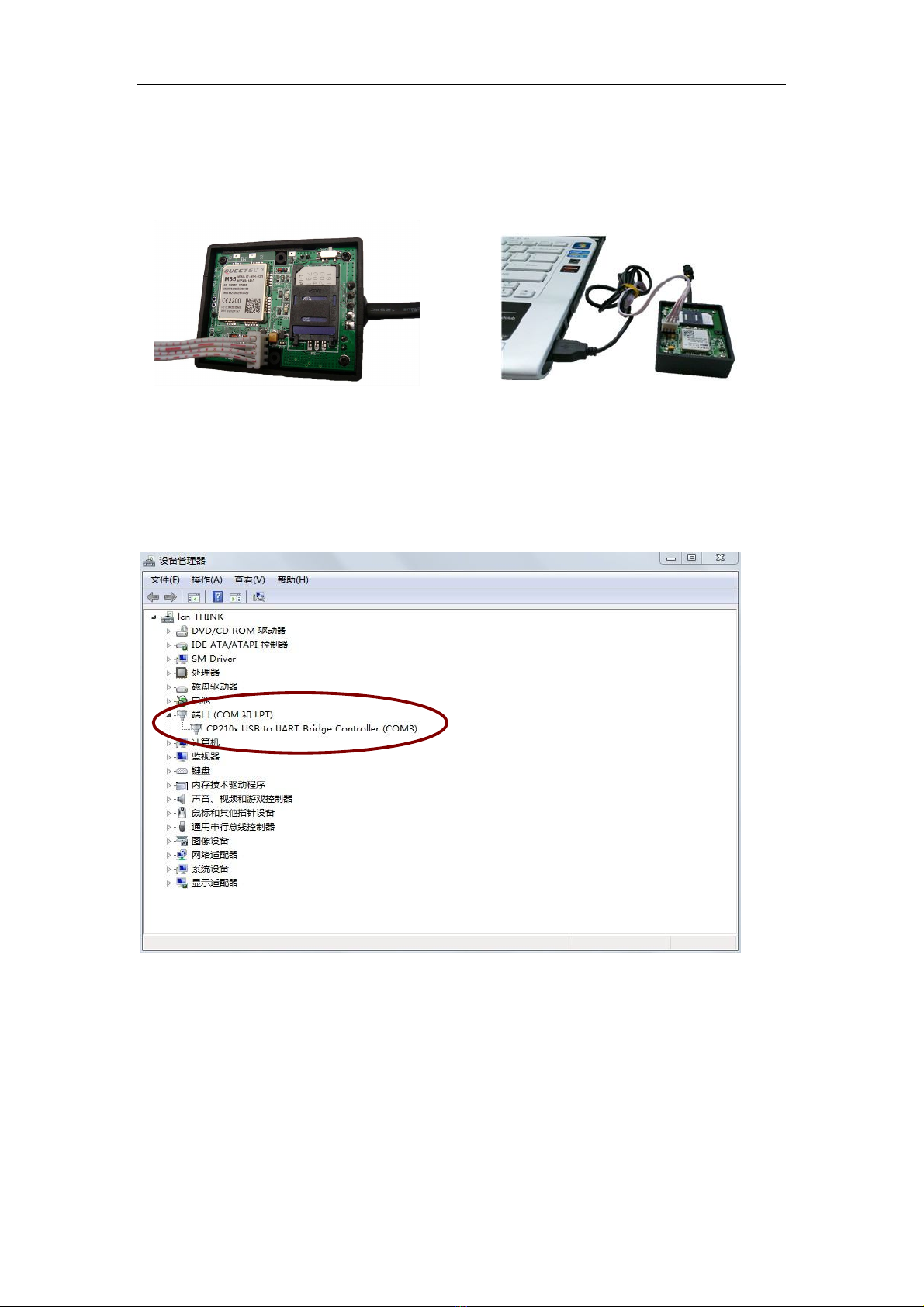
2. Connect the configuration cable with PC, open device management of your computer,
you can find “Prolific USB-to-Serial Comm. Port “ ,as following picture shows.
The USB port is virtual comm. Port (com3) in this example,
3. Open the GPS Tracker Parameter Editor
① Connect MT08 with PC by the configuration cable
② Confirm MT08is in the Power Off states
③ Double click GPS Tracker Parameter Editor.exe and Select the COM Port, following picture
shows:

User Manual of MT08
- 8 -
4. Click Start button to open the COM port,
5. Turn on MT08 and it will connect with the Editor automatic, As soon as they connect successful,
all the buttons are availability and the status bar will clue on’ Tracker Connect!’ , first click
“Read” to read the tracker’s parameter, when all the parameter read out, you can write the
parameter you need.
Note: “Read” button: when you click the Read button, it means Read the parameters of the tracker.
“Write” button: when you write the parameters to the Parameter Editor, then click the Write
button, the parameters will write into the tracker.

User Manual of MT08
- 9 -
Instruction of parameter settings:
Item Description
GPRS Tick to enable GPRS function, select TCP or UDP mode
Tracker ID MT08 is default using its own ID number, cannot be changed
APN, APN Account,
APN Password
Put your local APN, APN username and password if necessary
IP, Port Put online tracking server IP and port, our default is
IP:www.global-track.net port: 9500
Interval Time interval, to put time interval to upload a data
Note: GPRS, Tracker ID, IP, Port is the default. You must change the APN;
APN: Access Point Name, if you don't know, please ask SIM operator or search APN in
Google.

User Manual of MT08
- 10 -
Item Description
SMS Call
SOS Button/IN1
To set Mobile phone No. for SMS or Calling when SOS
button/Input 1 is triggered (alarm), it will call/SMS to this phone
SMS Call
Button B/IN2
To set Mobile phone No. for SMS or Calling when Button
B/Input 2 is triggered (alarm), it will call/SMS to this phone
SMS Call
Button C/IN3
To set Mobile phone No. for SMS or Calling when Button
C/Input 3 is triggered (alarm), it will call/SMS to this phone
After write finished, click “Write” button to configure the MT08’s Parameters. It will pop-up a
mini window, as below pictures:
Table des matières


