
Yenkee YKB 3000CZ ZERO Manuel utilisateur
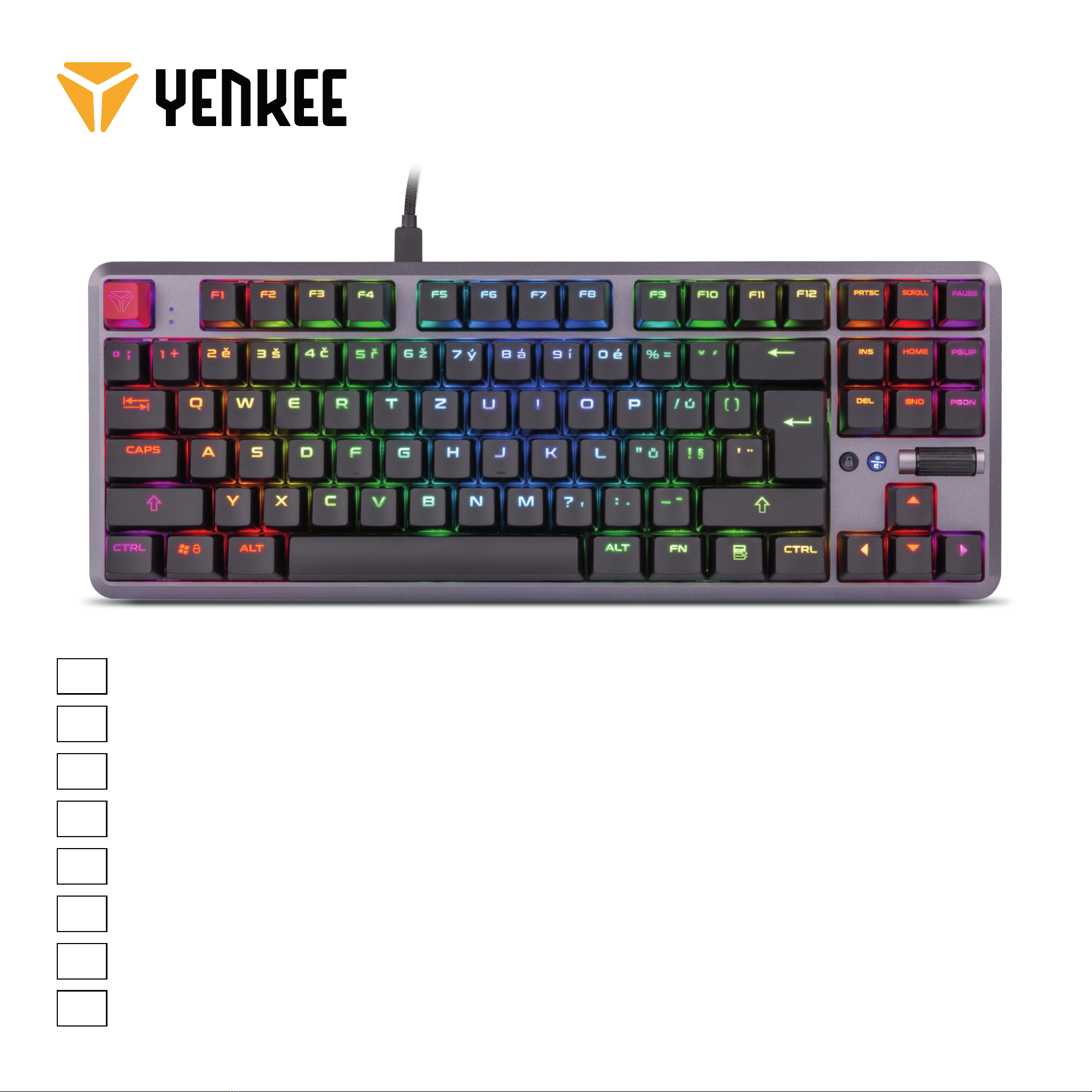
EN TKL Mechanical Gaming Keyboard USER´S MANUAL
CZ Mechanická herní klávesnice TKL NÁVOD K OBSLUZE
SK Mechanická herná klávesnica TKL NÁVOD NA OBSLUHU
PL Mechaniczna klawiatura dla graczy TKL INSTRUKCJA OBSŁUGI
HU TKL mechanikus gamer billantyűzet HASZNÁLATI ÚTMUTATÓ
RS TKL mehanička igračka tastatura UPUTSTVO ZA UPOTREBU
HR TKL mehanička tipkovnica za igrače KORISNIČKI PRIRUČNIK
ΕΛ Μηχανικό TKL πληκτρολόγιο Gaming ΕΓΧΕΙΡΙΔΙΟ ΧΡΗΣΤΗ
YKB 3000CZ ZERO
USER´S MANUAL
EN
To use all functions, download the control program from the official website www.yenkee.com.
You can find it under the product of the same name in the Specifications section.
As the Yenkee Zero keyboard is a Plug and Play device, it does not require any additional programs to operate.
Connect the cable’s USB-C end to the keyboard, then connect the other USB-A end to a free USB port on your
PC and wait for the drivers to install automatically. A relevant system message will appear once the installation
is finished. Now you are free to use your keyboard.
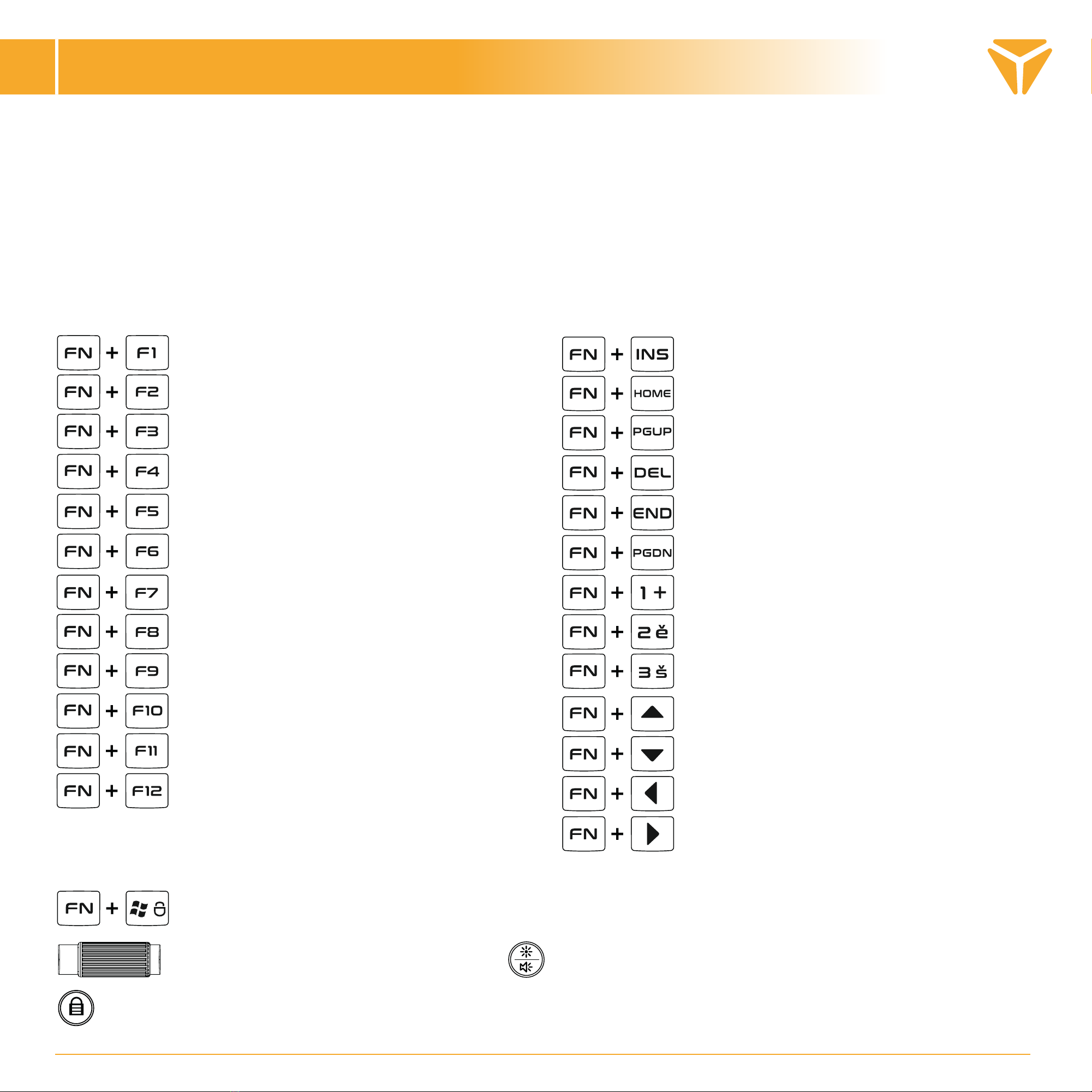
Multimedia player
Volume -
Volume +
Mute
Stop
Previous
Play/Pause
Next
E-mail
Homepage
Calculator
Search
Static colour, reactive, stars
Colour wave, colour waterfall, colour
carousel
Matrix, Matrix 2, RGB
Reactive explosion, reactive shot,
reactive wave
Breathing, neon, colour wave (to sides)
Heartbeat, lines, ripples
FPS layout/Racing
MMO layout
Office layout
Brightness +
Brightness -
Effect direction
Backlight colour change
Locking the Windows key and other shortcuts selected in the gaming program
Locking the Windows key and other shortcuts selected in the gaming program
Function keys Backlight
Next
Volume/backlight brightness (toggle located on the left of the wheel)
Working with the program
EN
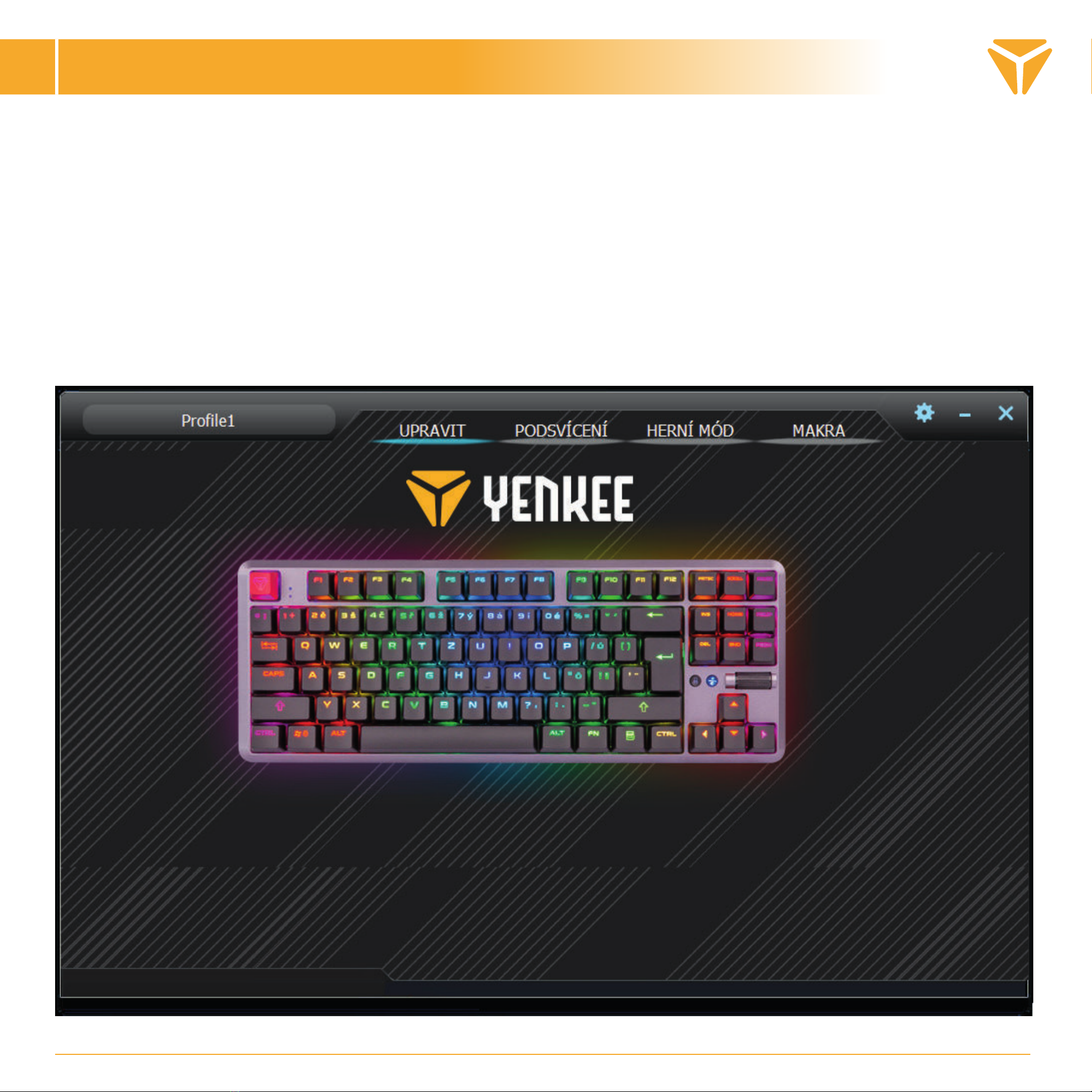
Customize
The first section called Customization offers reprogramming the keyboard buttons to your own taste. Just click any
button on the keyboard layout and select one of the offered functions to simplify the keyboard use as required.
You can assign standard functions to the buttons if the preset function, other button functions as well as the
mouse function are not used. There is also the option to assign macro, function combo, shortcuts to run programs
and websites or select from favourite multimedia functions. In addition to other functions to simplify working
with PC, there is also the option to disable the button completely. Just left-click the function and the keyboard will
update automatically.

Working with the program
EN
Backlight
The user environment’s other section allows you to set the colour and effect for your keyboard to shine on your
desktop, complementing your gaming gear. There are twenty different effects for you to choose from and you
can set both backlight and colour as well as the effect speed and direction the effect will go in on the keyboard
for each of them. To adjust the brightness and speed, use the scrollbars at the section bottom. The direction is
set by bold arrows at the top right. To select the colour, just click the window called Colour 1. You can also set the
effects to light in all rainbow colours with the Full colour button.
On the left of the option to completely turn the backlight off, you will find a menu to select all effects offered by
the program. Just left-click to open the drop-down menu, then click again to select the effect and the keyboard
will preset automatically.
Working with the program
EN
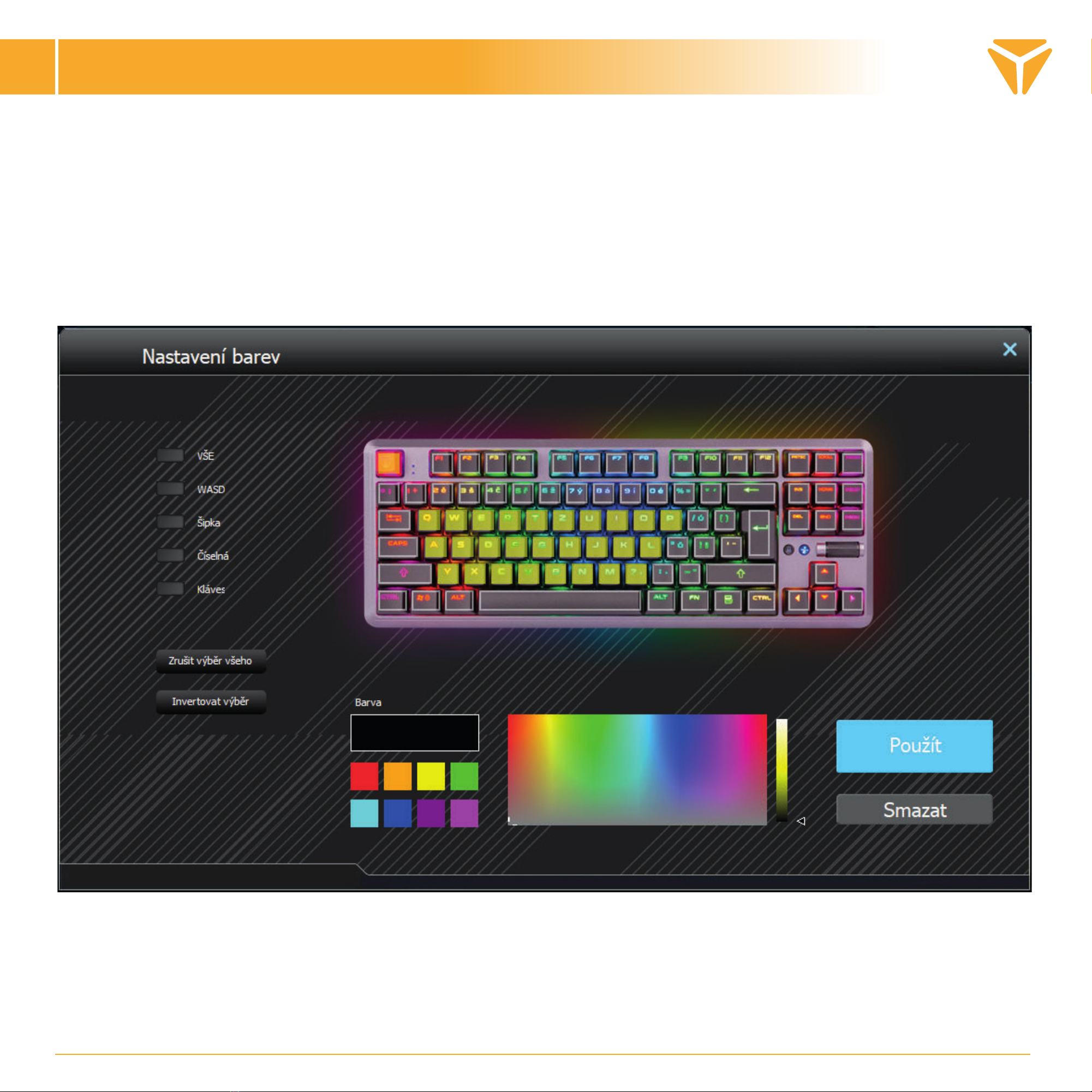
The effects also include a mode for individual backlight definition called Custom. Having selected the Custom
mode, click the effect colour selection area and the window with backlight layout editor appears. On the left
side, you will find utilities to facilitate the selection of the keys being used with the options to unmark everything
and reverse the marking of selected buttons below. Just click the required buttons on the keyboard layout, then
select the colour in the colour spectrum below. Press the big Apply button to save the changes.
Working with the program
EN
Gaming mode
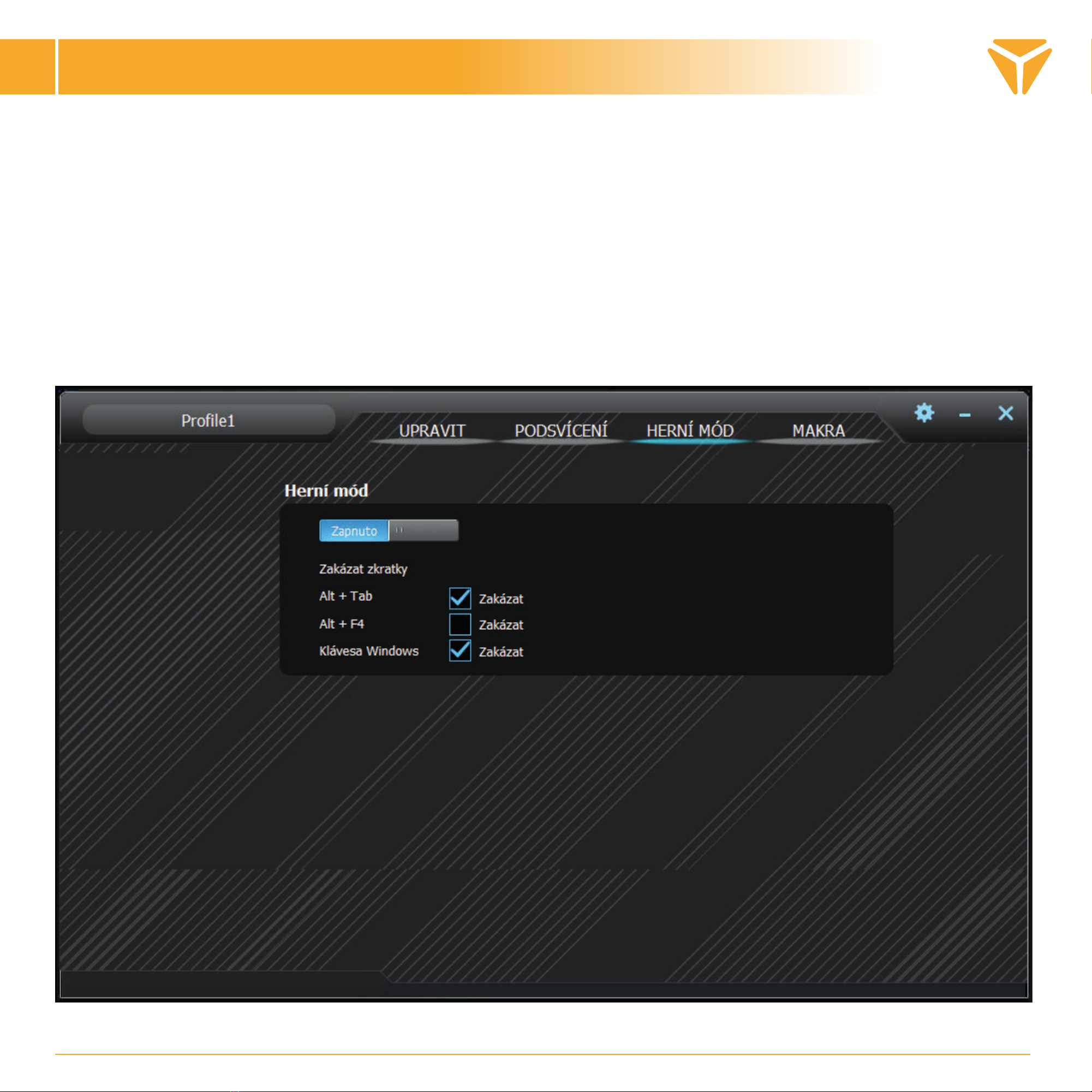
In the program’s third section, you can set the keyboard shortcut activity while the gaming mode is enabled (FN
+ Win). The gaming mode strongly supports undisturbed playing by disabling the shortcuts a player might click
involuntarily. Just select the checkboxes to choose which shortcuts are to be disabled and the keyboard will
remember the changes automatically.
Working with the program
EN
Macro
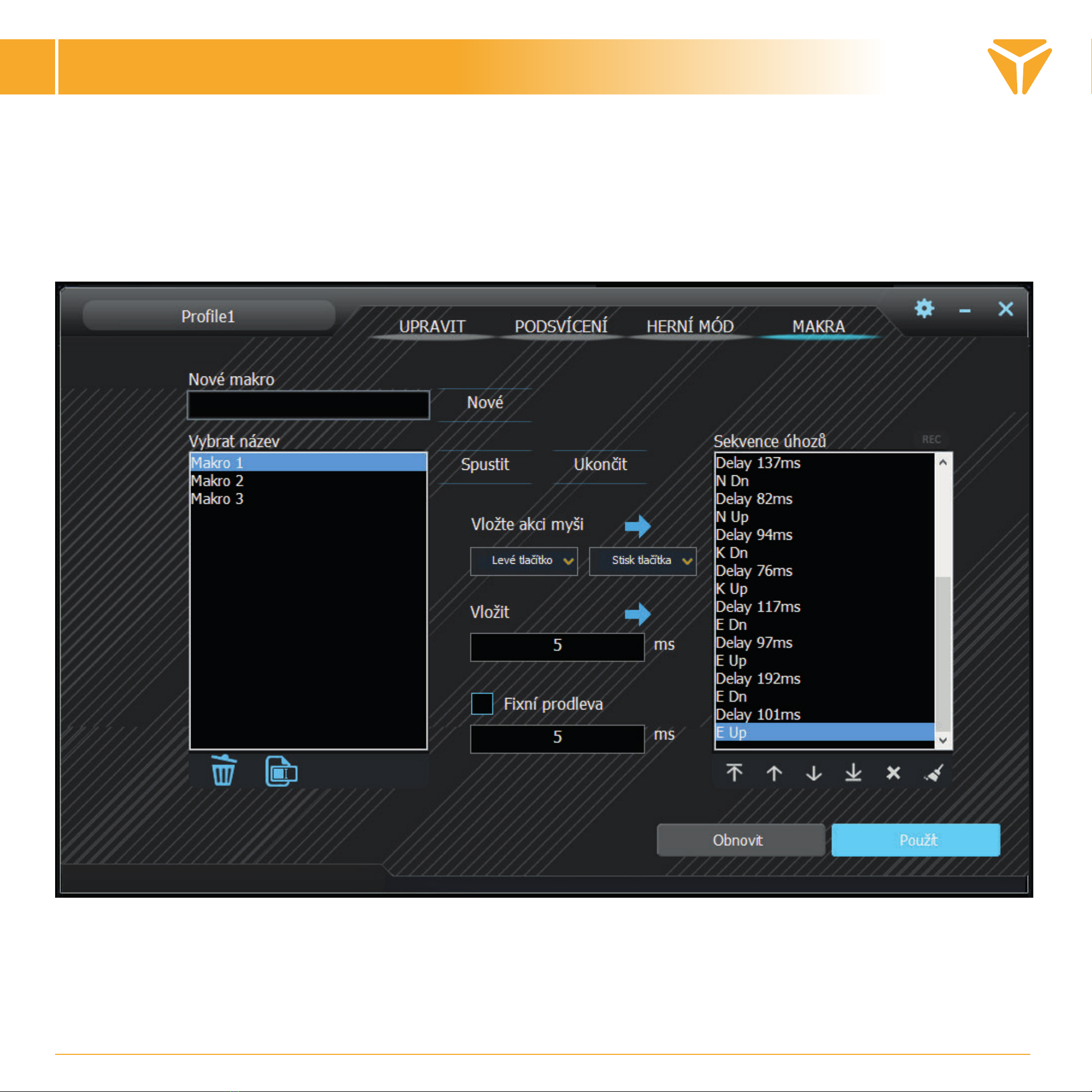
The macro editor is a great tool not only on the gaming stage - it can also substantially simplify repeated actions
in the work setting. You can run the entire character sequence with the option to set their time delay just by
pressing a single button.
1. Type any macro name in the New macro box, then press New to create one.
2. The macro will then appear in the Macro list field. You can also rename or delete a macro using relevant
buttons under the table.
Working with the program
EN
3. To start recording a macro, click Record start. Before recording, you can set a macro to a fixed delay by
selecting the Fixed delay checkbox and typing the required value. You can view all keystrokes including their
delays in the Keystroke list field.
4. To stop the recording, click Record stop.
5. If error occurs in a macro, you can fix it together with the delay by clicking the relevant keystroke in the
Keystroke list, then clicking the cross under the window, or move both items to any position using the arrows
under the list.
6. Editing a macro also includes adding both keyboard and mouse buttons including any delay. To insert more
keystrokes, just click the list where the characters are to be added, then run the macro recording again. To add
mouse buttons, use the central buttons. Again, select the location where the buttons are to be added, then
select any mouse button as well as the keystroke or release in the menu.
7. To finally save the finished macro, press Save. If the macro content is wrong, you can delete the macro by
pressing the last (6th) Delete All button under the keystroke list and record the macro again.
To clear the whole macro editor, press Restore to the left of Save.
Working with the program
EN
Profile selection
Thanks to the profiles, you needn’t change the keyboard setting for every reason, just save each setting in a
separate profile and switch them conveniently as needed.
To select one of the profile presets, click the arrow. Click the profile name to show the option to type a custom
name, e.g. by designation. Then click New to create a new profile. The second button named Delete is designed
to erase profiles from the menu. Press OK to enable a selected profile.
Specification:
| Switch type: mechanical OUTEMU Red | Switch style: Linear | Switch actuation force: 40 ± 15 gf | Switch overall
travel: ~4 mm | Switch actuation: ~2.1 mm | Switch mechanical Life: 50,000,000 cycles | Anti Ghosting: N-Key
Rollover | Backlight colour: Full RGB 16.8M colors | Rated input: 5V DC / 300 mA (USB C) | USB Pass-through:
5V DC / 500 mA (sync & charge USB A) | Dimensiones: 362 x 134 x 35 mm | Cable length: 1.8 m (removable
Type C - included) | Keyboard weight: 830 g
System requirements:
| USB port | Windows 7/8/10
Instructions and information regarding the disposal of used packaging materials
EN
Dispose of packaging material at a public waste disposal site.
Disposal of used electrical and electronic appliances
The meaning of the symbol on the product, its accessory or packaging indicates that this product shall
not be treated as household waste. Please, dispose of this product at your applicable collection point
for the recycling of electrical & electronic equipment waste. Alternatively in some states of the Europe-
an Union or other European states you may return your products to your local retailer when buying an
equivalent new product.
The correct disposal of this product will help save valuable natural resources and help in preventing the
potential negative im pact on the environment and human health, which could be caused as a result of
improper liquidation of waste. Please ask your local authorities or the nearest waste collection centre
for further details. The improper disposal of this type of waste may fall subject to national regulations
for fines.
For business entities in the European Union
If you wish to dispose of an electrical or electronic device, request the necessary information from your
seller or supplier.
Disposal in other countries outside the European Union
If you wish to dispose of this product, request the necessary information about the correct disposal
method from local government departments or from your seller.
This appliance complies with EU rules and regulations regarding electromagnetic and electrical safety.
Changes to the text, design and technical specifi cations may occur without prior notice and we reserve the
right to make these changes.
Table des matières
Langues :
Autres manuels Yenkee Clavier


