Xiangde Electronic Technologies PI070H04AA Manuel utilisateur

MID-Tablet PC
Model:PI070H04AA
Users Manual
This manual is specially formulated for the users first using
this MID with the purpose of providing the information
about basic operations and important functions.

1
Appearance Description
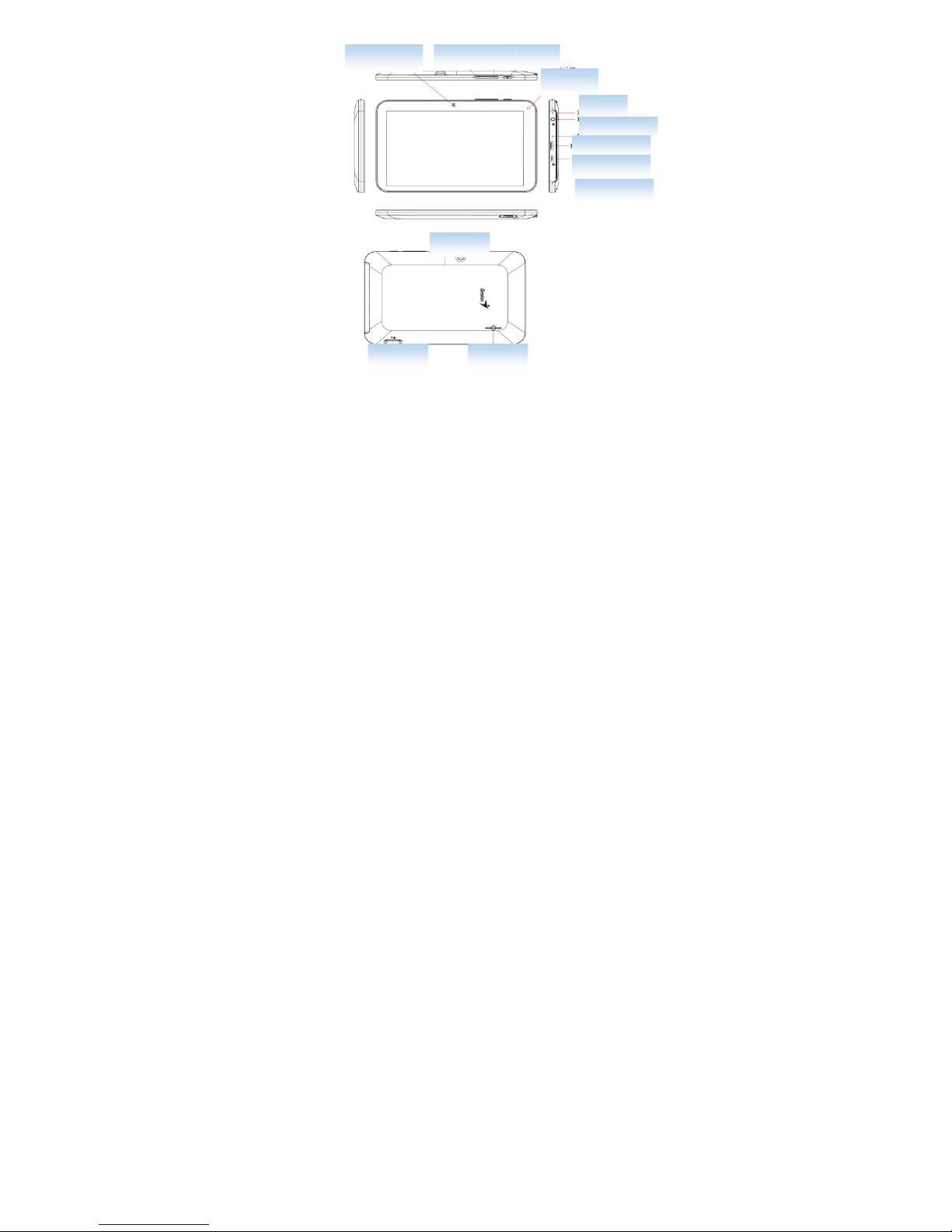
Function Description of Keys and Interfaces
Front-facing Camera Vo l u m e + Vo l u m e - Power Ke
y
Indicating Light
Micro
p
hone
Ear
p
hone A
p
erture
Reset A
p
erture
HDMI Interface
Char
g
e/USB Interface
Rear Camera
TF Card Slot Louds
p
eaker

2
Volume+/Volume-: Short press the button to turn up/down the volume.
Power Key:Long press it for 5 seconds to startup/shutdown; short press to lock
the screen, and wake it up by short press again.
Charge/USB interface: Used for connecting the computer, data transmission
devices and external devices, such as mouse, USB flash disks, and
OTG wires. At the same time, this interface is also the charger
interface.
TF Card Slot: Externally connect the TF card.
Basic Operations
Startup/Shutdown
In status of power-off, after long press the power key for 5 seconds, it will enter
into the main screen after displaying the startup picture.
In status of power-on, after long press the power key for 5 seconds, it will pop
up the dialogue box, and select “OK” key to shutdown, and the “Cancel” key to
keep the power-on state.
PC Connection
In status of power-on, after connecting with the computer using USB, select the
connection method of “Media Transfer Protocol (MTP)” to achieve the
removable disk function, which can upload and download data such as
documents, etc.
Notes: MTP is a part of Windows Media framework, therefore it closely connect
with Windows Media Play. Supporting technology has been embedded in
Windows Vista, Windows 7 and the above versions, while Windows Media Play
10 or the above version need to be installed in Windows XP if need to support
MTP. There are MTP-support software packages in Mac and Linux.
Charging
Please timely charge the MID when prompting the low-battery on the screen.
Please use the charger provided by the manufacturer to charge. Charging can be

3
conducted in status of power-off, and the whole charging process needs about
3.5 hours. (When in full battery, the charging indicator will light off.)
Reset Function
If the MID crashes or shows other abnormal problems in the process of using
because of improper operation, please use the pen nib or something like to click
the reset key in the reset aperture to reset the MID.
Restore Factory Data Reset
Settings----Factory Data Rest----Reset the MID----Erase All Data on MID
Main Screen Introduction
Long pressing the power key for 5 seconds, MID will enter the unlocking
interface after displaying the startup picture.
Screen Lock: Drag the screen lock icon to the unlocking direction to unlock the
screen. Then, enter into the main screen, which displays as follows: (Note:
There’s not only one method to unlock the screen lock, and it can be selected
through the operations: Settings----Safety----Screen Lock).

4
Detailed Operating Instructions of Main Screen:
Screens Switchover: There are several main screens installed in this MID, and
the user can drag the screen right and left to view all the screens.
Create Shortcuts: By long pressing the applications and the widget icons for 3
seconds, the icons will be enlarged, then drag this icon to the main interface to
create the shortcut.
Delete Shortcuts: Long press the icon needs to be deleted on the main screen
for 3 seconds, and then drag the icon to the X icon appears on the screen (see the
picture below), thus the shortcut can be deleted.

5
Various touching functions are as follows:
Return: Touch this icon can go back to the catalog one level up.
Main Screen: Touch this icon can go back to the main screen.
Multi-tasks List: Displays the application thumbnails latest operated, and
the user can close a certain application to release the memory. Dragging the
application thumbnails on the screen right or left can remove it from the
multi-tasks list.
Menu: In any interfaces, clicks the Menu icon, it will pop up the submenu,
which contains many settings and other operating functions.
Status Bar: Display the time, the strength or weakness of the
network signal and the battery power.

6
Click the icon in the top right corner of the main interface to enter into the
application programs interface, see the picture below:
The application program interface displays all applications and widgets in this
MID, and you can enter into the related application interface by touching any of
the application icons.
Widgets: Many widgets are installed in this MID, such as the calendar and Email,
etc..

7
Important Settings:
WIFI network settings are as follows:
Step 1: Open WIRELESS & NETWORKS. The system will automatically
search the networks available.
Step 2: Select the target network, and input the correct network password. And
then select “Connect” to connect with WIFI networks. (Notes: If the network is
not encrypted, the WIFI network will be connected by directly click “Connect”.)

8
Language & Input Settings
The user can download the input method from websites of the third party and
installed into this MID through applications. The new-installed input method can
be used after being chosen and clicked.
Language setting: Settings----Language & Input----Languages----Select the
language needs to be changed.
Default Input Method setting: Settings----Language & Input----Default----Select
the default input method. The default input method can be changed in this way.
The settings of location services are as follows: Users can confirm the general
location through WIFI.
Notes: The location confirmation can be used only in case that the user has
downloaded the corresponding map software, such as Google Map, etc., and at
the same time, opening the “Google’s Location Service” is needed.

9
MyPad
Multi-choice/Open mode: By clicking this icon, several documents can be
selected once a time, and can copy, cut, paste and rename the selected documents.
Click again to cancel the multi-choice mode.
Double-click the Music/Movies icons to directly play the music and video files
this MID supports.
Table des matières