
WW 8922U Manuel utilisateur

Model 8922U
BLUETOOTH®BODY ANALYSIS SCALE
WW Logo is the trademark of WW International, Inc. and is used under license by Conair Corporation.
©2022 WW International, Inc. All rights reserved.
The Bluetooth® word mark and logos are registered trademarks owned by the Bluetooth SIG, Inc. and any use of such
marks by Conair Corporation and its affiliate, The Conair Group Ltd., is under license. Other trademarks and trade
names are those of their respective owners.

CONTENTS
PAGE 3 SAFETY CAUTIONS
PAGE 5 IMPORTANT BEFORE USE
PAGE 6 BLUETOOTH®BODY ANALYSIS FEATURES
PAGE 7 USING THE SCALE WITH THE WW BY CONAIR APP
PAGE 11 MEASURING YOUR WEIGHT ONLY
(WITHOUT USING THE CONAIR APP)
PAGE 15 BODY ANALYSIS MEASUREMENTS
(WITHOUT USING THE CONAIR APP)
PAGE 16 TROUBLE SHOOTING AND TIPS
PAGE 25 REPLACEMENT OF BATTERY
PAGE 26 GUARANTEE INFORMATION
PAGE 29 SAFE DISPOSAL INFORMATION

3
SAFETY CAUTIONS
• Use of this appliance is not recommended for people
wearing an electronic implant (heart pacemaker,
etc). Also, it will not work accurately for pregnant
women.
• Do not immerse in water or any other liquid.
• Keep the scale out of the reach of children.
• Do not drop the scale as this may damage the sensors.
• To clean the scale, use a damp cloth without using a
cleaning product. Make sure water does not penetrate
inside the appliance.
• Do not place anything on the surface of the scale.
• Always inspect the appliance before use for noticeable
signs of damage.
• Do not use if damaged, or if the appliance has been
dropped.
• In the event of damage, contact the Conair Customer
Care Line (refer to ‘UK After Sales Service’ for further
information).
• This product complies fully with all appropriate EU
and UK Legislation and the Standards relevant to this
type and class of appliance. We are an ISO9001:2015
certied company that continually evaluates our
Quality Management System performance. If you have
any queries regarding product safety and compliance,
please contact the Conair Customer Care Line (refer to
“UK After Sales Service” section.)
• The battery should be removed for safe disposal at the
end of its life.

4
• When the battery has run down, it should be disposed
of at a recycling centre to safeguard the environment.
If the battery leaks, avoid touching it and dispose of it
at a recycling centre.
• This scale is designed for home use only and is not
suitable for professional purposes.
• This appliance should only be used as described
within this instruction booklet. Please retain for future
reference.
IMPORTANT CHILD SAFETY
WARNING! Polythene bags over product or packaging
may be dangerous. To avoid danger of suffocation, keep
wrapper away from babies and children. This bag is not
a toy.

5
IMPORTANT! BEFORE USE:
1. Remove all packaging materials.
2. Remove the isolator tab from the battery compartment – without
opening the battery cover at the bottom of the scale, gently pull out the
isolator tab. (In case the tab cannot be pulled out, or if the scale display
does not work after you have pulled the isolator tab, remove the screw
from the battery cover and remove the cover. Gently pull out the isolator
tab or any pieces of it that may block the battery contacts. Ensure the
battery is installed correctly. Replace the battery cover and tighten the
screw again).
3. Your scale is now ready to use. For best accuracy, place scale on tile
or hardwood oor, rather than uneven, exible or soft ooring (such as
carpet).
4. Before use please select the unit of measurement you require. Press
the button on the underneath of the scale to select St and Lb, kg or Lb.
5. Place the scale on a at, level surface for accurate operation and safety.
6. This scale will not work accurately on carpet.

6
BLUETOOTH®BODY ANALYSIS SCALE
Congratulations on purchasing this WW Bluetooth®Body Analysis
Scale.
It is designed to work with the free WW Scales by Conair®app
to give you an easy-to-use way of tracking your measurements.
To download the app, go to the Apple®App Store or Google®store and
type “WW Scales by Conair®” into the search box. Or, you can go to
www.BTScalesByConair.co.uk and download the app there.
Once you have downloaded the app to your device, it will walk you through
the easy pairing and set-up process with the scale.
For guidance on setting up the app, pairing the scale, frequently asked
questions and support, go to www.BTScalesByConair.co.uk.
FEATURES:
• The app can be downloaded on smart-phones that are able to
download apps from the Apple app store or Google play.
• Track your body measurements the fun, interactive way with the WW
Body Analysis Bluetooth®Digital Bathroom Scale
• Bluetooth-enabled to allow you to easily sync with the free WW Scales
app by Conair®, Apple Health®, or GoogleFit®.
• Maximum weight capacity: 28st 8lb/182kg/400lb
• Record and track your body fat, body water, bone mass, BMI and muscle
mass.
• View your data through graphs and charts, or take a broad overview of
your health through the dashboard.
• Up to 10 users may track their measurements on this scale.
• Toughened glass platform
• Uses 3 AAA batteries (included)

7
INSTRUCTIONS FOR USE
IMPORTANT!
Did you know?
• Your scale works as a body analysis monitor even without the app – you
do not need a smart device to check your weight, body fat, body water,
bone mass, muscle mass or BMI!
• But you will need a smart device to set goals and track your progress
that are only available on the app.
• If you use other health and tness apps, and would like them to receive
data from your scale, the app will sync data to the Health app (Apple®)
and to the Google Fit®app (Android) and allow your favourite apps to
pull your data from there.
• If you travel without your scale, you can monitor your weight on any other
scale and enter it manually into the app.
USING THE SCALE WITH THE WW BY CONAIR®APP
WW Body Analysis Scale Bluetooth®Requirements:
This scale works with both iOS and Android operating systems.
*iOS devices using iOS 9 and above (iphone and apple devices)
* Android using Android 5 and up (smart phone and tablet devices)

8
Syncing Bluetooth®
This is a Bluetooth®enabled scale. It will try to broadcast a Bluetooth®
signal every time it is being used, even if you are not using it with the app,
or your smart device is out of range. Generally, you will see the following
in the scale display:
Bluetooth®symbol blinking:
Scale is trying to communicate with your smart device
Bluetooth®symbol stable and :
Bluetooth connection has been established
Bluetooth®symbol stable and X:
Pairing failed, no Bluetooth®connection, no data is being
transmitted
Bluetooth®symbol not visible: scale is in manual mode, no Bluetooth
connection, no data is being transmitted.
If a Bluetooth®connection cannot be established, the scale will still
measure and display all your data, as long as you are set up as a user on
the scale.
To start please select your unit of measurement – either St and Lb, Kg or
Lb – to do so please turn over the scale and press the unit button.
Once your weight has been displayed on the dashboard you can change
the units of measurement through MY ACCOUNT, SETTINGS then UNITS.
STEP 1
Download the WW Scales by Conair®UK scale app.
You can download the app from the App Store or Google Play.
Search “WW Scale”. Ensure you choose the UK version of the
app. If you are using an Apple tablet, you may need to select all
apps - not just tablet apps to nd it. So select iphone apps too on the top
left hand side of your tablet screen.
st

9
STEP 2
• Open the WW Scale app on your mobile device. Be sure the Bluetooth®
setting is turned on (go to your settings and check if Bluetooth®is turned
on).
• Select your unit of measurement on your scale – either stone (st)
pounds (lb) or kilograms (kg). You can easily make your selection on the
underneath of your scale.
• At this point make sure you USE THE WW APP TO USE YOUR SCALE
- DO NOT TRY TO GO INTO YOUR BLUETOOTH®SETTINGS AND
CONNECT TO THE SCALE
• At this stage you will need to follow the on-screen prompts. (You will
need your scale near you and activated in order for it to record your
details. It is necessary to complete your prole set-up in order for your
scale to track your measurements and create graphs and charts).
• On the rst screen you will see ‘PRESS HERE TO START’.
- Press PRESS HERE TO START
- Follow on screen instructions
• The scale will turn itself off after a short while. If you are in the middle of
set-up - just tap the scale again and it will wake -you can then continue
setup.
• When this is done you will be allowed to proceed to the next screen,
where you can connect to Google Fit®, or skip to set that up later.
• Your app will welcome you! And it will then allow you to connect your
scale to your mobile device. Tap the scale to turn it on to ensure you can
connect. Once connected you can select your user number.
• You are now able to start using your scale.
10
Transmitting data
After your device and scale have been paired, you can transmit data to the
device via Bluetooth®. You will see a Bluetooth®icon and a check mark on
your screen which indicates that you’re connected.
The scale has to be on (display lit up) in order to connect. Firmly tap the
scale with your foot to turn it on. With the app open, press CONNECT TO
SCALE on your device. Once the scale display is lit, the LCD display
will show a blinking Bluetooth®icon to show that it is attempting to
communicate with the app. At the same time, the app shows a Bluetooth®
symbol surrounded by blinking dots while trying to connect.
If your mobile device and the scale fail to connect, simply let the scale
display go off and then try again (make sure you tap the “connect to scale”
button on the app).
Once the app and the scale connect, you will see a stable Bluetooth®
symbol on the scale, along with a check mark, and the app will show a
Bluetooth®symbol and check mark on the bottom of the page as well.
Now you can step on the scale - make sure you remove your socks/tights!
Stand still while the scale takes your measurements and then displays
them in the app. The Bluetooth®symbol may be ashing at this point
whilst its transmitting the data.
Transmitting data to an Android phone or tablet
Before using the WW Scales by Conair® app with an Android device, always
ensure that your location services are switched to ‘on’, as the Bluetooth®
antenna relies on the GPS antenna to be on. If your location services are
switched off, you may have an issue connecting your device and scale via
Bluetooth®.
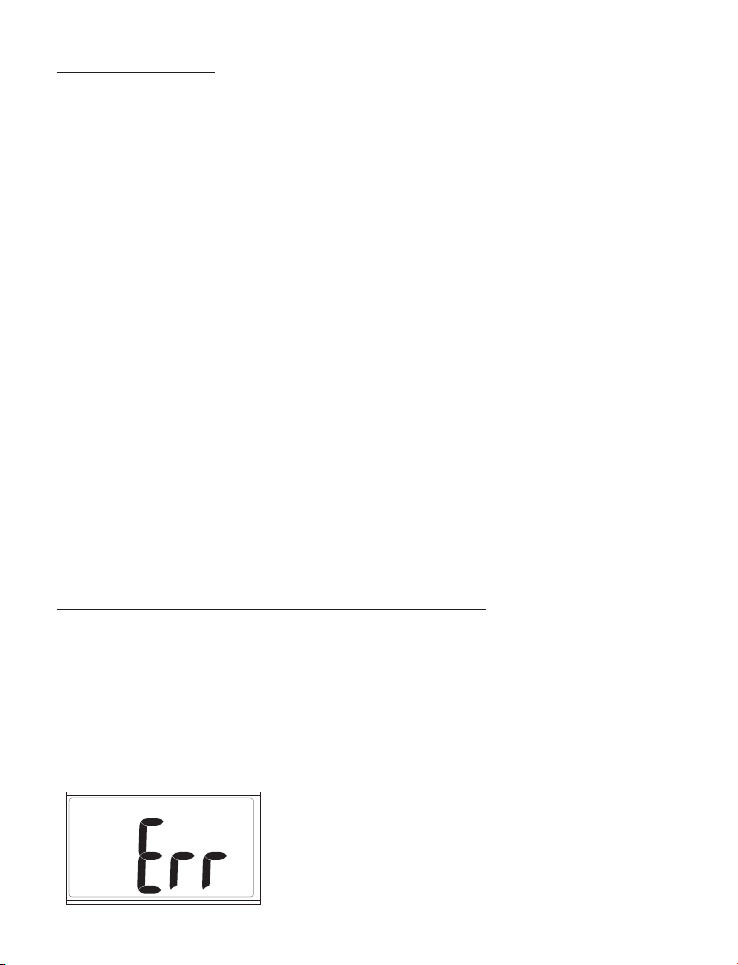
If you see an Error message come up on the scale. Stand away from the
scale, wait for it to turn off and try again.
Pic.01 Pic.02 Pic.03
Pic.04 Pic.05 Pic.06
Table des matières
Autres manuels WW Échelle


