wowvision proVEOS Manuel utilisateur

User Manual

Contents
Welcome...............................................................................4
How proVEOS Works ...........................................................................................6
Installing the proVEOS Software for Windows......................8
Configuring Firewall Software...............................................................................9
Installing the Windows proVEOS Software.........................................................13
Starting the Installer............................................................................................13
Signing in to ConnectME ....................................................................................23
Installing the proVEOS Software for Mac............................27
Configuring the Firewall......................................................................................28
Installing the Mac proVEOS Software.................................................................28
Presenting with ConnectME................................................30
Starting a Presentation .......................................................................................32
Quad Presentation..............................................................................................32
Managing Participants ........................................................................................33
Chatting with Participants ...................................................................................37
Share My Screen................................................................................................37
Playing Music and Movies ..................................................43
Managing Media in Your Computer ....................................................................45
Managing Media in WOW Gateway....................................................................45
Playing Media Files.............................................................................................46
Stream media from Streaming Player.................................................................55
Collaborating with the White Board.....................................59
Drawing and Annotating Tools............................................................................61
Displaying a Participant’s Annotations ................................................................62
Capturing and Saving .........................................................................................62
Recording Presentations.....................................................63
Audience Response System...............................................68
Topic Manager....................................................................................................69
Question Bank ....................................................................................................70
Prepare Exam.....................................................................................................72
Detail Report.......................................................................................................74
Bar Chart ............................................................................................................75


Instant Polling......................................................................76
View Result.........................................................................................................78
Polling Result......................................................................................................78
Multimedia Notice Board.......................................................2
Uploading Content................................................................................................5
Creating Playlists..................................................................................................5
Scheduling Playlists..............................................................................................7
Layout Manager....................................................................................................8
User Manager.......................................................................................................9
Options and Settings...........................................................10
Client Preferences ..............................................................................................11
Controlling the Projector .....................................................................................15
Diagnostic Tools..................................................................20
Network Diagnostics...........................................................................................21
Bandwidth Utility .................................................................................................22
Using the Web Admin..........................................................23
User Management ..............................................................................................25
Device Management...........................................................................................29
Alerts...................................................................................................................34
Device Control ....................................................................................................35
Message Scheduler............................................................................................36
Reports...............................................................................................................37
Session Record...................................................................................................38
Logout.................................................................................................................39

Welcome

Thank you for choosing the proVEOS Wireless Presentation Gateway. proVEOS
is an advanced network-based and wireless presentation solution that makes it
easy to make presentations and interact with others from the comfort of your
wireless laptop.
Send any laptop’s display to the projector wirelessly without the hassle of
passing around VGA cables and configuring display settings
Interact and collaborate with participants with the chat and white board
features
Play video and audio files on the big screen in HD quality
Staff can easily control access to the projector to ensure a smooth
presentation flow

How proVEOS Works
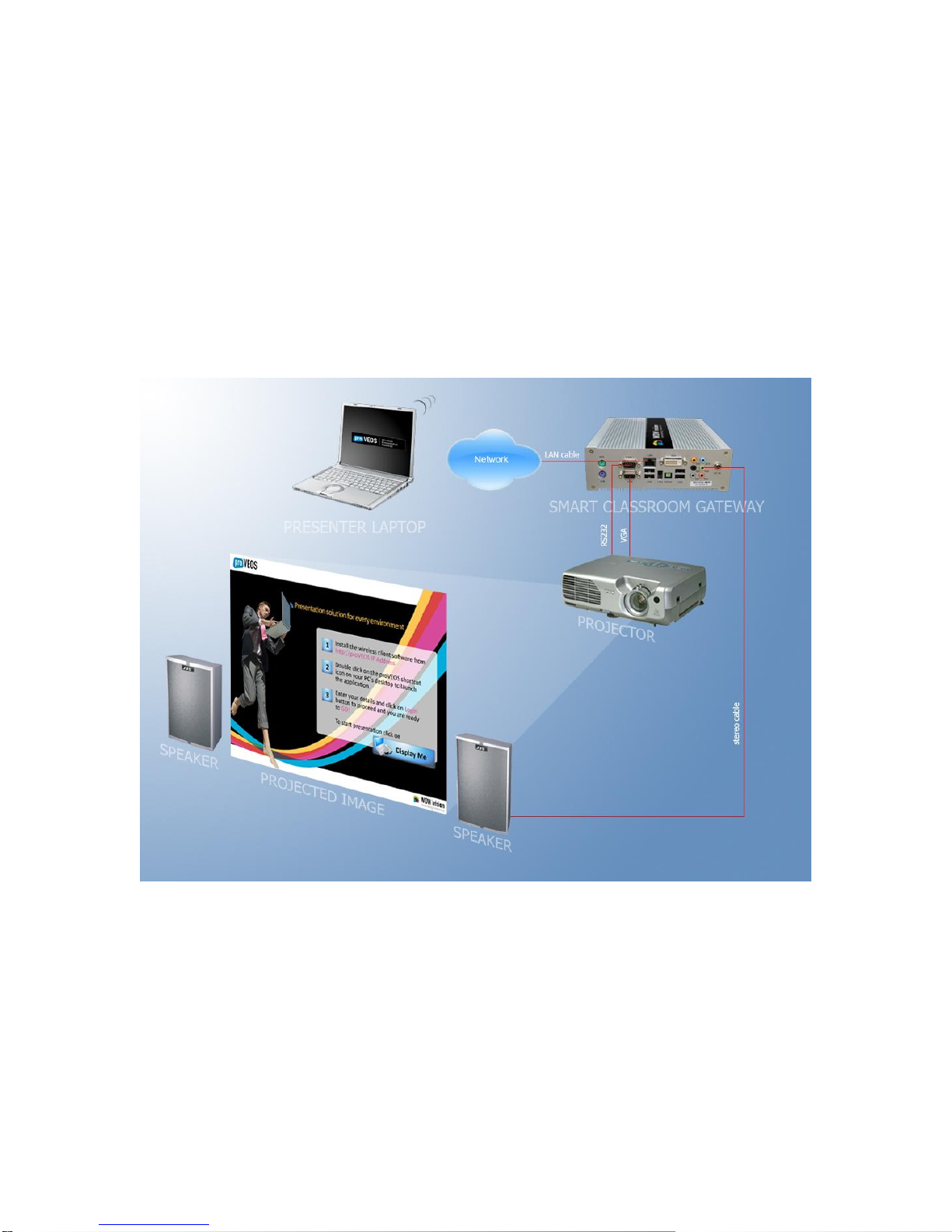
A proVEOS setup is made up of three major components:
1. A Windows or Macintosh computer with the proVEOS software installed
2. proVEOS Wireless Presentation Gateway connected to a projector and
speakers
3. Local area network (LAN)
The computer and proVEOS gateway are connected to the LAN to allow
them to send and receive information
The proVEOS Client on the computer signs in to the gateway, announcing
its presence to the other participants

The proVEOS Client is switched to presentation mode to start capturing
the laptop’s display continuously and send it to the proVEOS gateway
over the LAN
Multimedia files can also be sent to the proVEOS gateway for playback
The proVEOS gateway receives the display information and multimedia
files from the laptop and sends them to the connected projector and
speakers
The presenter can also show a white board on the projector, and allow
other participants to join in and contribute

Installing the
proVEOS
Software for
Windows

The ConnectME is installed on PCs and laptops, and provides access to a full
range of features available on a proVEOS gateway.
Minimum system requirements:
Windows 2000, XP or Vista
256MB RAM or more
Connect the computer to the network and start Internet Explorer (IE).
Note: ActiveX support is recommended for installation. ActiveX is only available
in Internet Explorer.
Configuring Firewall Software
Before installing the ConnectME, configure your computer’s firewall software to
prevent problems when the ConnectME attempts to connect and communicate
with the proVEOS gateway.
The most common connection problems are caused when firewall software are
configured to prevent the ConnectME from making outgoing connections to other
devices on the network, like the proVEOS gateway.
Note: Check the firewall settings on your computer before you install or run the
software to make presentations.

Windows Firewall
If you are using Windows Firewall, available in the Control Panel of Windows XP
Service Pack 2 and above, configure it to allow exceptions.
Click on the Windows Firewall item in Control Panel
Ensure that Don’t allow exceptions checkbox is unchecked
Click the OK button to save the setting
Autres manuels pour proVEOS
5
Table des matières
Autres manuels wowvision Accessoires pour projecteur