
Win Digital Multiline Telephone Manuel utilisateur
®
Digital Multiline Telephone User Guide
WIN®Digital Multiline Telephone User Guide
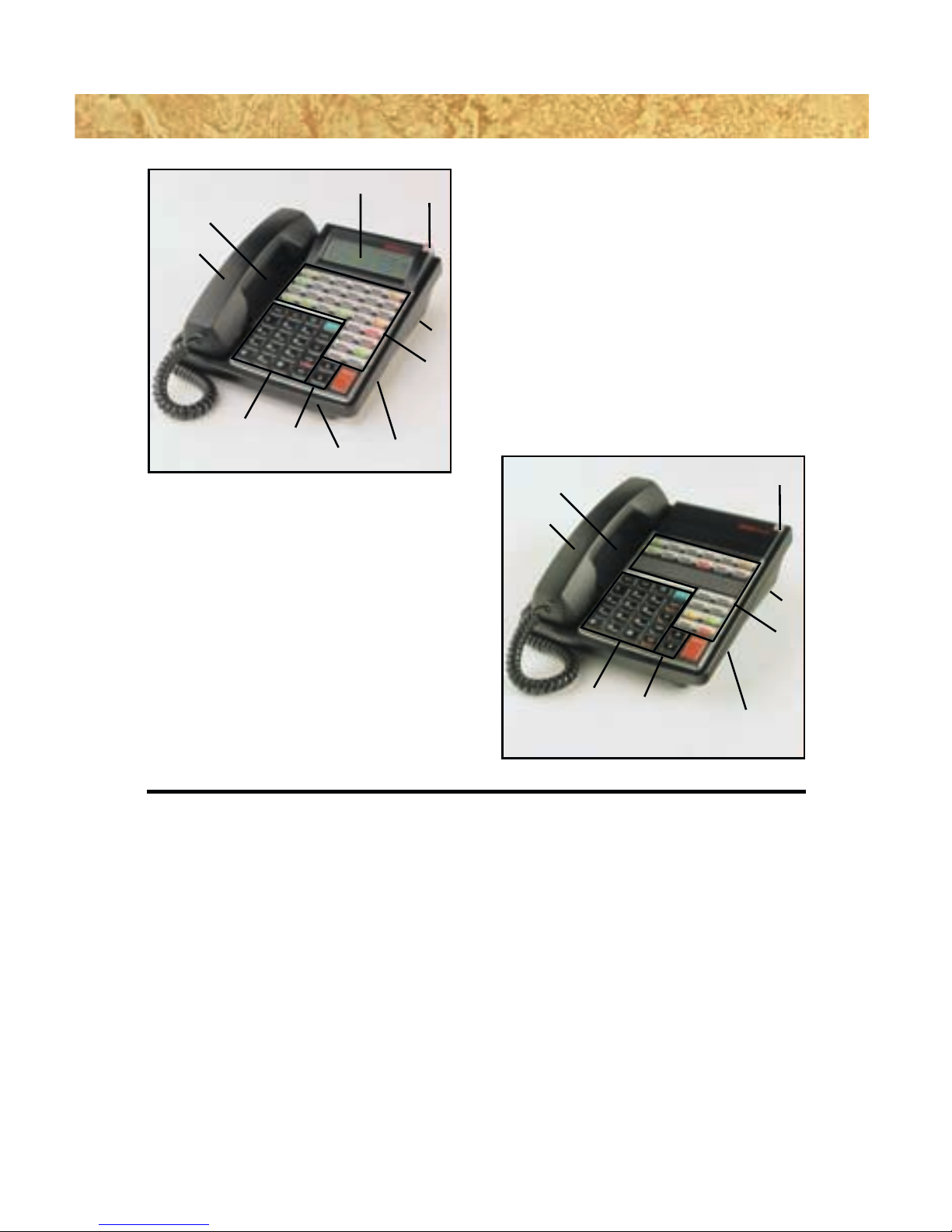
1. Dedicated Feature Buttons - Provide easy access to frequently used fea-
tures some of which include Intercom and Intercom2access, Hands-Free
activation, Transfer, and Speed Dial/Last Number Redial and Flash.
2. Programmable Feature Buttons - Illuminated in 3 colors, these buttons
provide a visual indication of active features and line status. Button pro-
gramming can be performed by system administrator or by station user.
3. Fold Out Legs - Allow station user to change the angle of the telephone by
extending or retracting and locking them in place under the telephone.
4. Status Indicator - Provides a visual status indication for message waiting,
incoming calls and headset mode operation using two color illumination
and a steady/flashing sequence.
5. Speaker - Provides audible ringing and on-hook voice announce operation
for telephone calls, paging and station background music.
32 Line Display
The 32 Line Display Telephone offers
maximum use of digital telephone
features including 32 tri-colored pro-
grammable feature buttons, a full-
duplex speaker phone and a high
resolution 3 line display.
20 Line Non-Display
The 20 Line Non-Display Telephone
provides sophisticated digital tele-
phone features such as tri-colored
programmable feature buttons and
voice announce on an easy-to-use
instrument.
1798
2
3
4
10
5
6
178
2
3
4
5
6
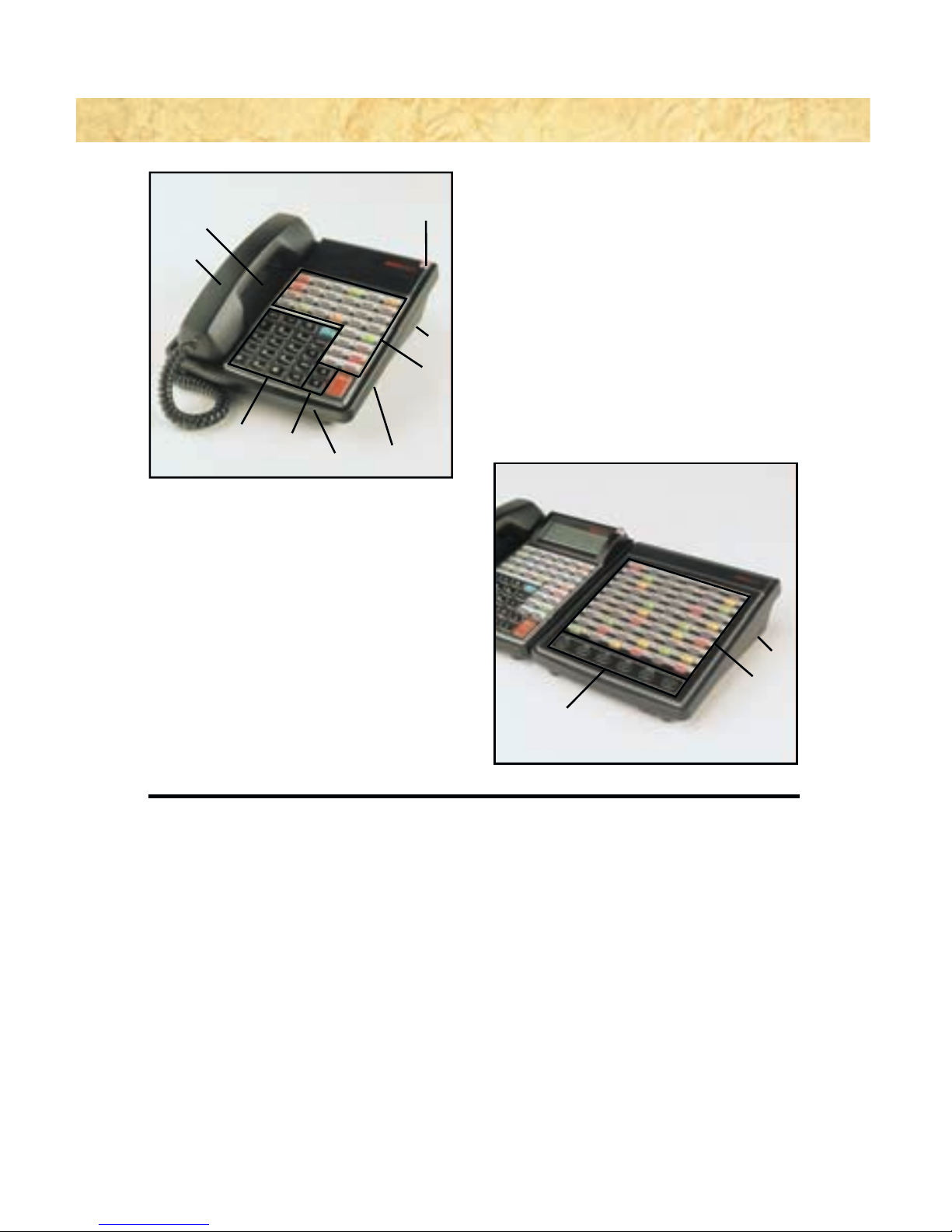
32 Line Non-Display
The 32 Line Non-Display Telephone
features 32 tri-colored programma-
ble buttons and a full-duplex speak-
er phone providing users with opti-
mal use of digital telephone
features.
DSS/BLF Console
The DSS/BLF Console mates to any
of the digital telephone station sets
expanding the button capacity to
accommodate more line appear-
ances, direct station appearances
and/or auto dial buttons.
6. Handset - Users have the option of using the hearing-aid compatible
handset for privacy while on a call or using the hands-free option if avail-
able on the telephone.
7. Multifunction Level Controls - Allows the user to individually set the vol-
ume levels for ringing, hands-free speakerphone and handset operation
as well as providing the contrast adjustment for the display telephones.
8. Slide Tray - Swivels out to provide a location to place important tele-
phone information or hard to remember numbers.
9. Microphone - Allows the user to respond to calls completely hands-free.
10.High Resolution Display - The display provides the highest degree of tele-
phone/user interaction by displaying information such as dialed num-
bers, Caller I.D., call duration, feature activation and text messaging.
1798
2
3
4
5
6
1
2
3

CONTENTS
DIGITAL MULTILINE TELEPHONE 3
Answering Calls 4
Internal Calls 4
External Calls 4
Off-Hook Voice Call (Call Waiting) 5
Page Answer 5
Automatic Answer 5
Caller ID 5
Placing Calls 6
Internal Calls 6
External Calls 6
Last Number Redial 6
Automatic Redial 6
Speed Dial 7
Dial-by-Name 7
One-Touch Dial 7
Busy Queue 7
Call in Progress Features 8
Holding Calls 8
Transferring Calls 8
Conferencing Calls 9
Privacy Release 9
Parking Calls 9
Call Forwarding 10
Call Pickup 11
Account Code Registry 12
Text Messaging 12
Paging 12
Do Not Disturb 13
Executive Override 13
Service Observe 13
Barge-In 13
Voice Mail Record 13
Station Preferences 14
Background Music 14
Headset Mode 14
Distinctive Ring Mode 14
Prime (ICM) Line Preference 14
Dynamic (Outside) Line Preference 14
Ringing Line Preference 15
Ring Mode for Internal Calls 15
Off-Hook Ring 15
Hold Mode Priority 15
Spare Button Programming 16
Station Speed Dial 16
System Preferences 18
Area Background Music 18
Calendar Setting 18
Time Setting 18
System Speed Dial 18
DSS/BLF CONSOLE 19
Answering Calls 20
Placing Calls 20
Transferring Calls 20
Message Waiting 20
Call Backup 21
Night Answer 21
Programming Feature Buttons 21
REFERENCE NUMBERS 22
AGENT FEATURES 23
Disclaimer:
Certain state and federal laws regulate the monitoring of calls without the knowledge of parties involved. Prior to
performing any method of call monitoring, any such regulations should be identified and compiled with. WIN
Communications Corporation, Inc., disclaims any liability arising out of failure to comply with such regulations.
DIGITAL MULTILINE TELEPHONE

4
INTERNAL CALLS
Voice Announce
Receive voice call
– Ensure MUTE button is off
– Reply hands-free
– Lift handset for privacy
With Ringing Line Preference Feature
Receive ringing indication on station
– Lift handset OR – Press HF button for hands-free
– Converse
– Replace handset to disconnect OR – Press HF button to disconnect
Without Ringing Line Preference Feature
Receive ringing indication
– Lift handset
– Press ICM button
– Converse
– Press HF button for hands-free
– Replace handset to disconnect OR – Press HF button to disconnect
EXTERNAL CALLS
With Ringing Line Preference Feature
Receive ringing indication
– Lift handset OR – Press HF button for hands-free
– Converse
– Replace handset to disconnect OR – Press HF button to disconnect
Without Ringing Line Preference Feature
Receive ringing indication
– Lift handset
– Press flashing button
– Converse
– Press HF button for hands-free
– Replace handset to disconnect OR – Press HF button to disconnect
ANSWERING CALLS

5
OFF-HOOK VOICE CALL (CALL WAITING)
With call in progress
– Receive caller announcement (outside caller will not hear announcement)
– Press ICM button (outside call will be placed on Hold)
– Converse
– Press flashing button to reconnect to original call
PAGE ANSWER
Receive overhead page
– Lift handset
– Press ICM button
– Dial # followed by
–68 for Internal Page
–69 for External Page
– Converse
AUTOMATIC ANSWER (HEADSET MODE)*
From Idle State
– Press RELEASE button
– Tone will be heard prior to first call
– Call will be automatically connected
– Converse
From Busy State
– Press RELEASE button to disconnect current call
– Tone will be heard prior to next call
– Call will be automatically connected
– Converse
*Note: This feature must be programmed by installer
CALLER ID
View or Callback Numbers from abandoned calls
– Press CID Button to display stored calling in number
– Press # to display name associated with number
– Press # to display time and date of call
– Press *to reverse one step
– Press available line key to dial number – OR –
– Press FLA to delete
– Press CID Button to continue to next message

PLACING CALLS
6
INTERNAL CALLS
With Prime Line Preference Feature
– Lift handset OR – Press HF button for hands-free
– Dial station number
– Voice announce after tone OR – Press additional digit to force ring
Without Prime Line Preference Feature
– Lift handset OR – Press HF for hands-free
– Press ICM button OR – Press Direct Station Selection key
– Dial station number
– Voice announce after tone OR – Press additional digit to force ring
EXTERNAL CALLS
With Dynamic Line Preference Feature
– Lift handset OR – Press HF for hands-free
– Dial telephone number
– Converse
Without Dynamic Line Preference Feature
– Lift handset OR – Press HF for hands-free
– Press an outgoing Line button OR – Press ICM + 9
– Dial telephone number
– Converse
– Replace handset to disconnect OR – Press HF to disconnect
Forced Account Code Dialing
– Lift handset OR – Press HF for hands-free
– Press ACCOUNT button OR – Press FEAT and 1
– Dial account code
– Press #
– Hear confirmation tone
– Press an outgoing Line button OR – Press ICM + 9
– Dial telephone number
– Converse
– Replace handset to disconnect OR – Press HF to disconnect
LAST NUMBER REDIAL
– Press pre-programmed LNR key
– Press # or * to scroll through last 5 numbers dialed
– Lift handset OR – Press HF key
– Press an outgoing Line button OR – Press ICM + 9
– Wait for system to complete dialing
– Converse
– Lift handset for privacy
– Replace handset to disconnect OR – Press HF to disconnect
AUTOMATIC REDIAL
Set
With telephone call in progress . . .
– Receive busy or no answer
– Press AUTOMATIC REDIAL button (LED will light)

7
– Replace handset or press HF button to disconnect
– Station set will automatically call the telephone number until feature expires
– Pick up handset and press AUTOMATIC REDIAL button when connected
Cancel
– Press AUTOMATIC REDIAL button again (LED will extinguish)
SPEED DIAL
– Press available Line button OR – Press ICM + 9
– Press SPD/LNR button
– Dial speed dial code
– Converse
– Lift handset for privacy
DIAL-BY-NAME
– Press SPD/LNR button
– Press FEAT button
– Dial access code 1for System Speed numbers
2for Station Speed numbers
– Dial appropriate 2-digit character code (See Chart on inside of back cover)
– Press FEAT button
– First will display
– Use # or * to scroll through numbers
– Press ICM or outgoing line button
– Converse
ONE-TOUCH DIAL
– Press available Line button OR – Press ICM + 9
– Press programmed dial button
– Converse
– Lift handset for privacy
BUSY QUEUE
Set
Receive busy signal while calling an internal station or accessing a telephone line
– Press CALL BACK button OR – Dial #1
– Replace handset OR – Press HF to disconnect
– Wait for ringing indication
Once Station or Line is available
Receive ringing indication
– Press flashing button to connect
– Wait for called station to answer OR – Dial telephone if placing a call
– Converse
– Lift handset for privacy
– Replace handset OR – Press HF to disconnect
Cancel
– Press CALL BACK button OR – Press ICM + #1

CALL IN PROGRESS FEATURES
8
HOLDING CALLS
System Hold
With call in progress
– Press HOLD button
Exclusive Hold
With call in progress
– Press HOLD button twice
– Listen for confirmation tone
Retrieve Held Call
– Press flashing button
– Converse
TRANSFERRING CALLS
Screened Transfer
With call in progress
– Press TRF button OR – Press DSS/BLF key for station
– Dial station number
– Announce call
– Replace handset to release OR – Press TRF button to retrieve caller
Unscreened Transfer
With call in progress
– Press TRF button OR – Press DSS/BLF key for station
– Dial station number
– Replace handset to release OR – Press TRF button to retrieve caller
Transfer Via Page
With call in progress
– Press TRF button
– Dial # + 6OR – Press Page button
– Dial page zone (00-32)
– Announce call over page
– Wait for page answer
– Replace handset to release OR – Press TRF button to retrieve caller
Trunk-to-Trunk Transfer (Transfer to Outside Line)
With call in progress
– Press TRF button
– Press available Line button OR – Press ICM + 9
– Dial telephone number
– Announce call
– Replace handset to release OR – Press TRF button to retrieve caller
Table des matières
Autres manuels Win Téléphone IP


