WayteQ HD-95 Manuel utilisateur

Contents
Contents
GENERAL INFORMATION
INSTALLATION
P1
P5
P8
MAIN MENU
Main Features
For your Safety
Unpacking
General Operation
RCU
P1
P2
P3
P3
P4
1. Edit Channel
2. Installation
3. System Setup
4. Tools
5. Game
6. REC
7. Hot key
P8
P11
P12
P14
P17
P18
P19
TROUBLE SHOOTING P22
P7
WELCOME PAGE

1
GENERAL INFORMATION
GENERAL INFORMATION
This Digital Terrestrial Receiver (DTR) will take you to the new and exciting world of Digital
Television. A world of crystal clear widescreen pictures, digital sound, more information and
new services. All this and more on "Free to Air" Digital Television.
To make full use of your new DTR please take the time to familiarize yourself with the
extensive features of the unit detailed in this User's Guide.
If you need help in setting up please call your dealer or a customer service adviser.
Main Features
SD MPEG-2/HD H.264 & fully DVB-T compliant
Automatic PAL/NTSC conversion
1000 channels TV and Radio programmable
8 different favorite groups selection
On Screen Display with multi-language
Fully support to 7 days Electronic Program Guide(EPG)
Picture in Graphics(PIG) support
256 colors On Screen Display
Channel search in automatic, manual search
Various channel editing functions(favorite, move, lock, rename and sort)
Parental control for channels
Ease to use Menu System
Software upgrades through USB port
Time set by GMT offset automatic and manual,Summer Time support
Automatic turn on/off by Timer setting(multiple options)
Subtitle support DVB EN300743 and EBU
Teletext support DVB ETS300472 by VBI and OSD
Automatic save for last channel
Support Logic Channel Number(LCN)
Teris,Othello,Sudoku
Supprot FAT16/FAT32/FAT12,NTFS(Option)
MP3/ JPEG/ BMP/ OGG files
Default 2 hours, user can setting the end time(Support subtitle),
record scramble program and descramble program
Lock/Delete/Rename,Preview playback,Browse record files information
Play/Pause/Stop/Step
Fast Forward/Fast Backward 2/4/8/16/24,
Slow Forward/Slow Backward 1/2, 1/4, 1/8
Bookmark set / Bookmark jump

GENERAL INFORMATION
GENERAL INFORMATION
2
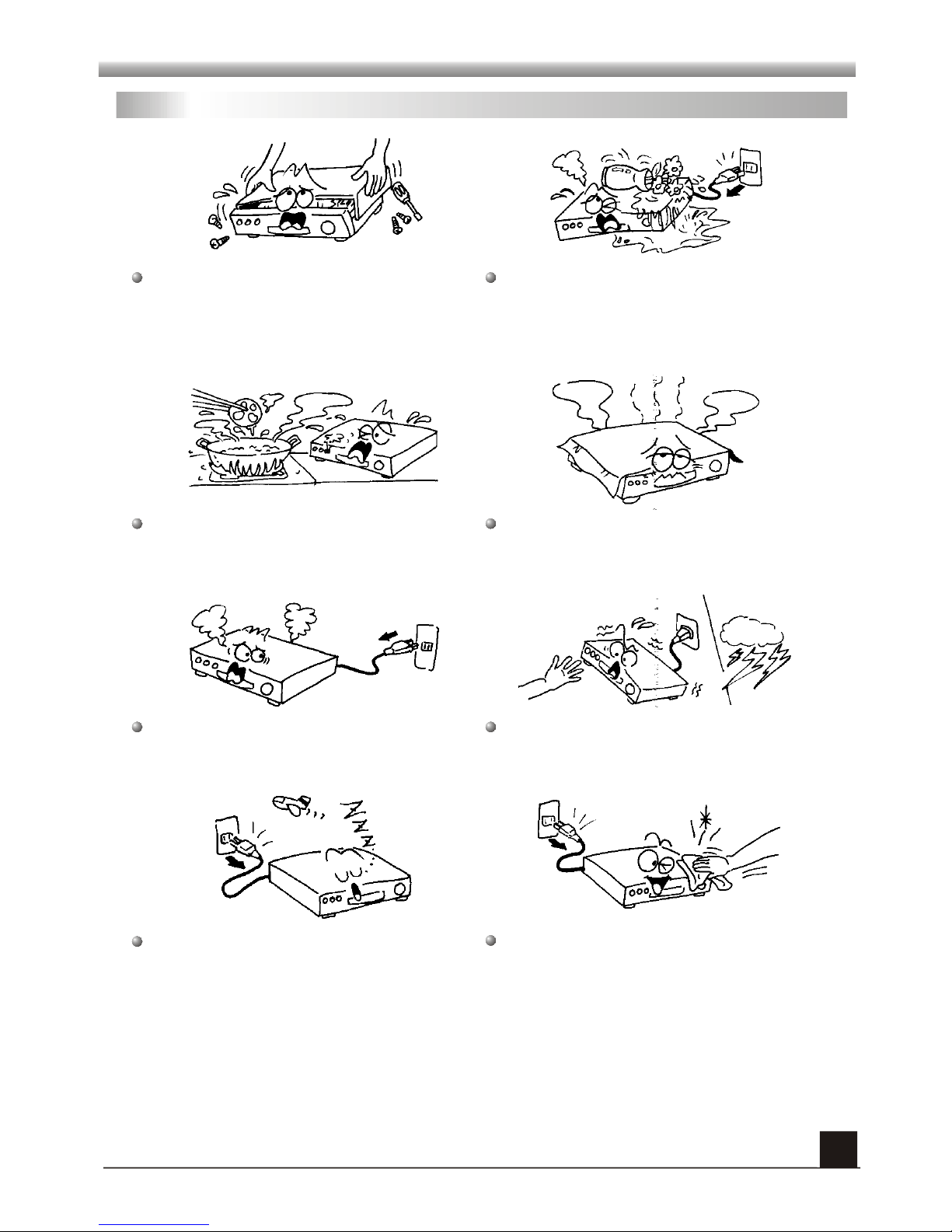
For Your Safety
Be sure to turn the Receiver off and
disconnect the AC power cord before
cleaning the Receiver surface. If the
surface is dirty, wipe clean with a cloth
which has been dipped in a weak soap-and-
water solution and wrung out thoroughly,
and then wipe again with a dry cloth.
Switch the receiver off whenever it remains
out of service for an extended period.
Do not touch the receiver during thunder,
since that might create electric-shock
hazards.
Do not block ventilation holes of the
Receiver so that air can circulate freely.
Do not expose the receiver un-der the
sunlight. And keep it away from the heat
source.
Keep the receiver away from flower vases,
tubs, sinks, etc., in order to avoid damaging
the equipment.
To avoid electric-shock hazards, do not
open the cabinet, refer servicing to qualified
personnel only.
When the abnormal phenomenon occur,
you should cut off the power immediately.

GENERAL INFORMATION
GENERAL INFORMATION
3
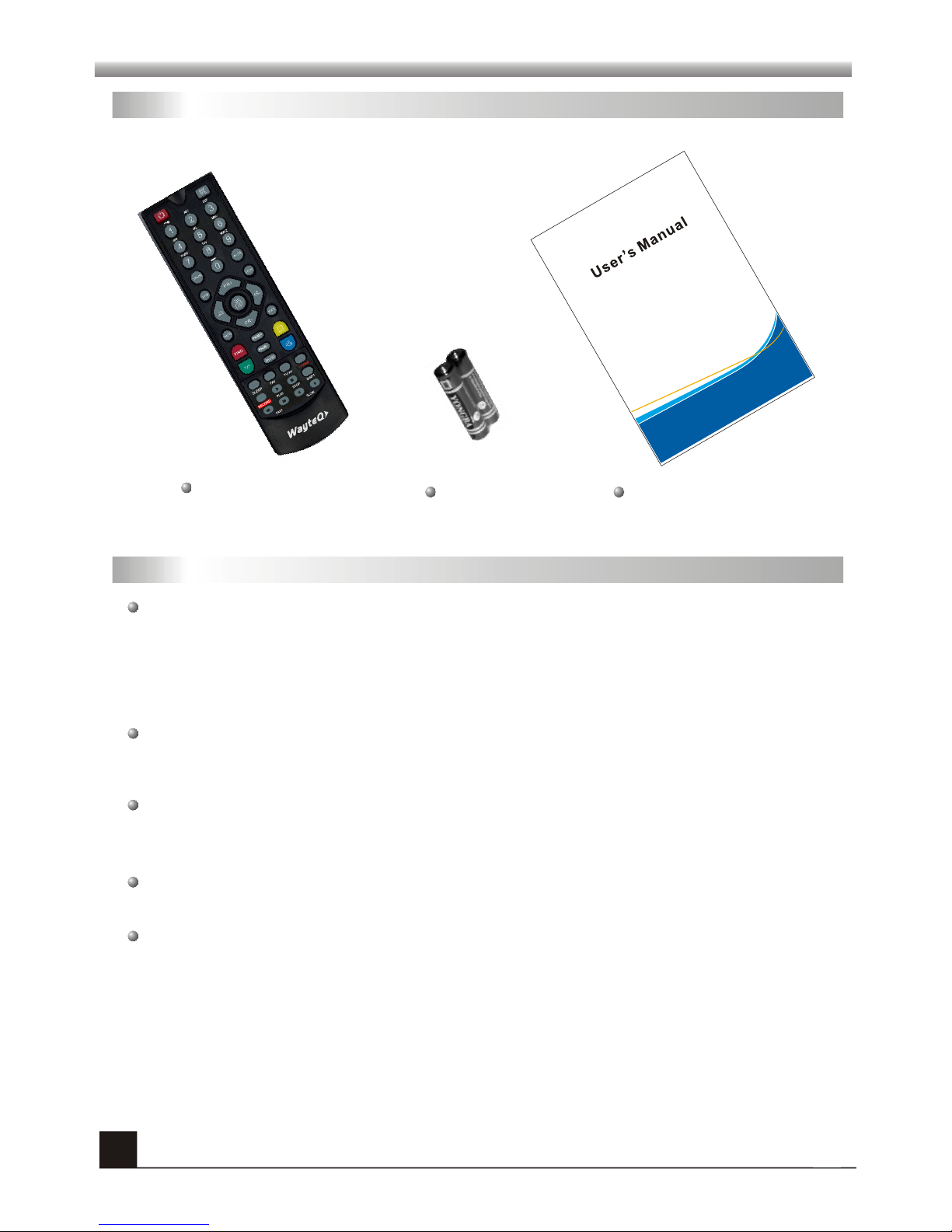
Unpacking(optional)
General Operation
Throughout this manual you will notice that the everyday operation of the receiver is
based on a series of user friendly on screen display and menus. These menus will
help you get the most from your receiver, guiding you through installation, channel
organizing, viewing andmany other functions.
All functions can be carried out using the buttons on the RCU, and some of the
functions can alsobe carried outusing the buttonson the frontpanel.
The receiver is easy to use, always at your command and adaptable for future
advances.
Please be awarethat new softwaremay change thefunctionality of thereceiver.
Should you experience any difficulties with the operation of your receiver, please
consult the relevant section of this manual, including the Problem Shooting, or
alternatively call yourdealer or acustomer service adviser.
Remote Control Batteries User’s manual

GENERAL INFORMATION
GENERAL INFORMATION
4
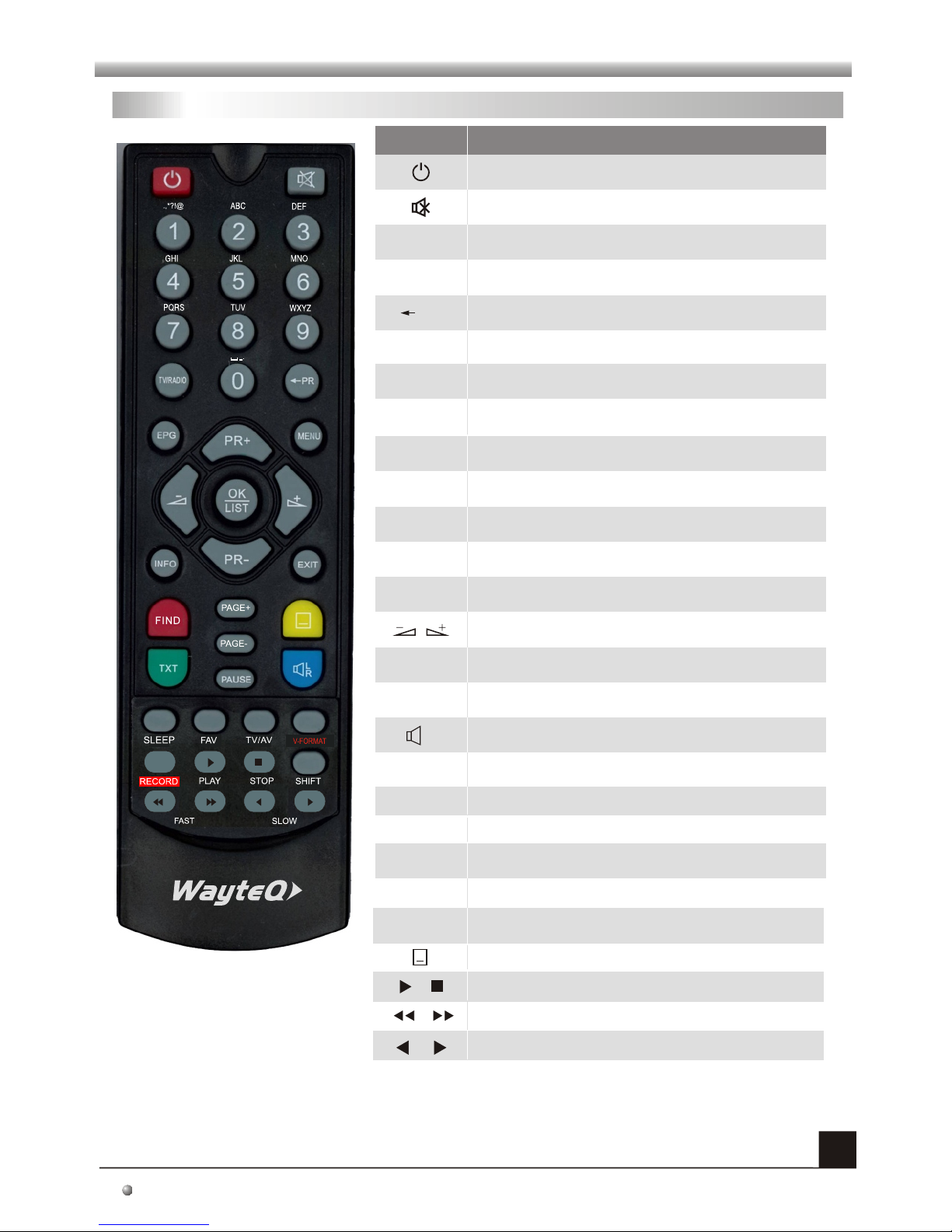
RCU
The picture isonly for reference,please make theobject as thestandard.
Key Function
Turns power ON/OFF
When watching achannel, mute thesound
Switches between TVand Radio mode
0~9
MENU
EXIT
OK, LIST
PR+, PR-
Enter number ofthe required menuitem or
select a channelnumber to watch
Press this keyone time torun menu onscreen
Return to theprevious menu onthe menu
screen or escapefrom the menu
Press once topause the screenpicture, press
once again togo to thenormal mode
TV/RADIO
PR
Switches back toprevious channel
Displays the favoritegroup list
Show information ofthe current channel
Switch to teletextmode
Moves up /down a pagein the list
FAV
INFO
Executes the selecteditem in themenu screen
or enters thedesired value in any input mode
When watching achannel, change channelsor
move to thenext higher or lower item inthe menu
When watching achannel, adjust thevolume or
move to theleft or rightitem in themenu
Call up the EPG (Electronic Program Guide)
Display the Audio window.
Switch between TV and AV modes
EPG
L
R
TV/AV
PAUSE
FIND Display the Findwindow
SLEEP
Enter into thesleep in mode
TXT
SHIFT
RECORD
Play and stopthe program
Press to fastforward or fastbackward
Record the program
Timeshift function key
,
Press to slowforward or slow backward
PAGE+,PAGE-
V-FORMAT Changes the HD-Format
Switch to subtitlemode

INSTALLATION
INSTALLATION
5
The picture isonly for reference,please make the object as thestandard.
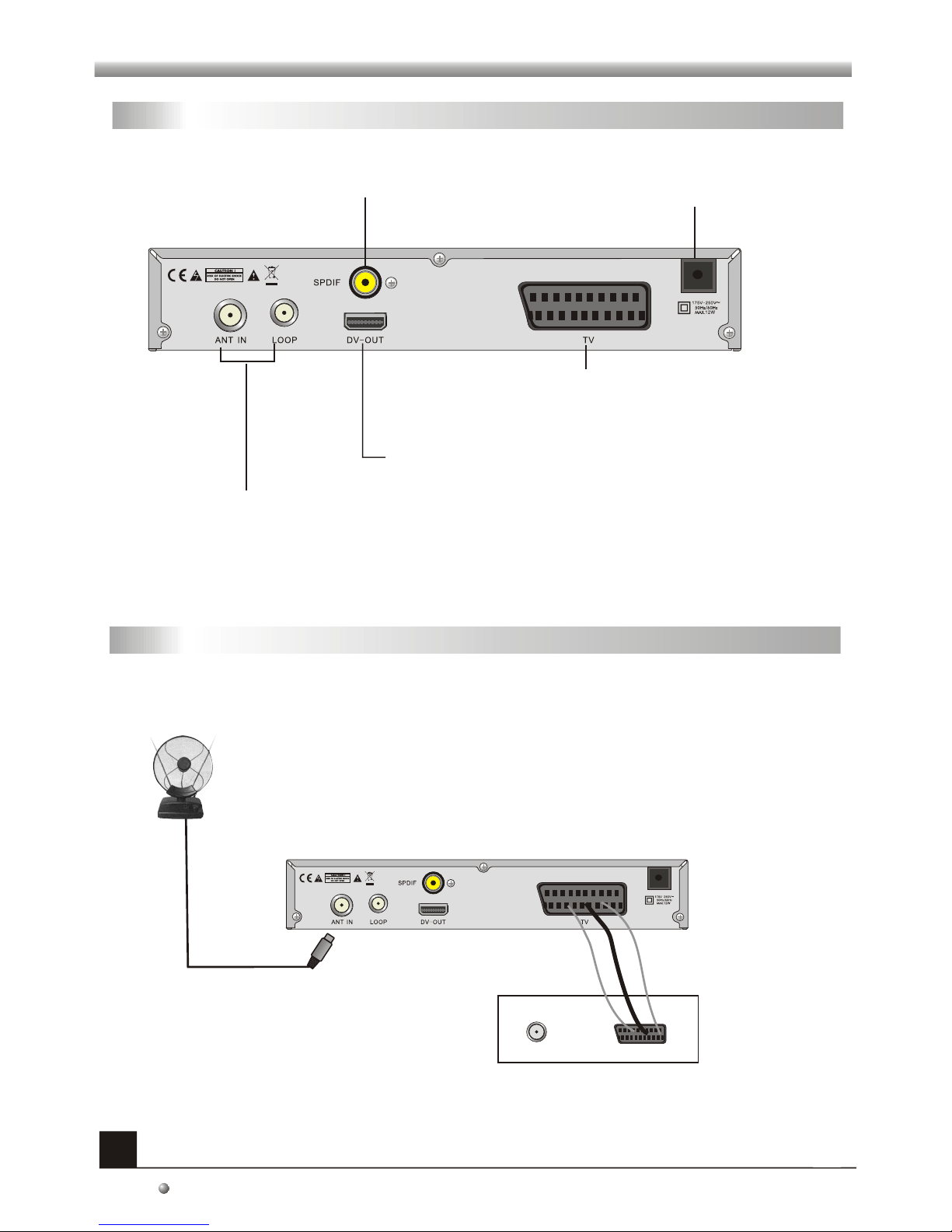
Rear Panel
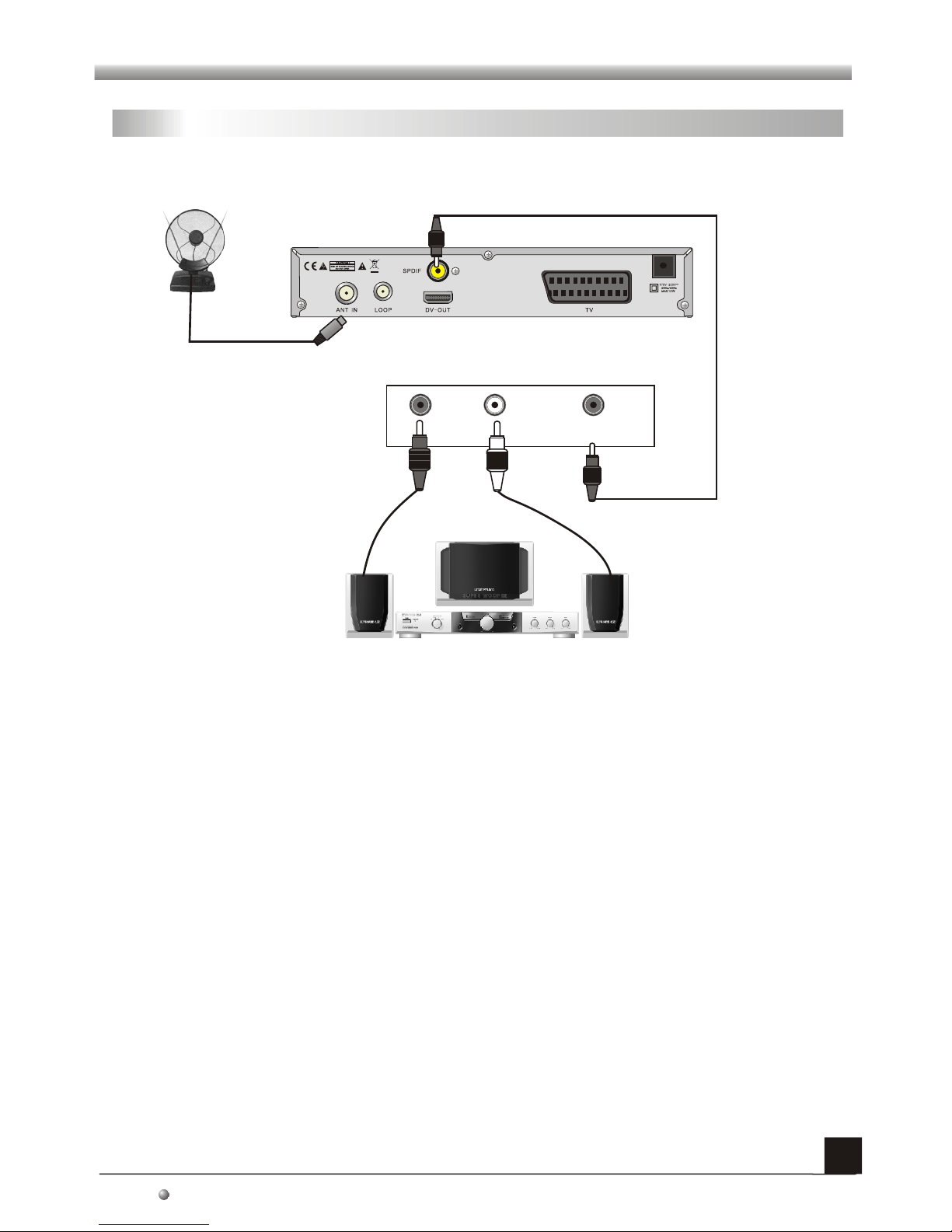
Connecting to TVusing SCART support
CONNECT TOTV SET HDMI-OUT INPUT
POWER CABLE
CONNECT TO DIGITAL AMPLIFIER
DTR
Antenna
CONNECT TOTV
USING ASCART CABLE
TV
SCART
IN
ANT IN: CONNECTTO ANTENNA
LOOP: CONNECT TO ANOTHERRECEIVER

Connecting to DigitalAmplifier
INSTALLATION
INSTALLATION
6
The picture isonly for reference,please make the object as thestandard.
RL
SPEAKER
DIGITAL AUDIO
CONVERTOR OR
AMPLIFIER SPDIF
DTR
Antenna

7
WELCOME PAGE
WELCOME PAGE
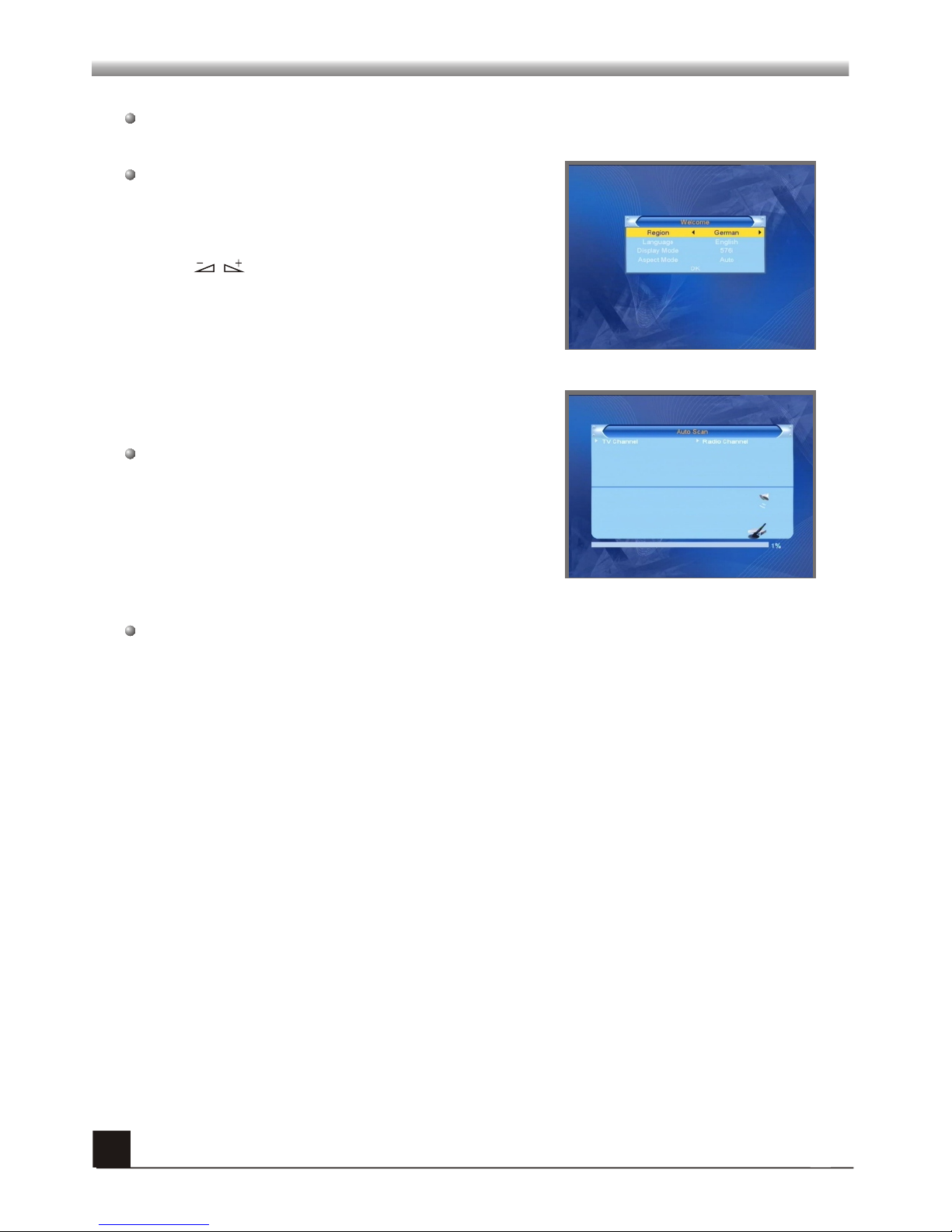
When power onfirst time, itwill show welcomepage like below.
Press keys to move the cursor to choose
your choice.
Press PR+,PR- keys to move highlight to select
Region, Display Mode, Aspect Mode and
language.
Press [EXIT] keyto exit thismenu.
Move highlight to [OK] option and press OK key
to enter “Auto Scan”menu .

8
MAIN MENU
MAIN MENU
This menu consistsof 6 majorsub-menus as
below.
- Edit Channel
- Installation
- System Setup
- Tools
- Game
- REC
1. Edit Channel
When you press[MENU] key, you canenter Main Menu.
Move highlight on Edit Channel item and press [OK]
key to enterEdit Channel menuas besides.
This menu has3 sub-menus suchas: TV Channel list,
Radio Channel Listand Delete All .
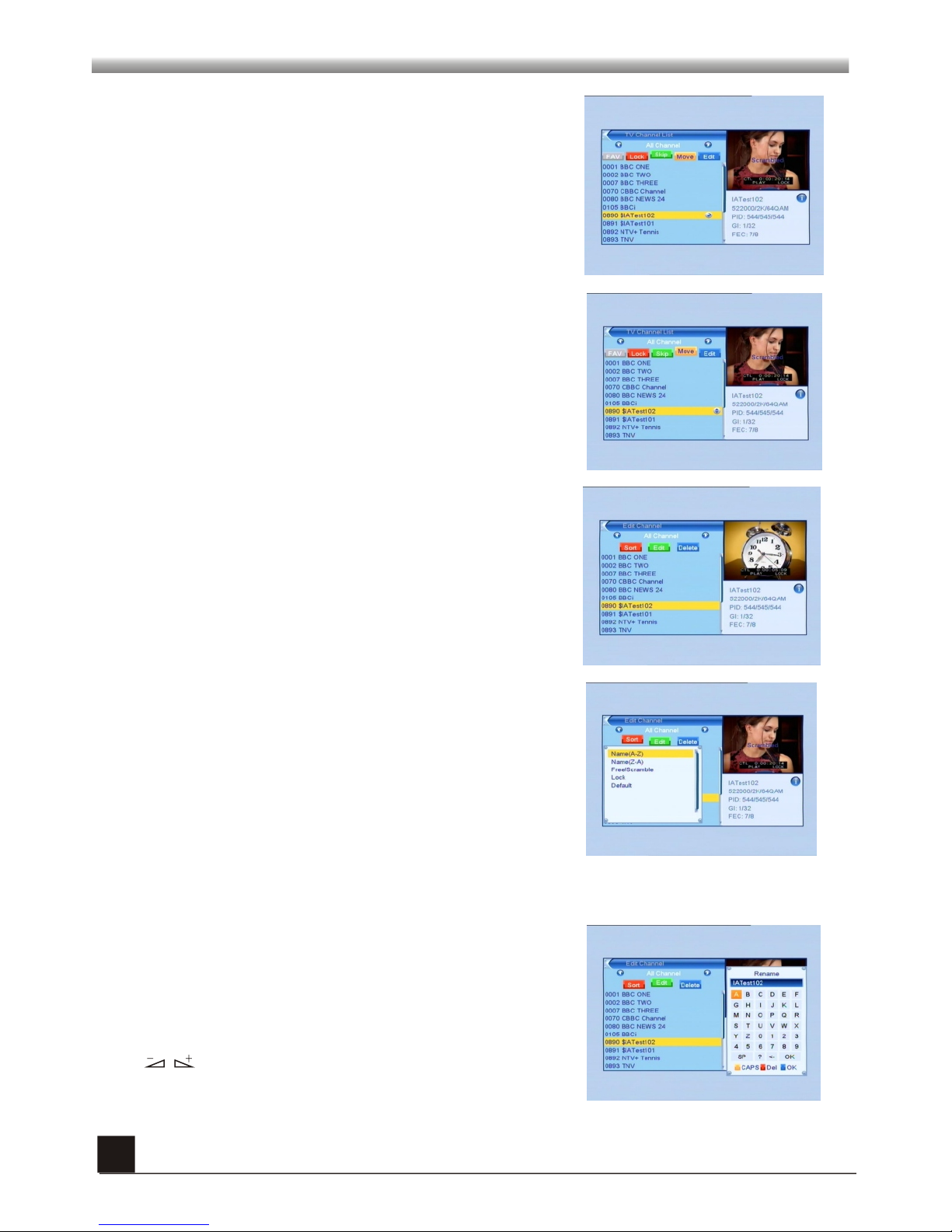
1. Press PR+, PR- keys to select the program that you
want to play, and then press OK key to view it in the
small window. If move the yellow cursor to select up or
down, you will see a gray line which indicates the
playing program in the small window.
1.1 TV ChannelList
2. Press FAV key to move the FAV button upward.
Select the program and press OK key to pop up the
favourite group list. In the list, select the group that you
want to add into and press OK key, and then you will
find the favourite mark is displayed at the right side of
the selected program.
Press FAV key again to exit from the fav mode, and you
will find the FAV button return to the origin position.
3. Press red colour key to move the Lock button
upward. Select the program and press OK key to mark
this program with the Lock mark. You can cancel this
mark by pressing OK key once more.
Press red colour key again to exit from the lock mode,
and you will find the Lock button return to the origin
position.

MAIN MENU
MAIN MENU
9
4. Press green colour key to move the Skip button
upward. Select the program and press OK key to mark
this program with the skip mark. You can cancel this
mark by pressing OK key once more.
Press green colour key again to exit from the skip
mode, and you will find the Skip button return to the
origin position.
5. Press yellow colour key to move the Move button
upward. Select the program and press OK key to mark
this program with the move mark. Press PR+, PR- keys
to move the cursor to the position where you want to
locate and press OK key to confirm.
Press yellow colour key again to exit from the yellow
mode, and you will find the yellow button return to the
origin position.
6. Press blue colour key to enter into the Edit
channel window.
Press red colour key to pop up the Sort drop-down list.
Name(A-Z): The ascending order, omitting the $
character, the number is ahead, then the capital letter,
at last the lowercase.
Name (Z-A): The opposite order of the above Name (A-
Z).
Free/Scrabmle:: All FTA programs are listed ahead,
while all scrambled programs are listed last.
Lock: all locked programs are listed at the bottom.
Default
i . Sort(red colour key)
ii. Edit (greencolour key)
Press green colour key to move the Edit button upward.
Select the program and press OK key to pop up the
Rename window.
In Rename window, press yellow colour key to switch
between capital letter and lower-case letter; press red
colour key to delete the character on the cursor; press
keys to move the cursor left or right; press
numeric keys (0-9) to input the character, please refer
to the down table. Press blue colour key to save and
exit.
Table des matières