
WaveForm QuadPro Manuel utilisateur

+1 (800) 761-3041
www.waveform.com
Your QuadPro is designed, sold, and supported by
Waveform and our team of Signal Specialists.
We’ve helped over 50,000 customers improve their
signal since the company was founded in 2007.
If you have any issues at all, please reach out.
3411 W. Lake Center Dr.,
Santa Ana, CA 92704
PLEASE READ THIS FIRST:
We know, reading manuals isn’t always fun. But we promise it’s worth it.
We’ve helped thousands of customers improve signal to their cellular routers.
We’ve compiled everything we’ve learned in this manual.
Give it a read before you start: it’ll save you time and help you get the best
performance out of your QuadPro.
in CaliforniaDesigned by
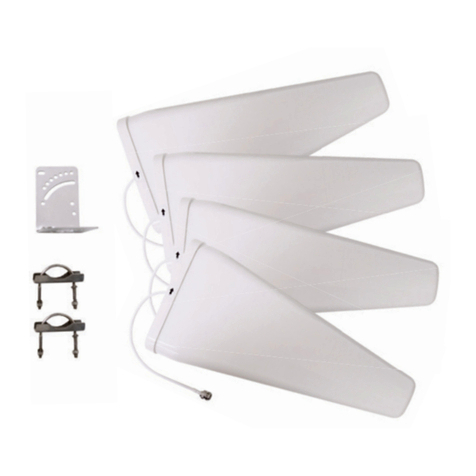
Directional 4x4 MIMO Antenna
QuadPro

QuadPro Antenna & FlexMount
QuadPro Antenna
What’s in the Box
BLUE BAG
4x U.FL to SMA Pigtail Adapters
BROWN BAG
1x, 2x, or 3x UltraFlex-Quad Cables
(Kits include 10 ft and/or 20 ft lengths)
BROWN BAG
Quad Window Entry Cable
2x
UltraPole
BROWN BOX
4x4x
5x
5x
4x1x
FlexMount w/
Assembly Hardware
4x
1x
1x
2x
5x
1x
Cables, Adapters, UltraPole (Only Included with Complete Kit)
If you purchased the complete QuadPro Kit, you will also receive the following.
2

Heads up: Using MIMO antennas to improve your signal can take a bit of patience.
We’d be surprised if you saw better data rates immediately upon connecting your QuadPro.
Be prepared to spend an hour or two to nd the best location & direction to aim your antenna.
This manual is based on feedback from hundreds of customers like you. We’ve revised it
dozens of times to make it as helpful as possible.
We promise you’ll be glad if you read it from start to nish before you get started. It’ll help
you save time, avoid common pitfalls, and ensure your system works as well as possible.
Who We Are
Hi! We’re Waveform. We’ve been around since 2007, and while we’ve grown a bunch since
then, we’re still a small team. There’s just a handful of us answering texts, and picking up calls.
The four of us pictured below lead support and product development. Feel free to reach out
to us at any time; our emails are all just our rst names @waveform.com
Stuck? Have Questions? Please: Contact Us!
We’re a small team, but we really care about helping you get the best results.
If you’re having issues, please reach out. Sometimes a small tweak can make all the difference.
Even if everything goes smoothly, let us know how your system is performing! And we love
getting feedback: if you think of a way we could make our antenna, accessories, the install
process, or this manual better - let us know!
to chat with a Waveform Signal Specialist. We’re available from 6am-5pm PT, Mon to Fri.
Install Manuals, Who Needs ‘Em?
Sina (CEO)Marcus (Product)Harry (Support) Conold (Support)
3

Before You Start
00
Whether it be inside, outside, or on the roof, it’s important that there’s at least some 4G LTE or
5G signal where you’re installing your QuadPro. Ideally, the cell signal should be “usable.”
What Do We Mean by “Usable”?
When using your cellular router or hotspot, you should be able to complete a data speed
test before connecting your QuadPro. Connect to the Wi-Fi of your cellular device and visit
speedtest.net to run a quick data speed test.
MIMO antennas, like the QuadPro, will help condition your outdoor signal and get you better
data rates. But if the signal outside your building isn’t usable to begin with, an antenna might
not help. You can certainly still give the QuadPro a shot, you may not get the results you’re
expecting.
Compatibility
Your QuadPro supports almost every 4G LTE and low/mid-band 5G service in use in the US,
Canada, and across the world. Here are the bands that it covers*:
All supported 4G (LTE) Bands: B1, B2, B3, B4, B5, B7, B8, B11, B12,
B13, B14, B17, B18, B19, B20, B21, B22, B25, B26, B28, B29, B30,
B32, B34, B37, B38, B39, B40, B41, B42, B43, B46, B47, B48, B50,
B51, B53, B65, B66, B67, B69, B70, B71, B74, B75, B76, B85, B103,
B106
All supported 5G (NR) Bands: n1, n2, n3, n5, n7, n8, n12, n13, n14,
n18, n20, n25, n26, n28, n29, n30, n34, n38, n39, n40, n41, n46, n47,
n48, n50, n51, n53, n65, n66, n67, n70, n71, n74, n75, n76, n77, n78,
n79, n80, n81, n82, n83, n84, n85, n86, n89, n90, n91, n92, n93, n94,
n95, n96, n97, n98, n99, n100, n101, n102, n105
*The bands your router actually uses may vary from this list.
USA
B2/n2, B4, B5/n5, B12, B17, B29, B30, B46, B66/n66, n77
B2/n2, B4, B5/n5, B13, B46, B48/n48, B66/n66, n77
B2, B4, B5, B12, B25, B26, B41/n41, B46, B66, B71/n71, n77
CANADA
B2, B4, B5, B7, B12, B13, B17, B29, B46, B66/n66, B71, n78
B2, B4, B5, B7, B12, B17, B25, n41, B66/n66, n71, n78
B2, B4, B5, B7, B12, B13, B17, B25, B26, B29, B46, B66/n66, B71/n71, n78
4

1Read this manual, ideally from start to nish, so that you understand the whole
installation process before you begin.
2Find the best antenna location and direction (Pages 6-7).This step is the most
time-consuming, but it’s worth the effort and has a huge impact on your system’s
performance. Make notes of your readings in the table on page 15.
3Verify performance and connect everything (Pages 8-9).Before making any holes in
your roof or walls you’ll fully connect your system and run speed tests. If everything
looks good, you’ll nalize the cable runs and hard-wire everything.
4Mount your QuadPro (Page 10-11).You’ll assemble your QuadPro with its FlexMount
and mount it to your building.
5Tell us how your system is doing. Nothing makes our day like hearing from customers.
And if for any reason you’re not seeing the results you were hoping for, we can help.
waveform.com/meet. We’re available from 6am-5pm PT, Monday to Friday.
How Much Improvement Should You Expect?
In short: It’s hard to say. Many people see an increase in data rates of between 50% and
200%, but some people may only see 10%. Despite all the science, wireless signals often work
in strange and magical ways.
One thing is for sure, the more locations and directions you try the more likely you are to see
a big increase in data rates. If you’ve gone through this manual and aimed the QuadPro as we
suggest, but you’re still not seeing much improvement, please reach out to us for help.
What Tools Do You Need?
Your QuadPro includes all of the tools necessary for its assembly, but you may need additional
tools to mount it against your building.
Please refer to your mount(s) included manual(s) or nd them online at
waveform.com/exmount-manual and waveform.com/ultrapole-manual, respectively.
Install Process Overview
01
5

Finding the best position for your QuadPro is the most important part of the installation
process. In this section, we explain the best and simplest method for positioning and aiming
your QuadPro. Section 06 covers some more advanced tips for additional optimization.
The Goal
Your goal is to nd the best location and direction for the QuadPro. Its position should
maximize the data rates from your cellular router. It can take a little patience, but spending
some extra time here can have a huge impact on performance - it’s worth the extra effort.
1. Prepare your Test Setup
Is your cellular router battery-powered? Or,
do you have a power extension cord?
If so, connect your QuadPro directly to your
cellular router (as shown below), restart
your router, and take them both outside to
start testing.
Can’t take your router outdoors? No problem. For your test setup, keep your router powered
indoors and add the UltraFlex-Quad cable into the setup to bring the QuadPro outside.
If you’re leaving your router indoors, your speed tests may be limited by the router’s Wi-Fi
range rather than its cellular connection. Ask someone to stay near the router so they can run
speed tests as you try different positions with the QuadPro outside.
Positioning and Aiming the QuadPro
02
POWER EXTENSION
CABLE
QuadPro
Antenna
U.FL Pigtails
(for routers w/ internal ports)
Speedtests on the
Cellular Router’s Wi-Fi
Connect Cables to
your Router’s Cellular
Antenna Ports
Optional UltraFlex-
Quad Cable
6

Not sure which ports to connect to? Some cellular routers have both Wi-Fi and cellular
antenna ports. Make sure to attach your QuadPro to your router’s cellular ports, not Wi-Fi.
Some devices only have internal antenna ports. Refer to your router’s manual, our device-
specic guides at waveform.com/hotspot-guides, or reach out to us for help if you’re unsure.
2. Get Ready to Perform Speed Tests
Since the goal is improved data rates for your cellular router, it makes sense to judge the best
position for your antenna by measuring your data rates. We recommend using Speedtest by
Ookla for this. Visit waveform.com/speedtest to get there easily.
Once your test setup is ready and your testing phone or laptop is connected to your cellular
router, you’ll have everything you need to start testing at different positions outside.
Go ahead and run a couple of speed tests to get a baseline. You’ll notice your results uctuate
a between tests – that’s completely normal.
3. Take Outdoor Measurements
With each new location, restart your cellular router by disconnecting and reconnecting the
power. This forces the device to connect to the best bands available at that location.
We recommend running 2-3 speed tests at each of the following outdoor positions with your
QuadPro, and writing each of your results in the table on page 15.
Don’t just go to the highest point of the roof! While signal is generally stronger the higher you
go, there’s also often more interference. We’ve found it’s often better to mount the QuadPro
on the side of the building where antennas are better shielded from interference.
If you’re running into issues, we’d love to help. Call (800) 761-3041, email help@waveform.
com, or book a meeting at waveform.com/meet to chat with a Waveform Signal Specialist.
We’re available from 6am-5pm PT, Monday to Friday.
7

Once you’ve identied the best position for your QuadPro, it’s time to hook everything up.
Don’t drill any holes in your walls yet! Start with a temporary install and test performance rst.
Keep your QuadPro at the position you’ve identied, but move your router indoors and
perform a nal round of tests to make sure everything is performing optimally.
If you purchased your QuadPro as a complete kit, follow the steps below to assemble and
install your kit. If you only purchased the QuadPro, your assembly may look a little different.
Getting the Complete Kit Set Up
Refer to the diagram to the right as needed.
1Place your QuadPro near the best position you found in section 2.
2Connect your QuadPro to your UltraFlex-Quad cable and run the cable into your
building.
If you don’t want to drill holes into your walls or roof to route your cables, install your
Coax Window Entry cable in a window, and connect it to your QuadPro and/or
UltraFlex-Quad cables.
3Connect your cables to your router’s cellular antenna ports and hand-tighten the
connections.
If your cellular router only has internal U.FL ports, install the included U.FL pigtail
adapters, and connect them to your UltraFlex-Quad cable.
4Restart your cellular router, wait for it to reconnect, then perform 1-2 speed tests to
verify that you are happy with your system’s performance.
• Before attempting to route the cables through your building, lay the UltraFlex-Quad cable out at to
straighten it. This will make it easier to work with.
• A nger-tight connection is sufcient to secure the connectors. Tools are not required to tighten them
and may cause damage.
• Unsure how your cables connect to your router? Refer to your router’s manual, our device-specic guides
at waveform.com/hotspot-guides, or reach out to us for assistance.
Install Tips
03 Connecting Your System
8

QuadPro
Antenna
OPTIONAL:
Adapters
Only included in the complete kit.
Adapters are required for routers
without SMA ports.
OPTIONAL:
UltraFlex-Quad
Cable(s)
Only included in the complete kit.
Lengths vary by kit.
Keep track of the cable paths
by matching each label number
(e.g. Cable 1 to Antenna 1).
OPTIONAL:
Quad Window Entry Cable
Only included in the complete kit.
Can be connected at any point in the
cable path.
Your Cellular
Router
Your Quad Window Entry Cable can be connected at any point in your system as needed. Follow the
manual included or nd it online at waveform.com/window-entry-manual
How to Install the Quad Window Entry Cable
Loosely position the
window entry cable in your
window frame, with its
larger case outside.
1
Connect its indoor
connectors to your router
or UltraFlex cable.
3
Connect its outdoor
connectors to your
QuadPro or UltraFlex cable.
4
Check that your window
fully closes. If not, please
reach out to us for
assistance.
2
9

Now that you have all the components in your system connected and you’ve veried that you
are happy with your data rates, it’s time to permanently mount your QuadPro!
Your QuadPro, equipped with the FlexMount, can be installed against a pole or directly onto
the exterior of your building.
Mounting your QuadPro with the FlexMount
For the full instructions, follow the FlexMount’s included manual, or nd it online at
waveform.com/exmount-manual, then resume this manual to complete your installation.
If your kit includes the UltraPole, refer to its included manual, or nd it online at
waveform.com/ultrapole-manual for additional instructions on its assembly for your system.
We’re Here to Help!
We know that every use case is different and the steps for mounting your antenna may differ
for your unique location. Don’t worry! If you’re running into issues, or have any questions, just
reach out.
Mounting Your QuadPro
04
Secure the FlexMount to
your wall using its wall
screws and anchors.
or
Secure the FlexMount
to your pole using its
U-bolts.
1
Use the provided socket
wrench to remove the
installed washers and
nuts from your QuadPro.
2
Place the bolts of your
QuadPro through your
FlexMount and reinstall
the washers and nuts.
3
• Mount the QuadPro with its cables facing downward to ensure proper weatherproong.
• Create a small “drip-loop” in your cables before they enter your building to help prevent water from
entering your building.
• When wall mounting, position your FlexMount against the wall and mark the locations of its holes with a
pencil or marker before drilling any holes.
Install Tips
10
Table des matières
Autres manuels WaveForm Antenne



Manuels Antenne populaires d'autres marques

Alfa Network
Alfa Network APA-L01 Manuel utilisateur

Naval
Naval PR-422CA Manuel utilisateur

Feig Electronic
Feig Electronic ID ISC.ANTH200/200 Series Manuel utilisateur

TERK Technologies
TERK Technologies TV44 Manuel utilisateur

Directive Systems & Engineering
Directive Systems & Engineering DSE2324LYRMK Manuel utilisateur

HP
HP J8999A Manuel utilisateur


CommScope
CommScope CMAX-OMFX-43M-I53 Manuel utilisateur

Ramsey Electronics
Ramsey Electronics DAP25 Manuel utilisateur

COBHAM
COBHAM SAILOR 800 VSAT Manuel d'utilisation et d'entretien

Trango Systems
Trango Systems AD900-9 Manuel utilisateur

Steren
Steren ANT-100 Manuel utilisateur

Proxim
Proxim 5054-PA-23 Manuel utilisateur