Vu+ DUO Manuel utilisateur

Powerful 405 MHz MIPS Processor
Advanced Linux Operating System
Twin Tuners Integrated
10/100 Ethernet Integrated
Various Plug-ins Supported
User Manual
English

(A) PRECAUTION!!!
(B) Packaging Contents
(C) Product Descriptions
(D) Conditional Access
(E) Remote Control
(F) Main Features
(G) Technical Data
I. Installation of Vu+
1. Connecting Satellite Cables
2. Connecting the TV (and VCR)
3. Connecting Power
4. Power ON/OFF
II. First Time Installation (using Wizard)
Step 1. Language Selection
Step 2. Configuring Satellite Connection
Step 3. Installing Default Satellite List
Step 4. Parental Control Option
III. Basic Operations
1. Switching Channel
2. Volume Control
3. Selecting Audio Track
4. Subtitle
5. Teletext
6. Program Information (Infobar)
7. Channel List
8. Electronic Program Guide (Event View)
9. Timeshift
10. Recording
11. Recording Play
12. Managing Recording Files
13. Media Player
14. Plug-ins
15. Sleep Timer
Contents
4
6
7
9
11
13
14
15
16
18
18
19
19
23
23
24
24
25
25
26
27
28
30
33
34
38
39
40
41
42

IV. System Configuration
1.Main Menu
2.System Setup
2-1. Service Searching
A. Tuner Configuration
B. Loading Default Service Lists
C. Automatic Scan of Services
D. Manual Scan of Services
2-2. System Configuration
A. A/V Settings
B. Language Selection
C. Customization
D. Selecting Time
E. Hard Disk Set Up
F. Front Display Setup
G. Network
H. Skin Change
2-3. Checking CAM
2-4. Parental Control
2-5. Factory Reset
2-6. Checking H/W and S/W Information
A. Service Information
B. System Information
V. Copyright - GNU GPL
VI. Menu Structure
VII. Troubleshooting
VIII. Glossary
43
44
44
44
45
45
46
48
48
50
50
52
53
53
54
56
56
57
60
61
61
62
63
67
68
69

4Vu :Your Smart Linux TV Player
+
Vu User Manual
+
Vu+ has been designed and manufactured in compliance with EU consumer safety requirements (CE). Please
read the following safety precautions carefully.
1. Connecting Power
• This product operates only in the range of AC 100V~250V and 50Hz/60Hz. Please check first your power
supply to see if it fits this range.
• Please be noted that you need to disconnect from the mains before you start any maintenance or
installation procedures.
• Make sure that the power cord is placed in a position where it is easy to unplug it from the mains in an
emergency.
2. Overloading
• Do not overload a wall outlet, extension cord or adapter as this may cause electrical fire or shock.
3. Liquid
• This product is not water-proof and should not be exposed to dripping, splashing, or any type of liquid.
• No objects filled with liquid such as base shall be placed on the product.
• Please do not clean the product with wet cloth, which may cause a short circuit.
• No wet objects should be placed near the product.
4. Ventilation
• Allow a sufficient space between the product and other objects to make sure air ventilation of the product.
• Do not block the top or rear of the product with an object, which will close the ventilation holes and lead to
a high temperature of the system. This may cause a failure of the product.
• Do not stack other electronic devices on top of the product.
• Do not insert any kind of pointed objects like screw, gimlet, etc. into the ventilation holes of the product.
This will damage the product.
5. Connecting the Satellite Cable.
• Disconnect the power of the product before you connect the satellite cable to the product.
Otherwise, it may cause damage to the LNB.
6. Grounding
• The LNB must be earthed to the system earth for the satellite dish.
7. Location
• Place the product indoor.
• Do not expose the product to rain, sun or lightening.
• Do not place the product near any heat appliances as a radiator.
• Ensure that there is more than 10 cm distance from any electrical devices & wall.
(A) PRECAUTION!!!

5
Vu User Manual
+
8. Lightening, Storm or Not In Use.
• Unplug the product and disconnect the antenna cable during a thunderstorm or lightening, especially
when left unattended and unused for a long period of time. This will prevent possible damages from
power surges or lightening.
9. Replacement of Parts
• Unauthorized part replacements, especially by one who is not a qualified technician may result in
damage to the product.
• Ensure that when part replacements are necessary qualified technicians perform the task using the
components specified by the manufacturer.
10. Hard Disk Drive
• Do not move the product or turn the power off suddenly while the Hard Disk Drive (HDD) is still running.
This may result in damage to the HDD and thus the system.
• The company shall not be liable for any corruption of data on the HDD caused by careless use or
misuse of users.
11. Battery
• There is danger of explosion if batteries are incorrectly replaced.
• Replace batteries only with the same or equivalent type.
"WEEE" Symbol instructions.
This product should not be disposed with other house hold wastes at the end of its working life.
Please separate this from other types of wastes and recycle it responsibly to promote the sustainable
reuse of material resources. This will help prevent harm to the environment or human health from un-
controlled waste disposal.

6Vu :Your Smart Linux TV Player
+
Vu User Manual
+
(B) Packaging Contents
BATTERY
Powerful 405 MHz MIPS Processor
Advanced Linux Operating System
Twin Tuners Integrated
10/100 Ethernet Integrated
Various Plug-ins Supported
User Manual
TV RADIO
MENU
1 2ABC 3DEF
5JKL4GHI 6MNO
8TUV7
PQRS
9
WXYZ
EPG
AUDIO
+
CHANNEL
+
VOLUME
_ _
OK
HELP
0
HOME END
EXIT
Please check all package contents before using your product.
• Vu+
• Remote Control
• Batteries
• HDMI cable
• User Manual

7
Vu User Manual
+
(C) Product Descriptions
Front Panel
1Display
Displays the current menu information.
16 character dot matrix VFD
2Dial Switch
Scrolls up and down on the current menu list.
Push confirms the selection.
3USB Host
Connects to the USB memory stick or external HDD.
4Smartcard reader slot
Two Smartcard slots are provided : one for Conax and the other for Xcript
5CI Module slot
Two CI module slots are provided.
12
3 4
5

8Vu :Your Smart Linux TV Player
+
Vu User Manual
+
Rear Panel
1LNB 1 In / LNB 2 In
Two Satellite cables can be connected.
2S/PDIF
Connects to a digital audio system using S/PDIF cable.
3Video output
Connects to TV using RCA cable.
4Audio output
Connects to TV using RCA cable.
5Component (YPbPr)
Connects to TV using a component cable
6SCART
Two SCART connectors are provided for TV and/or VCR using SCART cables.
7HDMI
Connects to TV using a HDMI cable for both audio and video signals.
8e-SATA
Connects the external HDD using e-SATA cable.
9Ethernet
Connects the PC or another set top box of Vu+.
10 USB
Connects the USB memory stick or external HDD.
11 RS232
RS232 data port is provided.
12 FAN
13 Power Inlet
Connects the detachable power cord.
14 On/Off Switch
Powers on/off.
3
1 2 4 5 6 8
7 9
10 11 12
14
13

9
Vu User Manual
+
Amongst the channels that are scanned via Vu+, some channels can be properly tuned in only with the
corresponding Smartcard and/or CAM (Conditional Access Module). Vu+ provides two Smartcard Reader
slots and two Conditional Interface slots and users need to purchase those Smartcards and CAMs that are
required for viewing such subscription based services.
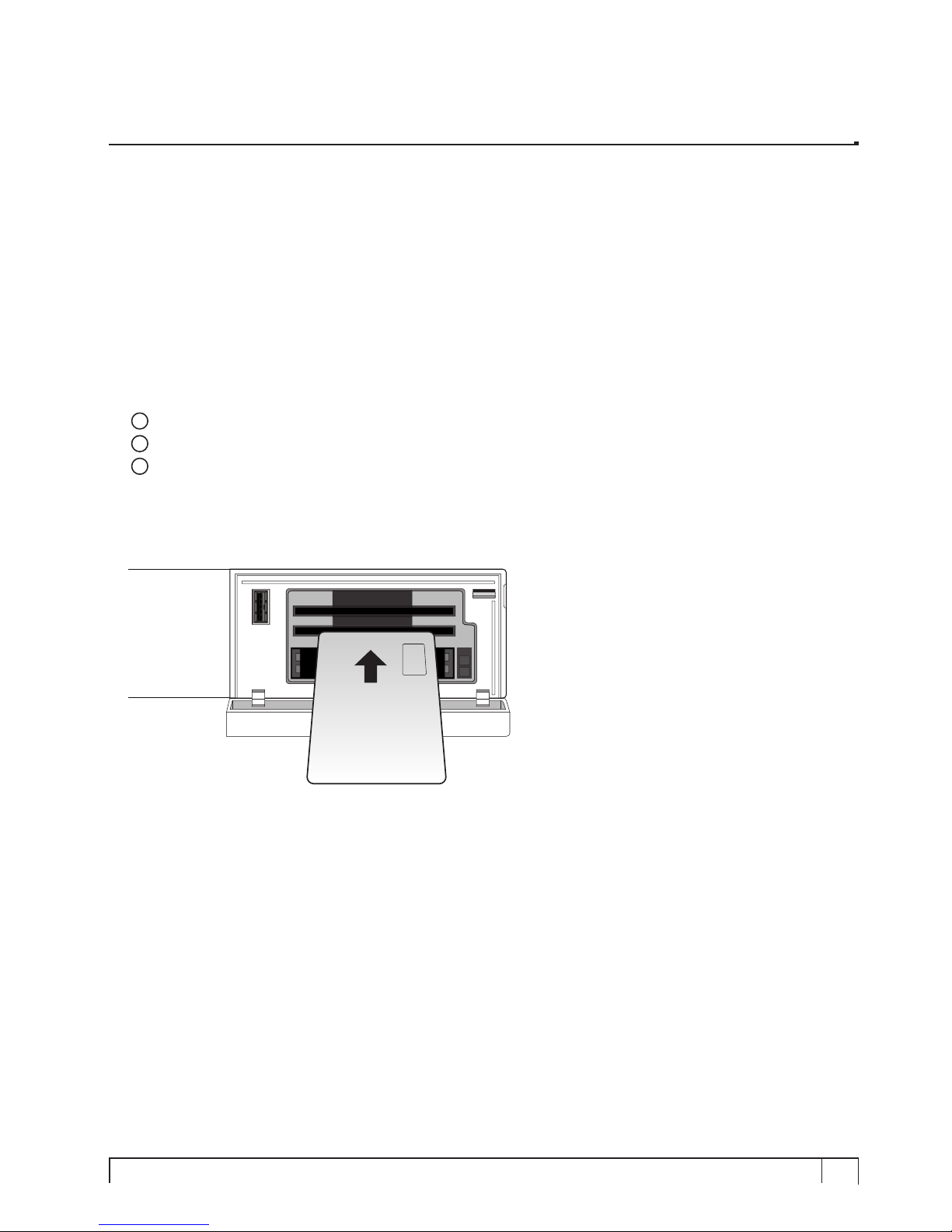
Insertion of Smartcard
Vu+ supports Xcript and Conax. Users need to buy only these Smartcards without having to buy
additional CAMs to watch those channels that are encrypted in Conax and Xcrypt.
1Open the door on the right side.
2Insert Conax and/or Xcrypt Smartcard as in the following instruction.
3Make sure that the Smartcard remain inserted while viewing.
Insertion
(D) Conditional Access
Smartcard

10 Vu :Your Smart Linux TV Player
+
Vu User Manual
+
Insertion of CAM (Conditional Access Module)
There are several Conditional Access Systems (CAS), other than Conax and Xcrypt that Vu+ supports.
To be able to watch channels that are encrypted in such CAS as Nagravision, NDS, Irdeto, Viaccess,
etc, users need to purchase a CAM that is corresponding to each CAS, as well as Smartcard to
decrypt those encrypted channels.
1Insert a Smartcard into the CAM as in the below picture.
2Once the Smartcard inserted into the CAM, insert the CAM into the CI slot.
3Make sure that the CAM remain inserted while viewing.
Insertion
Smartcard
CI-Module
Autres manuels pour DUO
1
Table des matières