
Voxx Electronics ADVP10 Manuel utilisateur

10.1” SmartTV Ready Overhead
In-Vehicle Entertainment System
With Built-In DVD Player / HDMI
for SmartTV connectivity
(Optional) / USB and A/V Inputs
OWNER'S
MANUAL
®

TABLE OF CONTENTS
FCC Statement...................................................................................................................................................................................................................3
Important Notice..............................................................................................................................................................................................................4
Warnings..............................................................................................................................................................................................................................4
Congratulations ................................................................................................................................................................................................................5
Safety Precaution .............................................................................................................................................................................................................5
Features ...............................................................................................................................................................................................................................5
Controls and indicators diagram(front view).........................................................................................................................................................6
Controls and indicators diagram(side view)...........................................................................................................................................................7
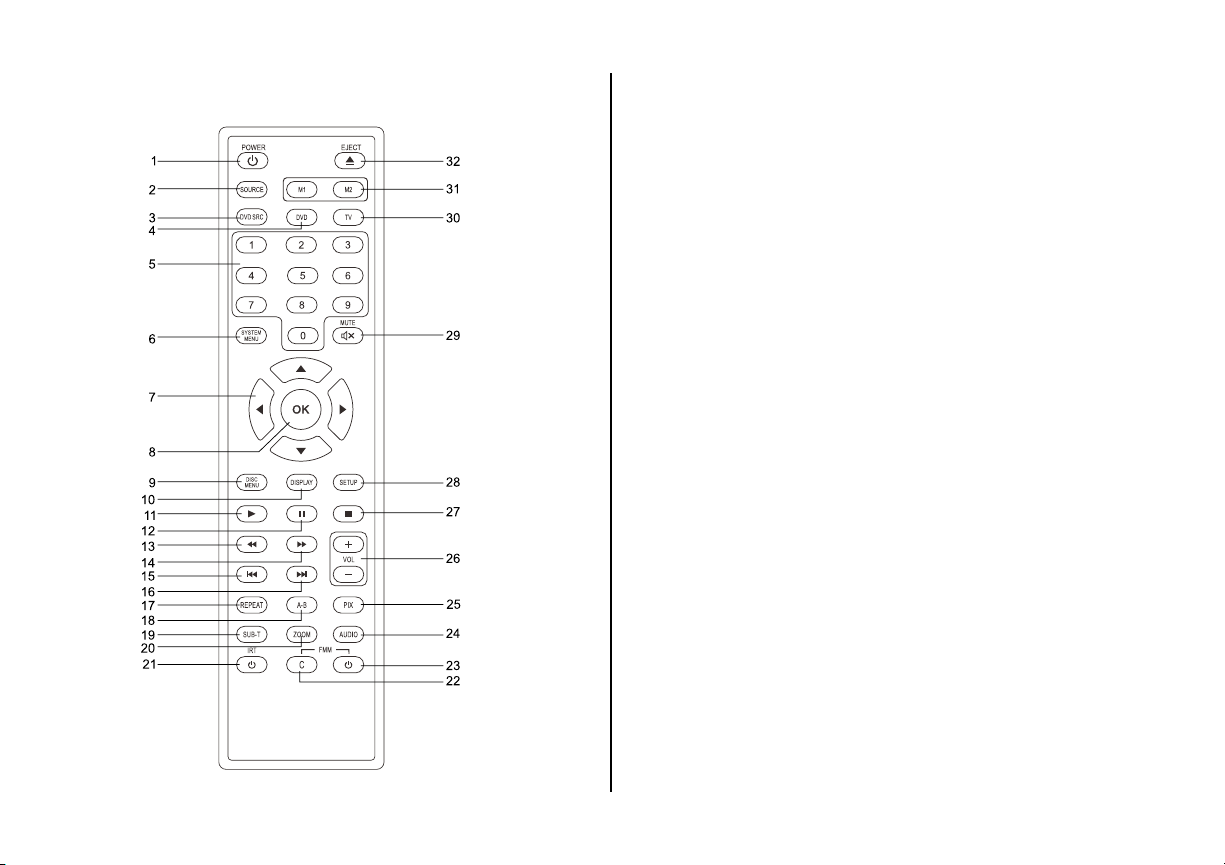
Remote Control Operation .......................................................................................................................................................................................... 8
Remote Control Functions ........................................................................................................................................................................................... 9
Turning the unit on or o...........................................................................................................................................................................................13
Source menu...................................................................................................................................................................................................................14
System Menu Setting and Adjustments ...............................................................................................................................................................16
Playing DVDs and Audio Discs..................................................................................................................................................................................24
Playing USB Devices.....................................................................................................................................................................................................24
Playing MP3 Discs .........................................................................................................................................................................................................25
DVD Basics .......................................................................................................................................................................................................................26
HDMI Devices................... ...............................................................................................................................................................................................27
USB Input..........................................................................................................................................................................................................................28
Troubleshooting ............................................................................................................................................................................................................29
Specications..................................................................................................................................................................................................................30
Warranty ...........................................................................................................................................................................................................................31

3
FCC Statement
This device complies with Part 15 of the FCC Rules. Operation is subject to the following two conditions: (1) This device may not cause harmful
interference, and (2) this device must accept any interference received, including interference that may cause undesired operation. This equipment has
been tested and found to comply with the limits for a Class B digital device, pursuant to Part 15 of the FCC Rules. These limits are designed to provide
reasonable protection against harmful interference in a residential installation.
-Reorient or relocate the receiving antenna.
- Increase the separation between the equipment and receiver.
- Connect the equipment into an outlet on a circuit dierent from that to which the receiver is connected.
- Consult the dealer or an experienced radio/TV technician for help.
FCC Caution: Any change or modications not expressly approved by the party responsible for compliance could void the user’s authority to operate this
equipment.
Radiation Exposure Statement
This equipment complies with FCC radiation limits set forth for an uncontrolled environment. This equipment should be installed and operated with
minimum distance 4.5in (20cm) between the radiator & your body.

4
Important Notice
Installation of overhead products requires careful planning and preparation. Be extremely careful when working on a vehicle with side curtain air bags.
Do not route wires near any portion of the side curtain air bag assemblies. This includes any anchor points in A, B, C or D pillars of the vehicle. Routing
wires in these areas or running wires by the side curtain air bags can prevent the side curtain air bag from fully deploying which can result in personal
injury to vehicle occupants. If you have any questions regarding wire routing in a vehicle, please contact Voxx Technical Support at 1-800-225-6074.
When connecting power and ground in a mobile video installation ensure that the ACC wire is fused at the point where it is connected to the vehicle
ACC wiring. Failure to do so can result in damage to the vehicle if a short circuit develops between the vehicle connection point and the mobile video
product.
An LCD panel and/or video monitor may be installed in a motor vehicle and visible to the driver if the LCD panel or video monitor is used for vehicle
information, system control, rear or side observation or navigation. If the LCD panel or video monitor is used for television reception, video or DVD play,
the LCD panel or video monitor must be installed so that these features will only function when the vehicle is in “park” or when the vehicle's parking
brake is applied.
An LCD panel or video monitor used for television reception, video or DVD play that operates when the vehicle is in gear or when the parking brake is not
applied must be installed to the rear of the driver's seat where it will not be visible, directly or indirectly, to the operator of the motor vehicle.
Warnings
• Do not use any solvents or cleaning materials when cleaning the video monitor.
• Do not use any abrasive cleaners, they may scratch the screen.
• Use only a lightly dampened lint free cloth to wipe the screen if it is dirty.
• Lock the LCD screen in the fully closed position when not in use.
• Before putting on headphones always adjust the volume setting to the lowest position.
• Remember to leave the dome light switch in the o or auto positions when the vehicle is unattended, as the dome lights, if left on, can drain
the vehicle's battery.
• Do not put pressure on the screen.
• Caution children to avoid touching or scratching the screen, as it may become dirty or damaged.
Patented: Refer to www.voxxintl.com/company/patents

5
Congratulations
Congratulations on your purchase of this In-Vehicle Entertainment
System . This system has been designed to give you and your family many
years of video entertainment in the mobile environment. Please read the
directions that follow to familiarize yourself with the product to ensure
that you obtain the best results from your equipment.
Note: Installation options vary, see the individual owner's manuals for
each component in your system to obtain a full understanding of each
component's operation.
Safety Precaution
For safety reasons, when changing video media, it is recommended that
the vehicle is not in motion, and that you do not allow children to
unfasten seat belts to change video media or make any adjustments to
the system. System adjustments can be accomplished using the remote
control, while seat belts remain fastened. Enjoy your In- Vehicle
entertainment system but remember the safety of all passengers remains
the number one priority.
FEATURES
•10.1”TFT(Thin Film Transistor) Active Matrix LCD (Liquid Crystal
Display) Monitor
•LED Backlighting
•Built-in DVD Player
•Auto-On With Disc Insertion
•OSD (On Screen Display) for Control of Picture Quality and
Functions
•Dual IR Receiver (Front and Rear)
•Switchable Dual Channel IR Infrared Transmitter
•Five Source Input
(DVD, USB, HDMI 1, HDMI 2, AV)
•Dome Lights with Built-in Three Way Switch
•Last Position Memory for DVD
•Screen Mode Selection (4:3, 16:9)
•Full Function Remote Control
•Backlit Controls
•AV Output via RCA Jacks
•Plays DVD, CD and MP3 Discs

6
CONTROLS AND INDICATORS DIAGRAM FRONT VIEW
1. POWER and SOURCE/SELECT ( ) Button
This button is used to turn the system on/o .Short press to turn on the
system, long press to turn o the system. When system already turn on,
this button will become source select function.
2. Play/Pause (u/II ) Button
This button is used to start playback of a disc or pause a disc.
3. DOWN / Previous ( ) Button
Short press to select the source mode and system menu pages.
Long press to select previous chapter or track during play the DVD.
4. HOME/MENU Select Button
This button is used to display and select options on the system menu.
Press and hold for 3 seconds to access the System Menu.
5. UP/NEXT( ) Button
Short press to select the source mode and system menu pages.
Long press to select next chapter or track during play the DVD.
6. STOP (n) Button
-Press the STOP button once: Stops playback.
-Pressing the PLAY button again will resume normal playback from where
movie was stopped.
-Press the STOP button twice and then press the PLAY button to start
playback from the beginning of the DVD.
7. EJECT ( )Button
This button is used for ejecting a disc from the disc compartment.
8. Dome Lights
Provide additional interior illumination.
9. Infrared Transmitter/Remote Sensor
IR Transmitter: is used to broadcast audio signal to wireless IR
headphones.
IR Sensor: is used to receive signals from the remote control.
10. Screen Release
Push this button to release the screen from the locked position.
11. Ventilation Openings
12. LCD O Switch
Used to turn o the LCD backlight when the LCD is in the closed position.
13. LCD Panel

7
CONTROLS AND INDICATORS DIAGRAM SIDE VIEWS
1. DVD DISC INSERTION SLOT
For loading and removing discs. When a disc is inserted, the unit will automatically turn ON and switch to DVD source. Insert a disc with label side
facing up.
Note: The disc slot indicator is red when a disc is inserted and green when the disc slot is empty.
2. USB INPUT
For connection of a USB memory device. This input will also charge a USB device that contains a battery.
Note: The USB input supplies up to 1A of charging current. (Samsung Mobile Devices up to 500mA). It is recommended to connect the device to a
vehicle power outlet for full charging capabilities.
3. HDMI INPUT
For connection of devices with HDMI outputs. See page 27 for more information.
Note: Requires anHDMI enabled device and may require a special HDMI adapter (ie: Smartphones). Contact your Smartphone device supplier for the
appropriate HDMI adapter.
4. THREE POSITION DOME LIGHT SWITCH
ON - Turns on the dome lights.
OFF - The dome lights will not turn on in this position.
AUTO - Automatically turns on the dome lights in conjunction with the vehicle's interior illumination.

8
REMOTE CONTROL OPERATION
Battery Replacement
1. Remove the battery cover.
2. Insert two AAA batteries into the battery holder. Be sure to observe the correct polarity.
3. Reinstall the battery cover back into the Remote Control until it locks in place.
9
REMOTE CONTROL FUNCTIONS
* Function control is available on the unit and the Remote Control.
** Function not available in this model.
1. POWER*
Press this button to turn the unit ON and OFF.
2. SOURCE*
Press to display the Source OSD for DVD, USB, AV, HDMI 1 and HDMI 2.
3. DVD Source**
No function on this model.
4. DVD Mode Select Button
Switches certain function keys on the remote control for DVD function.
5. NUMBERS
Allows the user to enter the numbers 0-9 for selection of the tracks,
titles, chapters or password setting.
6. SYSTEM MENU
Allows the user to access the system menu. Press the por q cursor
buttons to select PICTURE, AUDIO, SYSTEM, PLAYER, FMM and SMART
STREAM Settings.
7. CURSOR (pqt u)
Use the cursor buttons to access menu selections on the screen.
8. OK
Used to execute a selected setting or menu option.
9. DISC MENU
In DVD mode, press once to access the Root Menu and then press again
to resume to previous screen.

10
DVD TT 0/12 CH 0/25 00:00:00
OFF OFF OFF
....
10. DISPLAY
Press once to display current disc information of Title, Chapter & Time. Press again to display Subtitle, Audio & Angle while the disc is playing.
11. PLAY (u)*
Press to activate the play mode while a disc is loaded into the disc compartment.
12. PAUSE (II)*
Press to pause playback.
13. BACKWARD ( )
Press to search in a backward direction. Press repeatedly to change the search speed from 2, 4, 8, 20 times and normal speed.
14. SCAN FORWARD ( )
Press to search in a forward direction. Press repeatedly to change the search speed from 2, 4, 8, 20 times and normal speed.
15. PREVIOUS ( )
Press to return to the previous chapter or track.
16. NEXT ( )
Press to skip to the next chapter or track.
17. REPEAT
Allows the user to repeat a selected chapter, title or all track.
18. A-B REPEAT
Allows user to repeat the playback from point A to point B.
Press A-B button On-Screen Display DVD player
Once Repeat A Mark the beginning of the section to repeat (Set point A)
Twice A-B Mark the end of the section to repeat (Set point B)
3 times AB O Cancel the A-B repeat function
Table des matières
Autres manuels Voxx Electronics Récepteur de voiture


