
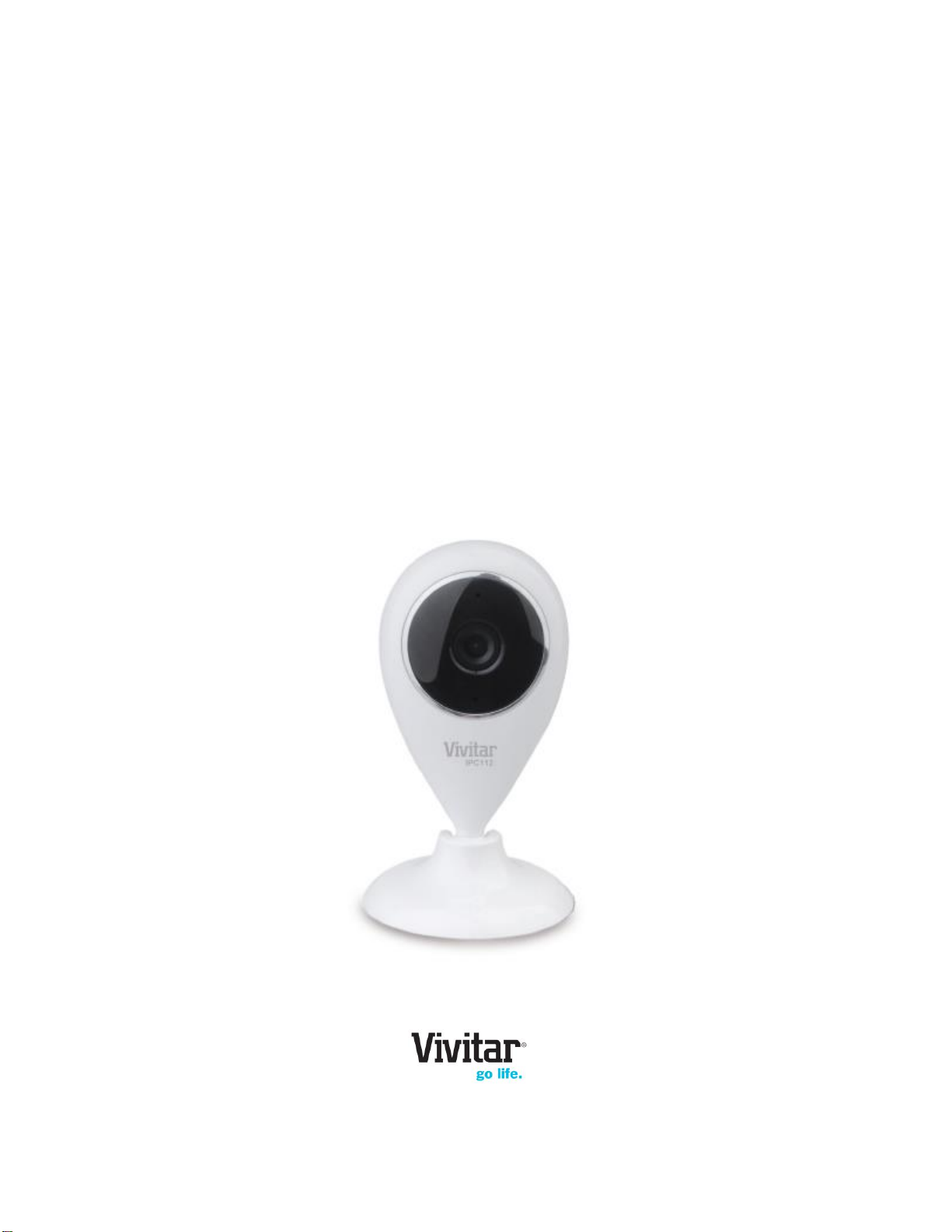
Vivitar IPC 112 Manuel utilisateur

IPC 112
Capture Cam
User Manual
© 2009-2015 Sakar International, Inc.All rights reserved.
Windows and the Windows logo are registered trademarks of Microsoft Corporation.
All other trademarks are the property of their respective companies.
This manual downloaded from http://www.manualowl.com

1
TABLE OF CONTENTS
Introduction .................................................................................................................................. 2
Features....................................................................................................................................... 2
What’s Included............................................................................................................................ 3
Parts of the Camera..................................................................................................................... 4
Initial Camera Setup..................................................................................................................... 5
INSTALLING THE MEMORY CARD ...................................................................................................................................................5
TURNING ON AND USING THE CAPTURE CAM ....................................................................................................................................5
CAMERA RESTART......................................................................................................................................................................6
INDICATOR LIGHT ......................................................................................................................................................................6
Initial Mobile Device Setup........................................................................................................... 7
MOBILE DEVICE –ANDROID AND IOS SYSTEM REQUIREMENTS .............................................................................................................7
VIVITAR CAPTURECAM2APP INSTALL..............................................................................................................................................7
Connecting Your IP Camera with the Vivitar CaptureCam2 MobileApplication............................ 8
INTRODUCTION .........................................................................................................................................................................8
INITIAL SETUP: CONNECTING YOUR CAMERA TO THE APP ..................................................................................................................9
Using CaptureCam2................................................................................................................... 13
HOME SCREEN .......................................................................................................................................................................13
LIVE CAMERA VIEW -FULL SCREEN .............................................................................................................................................. 19
CAPTURED DATA ..................................................................................................................................................................... 22
SETTINGS .............................................................................................................................................................................. 25
Camera Technical Specifications................................................................................................ 27
Troubleshooting.......................................................................................................................... 28
Technical Support....................................................................................................................... 30
Sakar Warranty Card.................................................................................................................. 30
This manual downloaded from http://www.manualowl.com

2
Introduction
Thank you for purchasing your Vivitar IPC 112 Capture Cam.
Everything you need to stream live video, record in HD and capture still images and videos
remotely is included with your camera and the accompanying online application.
Please read this manual carefully first in order to get the most out of your Vivitar Capture Cam.
Note:
Your Capture Cam requires a Class 4 or higher Micro SDHC memory card up to 32 GB.
Memory cards are not included and need to be purchased separately.
Features
Stream Live Video
Record in HD
IR Night Vision
Motion Detection
Still Image Capture
Built-in Wi-Fi Connectivity
Built-in Speaker/Microphone
Built-in Light Sensor
IR Night Vision
Vivitar Capture Cam2 : Free Mobile App for iOS and Android smartphone or tablets
This manual downloaded from http://www.manualowl.com

3
What’s Included
1. IP Camera
2. USB cable
3. AC Charger
4. Screws
5. Setup Tool
Note: Micro SD Memory Card not included.
This manual downloaded from http://www.manualowl.com

4
Parts of the Camera
1. Micro SD Memory Card Slot
6. Ventilation Holes
2. LED Status Light Indicator (Red/Blue)
7. Speaker
3. Lens (with built-in infrared lights)
8. RESET
4. Microphone
9. Micro USB Port
5. Column Spinner
10. Magnetic Base
This manual downloaded from http://www.manualowl.com

5
Initial Camera Setup
INSTALLING THE MEMORY CARD
Make sure a Micro SD Memory card (up to 32 GB) has been properly inserted into your Capture
Cam. Micro SD Memory card not included. To properly insert the Micro SD Memory Card:
1. Insert the Micro SD memory card into the Micro SD Card slot as shown in the illustration
above. See SD icon next to the slot on the camera for reference.
2. Gently press the Micro SD Card until you hear a slight clicking sound.
This indicates the memory card has been inserted correctly.
NOTE: Make sure to insert the Micro SD Memory card before plugging in your device.
TURNING ON AND USING THE CAPTURE CAM
Connect one end of the USB cable to your IP camera and the other end to the AC charger and
then plug the AC charger into a power socket.Alternatively you can connect the USB cable from
your camera to the USB port of your computer as a power source.
The LED power light indicator blinks blue after about one minute, indicating that the camera is
powered on. To power off the camera, disconnect the USB cable from the power source.
This manual downloaded from http://www.manualowl.com

6
CAMERA RESTART
If the blue indicator fails to flash or if you see a red light, you need to RESET the camera. To reset
the IP Camera, use the Setup Tool to press the RESET button on the back of the camera. Hold
for 5 seconds and then release. The IP Camera will restart and reset. This may take approx. 30
seconds.
INDICATOR LIGHT
Blue Flashing Indicator Light:
When the blue indicator light is flashing, this indicates that the camera is ready for setup.
Blue Steady Indicator Light:
When the blue indicator light is steady, this indicates that the camera is connected to Wi-Fi.
Red Flashing Indicator Light:
The red indicator light indicates that the camera connection to the Wi-Fi has failed.
- Press the RESET button for 5 seconds to clear the setup data and reset the camera settings
via the Capture Cam2 application (Add New Camera).
- Press the RESET button for 1 second to restart the camera and enter setup mode to
reconnect to Wi-Fi when you have already set up the camera before via the Capture Cam2
app.
This manual downloaded from http://www.manualowl.com

7
Initial Mobile Device Setup
MOBILE DEVICE –ANDROID AND IOS SYSTEM REQUIREMENTS
Android 4.3 or higher
iOS 7 or higher
VIVITAR CAPTURECAM2 APP INSTALL
1. Use your mobile phone or tablet to search for Vivitar CaptureCam2 in Google Play (for
Android OS) or the Apple App Store (for iOS).
Alternatively, scan the QR codes below to find the application.
Android OS iOS
2. Install the application according to the instructions.
This manual downloaded from http://www.manualowl.com

8
Connecting Your IP Camera with the Vivitar
CaptureCam2 Mobile Application
INTRODUCTION
The Vivitar CaptureCam2 application allows you to:
Register and connect a new camera in minutes.
Remotely monitor up to four cameras using the application from anywhere.
Record videos automatically, as soon as the camera is connected.
Record videos automatically based on motion sensing technology.
Take pictures and record videos remotely.
Remotely view recorded videos and download the videos from your camera’s SD card to your
computer.
View your captured photos that are saved directly to your iOS and Android devices.
Adjust camera settings from your app.
Allow other people to access your camera.
Use the audio microphone and speaker.
This manual downloaded from http://www.manualowl.com

9
INITIAL SETUP: CONNECTING YOUR CAMERA TO THE APP
1. INSTALL MICRO SD CARD
Insert a Micro SD Memory card into your camera.
2. ENABLE MOBILE DEVICE WI-FI
Make sure to enable Wi-Fi on your smartphone or tablet via the settings of your mobile
device.
3. LAUNCH MOBILE APP
Tap the Vivitar CaptureCam2 application icon on your smartphone or tablet to launch
the installed app.
4. WELCOME: SETUP WIZARD
The Welcome screen appears with the ‘Setup Wizard’.
NOTE: The ‘Setup Wizard’ screen appears only upon first time, initial setup.
This manual downloaded from http://www.manualowl.com
Table des matières
Autres manuels Vivitar Caméra de sécurité


