
VisionQuest DIY-4350 Manuel utilisateur
The specifications and information are subject to change without notice for quality improvement.
INSTRUCTION MANUAL
DIY-4350
4 Channel MPEG-4 Digital Vi eo Recor er
About this user gui e
Before installing and using this unit, please read this user guide carefully.
Be sure to keep it handy for later reference.

2
SAFETY PRECAUTIONS
EXPLANATION OF SYMBOLS
WARNING
To reduce a risk of fire or electric shock, do not expose this product to rain or moisture.
CAUTION
hanges or modifications not expressly approved by the manufacturer may void the user’s authority to
operate this equipment.
CAUTION
Danger of explosion if battery is incorrectly replaced.
Replace only with the same or equivalent type recommended by the manufacturer.
This symbol is intended to alert the user to the presence of important
operation and maintenance (servicing) instructions in the literature
accompanying the appliance.
This symbol is intended to alert the user to the presence of
unprotected “dangerous voltage” within the product’s enclosure that
may be strong enough to cause a risk of electric shock persons.

3
Do not use if the unit emits smoke, strange sounds are heard, or odor is emitted.
Make sure the power cable is not damaged.
Make sure there is no dust accumulation on the power plug or the outlet.
Disassembly prohibited
Do not place any foreign objects inside the unit.
Do not place a container holding water or other liquids above the unit when it is connected to power.
Do not allow the unit to get wet.
Do not use during thunder/thunder storms.
Do not place in an unstable position.
Do not expose to shock or vibration.
Do not use this unit in areas where it is exposed to the possibility of explosion.
Do not pull on the power cable when removing the power plug from the outlet.
Do not touch the power plug with wet hands.
Do not sit on.
Make sure the cables are connected properly.
Do not place heavy objects on connected units.
Never move this unit while the power is turned on.
Do not block the cooling fans or air ducts.
Do not expose to extreme temperatures or humidity changes.

4
Precautions for supplie AC A aptor
Never disassemble or modify.
Never get the adaptor wet.
Use only the supplied A adapter.
Do not connect to other appliances.
Do not connect this unit with the A adapter in areas reachable to children or where pets move
freely.
Never touch the A adapter with wet hands.
If the unit emits smoke, strange sounds or smells immediately remove the A adapter from the outlet.
Do not use during thunder/thunder storms.
Make sure the cable is connected properly.
Preventing damage to a cable

5
Main features of DIY-4350
- Real time monitoring at 30frames per channel (NTS ) / 25frames per channel (PAL)
- Recording speed at Maximum 30frames per channel (NTS ) / 25frames per channel (PAL)
- RJ45 connector for video input and camera power output help easy camera installation.
- Remote live monitoring and remote search/playback over network
- VGA video out and TV video out
- External IR receiver
Main replacement parts of DIY-4350
- Hard disk: 1 years (25° environment)
- ooling fan: 3 years (25° environment)
- Battery: 2 years (25° environment)
DVR set & Accessories
The package contains the main unit and its components as specified below. When you purchase the package,
please check to ensure the components specified below are included.
DVR Set
Remote ontroller
Battery1.5V (AAA x 2EA)
Adaptor and Power cable
lient Software D
User Guide

6
SPECIFICATIONS
INPUT 4 hanel RJ45 Module (NTS /PAL) – 1.0Vp-p composite, 75ohms
1 hanel R A (NTS /PAL) – 1.0Vp-p composite, 75ohms
VIDEO
OUTPUT (Selectable)
1 VGA
ALARM INPUT & OUTPUT 4 & 1
OS RTOS
OMPRESSION MPEG-4
VIDEO FORMAT NTS PAL
RESOLUTION &
RE ORDING SPEED
352x240/ H: MAX. 120fps/4 H
704X480/ H: MAX. 30fps/4 H
352x288/ H: MAX. 100fps/4 H
704X576/ H: MAX. 25fps/4 H
MODE Manual, Motion, Sensor, and Schedule
RE ORD
METHOD By Resolution, fps & Quality
MULTI TASK TRIPLEX Record, playback and transfer
ONTROL UNIT IR Type Remote ontrol & Front keys
DYNAMI IP Supported by DDNS
LAN PORT 1 10/100-base T Ethernet
NETWORK
FUN TIONS Live, Search & Playback, Backup, Setup
HDD APA ITY 1EA
NETWORK Still Image & Video data BA KUP
USB THUMB DRIVE
Still Image & Video data
ADAPTOR Input: A 100-240VA , 50/60Hz, 1.5A 200VA, Output: +12V 5A ELE TRONI AL
SPE IFI ATION
ONSUMPTION About 25W
TEMPERATURE 5° ~ 40°
HUMIDITY 30% ~ 90%
ENVIRONMENTAL
SPE IFI ATION
SIZE
DIMENSION 245(W) X 304(D) X 60(H)mm

7
INDEX
1. NAME & FUNCTION ....................................................................................................... 9
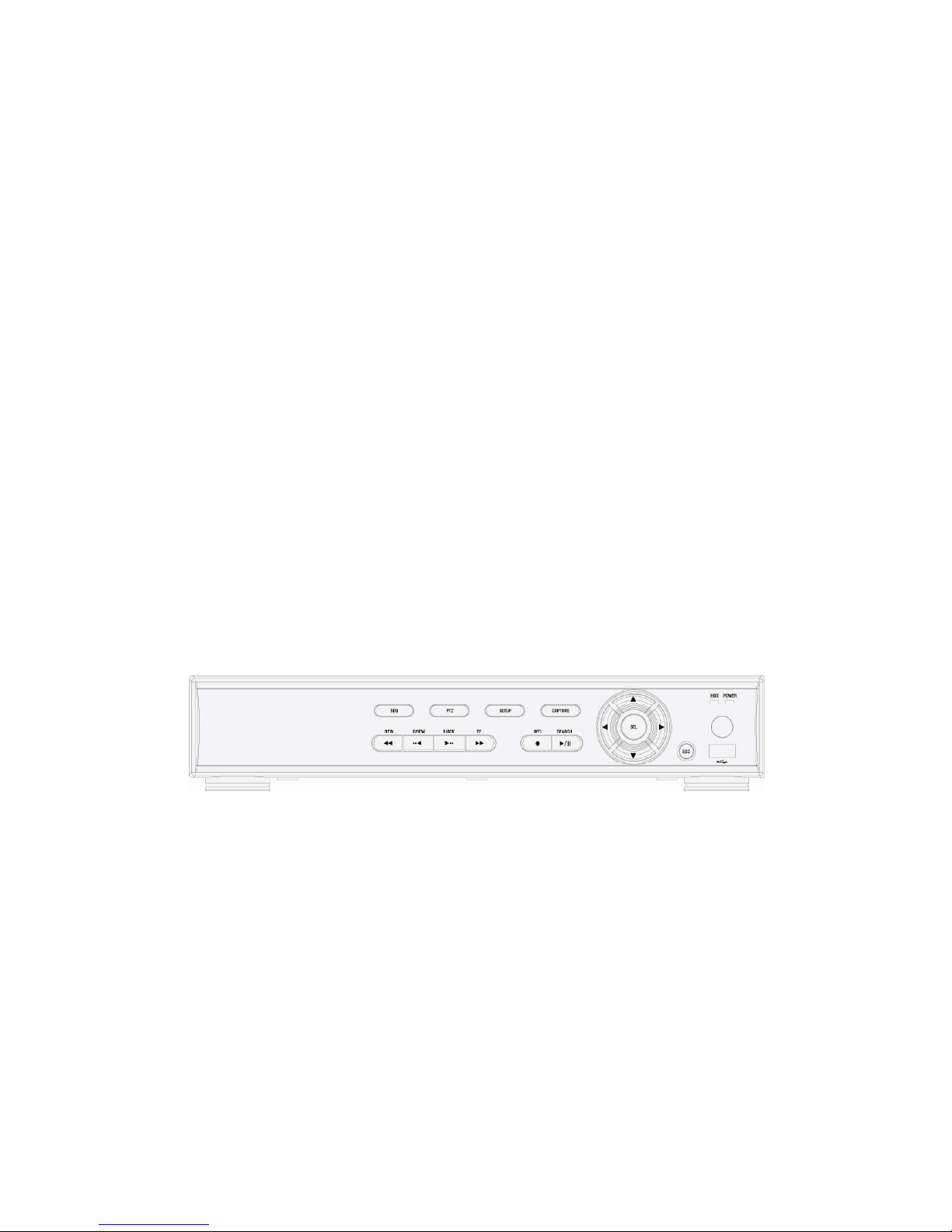
1-1. Front panel .................................................................................................................................................9
1-2. Remote controller.................................................................................................................................... 10
1-3. Rear panel an connection..................................................................................................................... 11
2. PREPARATION ............................................................................................................. 14
2-1. Selecting the type of monitor (TV monitor an VGA monitor)............................................................14
2-2. Live screen...............................................................................................................................................15
2-3. Time setting .............................................................................................................................................16
2-4. DLS (Day Light Saving) time setting: Summer time setting ...............................................................17
3. OPERATION - RECORD ............................................................................................... 18
3-1. MOTION DETECTION recor ing.............................................................................................................19
3-2. CONTINOUS recor ing ...........................................................................................................................20
3-3. SENSOR recor ing..................................................................................................................................20
3-4. Manual recor ing..................................................................................................................................... 21
3-5. SCHEDULE recor ing .............................................................................................................................21
4. OPERATION - PLAYBACK ........................................................................................... 24
4-1. EVENT SEARCH ......................................................................................................................................25
4-2. TIMELINE SEARCH..................................................................................................................................26
4-3. GO TO .......................................................................................................................................................27
4-4. GO FIRST..................................................................................................................................................27
4-5. GO LAST...................................................................................................................................................27
4-6. LOG...........................................................................................................................................................27

8
4-7. ARCHIVE................................................................................................................................................... 28
5. OPERATION - BACKUP TO USB THUMB DRIVE ....................................................... 29
5-1. Archiving an backup Still image in Live mo e................................................................................... 30
5-2. Archiving an backup Still image or Vi eo in Playback mo e...........................................................31
5-3. Backup Still image or Vi eo from ARCHIVE menu ..............................................................................32
5-4. Playback of AVI or DVR (Exclusive vi eo format) vi eo backup ata ............................................... 34
6. SETUP........................................................................................................................... 35
6-1. LIVE...........................................................................................................................................................36
6-2. RECORD ...................................................................................................................................................38
6-3. SYSTEM....................................................................................................................................................40
6-4. NETWORK ................................................................................................................................................42
6-5. STORAGE................................................................................................................................................. 45
6. NETWORK ACCESS USING THE EXCLUSIVE NETWORK VIEWER ........................ 47
6-1. PC requirements...................................................................................................................................... 47
6-2. Installing the network viewer .................................................................................................................47
6-3. Live monitoring mo e an functions. ................................................................................................... 48
6-4. Remote search mo e an functions ..................................................................................................... 51
6-5. PC System configuration........................................................................................................................54
7. NETWORK ACCESS USING WEB-BROWSER NETWORK VIEWER......................... 58
APPENDIX: HOW TO CONNECT NETWORK.................................................................. 60
A. How to set IP address of the DVR and open T P port of the router?...................................................... 60
B. How to access DVR from Remote P ?.................................................................................................... 62

9
1. NAME & FUNCTION
1-1. Front panel
① SEQ: To start auto sequencing of the screen in full screen mode. (Toggle)
② PTZ: To control PTZ operation (not working in this model.)
③ SETUP: To launch SETUP menu.
④ CAPTURE: To start operations of backup in live or playback mode.
⑤ SEARCH: To go to the search menu.
⑥ REC: To start and stop manual recording.
⑦ PLAY/PAUSE: To play or to pause the footage in playback mode.
⑧ REW: To rewind the footage at 1x, 2x, 4x, and 8x speed during playback.
⑨ F/REW : During playback - To move the playback position 60 seconds backward.
During pause - To move the playback position 1 frame backward.
⑩ F/ADV: During playback - To move the playback position 60 seconds forward.
During pause - To move the playback position moves 1 frame forward.
⑪ FF: To fast forward the footage at 1x, 2x, 4x, and 8x speeds during playback.
⑫ USB port: To connect USB Thumb drive to backup data.
⑬ HDD: The indicator blinks during recording and playback.
⑭ POWER: The indicator blinks when the A adaptor is connected.
Direction button
During setting
ⓐ To move the cursor Upward.
ⓑ To move the cursor to the Right or to change the setting values.
ⓒ To move the cursor Down.
ⓓ To move the cursor to the Left or to change the setting values.
During Live/playback & Entering passwor
ⓐ To select camera 1 or To enter No. 1
ⓑ To select camera 2 or To enter No. 2.
ⓒ To select camera 3 or To enter No. 3.
ⓓ To select camera 4 or To enter No. 4.
ⓔ To select full screen or quad screen view in live/playback or To select desired menu item or to store the setup value.
ⓕ To return to previous menu screen or To exit from playback.

10
1-2. Remote controller
① ID: When a remote control ID number is set in DVR, press it before number.
② REC: To start and stop manual recording.
③ Number: To select channel (1, 2, 3, & 4) or to enter DVR ID number.
④ F/REW: During playback - To move the playback position 60 seconds backward.
During pause - To move the playback position 1 frame backward.
⑤ F/ADV: During playback - To move the playback position 60 seconds forward.
During pause - To move the playback position moves 1 frame forward.
⑥ REW: To rewind the footage at 1x, 2x, 4x, and 8x speed during playback.
⑦ PLAY/PAUSE: To play or to pause the footage in playback mode.
⑧ FF: To fast forward the footage at 1x, 2x, 4x, and 8x speeds during playback.
⑨ Control button: Press to move the menu items or select channel.
⑩ SETUP: To launch SETUP menu.
⑪ SEARCH: To go to the search menu.
⑫ ESC: During setting - To return to previous menu screen.
During playback - To exit from playback.
⑬ BACKUP: To start operations of backup in live or playback mode. (The same function button as APTURE on the
front panel of DVR.)
⑭ SEQ: To start auto sequencing of the screen in full screen mode. (Toggle)
Operation range
Table des matières


