Viliv S5 Manuel utilisateur

Detail Guide
This guide is subject to change for product improvement without prior notice.
Intel Atom Silverthorne 1.33Ghz
Superne 4.8” Touch LCD with Virtual Haptic Keyboard
200 hours Standby Time
6 hours continuous movie Playback
Bluray HD Video Playback
HDD 30G/60G, Windows XP

Thank you for purchasing viliv.
Please read the Precautions before using the product.

Yukyung Technologies Corp. has the copyright for this guide.
The contents of this guide may not be copied for use in any way without prior authorization
from Yukyung Technologies Corp.
©2009 Yukyung Technologies Corp. All rights reserved.
Copyright
viliv is Yukyung Technologies’ registered trademark.
Windows 2000, Windows XP and Windows CE are Microsoft Corporation’s registered trademarks.
Registered Trademark
※There are differences in functions for each model.
Please use the product after reading the contents corresponding to the relevant function.
Thecontentsofthismanualmaybechangedormodiedwithouttheuser’spriorconsent
or prior notice to the user.

CubeUI .....................4
Screen of Cube . . . . . . . . . . . . . . . . . . .4
Setting Cube .....................5
Virtual Keyboard ..............6
Using Virtual Keyboard .............6
Virtual Keyboard Function ...........7
User Registration Button .......8
Set up for New Shortcut Button.......8
Playing Video ................9
Video Screen .....................9
Detailed Function.................10
Procedure for Playing Video ........11
Playing Video....................12
Setting Video Configuration.........13
Playing Music ...............15
Music Main Screen ...............15
Detailed Function.................16
Advanced Functions ..............17
Procedure for Playing Music . . . . . . . .18
Playing Music ...................19
Setting Music Configuration.........20
Changing to Screen Mode..........21
vilivManager ................22
Setting vilivManager ..............22
Setting Up BIOS .............23
Screen for Setting Up BIOS.........23
Entering BIOS Set-up .............24
Setting up Booting Priority for
Booting Device ..................25
Setting up Booting Password .......26
Recovery Solution (AMI Rescue)
Guide .....................27
Way to Use Recovery Solution
(AMI Rescue)....................27
Connection of S5 ............28
Way to Connect S5 ...............28
FAQ ...........................30
Connection of GPS...........31
Way to Connect GPS .............31
Software License Agreement . . . 32
Contents...

ULTRA PC PMP 4www.myviliv.com
Volume
ON/OFF for Bluetooth
ON/OFF for Wireless LAN
External Power and Battery
Current Time
Set Vibration
Set Cube
Terminate CubeUI
Cube Menu
Execution Icon
Set Wallpaper Skin
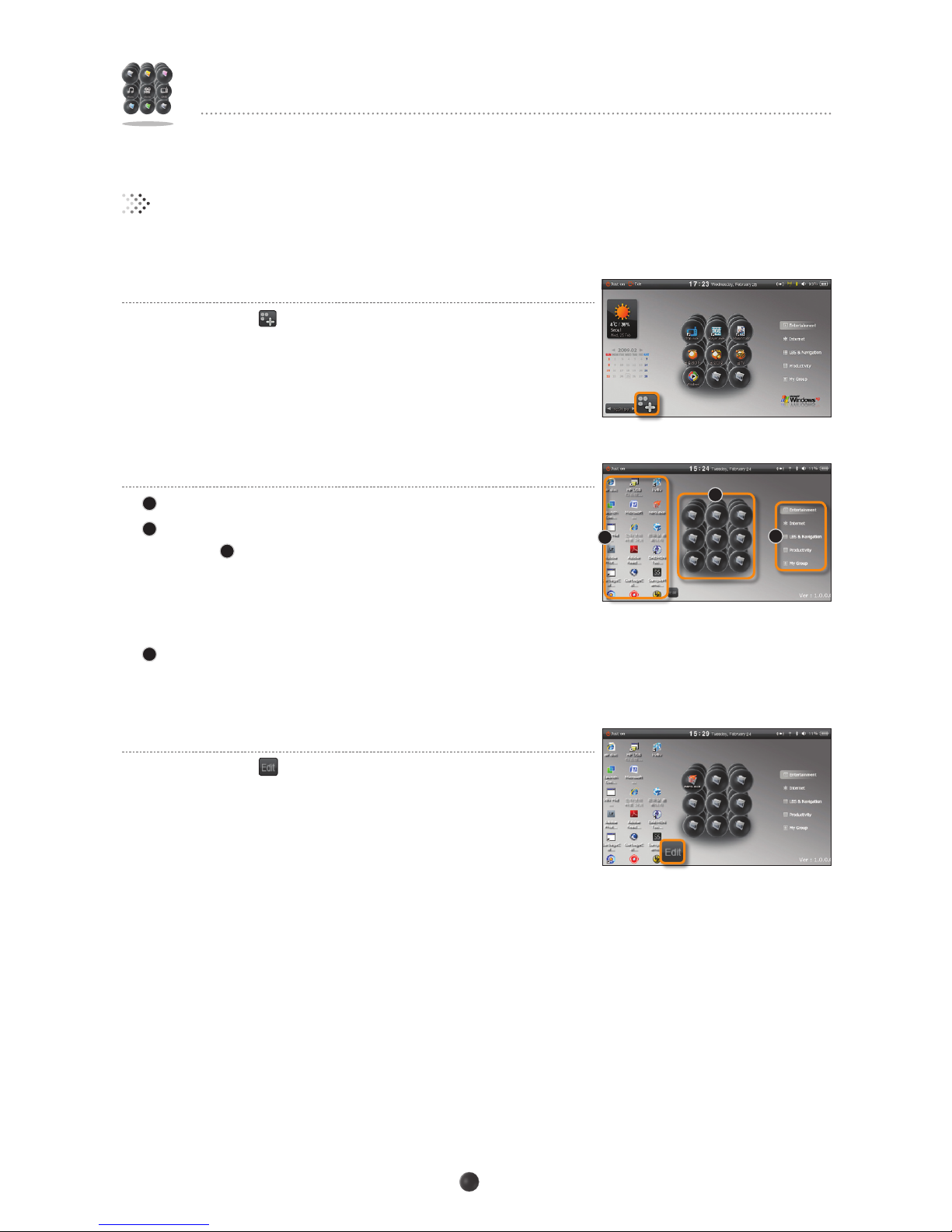
Screen of Cube
Move to WINDOWS XP
Wallpaper
Setting Vibration
Vibration effect can be set by the following 3 modes.
Do not set vibration.
Vibration is always on.
Vibration is on only when using the keyboard.
Just on Enter into Standby Mode.
(The cancellation of Standby Mode is same as turning on the power.)
Setting Wallpaper Skin
Changethewallpaperskinbyusing◄►icon.
Setting Cube
Move to the screen for setting cube.
(The execution icon can be set on each cube menu.)
ON/OFF for Wireless
LAN Turn on/off wireless LAN function. (Same as setting in vilivManager.)
ON/OFF for Bluetooth Turn on/off Bluetooth function. (Same as setting in vilivManager.)
Execution Icon
Press the applicable icon and it will be executed immediately.
Wallpaper
Pressing WINDOWS icon to move to Windows XP Wallpaper.
CubeUI
Double-click the [ CubeUI ] icon on the screen for operation.
Calendar
Weather Information
Enter into Standby Mode

ULTRA PC PMP 5www.myviliv.com
CubeUI
Setting Cube
1. Screen for Setting Cube
When pressing [ ] icon on Cube screen, the screen for setting
cube is selected.
2. Setting Cube
1Press the menu to be set from cube menu.
2Drag the corresponding icon, and insert into the vacant
place in 3.
Set other cube menus using the above setting method.
※ If the original icon on the wallpaper is deleted after inserting the icon in
CubeUI, the corresponding icon in CubeUI will not be executed.
3To delete the corresponding icon in Cube, drag towards
the wallpaper.
3. Movement of Cube Screen
When pressing [ ] icon on Cube screen, the cube screen is
selected.
1
2
3

ULTRA PC PMP 6www.myviliv.com
1. Execution of Virtual Keyboard
Press the [ ] icon on the screen to run the virtual keyboard.
You can also press the [ ] button.
2. Hiding/Showing Virtual Keyboard
Press the [ ] icon on the virtual keyboard to minimize the
virtual keyboard into the [ ] icon.
Press the [ ] icon to bring it back to its original form.
3.CongurationSet-upandTermination
Right-click the [ ] icon on the task bar and select [Setting].
[Setting] window will appear.
Terminate by selecting [Close].
Virtual Keyboard
Using Virtual Keyboard
Alpha :
Move the alpha value to the left or right to adjust the transparency of the
virtual keyboard.
User Key :
Selectwhetherornottheuser-denedbuttonwillbeusedasavirtualkeyboard.
·Ctrl+Alt:Whilethevirtualkeyboardisused,settheuser-denedbuttontooperate
when Ctrl and Alt button are pressed simultaneously.
·Show/Hide:Whilethevirtualkeyboardisused,settheuser-denedbuttonto
operate as Show/Hide Virtual Keyboard.

ULTRA PC PMP 7www.myviliv.com
Virtual Keyboard
Virtual Keyboard Function
1
2
1 Caps Supports capital letters. (Caps Lock)
2
Shift
Inputs capital letter.
3 Win Executes start menu.
4 Backspace key.
5
Mode
Changes to number or special letter mode.
5
4
3
Notice
When pressing button while virtual keyboard is executed, it is executed the same as pressing Ctrl + Alt
buttontogether.(Incaseofsettingforcongurationset-upforvirtualkeyboard)

ULTRA PC PMP 8www.myviliv.com
3. Set up for Set Value
Select [Shortcut > Shortcut Key] in Properties window.
By pressing on the terminal, the set value is entered
automatically by [Ctrl + Alt + H].
Save the changed value by pressing OK button.
User Registration Button
Shortcut button for user registration software of S5 terminal is registered in the virtual keyboard when
it is shipped from the factory. To change to the desired software, set up as follows.
Set up for New Shortcut Button
2. Set up for viliv Player (Example)
Select the icon of the application that you want to add.
Same as for cancellation, open the Properties window by clicking
[ ] or right-clicking on the terminal.
1. Cancellation of Initial Factory Set-up
Incongurationset-up,cancelthecheckmarkof[UserKey]tocancelthe
virtual keyboard set up when it is shipped from the factory.
※Caution: If the check mark of [User Key] is not cancelled beforehand,
other applications cannot be registered as a user-defined button.

ULTRA PC PMP 9www.myviliv.com
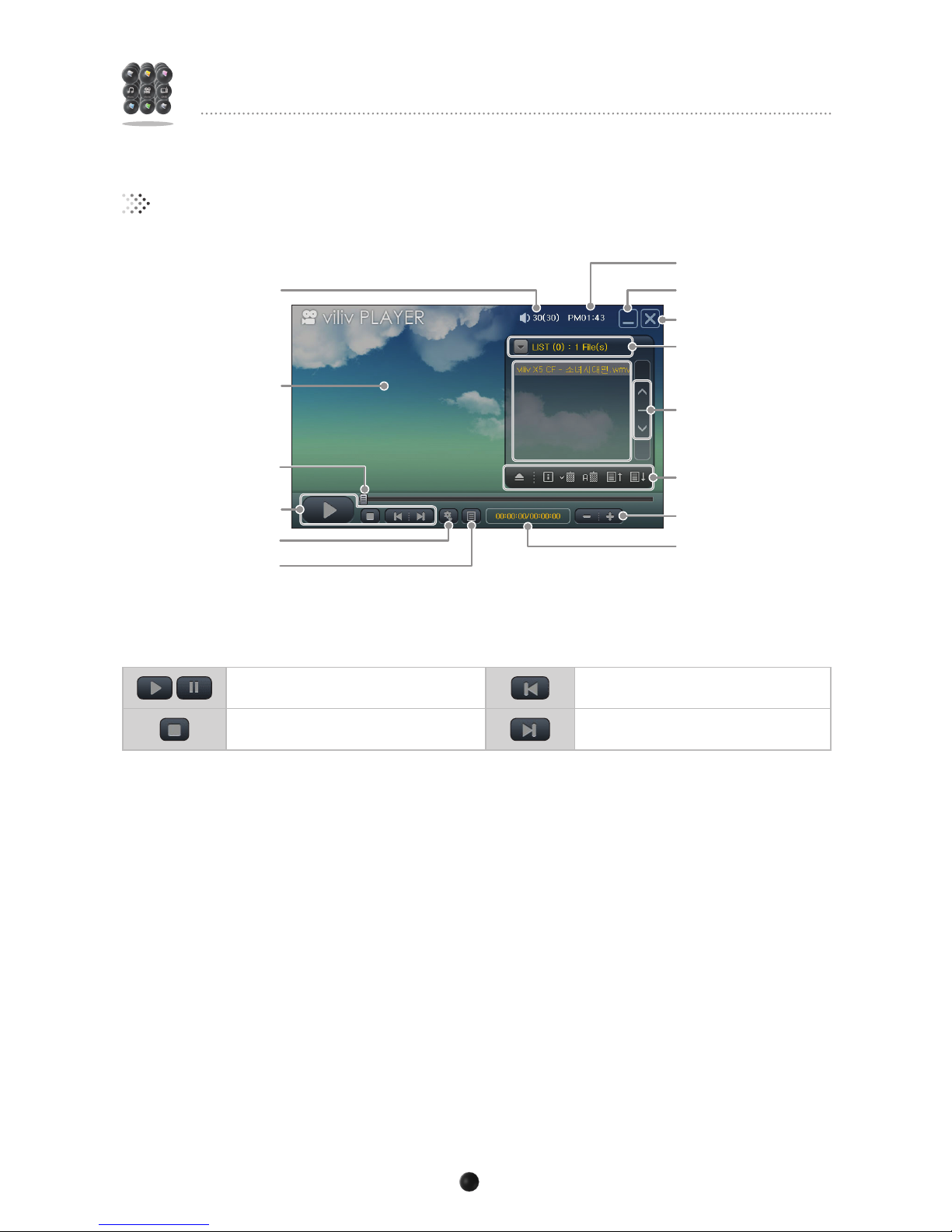
Play/Pause Previous File
Stop Next File
■Function Icon
Hide Window
Processing Time/Time
for Entire File
Current Time
Terminate
Volume
Play Screen
Playing Video
Video Screen
Time Bar
Set Environment
Show/Hide Play List
Function Icon
Play List
Move to File List Page
Volume Control
Select Play List
Autres manuels pour S5
2
Table des matières
Autres manuels Viliv Comprimé